Create task reminder
A task reminder is a type of CTMS alert that can be customized to generate an email intended for the notification of dedicated users about pending tasks in the application. These tasks are associated with the maintenance of monitoring visits, their approval, or completion of trip reports.
You can create a task reminder every time you want a system to automatically email CTMS users whenever some action occurs or expires at a specific sites and it requires their attention. Examples of such actions may include submitting a trip report or sending a follow-up letter for a monitoring visit.
Important
Before creating a task reminder, make sure that the appropriate email template has been set up. Even though you can configure reminder recipients and frequency, the email's subject and content are sourced directly from the predefined email template.
-
Access the study management page in one of the following ways:
-
In the CTMS application header, select the DASHBOARD tab and then select the study dashboard of your interest.
 Figure 1. Accessing study management from dashboard
-
In the CTMS application header, select the STUDY MANAGEMENT tab. Then from the Study Data List table, select the study name of your interest.
 Figure 2. Accessing study management from study data list
-
-
On the study page that opens, in the left pane, select Alerts > Task Reminder.
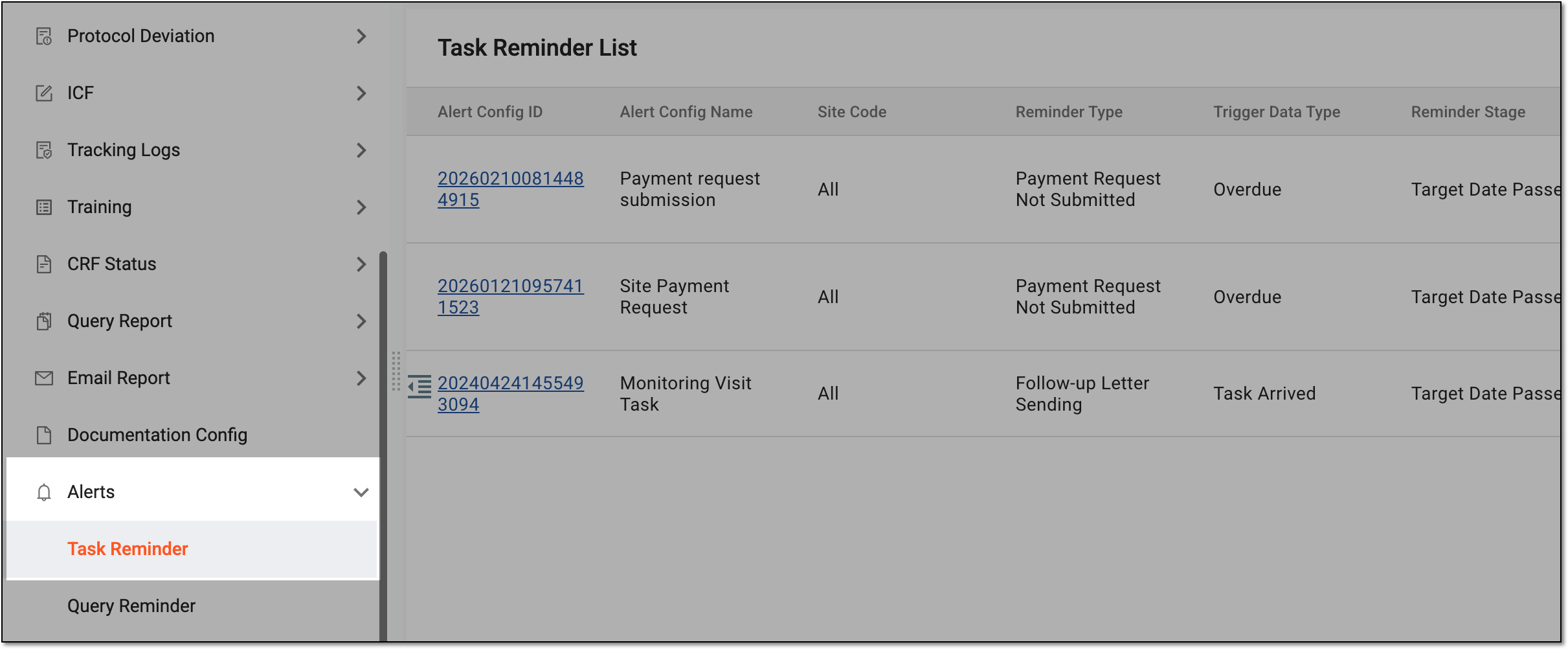 Figure 3. Accessing task reminders
-
From the workspace toolbar of the Task Reminder List table that appears, select New Item
 .
.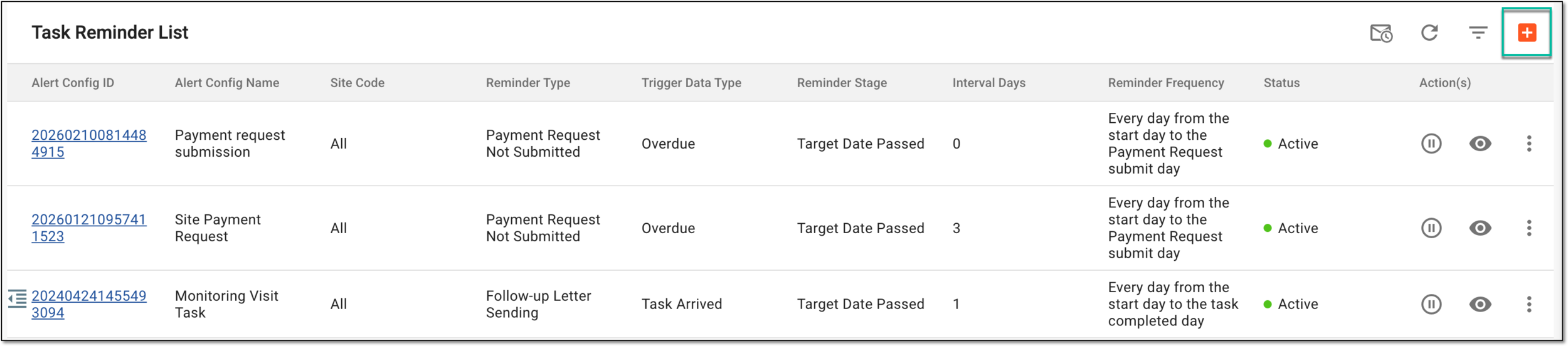 Figure 4. Selecting option to create task reminder
-
On the page that opens, provide task reminder details as explained in the following table.
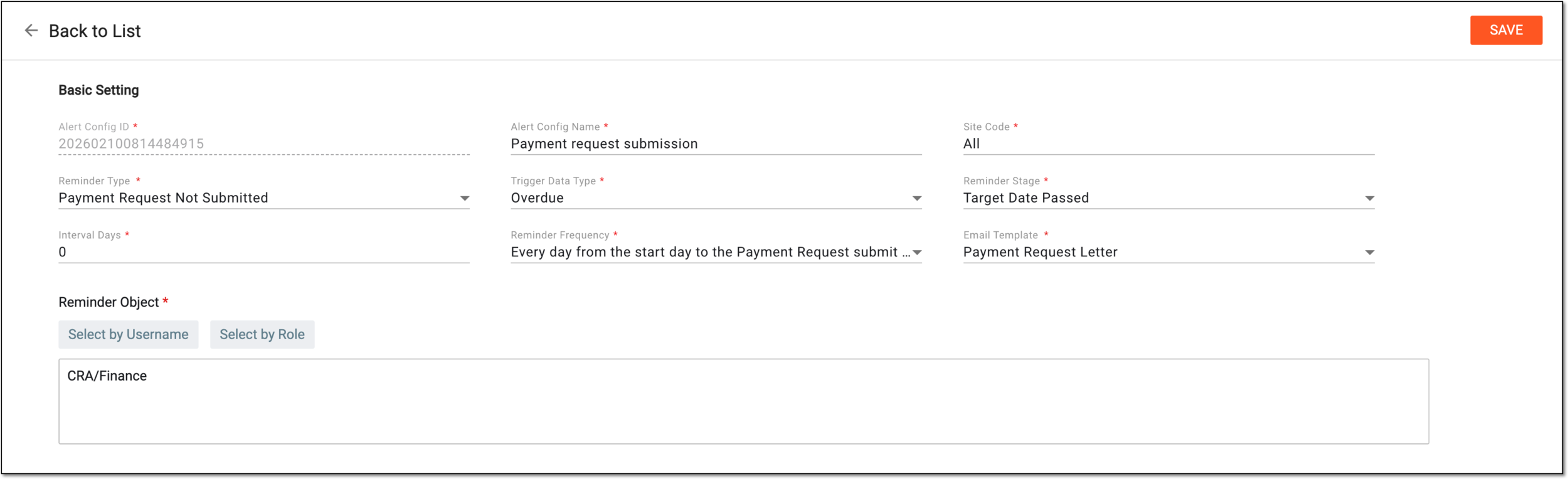 Figure 5. Creating task reminder
Tip
In the following table, mandatory elements are marked with an asterisk (*).
Element
Details
Alert Config ID
Represents a system-generated unique identifier for the task reminder you create and it cannot be changed.
Alert Config Name*
Enter a unique name for the task reminder you create.
Site Code*
Select a site or sites to which the task reminder is to be related. The email reminder is sent only if specific actions occur at the selected study site(s).
Reminder Type*
Select one of the following options:
-
Monitoring Visit Approval: to remind about the task to approve a monitoring visit.
-
Trip Report Submission: to remind about the task to complete a trip report for a specific monitoring visit.
-
Trip Report Approval: to remind about the task to approve a trip report for a specific monitoring visit.
-
Follow-up Letter Sending: to remind about the task to send a follow-up letter for a specific monitoring visit.
-
Action Item Execution: to remind about the task to complete action items.
-
Trip Report Finalized Overdue: to remind about the task to audit a trip report to instate its final status.
-
Payment Request Not Submitted: to remind about the task to submit the payment request.
-
Confirmation Letter Sending: to remind about the task to send the confirmation letter for a monitoring visit.
Trigger Data Type*
Select the Task Arrived or Overdue option depending on whether you want the reminder to be sent upon the task creation or when it passes the due date, respectively.
Reminder Stage*
Select the Before Target Date or Target Date Passed option depending on whether you want the reminder to be sent before or after the task due date.
Interval Days*
Enter the number of days defining the frequency of task reminders.
Reminder Frequency*
Select the Start Date or Every day from the start day to the task completed day option depending on whether you want the reminder to be sent only once or multiple times with the interval indicated previously till the task is completed.
Email Template*
Select the email template that is to be the source of the email subject and content for the task reminder. The variety of templates depends on their availability and selected reminder type.
Reminder Object*
Select one of the following types who are to become recipients of task reminders:
-
 : to assign users individually as recipients of task reminders.
 -
 : to assign user roles as recipients of task reminders.
 -
 : to assign users who are members of staff but not users of the system as recipients of task reminders.
This option only appears when action item execution is selected as a reminder type.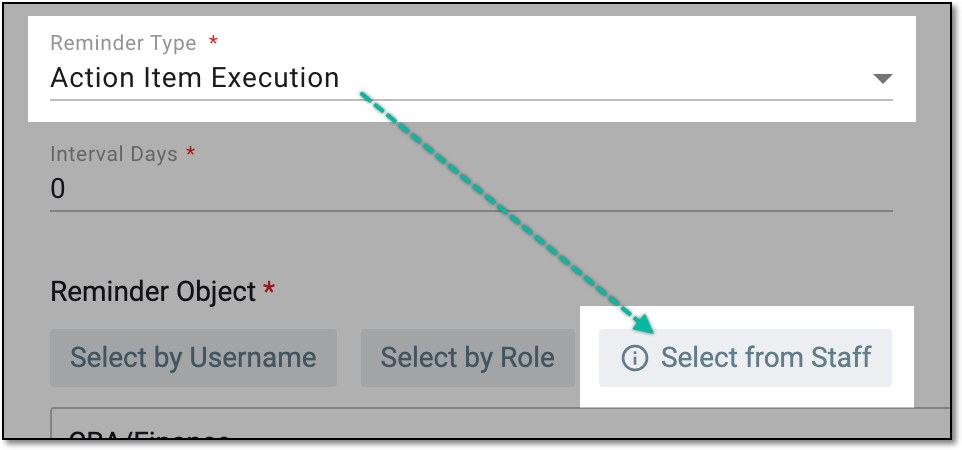 Figure 6. Option to select assignee from staff
SAVE
Select
 to create a task reminder.
 -
Once saved, a task reminder is created. Indicated recipients start receiving task reminders via email upon the occurrence of the set trigger events.