Submit payment request
A payment request can be interpreted as an inquiry to perform financial compensation for a service. In a clinical trial, payment requests are created to maintain financial operations between the sponsor and vendors and other involved parties, such as sites, labs, and research facilities.
In CTMS, once you create a new payment request, it remains in the draft state until submitted. To submit the payment request is to establish that all the details are finalized and the request is ready for review and approval.
-
Access the study management page in one of the following ways:
-
In the CTMS application header, select the DASHBOARD tab and then select the study dashboard of your interest.
 Figure 1. Accessing study management from dashboard
-
In the CTMS application header, select the STUDY MANAGEMENT tab. Then from the Study Data List table, select the study name of your interest.
 Figure 2. Accessing study management from study data list
-
-
On the page that opens, from the left pane, expand Financial Management > Payment Request.
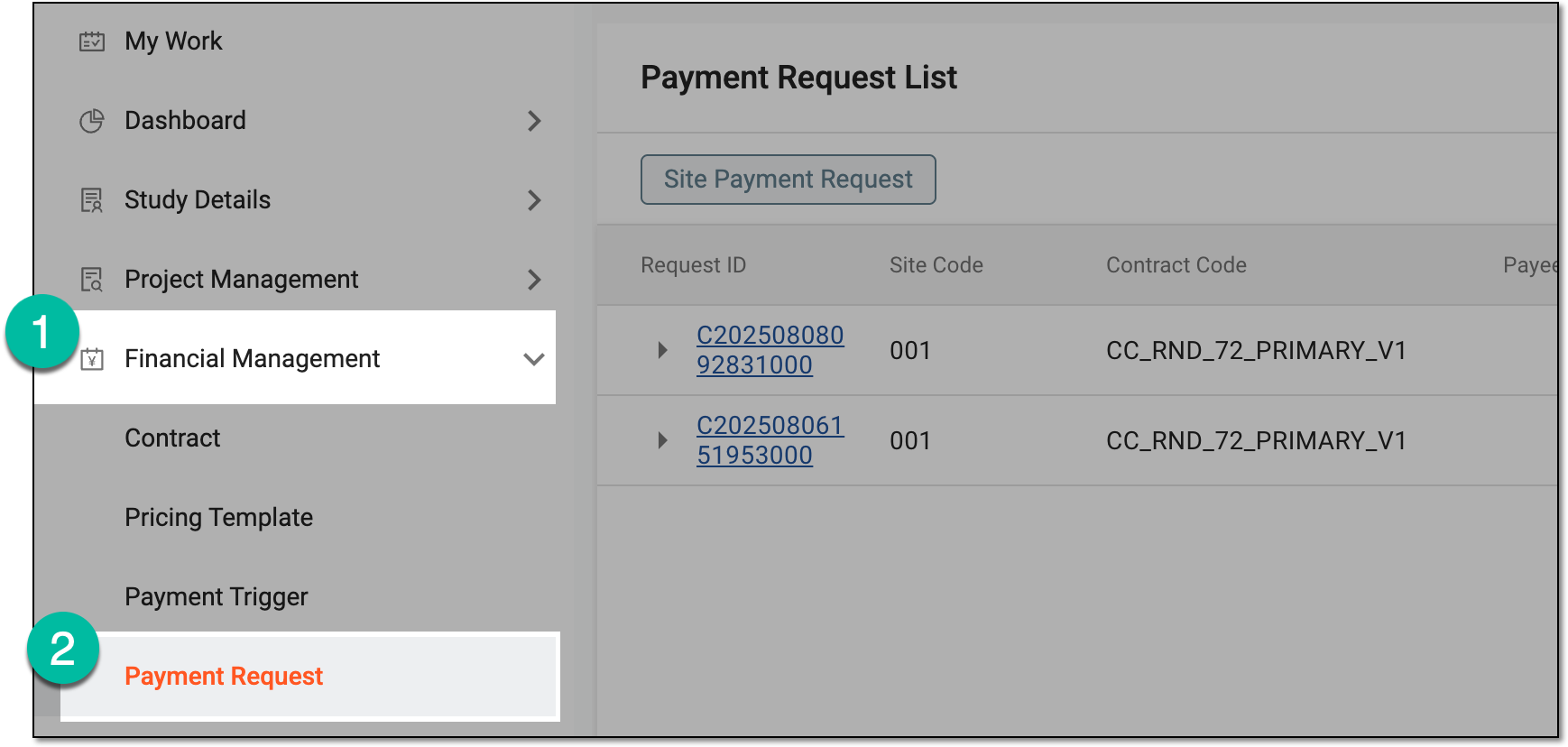 Figure 3. Accessing payment request list
-
In the list that opens, locate the payment request in the Draft status that is ready for submission. Then select the request ID to access its details.
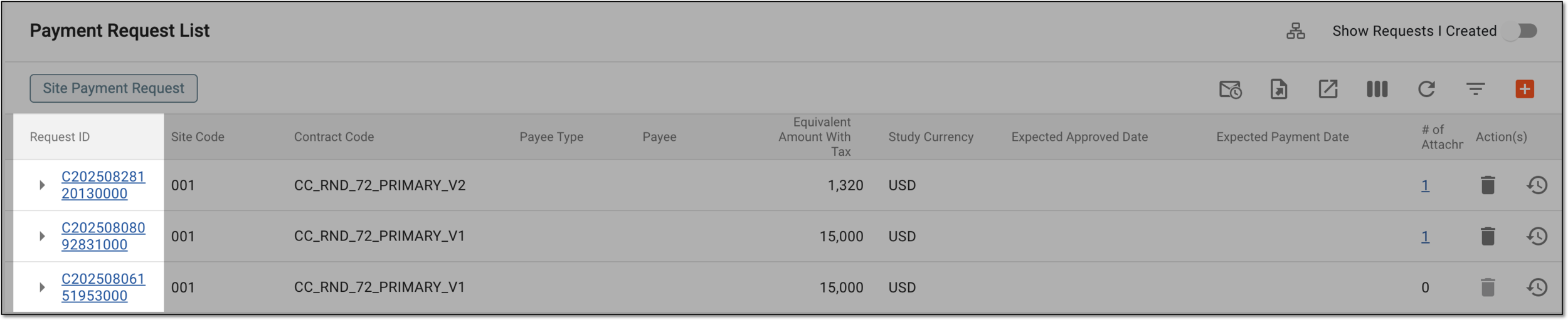 Figure 4. Accessing payment request details
-
On the request details page that opens, from the workspace toolbar, select
 .
.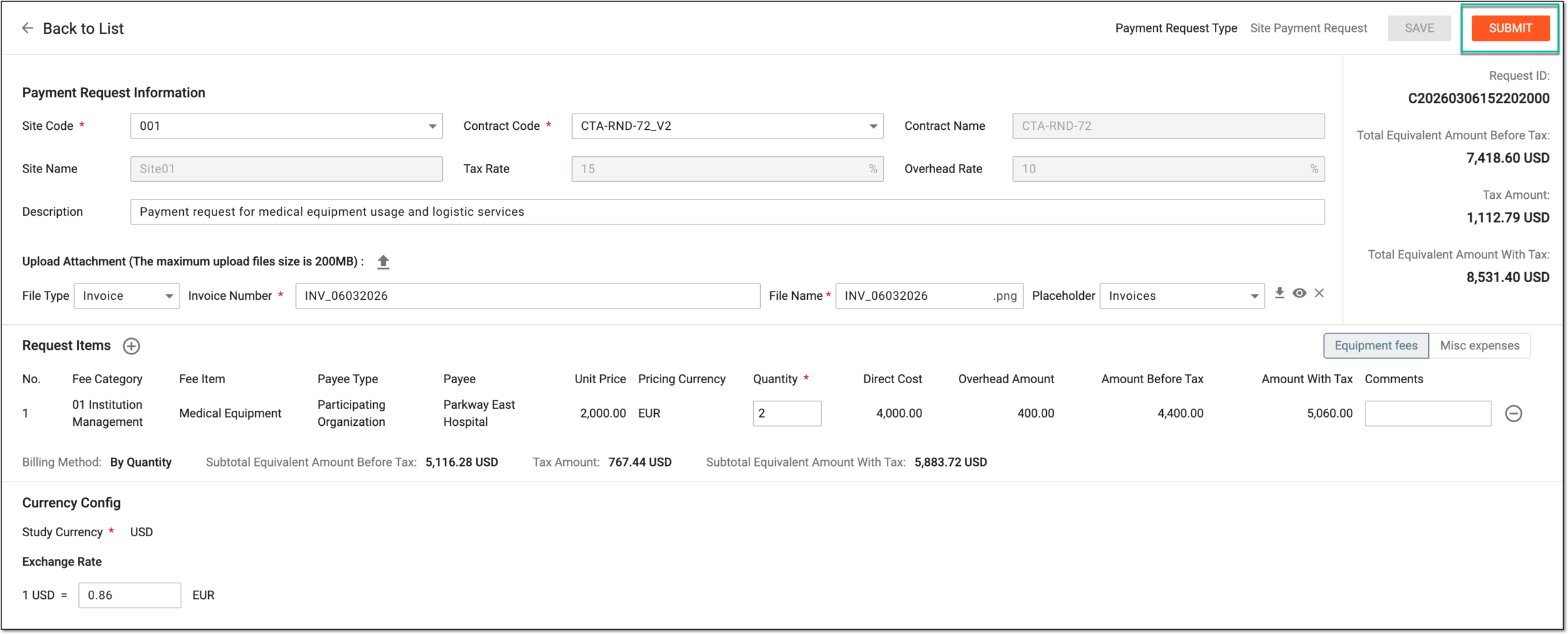 Figure 5. Submitting payment request
-
In the dialog that opens, complete the submission details as explained in the following table.
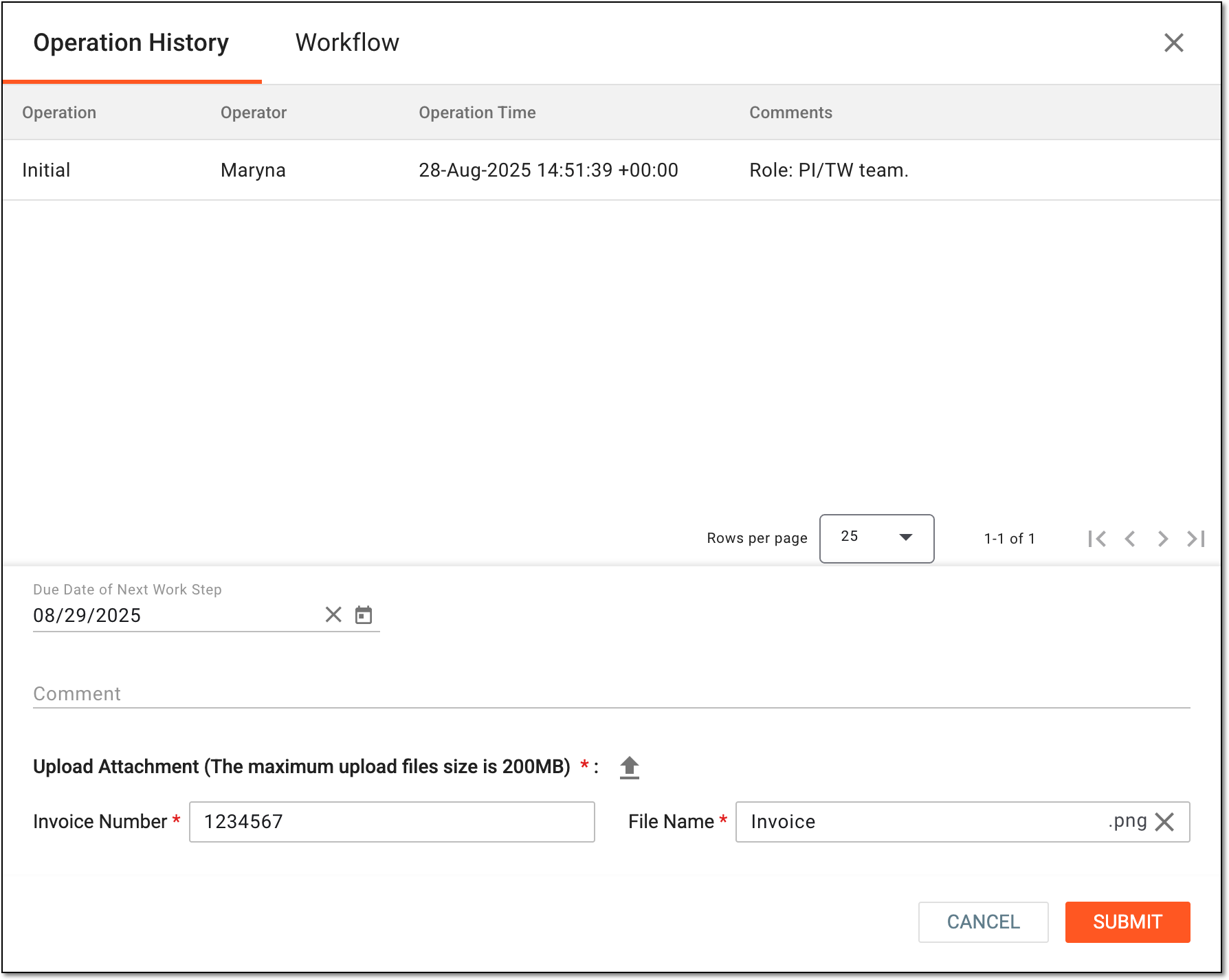 Figure 6. Specifying submission details
Tip
In the following table, mandatory elements are marked with an asterisk (*).
Element
Details
Operation History
The tab that opens by default represents the complete log of operations performed to the payment request from its creation and up-to-date.
Workflow
Switch to this tab to see the workflow according to which the payment request audit is performed.
For the draft payment request, the workflow details are missing. These details appear once the request is submitted and becomes entitled for auditing.Due Date of Next Work Step
Select the date before which the next auditing action—payment request approval—must be performed before considered overdue.
Comment
Enter auxiliary details to to support your approval.
Upload Attachment (Maximum upload file size is 200MB)
Select
 to attach a file to the request, such as the invoice according to which the payment is being requested. Repeat this action to upload as many files as
needed.
to attach a file to the request, such as the invoice according to which the payment is being requested. Repeat this action to upload as many files as
needed.The field is only available if the invoice is not uploaded upon payment request creation.File Type
Represents the type of the uploaded file, such as Invoice.
The field is only available if the invoice is not uploaded upon payment request creation.Invoice Number*
Enter the unique identifier of the attached invoice.
The field is only available if the invoice is not uploaded upon payment request creation.File Name*
Represents the name of the uploaded file that you can customize if needed.
The field is only available if the invoice is not uploaded upon payment request creation.SUBMIT
Select
to confirm your action.CANCEL
Select
 to discard the changes without saving and close the dialog.
Once submitted, the payment request is ready to be audited by the dedicated personnel.