Create/Update draft payment request
A payment request can be interpreted as an inquiry to perform financial compensation for a service. In a clinical trial, payment requests are created to maintain financial operations between the sponsor and vendors and other involved parties, such as sites, labs, and research facilities.
In CTMS, you can manually create a new payment request each time you need to reflect a certain financial operation according to the following billing types: by invoice or by quantity. The draft payment request can be updated as required until submitted.
-
Access the study management page in one of the following ways:
-
In the CTMS application header, select the DASHBOARD tab and then select the study dashboard of your interest.
 Figure 1. Accessing study management from dashboard
-
In the CTMS application header, select the STUDY MANAGEMENT tab. Then from the Study Data List table, select the study name of your interest.
 Figure 2. Accessing study management from study data list
-
-
On the page that opens, from the left pane, expand Financial Management > Payment Request.
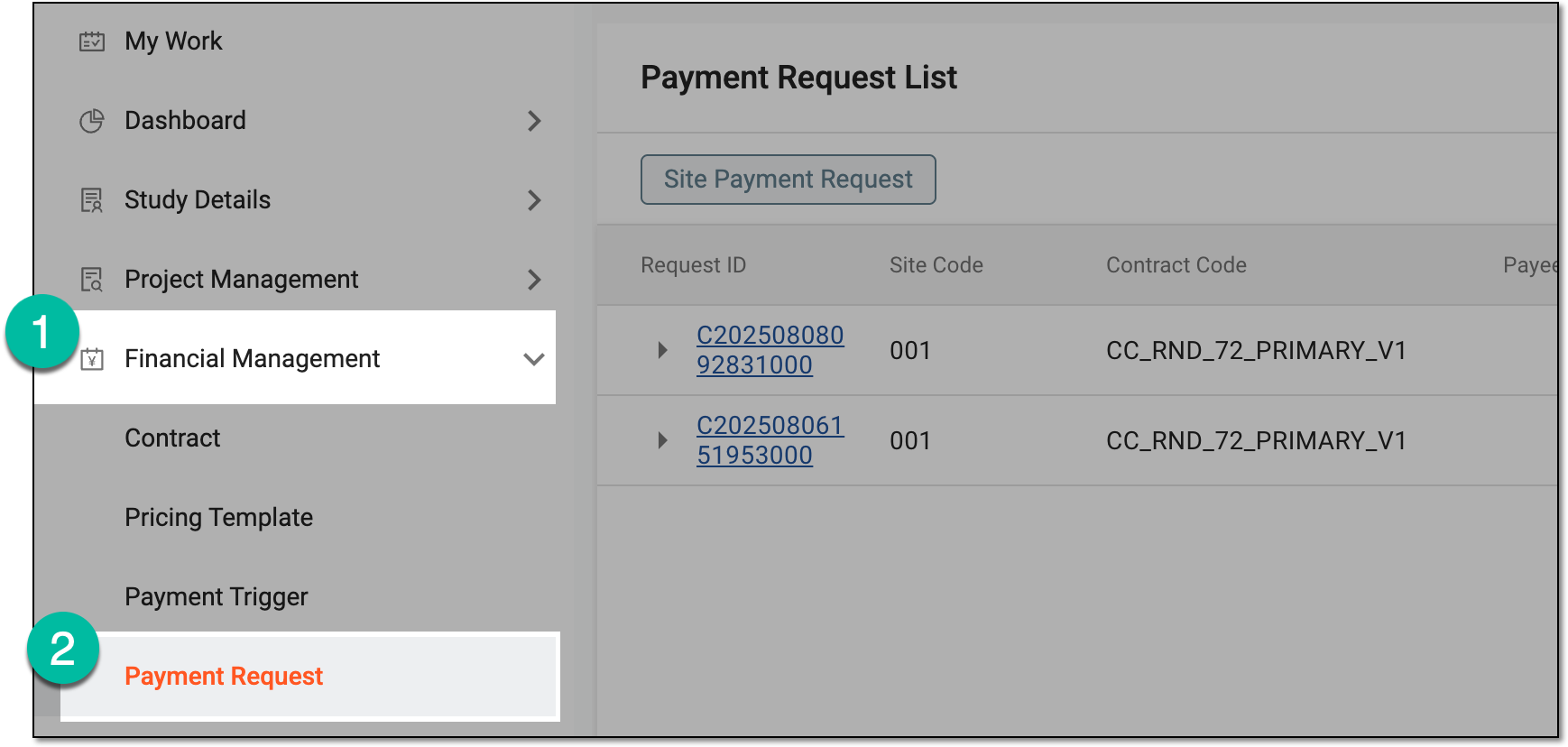 Figure 3. Accessing payment request list
-
On the Payment Request List page that opens, do the following:
-
To create a new payment request, from the workspace toolbar, select New Item
 .
. Figure 4. Selecting option to create new payment request
-
To update an existing payment request, select the request ID.
 Figure 5. Selecting request ID
-
-
On the page that opens, in the Payment Request Information block, complete the details as explained in the following table.
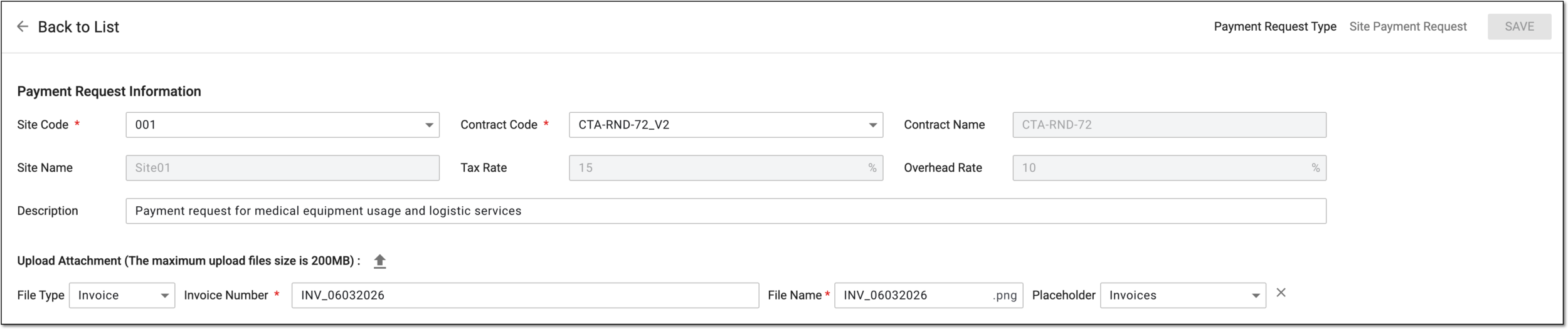 Figure 6. Completing payment request information
Tip
In the following table, mandatory elements are marked with an asterisk (*).
Element
Details
Site Code*
Select the unique identifier of the site that is the beneficiary of the payment according to the request.
Contract Code*
Select the unique identifier of the contract agreement with the site according to which you want to request payment for the performed services.
The red exclamation mark symbol next to the contract code appears if the
selected contract version is no longer valid. Consider selecting another contract version or upgrade the contract version to fix the issue.
next to the contract code appears if the
selected contract version is no longer valid. Consider selecting another contract version or upgrade the contract version to fix the issue.Upgrade Version
Select
 to autopopulate the latest valid contract version.
 Figure 7. Upgrading contract version in payment request
This option is only available if the currently selected contract version has expired due to the existence of a newer contract version.Contract Name
Represents the name of the contract agreement with the site according to which you request payment for the performed services.
The value is autopopulated by the system according to the selected contract code and cannot be manually
                                  changed.
Site Name
Represents the name of the site to be the beneficiary of the payment according to the request.
The value is autopopulated by the system according to the selected site code and cannot be manually
                                  changed.
Tax Rate
Represents the tax rate in percentage (%) configured for the selected contract. The tax rate is to be calculated and added to your payment request amount automatically.
The value is autopopulated by the system according to the selected contract code and cannot be manually
                                  changed.
Overhead Rate
Represents the overhead rate in percentage (%) configured for the selected site upon contract creation. The overhead rate is to be calculated and added to your payment request amount automatically.
The value is autopopulated by the system according to the selected contract code and site code and cannot be manually changed.Description
Enter auxiliary details to follow up on your payment request.
Upload Attachment (Maximum upload file size is 200MB)
Select
 to attach a file to the request, such as the invoice according to which the payment is being requested. Repeat this action to upload as many files as
needed.
to attach a file to the request, such as the invoice according to which the payment is being requested. Repeat this action to upload as many files as
needed.In a payment request, there can also be files attached that are autogenerated by the system according to the financial documentation configurations.File Type
Select the type of the uploaded document—Invoice for invoice copies or Other for any other auxiliary documents that need to be present in the payment request.
The field is only available and autopopulated by the system once the file is uploaded to the request.Invoice Number*
Enter the unique identifier of the attached invoice.
This field is only available for completion if the file type is Invoice.File Name*
Represents the name of the uploaded file that you can customize if needed.
The field is only available once the file is uploaded to the request.Placeholder
Select the file placeholder that further categorizes the document you are adding to the payment request—Financial Documentation, Financial Summary Tracker, Invoices, Payments, and Receipts. The selected placeholder determines the file categorization when populated to eTMF.

Select the cross symbol next to the file to remove the attachment from the request.
-
In the Request Items block, select New Item
 .
.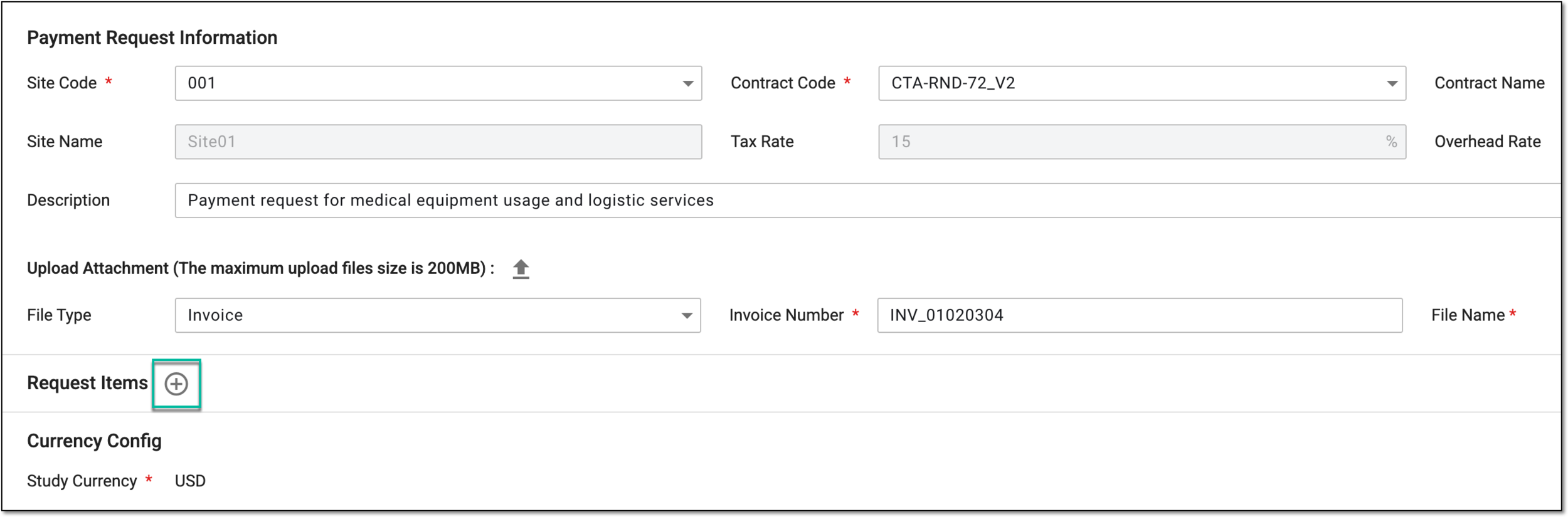 Figure 8. Selecting option to add items to payment request
-
In the Select Fee Items dialog that appears, add the payable items as follows:
-
Fee items by quantity: from the workspace toolbar, select the filter button that represents the quantity-based payments configured for your study in the pricing template used in the selected contract, for instance, "Equipment fees."
Tip
The naming of the filter button depends on the pricing type name given to the By Quantity billing method.
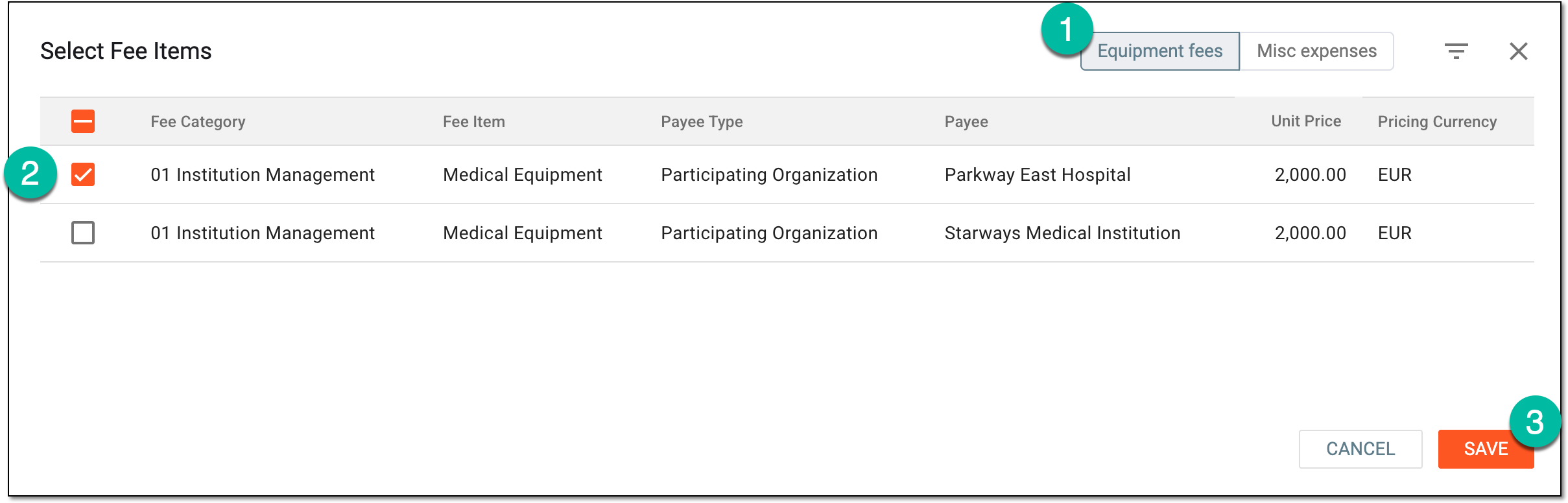 Figure 9. Selecting fee items by quantity
-
Fee items by invoice: from the workspace toolbar, select the filter button that represents the invoice-based payments configured for your study in the pricing template used in the selected contract, for instance, "Misc expenses."
Tip
The naming of the filter button depends on the pricing type name given to the By Invoice billing method.
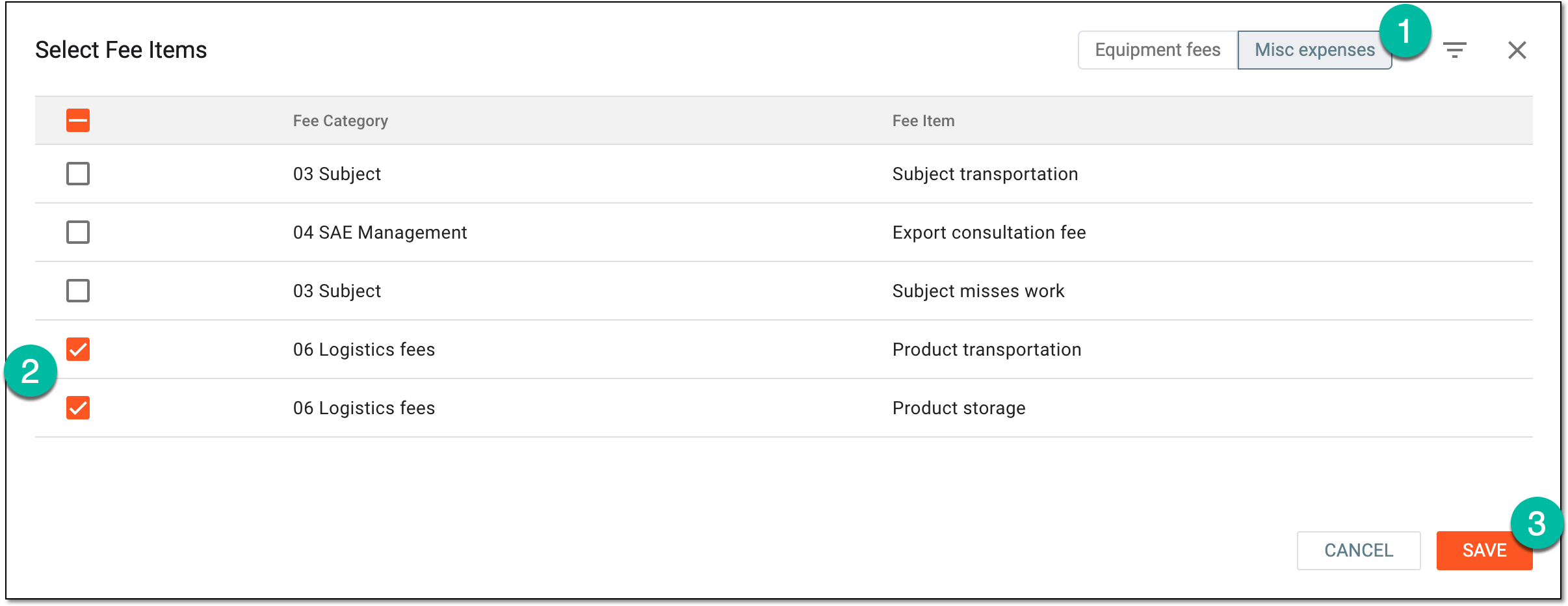 Figure 10. Selecting fee items by invoice
-
-
Select
 to add the chosen fee items to the payment request.
 -
For the added fee items, configure the details as follows.
In the Request Items block, select the filter button that represents the quantity-based payments (for instance, "Equipment fees") and complete the fee details as explained in the following table.
Tip
The red exclamation mark symbol
next to the filter button name indicates that there are required
fields to be completed. Figure 11. Completing fee details for payment by quantity
Element
Details
No.
Represents the sequential number of the fee item in the payment request.
Fee Category
Represents the category of payment to be made according to the request. This can be "Miscellaneous expenses" or else.
Fee Item
Represents the actual cost or service within the selected category of payments. This can be "Transportation fee," "Expenses compensation," or else.
Payee Type
Represents the type of the payment recipient, for instance, staff member or participating organization.
Payee
Represents the actual payment recipient, for instance, the role or name of the staff member or the name of the participating organization.
Unit Price
Represents the established by the contract price for a single unit of the costs or services.
For instance, if the payment is for the equipment rental, then the unit price is for one rented piece of equipment.
Pricing Currency
Represents the payment currency preconfigured in CTMS for the selected type of payment.
Quantity*
Enter the actual number of services or costs to be paid according to this request.
For instance, if the payment is for the equipment rental, then here, enter how many pieces of equipment were rented and must be compensated.
Direct Cost
Represents the actual amount of money in the pricing currency that has to be issued to the payee for a certain fee item. This amount is autocalculated by multiplying the unite price by the quantity.
Overhead Amount
Represents the amount of money in the pricing currency to be issued to the payee over the direct cost. This amount is autocalculated by the system out of the entered direct cost amount and based on the set overhead rate.
Amount Before Tax
Represents the actual amount of money in the pricing currency that has to be issued to the payee for their services. This amount is calculated by adding the direct cost amount to the overhead amount.
Amount With Tax
Represents the final amount to be paid per fee item. The amount is autocalculated by the system based on the specified amount before tax and the set tax rate of the contract according to which the payment is to be issued.
Comments
Enter any auxiliary details to provide the payment details.
Delete
Select
 next to the fee item to remove it from the payment request.
Billing Method
Indicates the By Quantity billing method of the selected fees.
Subtotal Equivalent Amount Before Tax
Represents the actual amount of money in the study currency that has to be issued to the payees for their services. This amount is an equivalent of all the amount before tax values summed up and calculated according to the set exchange rate.
Tax Amount
Represents the amount of money in the study currency to be paid as tax on the transaction being performed. This amount is calculated according to the set exchange rate.
Subtotal Equivalent Amount With Tax
Represents the final amount of money in the study currency that has to be paid for all the fee items. This amount is an equivalent of all the amount with tax values summed up and calculated according to the set exchange rate.
In the Request Items block, select the filter button that represents the invoice-based payments (for instance, "Misc expenses") and complete the details as explained in the following table.
Tip
The red exclamation mark symbol
next to the filter button name indicates that there are required
fields to be completed. Figure 12. Completing fee details for payment by invoice
Element
Details
No.
Represents the sequential number of the fee item in the payment request.
Fee Category
Represents the category of payment to be made according to the request. This can be "Miscellaneous expenses" or else.
Fee Item
Represents the actual cost or service within the selected category of payments. This can be "Transportation fee," "Expenses compensation," or else.
Payee Type
Select the type of the payment recipient, for instance, staff member, lab, or participating organization.
Payee
Select the actual payment recipient, for instance, the role or name of the staff member or the name of the participating organization.
Pricing Currency
Represents the payment currency preconfigured in CTMS for the selected type of payment.
Direct Cost*
Enter the amount (up to twelve digits) that has to be issued to the payee for a certain fee item—provided service or else.
Overhead Amount
Represents the amount of money to be issued to the payee over the direct cost. This amount is autocalculated by the system out of the entered direct cost amount and based on the set overhead rate.
Amount Before Tax*
Represents the actual amount of money in the pricing currency that has to be issued to the payee for their service. This amount is autocalculated by the system by adding the direct cost amount and overhead amount.
Tax
Represents the amount of tax for the payment in the pricing currency. This amount is autocalculated by the system out of the entered amount before tax and based on the set tax rate.
Amount With Tax*
Represents the final amount in the pricing currency to be paid per fee item that equals the specified amount before tax plus the tax amount.
Comments
Enter any auxiliary details for the payment.
Delete
Select
next to the fee item to remove it from the payment request.Billing Method
Indicates the By Invoice billing method of the selected fees.
Subtotal Equivalent Amount Before Tax
Represents the actual amount of money in the study currency that has to be issued to the payees for their services. This amount is an equivalent of all the amount before tax values summed up and calculated according to the set exchange rate.
Tax Amount
Represents the amount of money in the study currency to be paid as tax on the transaction being performed. This amount is an equivalent of the tax amount calculated according to the set exchange rate.
Subtotal Equivalent Amount With Tax
Represents the final amount of money in the study currency that has to be paid for all the fee items. This amount is an equivalent of all the amount with tax values summed up and calculated according to the set exchange rate.
-
In the Currency Config block, add the value of the exchange rate between the study currency and payment request currency if they differ.
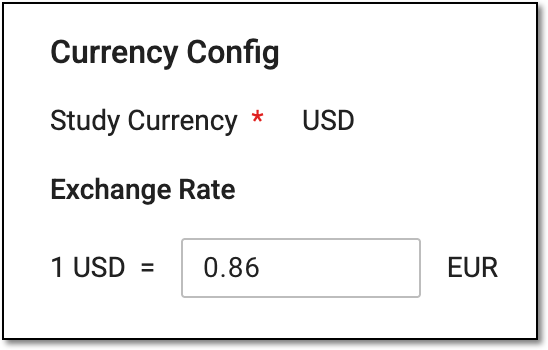 Figure 13. Specifying exchange rate for payment request
Tip
The exchange rate entry is unnecessary if the study and request currency is the same.
-
Select
to implement the changes.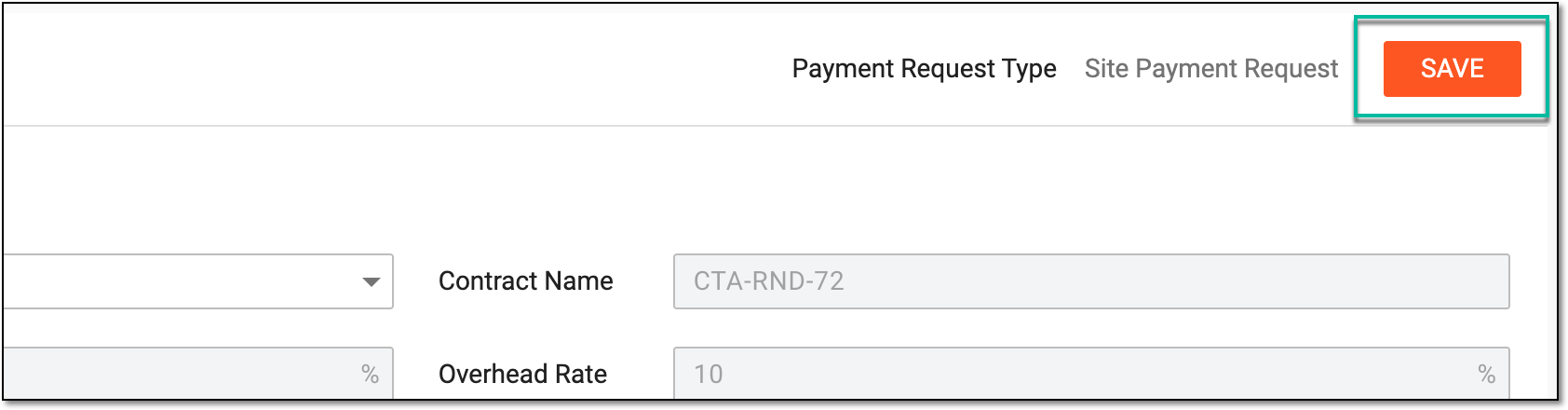 Figure 14. Saving draft payment request
Your payment request is now saved with the Draft status. The unique payment request ID and payment amount summary block appears.
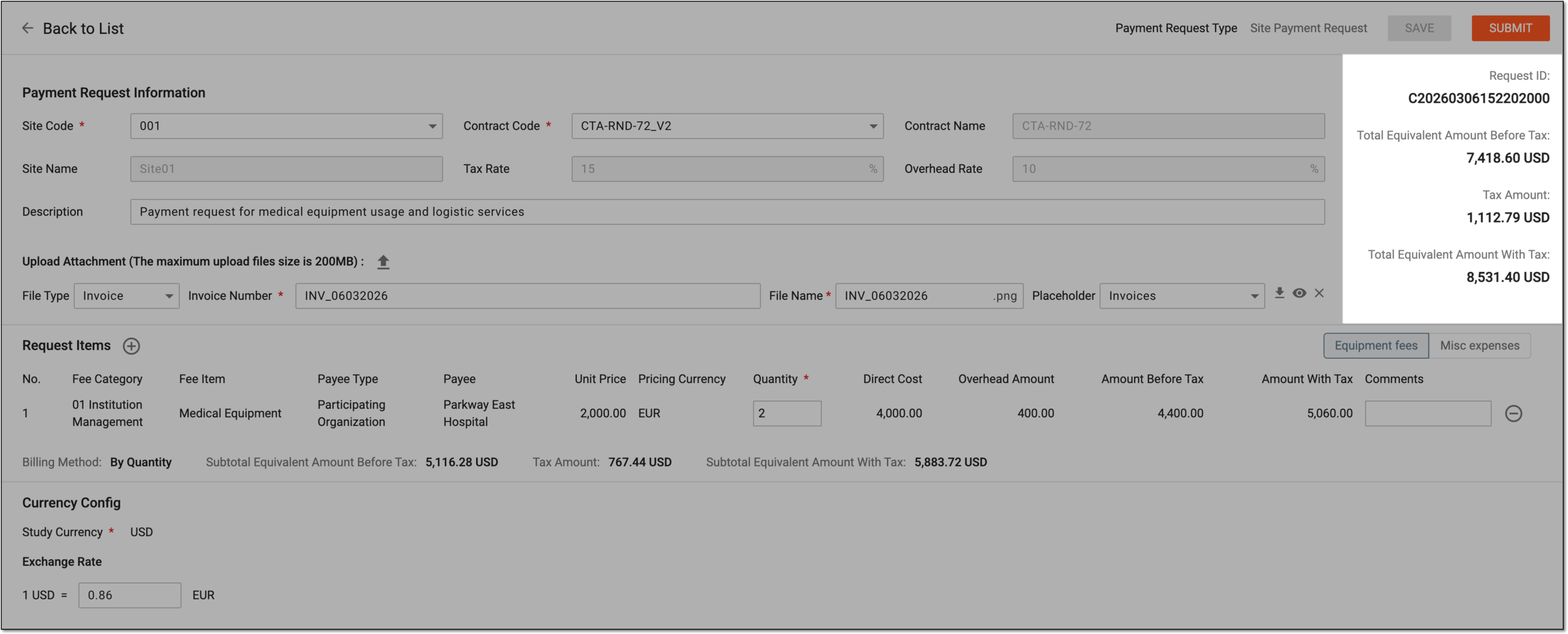
You can repeat the above procedure to update the draft request as needed until finialized. Once ready, you can proceed to submit the payment request.