Create contract
A contract is an agreement between the sponsor and the vendor for certain services to be financially compensated on the established terms.
In CTMS, you can create contracts with counterparties, reflecting different business scenarios and enabling financial operations, such as payment request management, to be performed within the system.
Important
Before creating a contract, make sure to add a pricing template for it first.
-
Access the study management page in one of the following ways:
-
In the CTMS application header, select the DASHBOARD tab and then select the study dashboard of your interest.
 Figure 1. Accessing study management from dashboard
-
In the CTMS application header, select the STUDY MANAGEMENT tab. Then from the Study Data List table, select the study name of your interest.
 Figure 2. Accessing study management from study data list
-
-
On the page that opens, in the left pane, select Financial Management > Contract.
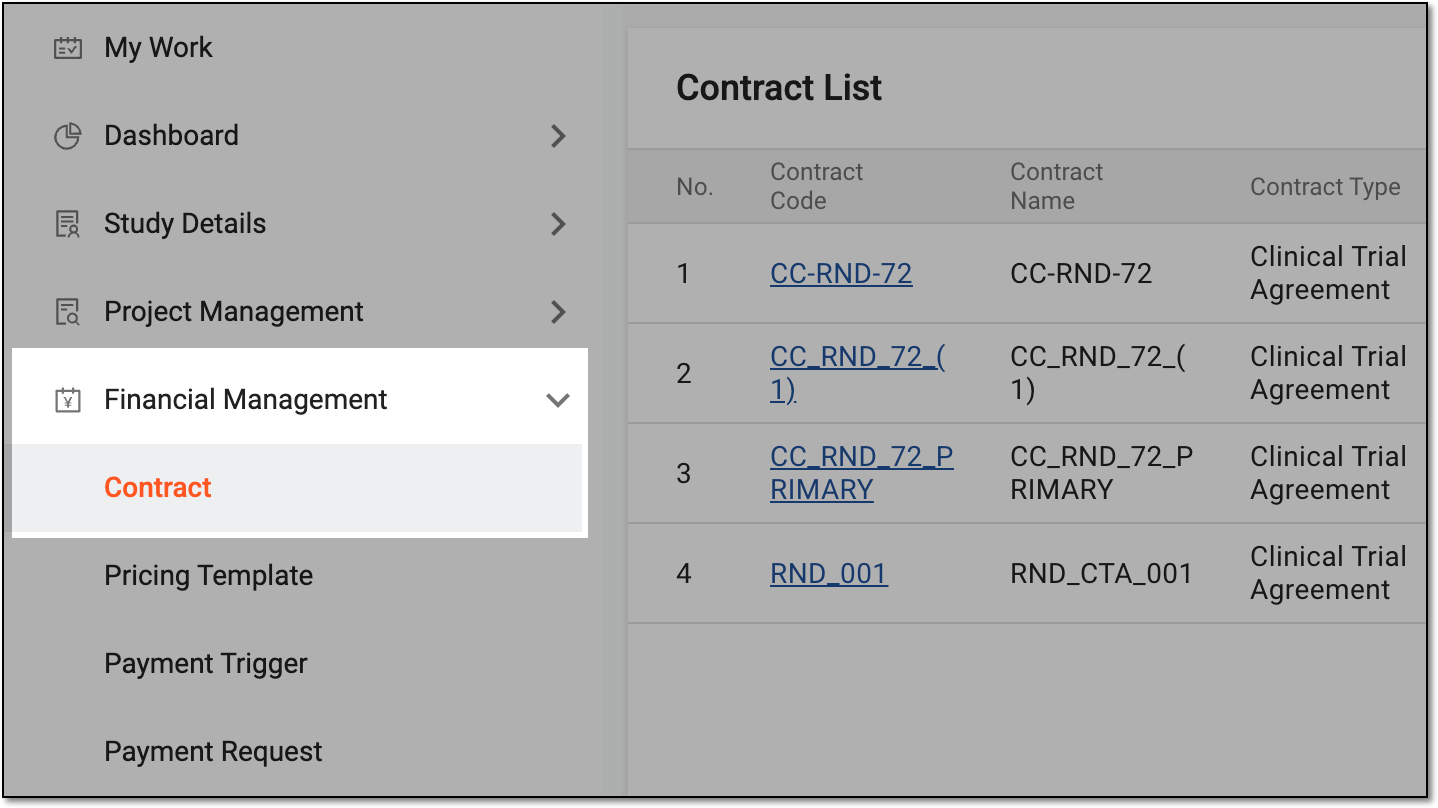 Figure 3. Accessing contract list
-
From the workspace toolbar of the Contract List table, select New Item
 . Then select
Clinical Trial Agreement.
. Then select
Clinical Trial Agreement. Figure 4. Selecting option to create new contract
-
In the form that opens, complete the contract details as explained in the following table.
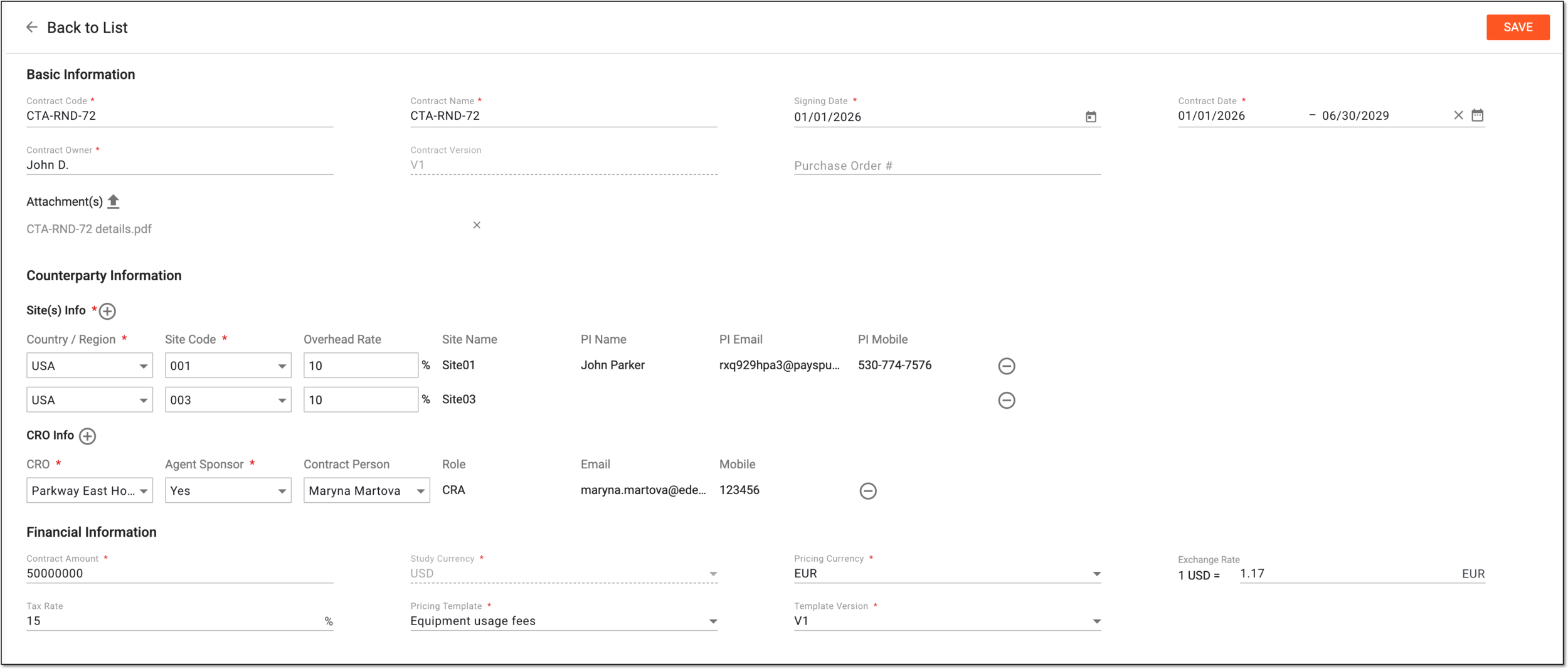 Figure 5. Completing contract details
Tip
In the following table, mandatory elements are marked with an asterisk (*).
Element
Details
Basic Information
Contract Code*
Enter the unique identifier to distinguish your contract in CTMS and EDC systems when performing financial operations.
Contract Name*
Enter the legal name of the contract.
Signing Date*
Select the date when the counterparties signed the contract.
Contract Date*
Select the start and end dates of the contract effectiveness.
Contract Owner*
Enter the name of the legal contract owner.
Contract Version
Represents the version of the contract. Upon first creation, the V1 version is assigned.
Attachment(s)

Select the upload symbol to attach a file relevant for the contract. You can attach as many files as needed.
Delete
Select
 next to the attachment to remove it from the contract.
Counterparty Information
Site(s) Info*
Country / Region*
Select the country or region where the site with which the contract is entered is located.
Site Code*
Select the code of the site with which the contract is entered.
Overhead Rate
Enter the percentage that must be added to the direct price of each service at the site to compensate for some indirect costs, such as labor, machine hours, and so on. By setting an overhead rate for the site, you automatically include these expenses in all payments made to its recipients.
Site Name
Represents the name of the site with which the contract is entered.
This value is autopopulated from the site profile based on the selected site code.PI Name
Represents the name of the principal investigator (PI) at the site.
This value is autopopulated from the site profile based on the selected site code.PI Email
Represents the contact email of the PI at the site.
This value is autopopulated from the site profile based on the selected site code.PI Mobile
Represents the contact phone number of the PI at the site.
This value is autopopulated from the site profile based on the selected site code.CRO Info
CRO Institution*
Select the clinical research organization (CRO) name with which the contract is entered.
The institutions available for selection here are populated from the study institution
                                  list.
Agent Sponsor*
Specify if the CRO is an authorized agent of the sponsor with certain contractual or operational responsibilities (Yes) or not (No).
Contract Person
Select the name of the person who is a contractual representative of the CRO institution.
The names available for selection here are populated from the study staff list.Role
Represents the role of the contract person at the institution, such as CRA, PI, and so on.
The value is autopopulated with the contract person's details pulled from the study staff list.Email
Represents the contact email of the contract person.
The value is autopopulated with the contract person's details pulled from the study staff list.Mobile
Represents the contact phone number of the contract person.
The value is autopopulated with the contract person's details pulled from the study staff list.Add Content
Select
 in the Site(s) Info or
CRO Info blocks to add a new row and provide more site or institution contact details.
in the Site(s) Info or
CRO Info blocks to add a new row and provide more site or institution contact details.Remove
Select
 next to the rows of the Site(s) Info or CRO Info blocks to remove extra rows with site or
institution contact details.
next to the rows of the Site(s) Info or CRO Info blocks to remove extra rows with site or
institution contact details.You can remove sites upon configuration, however, once the contract is audited and obtains the Active status, you cannot remove sites from it.Financial Information
Contract Amount*
Enter the amount of money stipulated in the contract for all agreed services.
Study Currency*
Represents the currency of the financial operations of your study autopopulated from the study basic information in CTMS.
Pricing Currency*
Select the currency in which the payments must be made according to the contract.
Exchange Rate
Enter the exchange rate between the study currency and the pricing currency if you want to establish a set exchange rate for all the financial operations according to the contract. If left blank, you can specify the exchange rate when creating the payment requests.
This field is only available if the study currency is different from the pricing currency.Tax Rate %
Enter the tax rate, if applicable to the financial operations, according to the contract. You can enter up to five decimal places for the tax rate precision.
Pricing Template*
Select the pricing template preconfigured for your study to outline billing details of the contract.
The pricing templates available for selection here are those with the currency matching the selected pricing
                                  currency.
Template Version*
Select the version of the pricing template you want to associate with the contract.
SAVE
Select
 to implement the changes.
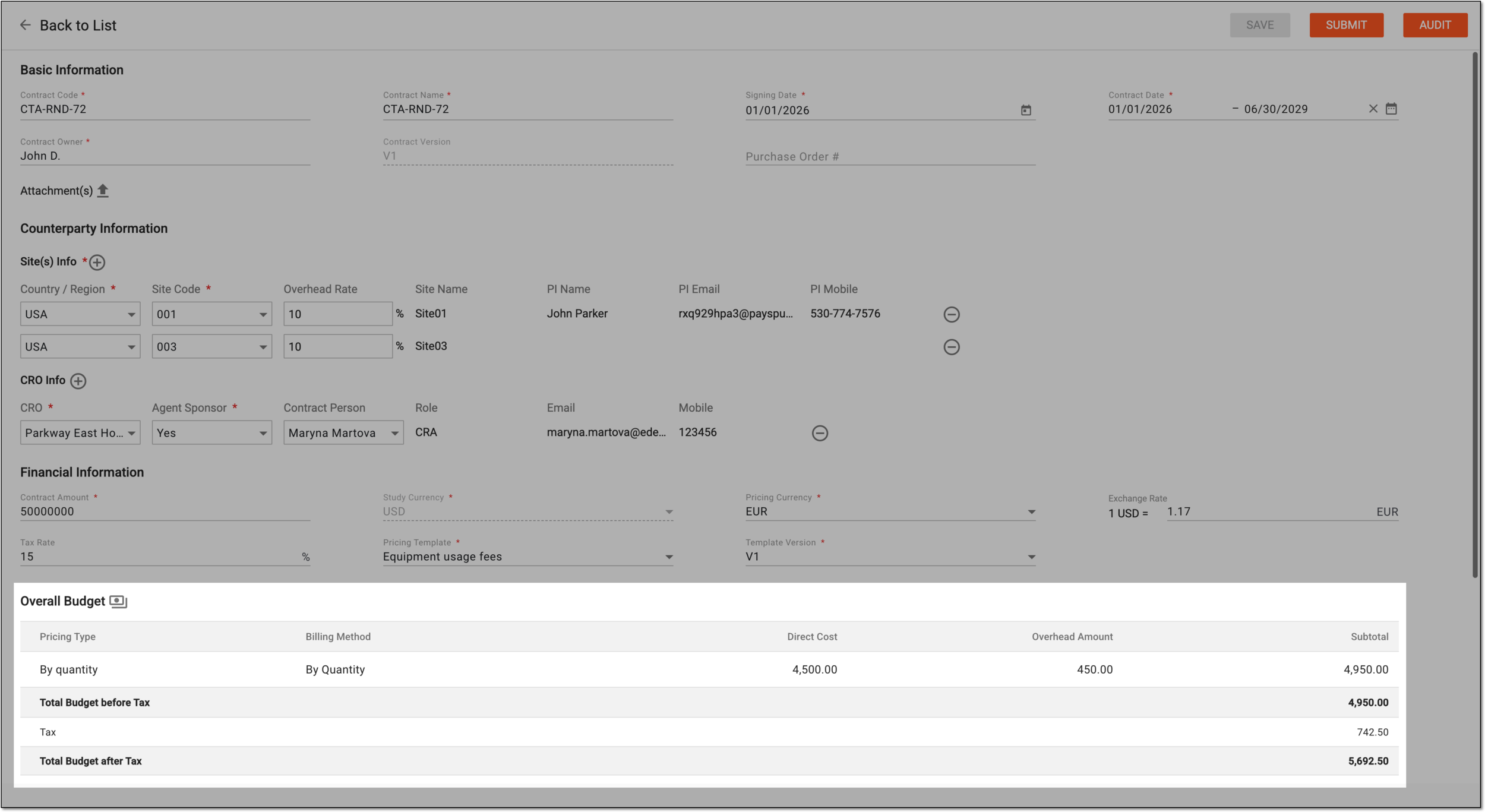
Once saved, the contract is created in the Draft status and you now need to submit the contract.
The Overall Budget block appears with billing details derived from the selected pricing template and the amounts specified in the contract. By selecting Fee Breakdown  , you can also see the details of various categories of services to be paid according to the contract.