Edit site profile
In the CTMS application, a list of sites that belong to a specific study can be viewed on a separate page. A site is a medical facility or a research center where the study is conducted. You can edit the site profile if some details need to be updated.
-
Access the study management page in one of the following ways:
-
In the CTMS application header, select the DASHBOARD tab and then select the study dashboard of your interest.
 Figure 1. Accessing study management from dashboard
-
In the CTMS application header, select the STUDY MANAGEMENT tab. Then from the Study Data List table, select the study name of your interest.
 Figure 2. Accessing study management from study data list
-
-
From the left pane of the study page that opens, select Study Details > Site List.
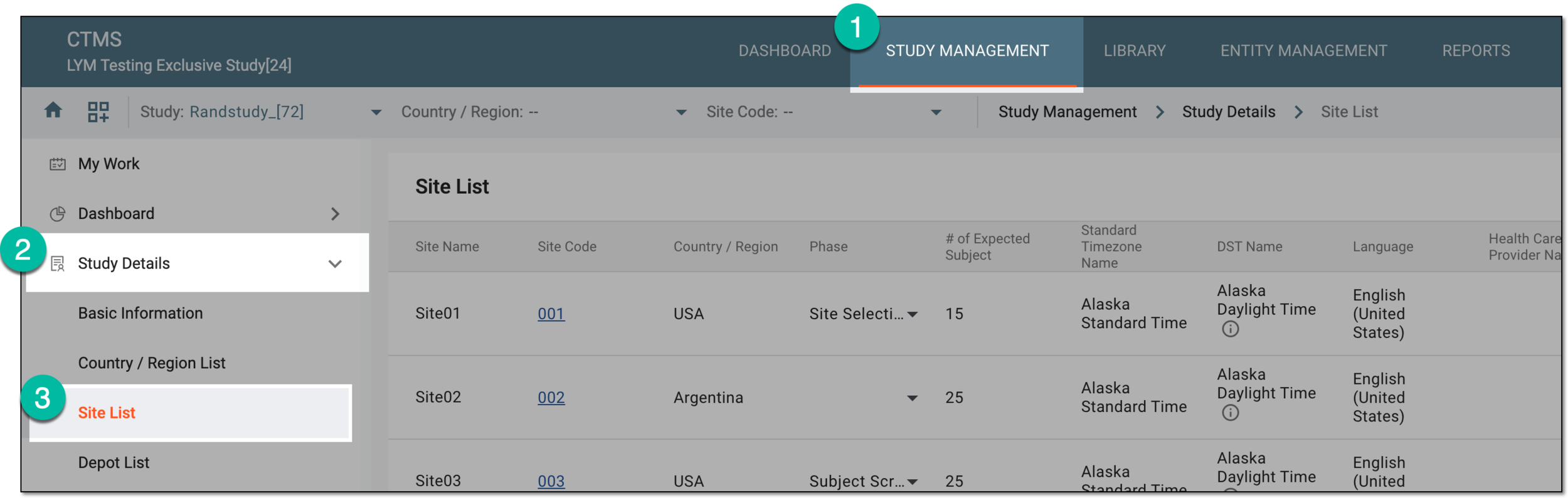 Figure 3. Accessing study sites
-
In the Site List table that appears, in the Site Name column, select the needed site or select Edit
 next to it.
 Figure 4. Accessing option to edit site profile
-
On the page that opens, two panes appear. The left pane groups sites by country or region, where you can expand or collapse sections and select a specific site. The middle pane displays the contents of the currently opened site.
In the Site Profile tab opened by default, from the top right corner, select Edit
.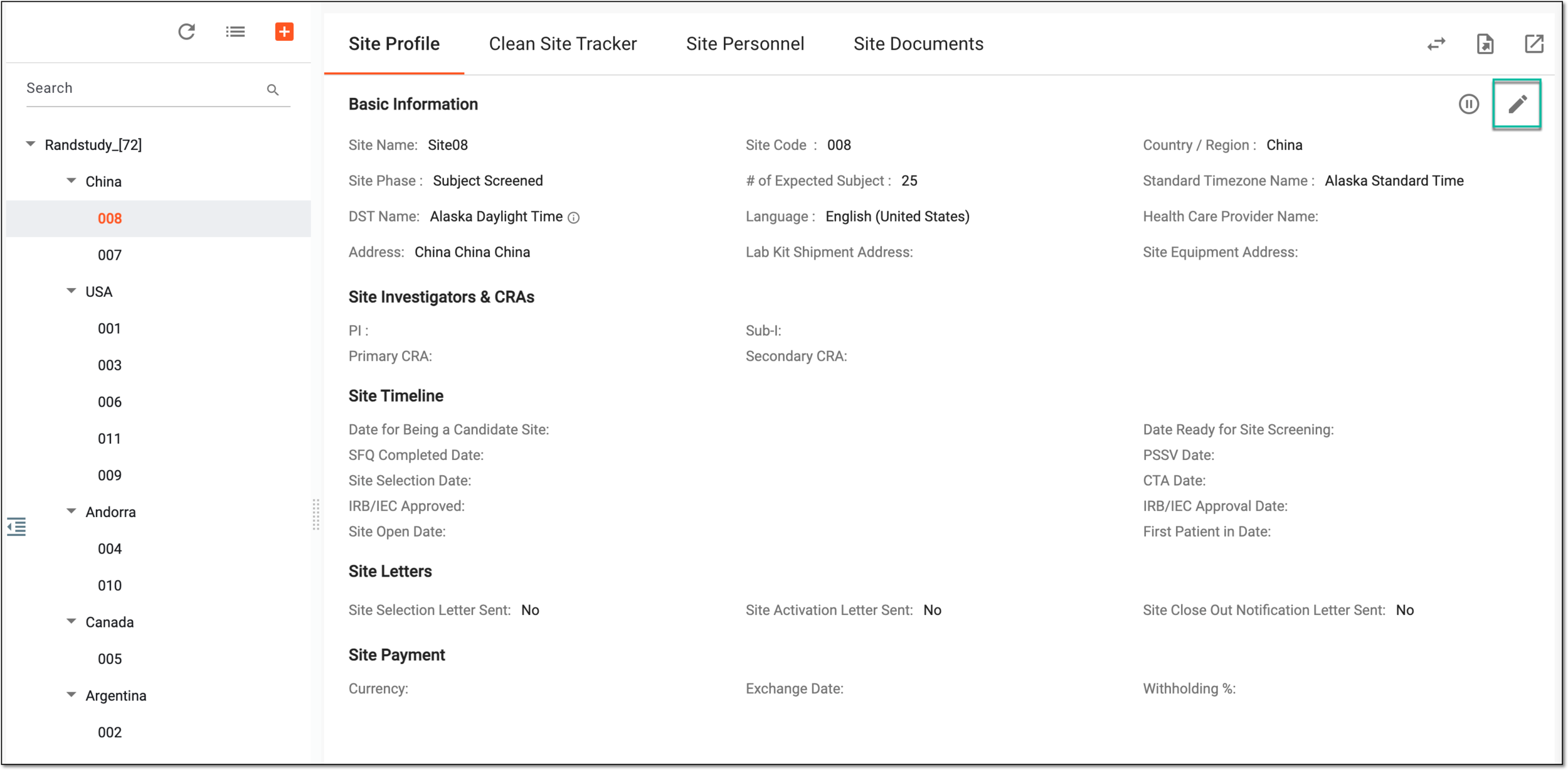 Figure 5. Selecting option to edit site profile
-
In the Site Profile form fields that now become editable, update the details as required. These fields are identical to the ones explained in the table of the Add site to study section.
Important
If the site that is soft-locked, signed, or hard-locked in EDC, you cannot edit its name, code, country or region, and standard time zone.
When editing site profile for a master study, the settings are automatically copied to the substudy.
When editing site profile for a substudy, only the site phase and expected number of subjects can be updated, all the rest of the fields are read-only and the values are inherited from the master study.
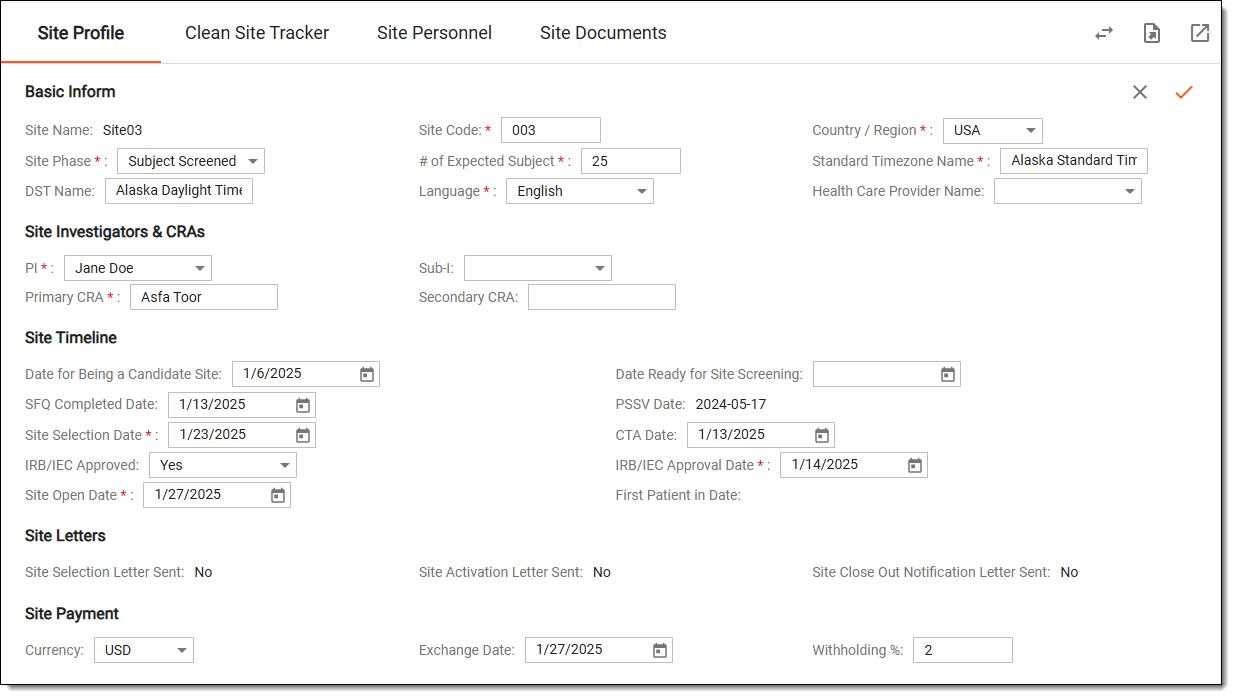 Figure 6. Editing site profile
-
From the top right corner of the page, select Save
 to preserve your changes.
Once saved, the site profile is updated.