Submit contract
A contract is an agreement between the sponsor and the vendor for certain services to be financially compensated on the established terms.
In CTMS, you can create contracts with counterparties, reflecting different business scenarios and enabling financial operations. Once the contract is first created, it remains in the draft state until all the details are finalized. Then you need to submit the contract to make it available for review and approval.
-
Access the study management page in one of the following ways:
-
In the CTMS application header, select the DASHBOARD tab and then select the study dashboard of your interest.
 Figure 1. Accessing study management from dashboard
-
In the CTMS application header, select the STUDY MANAGEMENT tab. Then from the Study Data List table, select the study name of your interest.
 Figure 2. Accessing study management from study data list
-
-
On the page that opens, in the left pane, select Financial Management > Contract.
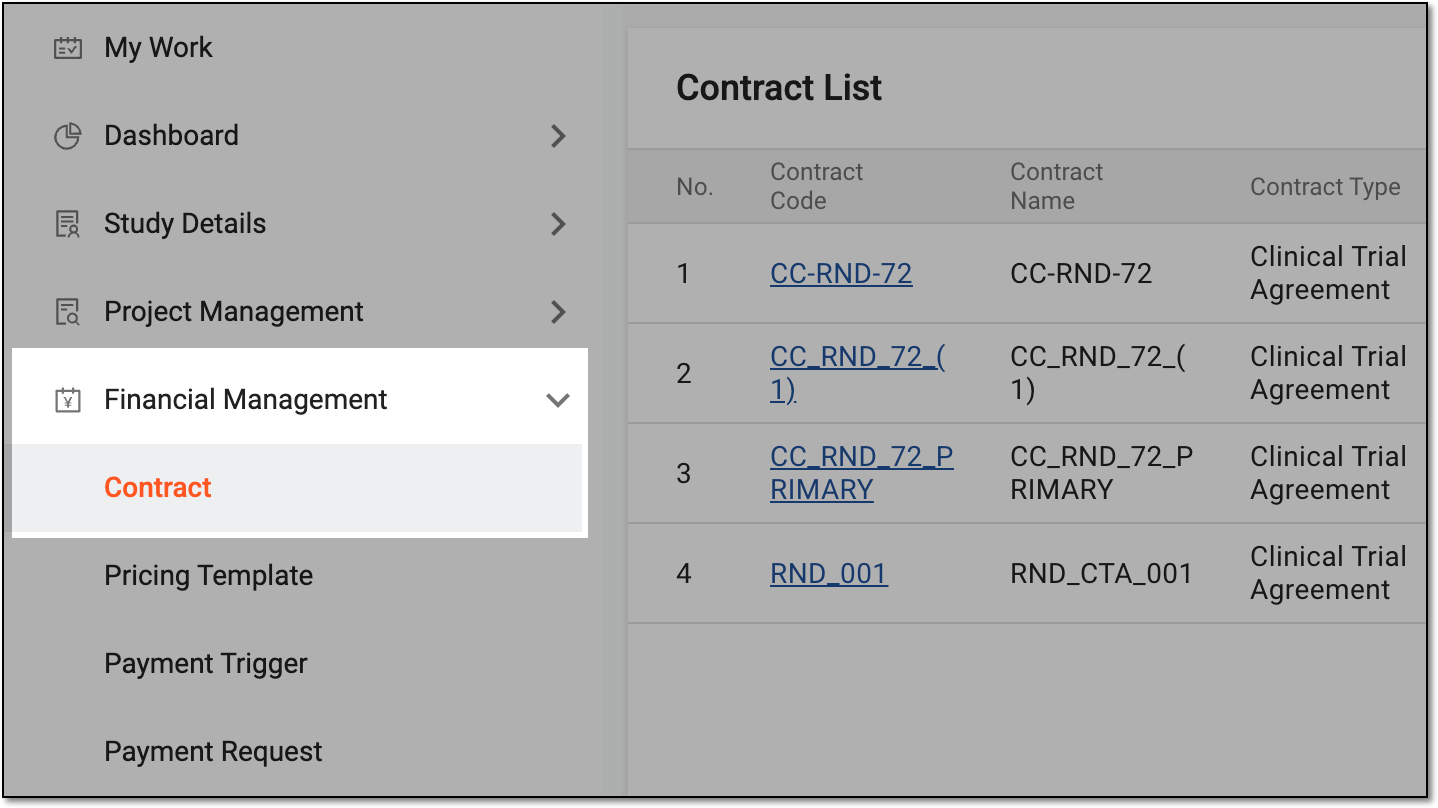 Figure 3. Accessing contract list
-
In Contract List that appears, locate the contract you want to submit. Then select the contract name or from the Action(s) column, select Edit
 .
.Tip
Both contract code and Edit
redirects you to the contract details page. If
the contract is already in audit, you can no longer edit its details, so the Edit option becomes disabled. However, you can still access the details by
selecting the contract code, but not make any changes there. Figure 4. Accessing contract details
-
On the page that opens, review the contract details to ensure it is ready for submission. Then select
 .
.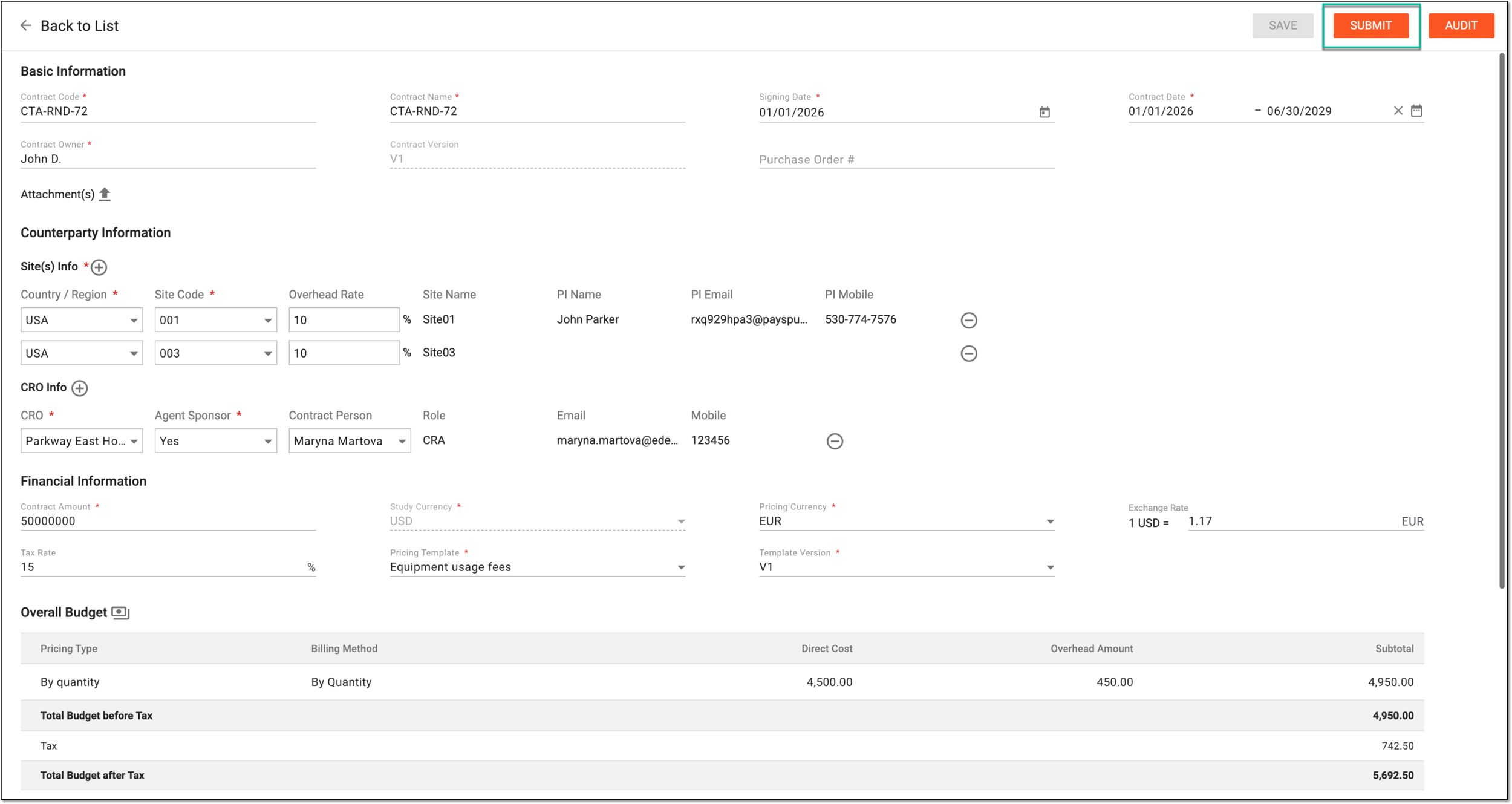 Figure 5. Submitting contract
-
In the dialog that appears, confirm the contract submission as explained in the following table.
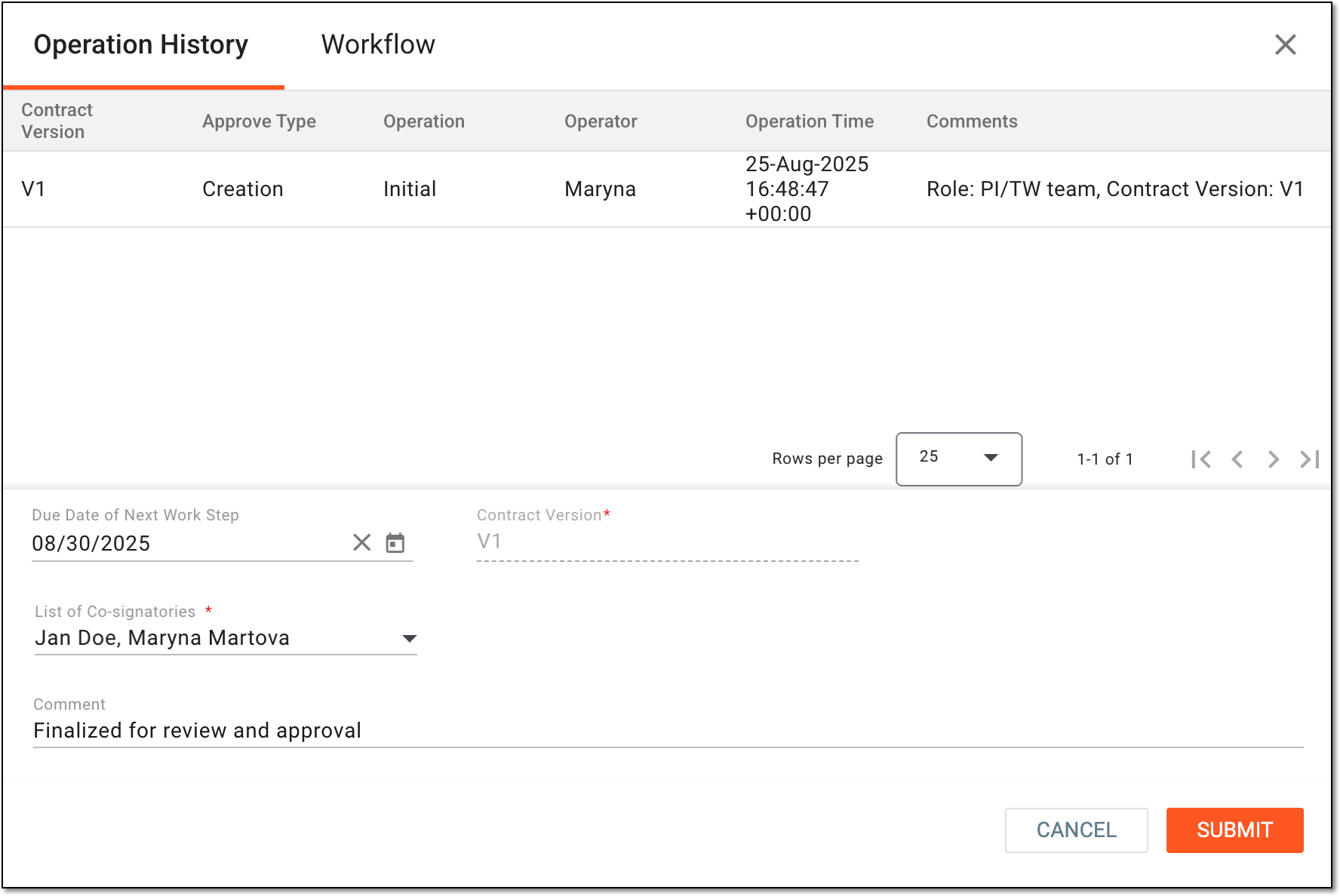 Figure 6. Confirming contract submission
Tip
In the following table, mandatory elements are marked with an asterisk (*).
Element
Details
Operation History
The tab that opens by default represents the complete log of operations performed to the contract from its creation and up-to-date.
Workflow
Switch to this tab to see the workflow according to which the contract audit is performed.
Before submission, the workflow might be unavailable; thus, the tab remains blank.Due Date of Next Work Step
Select the date before which the next auditing action must be performed before considered overdue.
Contract Version*
Represents the current contract version that is being submitted.
List of Co-signatories*
Select the users who have to co-sign the contract audit at the respective workflow step.
This field is only available if the workflow selected when enabling the contract audit has the Co-Sign node.Comment
Enter auxiliary details to to support your submission.
SUBMIT
Select
to confirm your action.CANCEL
Select
 to discard the changes without saving and close the dialog.
Once submitted, the status of the contract changes from Draft to Auditing. The dedicated personnel can now audit the contract.
Any person, company, institution, group, or organization that is a client of EDETEK and a user of the eClinical system.
In the eClinical system, the Sponsor role is assigned to the user who oversees or pays for a clinical trial and collects and analyzes the data. Before the study goes live, the Sponsor users work closely with the data managers, configuring CRFs and other aspects to make sure everything meets their requirements before giving the green light for the study to go live. In the course of a trial, the Sponsor users make requests for amendments in the system according to a new protocol version, changes in business requirements, or other needs.
A client’s partner company represented by an automated system that derives clinical data and sends it to, or receives it from the eClinical system.
A schema, each step of which represents a stage of a specific entity lifecycle in the system.
A workflow can be considered an instrument to help control various actions on system entities for the sake of accountability, as it limits the actions that can be performed on the entity associated with a workflow. This provides an additional tier of scrutiny, and the approval/rejection mechanism reduces the risk of unintended impact on sensitive resources and important information.
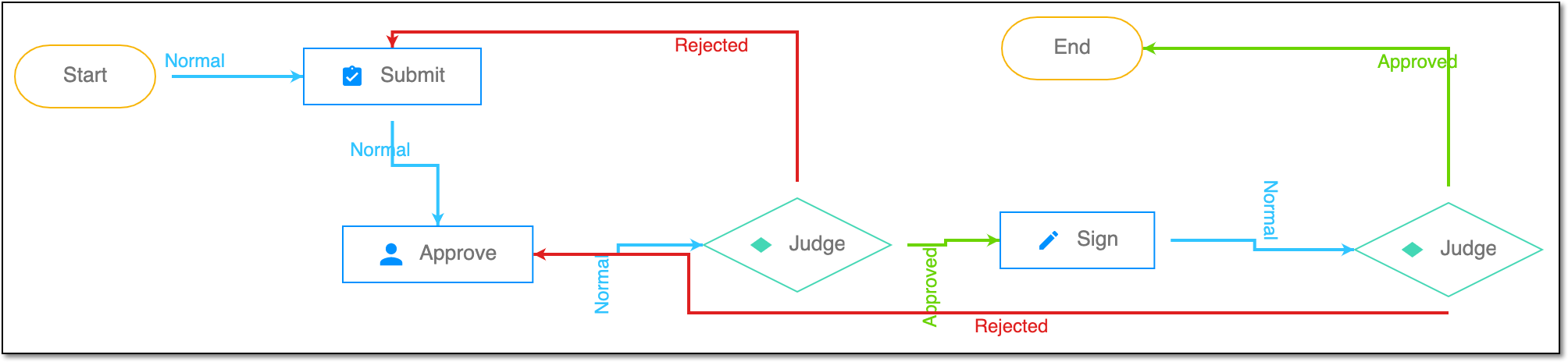 |
For instance, in eTMF, the workflow dictates the procedure of file and folder management from the moment of upload to the approval stage; in CTMS, the workflow controls the process of creation, completion, and approval of a trip report; in EDC, the workflow covers the process of source document handling.