Add pricing template
A pricing template is a reusable instance that outlines the services and occurrences entitled to financial compensation, billing methods, and other details. Preconfiguring pricing templates simplifies contract design since you do not have to set up pricing details from scratch for every vendor.
In CTMS, you can add as many pricing templates as needed to cover various financial scenarios for your relations with vendors by introducing the needed sets of billing methods.
-
Access the study management page in one of the following ways:
-
In the CTMS application header, select the DASHBOARD tab and then select the study dashboard of your interest.
 Figure 1. Accessing study management from dashboard
-
In the CTMS application header, select the STUDY MANAGEMENT tab. Then from the Study Data List table, select the study name of your interest.
 Figure 2. Accessing study management from study data list
-
-
On the page that opens, in the left pane, select Financial Management > Pricing Template.
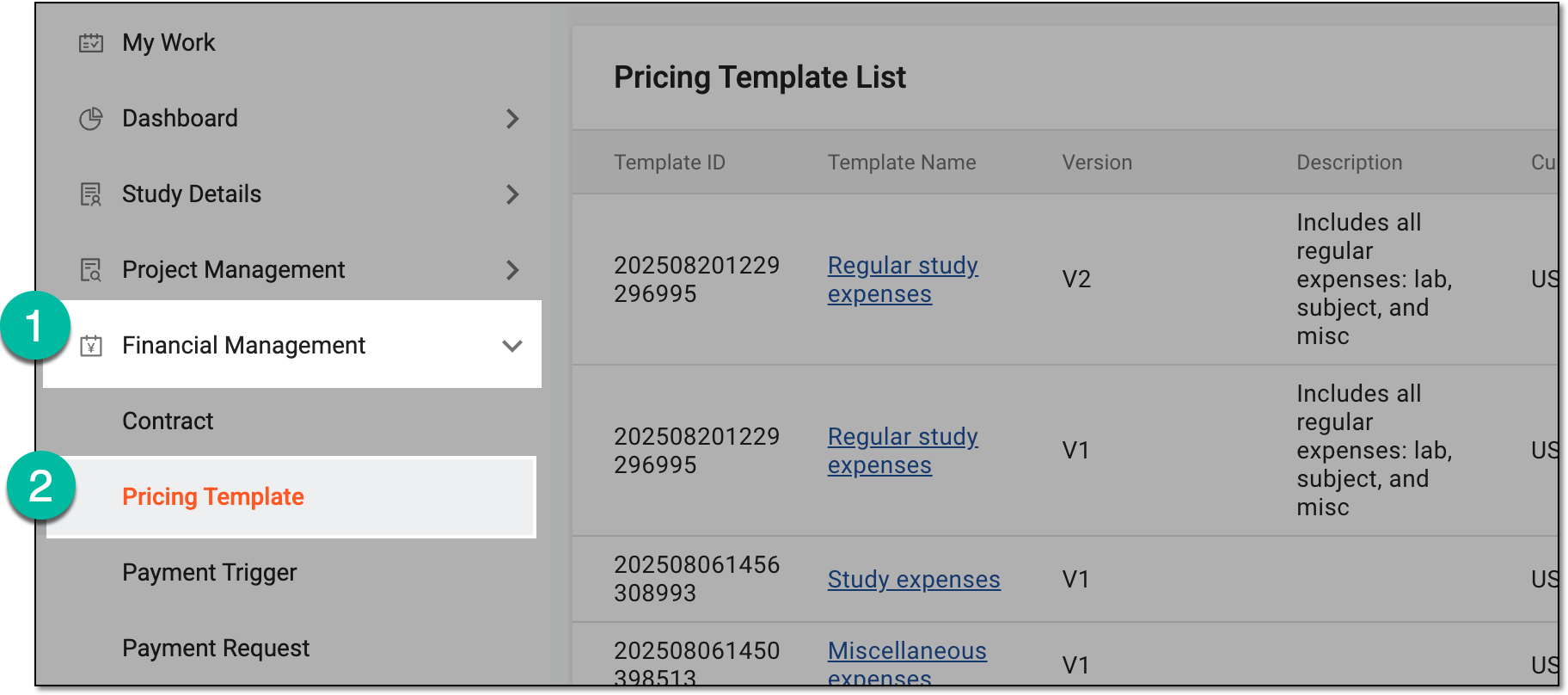 Figure 3. Accessing pricing templates
-
From the workspace toolbar of Pricing Template List, select New Item
 .
. Figure 4. Selecting option to add new pricing template
-
On the pricing template's configuration page that opens, in the Basic Information block, configure the details as explained in the following table.
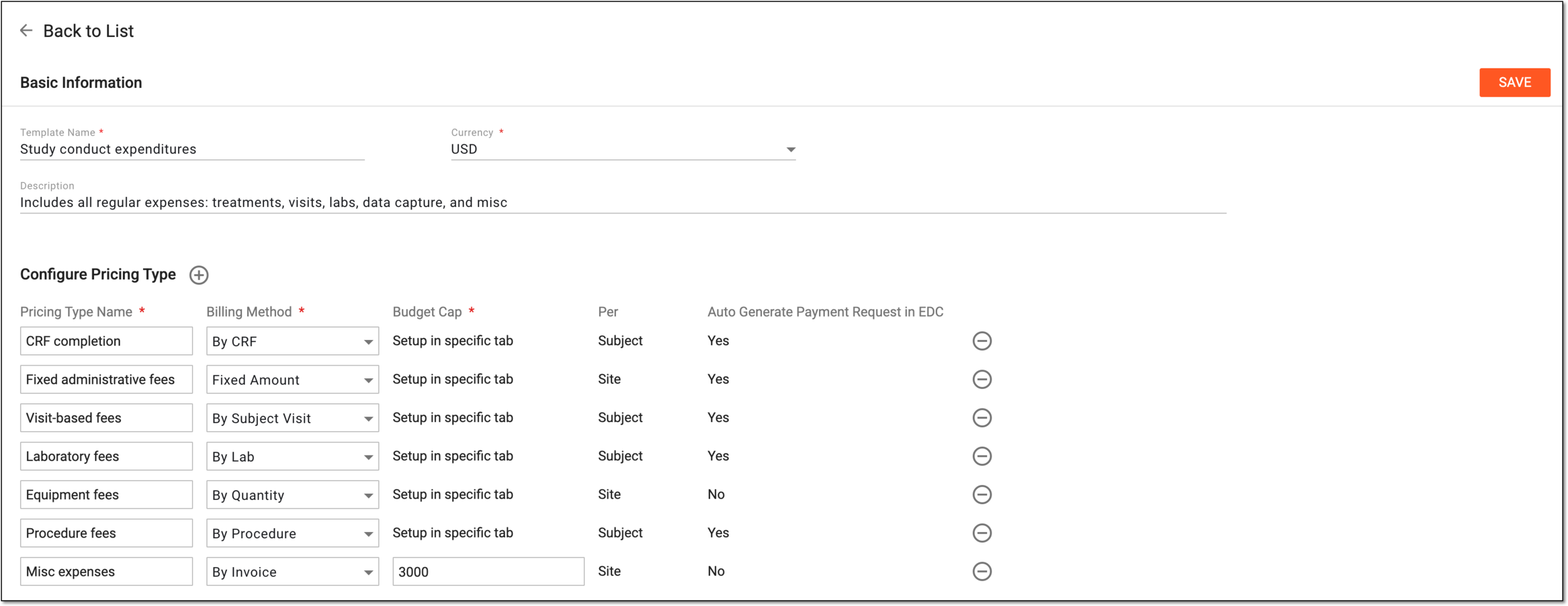 Figure 5. Configuring pricing template details
Tip
In the following table, mandatory elements are marked with an asterisk (*).
Element
Details
Template Name*
Enter the name of the pricing template.
Currency*
Select the currency in which all the payments are to be made according to this template.
Description
Enter auxiliary details for the pricing template.
Configure Pricing Type
Pricing Type Name*
Enter the custom name for your pricing model. This name can outline the objective or specifics of the payments that will be generated according to this pricing type, for instance, "Lab fees" or "Fixed administrative fees."
Billing Method*
Select one of the following:
-
Fixed Amount: the basis for the payments is fixed arrangements with vendors. For this billing method, you need to configure fixed payment details from scratch or from file import.
-
By Subject Visit: the basis for the payments is service provided by sites and participating organizations upon subjects visiting them. For this billing method, you need to configure subject visit details from scratch or from file import.
-
By Lab: the basis for the payments is service provided by laboratories. For this billing method, you need to configure lab services details from scratch or from file import.
-
By Quantity: the basis for the payments is a service or occurrence that is compensated once it occurs, and based on the delivered amount. For this billing method, you need to configure services by quantity details from scratch or from file import.
-
By CRF: the basis for the payments is a case report form (CRF) that is compensated upon completion. For this billing method, you need to configure payable CRF details from scratch or from file import.
-
By Procedure: the basis for the payments is a performed medical procedure whose result is recorded in a CRF, thus, compensated upon the CRF completion. For this billing method, you need to configure the procedural payment details from scratch or from file import.
-
By Invoice: the basis for the payments is an invoice for performed service. For this billing method, you need to set the budget cap.
You can add different combinations of billing methods to your pricing template. Each billing method can be used only once.Budget Cap*
For the By Invoice billing method, enter the maximum amount of money in the selected currency that can be paid for the services. The amount above the budget cap will not be allowed by the system when creating the payment request by invoice.
For all the rest of the billing methods, the field states that additional configurations need to be made in the respective tabs.
Per
Represents how the payments are to be accounted—by site or subject. This value is autopopulated based on the selected billing method.
For instance, for the services provided upon subject visits, the payments are calculated per subject. And for the services provided on site, such as equipment rental, the payment is issued per site.
Auto Generate Payment Request in EDC
Represents whether the system automatically creates a new payment request in EDC upon occurrence of the payable event. Based on the selected billing method, it is automatically set to the following values:
-
Yes: for Fixed Amount, By Subject Visit, By Lab, By Procedure, and By CRF billing methods. The events for these methods occur in EDC—lab data entry, subject visit, and such; thus, the payment request should be generated and audited in EDC before being audited and paid in CTMS.
-
No: for By Quantity and By Invoice billing methods. The basis of these financial operations is not necessarily related to EDC; thus, the payment request can be handled entirely in CTMS.
Add Content
Select
 to add a new row and configure more billing methods for your pricing template.
You can add different combinations of billing methods to your pricing template. Each billing method can be used only once.Remove
Select
 to remove extra rows.
SAVE
Select
 to implement the changes.
 -
Once saved, the pricing template is added. Based on the selected billing method, configure the additional details from scratch or file import as explained in the following sections.
Once a new pricing template is added to CTMS with the Fixed Amount billing method selected, you need to configure the fixed fees to be a part of this template.
Important
Prior to configuring billing details, ensure to prepare the following items via the CTMS library:
-
Access the study management page in one of the following ways:
-
In the CTMS application header, select the DASHBOARD tab and then select the study dashboard of your interest.
Figure 1. Accessing study management from dashboard
-
In the CTMS application header, select the STUDY MANAGEMENT tab. Then from the Study Data List table, select the study name of your interest.
Figure 2. Accessing study management from study data list
-
-
On the page that opens, in the left pane, select Financial Management > Pricing Template.
Figure 3. Accessing pricing templates
-
In Pricing Template List that appears, locate the template for which you need to configure the billing details. Then select the template name or from the Action(s) column, select Edit
 .
.Tip
Both template name and Edit
redirect you to the template details page. If the
template is already used in a contract, you can no longer edit its details, so the Edit option becomes disabled. However, you
can still access the details by selecting the template name, but not make any changes there.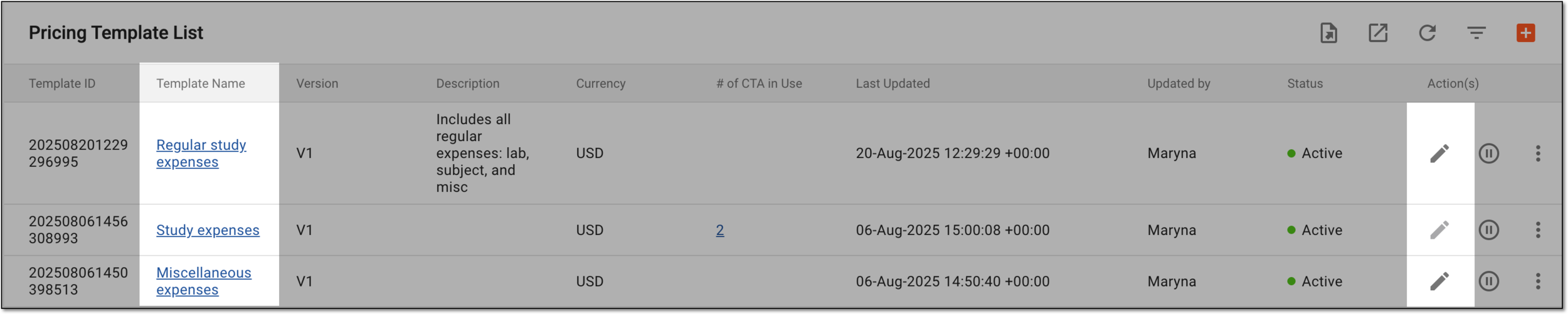 Figure 4. Accessing pricing template details
-
On the page that opens, go to the tab that represents the fixed amount fees to be configured. The tab name depends on the Pricing Type Name entered for the Fixed Amount billing method.
 Figure 5. Accessing fixed amount billing details to configure
Tip
The details on the tabs corresponding to other pricing templates can be found in the sections:
-
In the contents panel, start configuring the fixed amount fees as explained in the following table.
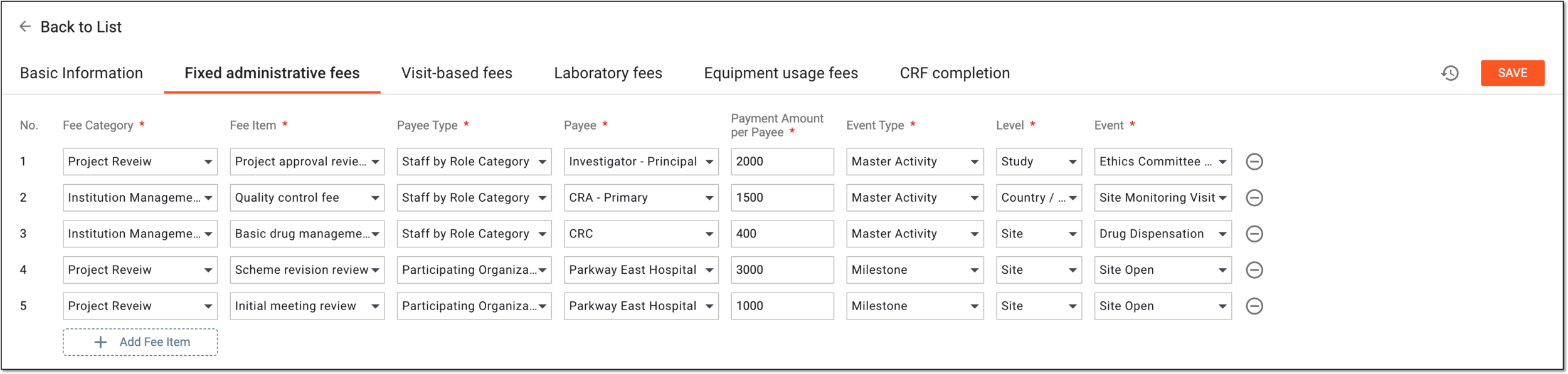 Figure 6. Configuring fixed amount fees
Tip
In the following table, mandatory elements are marked with an asterisk (*).
Element
Details
Add Fee Item
Select
 to add a new row for fixed amount fee details. Add as many rows as needed for your billing details.
No.
Represents the sequential number of the fixed amount fee you add.
Fee Category*
Select the fee category to which belongs the paid service or occurrence you want to add as a fixed fee.
If there is no needed category on the list, you can add the fee categories via the CTMS library.Fee Item*
Select the fee item—paid service or occurrence that you want to add as a fixed fee.
If there is no needed category on the list, you can add the fee item via the CTMS library.Payee Type*
Select the classification of the payment recipient:
-
Staff by Role Category: if the payment is intended to the specific role of study personnel, such as principal investigator (PI), clinical research associate (CRA), clinical research coordinator (CRC), or else.
-
Staff by Name: if the payment is intended to the specific person.
-
Participating Organization: if the payment is intended to the specific participating organization of the study.
Payee*
Select the payment recipient. Based on the selected payee type, you get the respective set of available options for selection—the user roles, staff names, or participating organization names.
Payment Amount per Payee*
Enter the sum of money (up to twelve digits) to be paid to a single payment recipient for the completed fee item.
For instance, if you have the monitoring visit fee to be paid to all CRAs in charge of these visits, here, you set up how much money one CRA gets for performing a single monitoring visit.
Event Type*
Select the type of event that becomes the trigger for payment:
Level*
Select at what level the activity or milestone must be tracked to trigger the payment:
-
Study: the activity or milestone completion at any country or site of the study triggers payment to the payees.
-
Country / Region: the activity or milestone completion at a specific country triggers payment for the payees that belong to this country.
-
Site: the activity or milestone completion at a specific site triggers payment for the payees that belong to this site.
Event*
Select the activity or milestone (based on the selected event type) to trigger the payment.
If there is no needed event on the list, you can add a new milestone or add a new activity via the CTMS library.Remove
Select
to remove extra rows.Operation History
Select
 to open the Operation History dialog and analyze an exhaustive, structured log of modifications made to
the fixed amount fees.
to open the Operation History dialog and analyze an exhaustive, structured log of modifications made to
the fixed amount fees.SAVE
Select
to implement the changes. -
Once saved, the fixed amount fees are added to your pricing template. You can now use this template in your contracts.
Once a new pricing template is added to CTMS with the By Subject Visit billing method selected, you need to configure the subject visit details and payments to be a part of this template.
Important
Prior to configuring billing details, ensure to prepare the following items via the CTMS library:
-
Access the study management page in one of the following ways:
-
In the CTMS application header, select the DASHBOARD tab and then select the study dashboard of your interest.
Figure 1. Accessing study management from dashboard
-
In the CTMS application header, select the STUDY MANAGEMENT tab. Then from the Study Data List table, select the study name of your interest.
Figure 2. Accessing study management from study data list
-
-
On the page that opens, in the left pane, select Financial Management > Pricing Template.
Figure 3. Accessing pricing templates
-
In Pricing Template List that appears, locate the template for which you need to configure the billing details. Then select the template name or from the Action(s) column, select Edit
.Tip
Both template name and Edit
redirect you to the template details page. If the
template is already used in a contract, you can no longer edit its details, so the Edit option becomes disabled. However, you
can still access the details by selecting the template name, but not make any changes there.Figure 4. Accessing pricing template details
-
On the page that opens, go to the tab that represents the visit-related fees to be configured. The tab name depends on the Pricing Type Name entered for the By Subject Visit billing method.
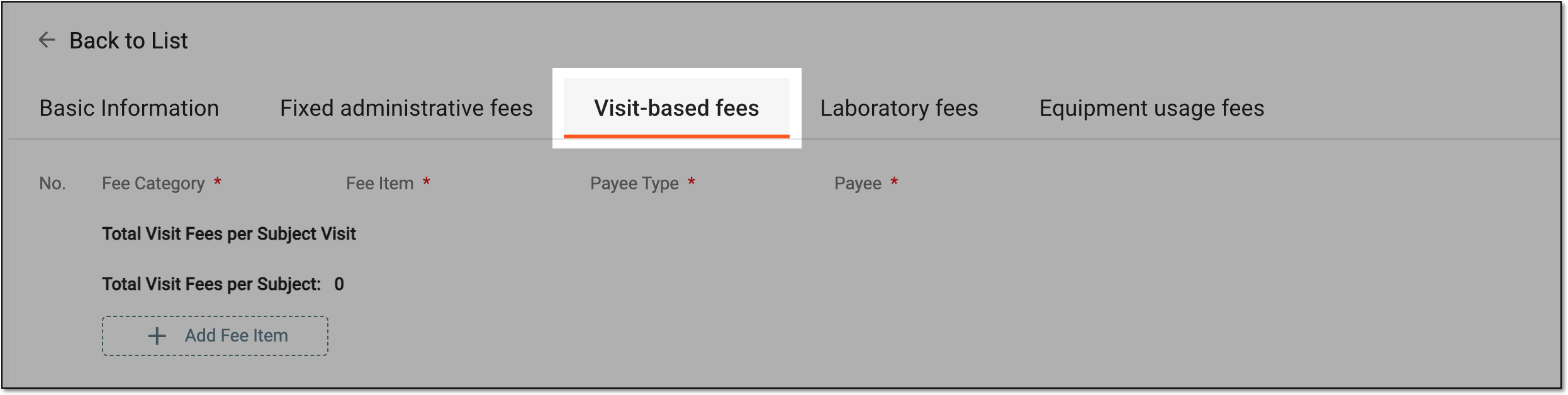 Figure 5. Accessing subject visit billing details to configure
Tip
The details on the tabs corresponding to other pricing templates can be found in the sections:
-
In the contents panel, start configuring the subject visit fees as explained in the following table.
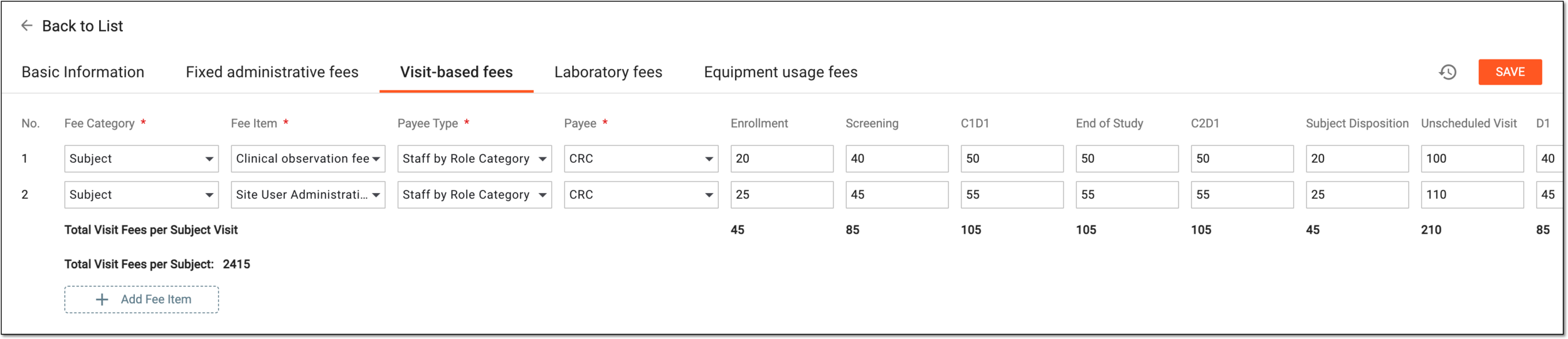 Figure 6. Configuring subject visit fees
Element
Details
Add Fee Item
Select
to add a new row for subject visit-based fee details. Add as many rows as needed for your billing details.No.
Represents the sequential number of the visit-based fee you add.
Fee Category*
Select the fee category to which belongs the paid service or occurrence you want to add as a visit-based fee.
If there is no needed category on the list, you can add the fee categories via the CTMS library.Fee Item*
Select the fee item—paid service or occurrence that you want to add as a visit-based fee.
If there is no needed category on the list, you can add the fee item via the CTMS library.Payee Type*
Select the classification of the payment recipient:
-
Staff by Role Category: if the payment is intended to the specific role of study personnel, such as principal investigator (PI), clinical research associate (CRA), clinical research coordinator (CRC), or else.
-
Staff by Name: if the payment is intended to the specific person.
-
Participating Organization: if the payment is intended to the specific participating organization of the study.
Payee*
Select the payment recipient. Based on the selected payee type, you get the respective set of available options for selection—the user roles, staff names, or participating organization names.
[Visit name]
Represents the name of the subject visit (such as "Enrollment," "Screening," "End of Study," and others), the occurrence of which triggers the payment. For each visit, enter the amount of money (up to twelve digits) to be paid for the fee item to the payee.
Total Visit Fees per Subject Visit
Represents the row beneath the table, autocalculating the total amount of money to be paid for various fee items at each subject visit.
Total Visit Fees per Subject
Represents the autocalculated total amount of money to be paid for various fee items at all the subject visits.
Remove
Select
to remove extra rows.Operation History
Select
to open the Operation History dialog and analyze an exhaustive, structured log of modifications made to
the visit-based fees.SAVE
Select
to implement the changes. -
Once saved, the visit-based fees are added to your pricing template. You can now use this template in your contracts.
Once a new pricing template is added to CTMS with the By Lab billing method selected, you need to configure the laboratory fees to be a part of this template.
Important
The lab test pricing is defined in EDC.
-
Access the study management page in one of the following ways:
-
In the CTMS application header, select the DASHBOARD tab and then select the study dashboard of your interest.
Figure 1. Accessing study management from dashboard
-
In the CTMS application header, select the STUDY MANAGEMENT tab. Then from the Study Data List table, select the study name of your interest.
Figure 2. Accessing study management from study data list
-
-
On the page that opens, in the left pane, select Financial Management > Pricing Template.
Figure 3. Accessing pricing templates
-
In Pricing Template List that appears, locate the template for which you need to configure the billing details. Then select the template name or from the Action(s) column, select Edit
.Tip
Both template name and Edit
redirect you to the template details page. If the
template is already used in a contract, you can no longer edit its details, so the Edit option becomes disabled. However, you
can still access the details by selecting the template name, but not make any changes there.Figure 4. Accessing pricing template details
-
On the page that opens, go to the tab that represents the lab fees to be configured. The tab name depends on the Pricing Type Name entered for the By Lab billing method.
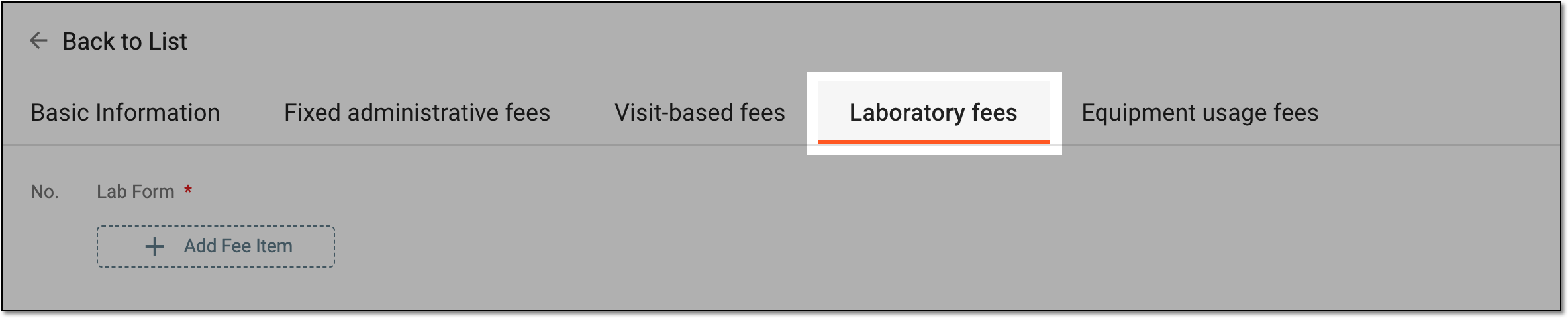 Figure 5. Accessing lab billing details to configure
Tip
The details on the tabs corresponding to other pricing templates can be found in the sections:
-
In the contents panel, start configuring the laboratory fees as explained in the following table.
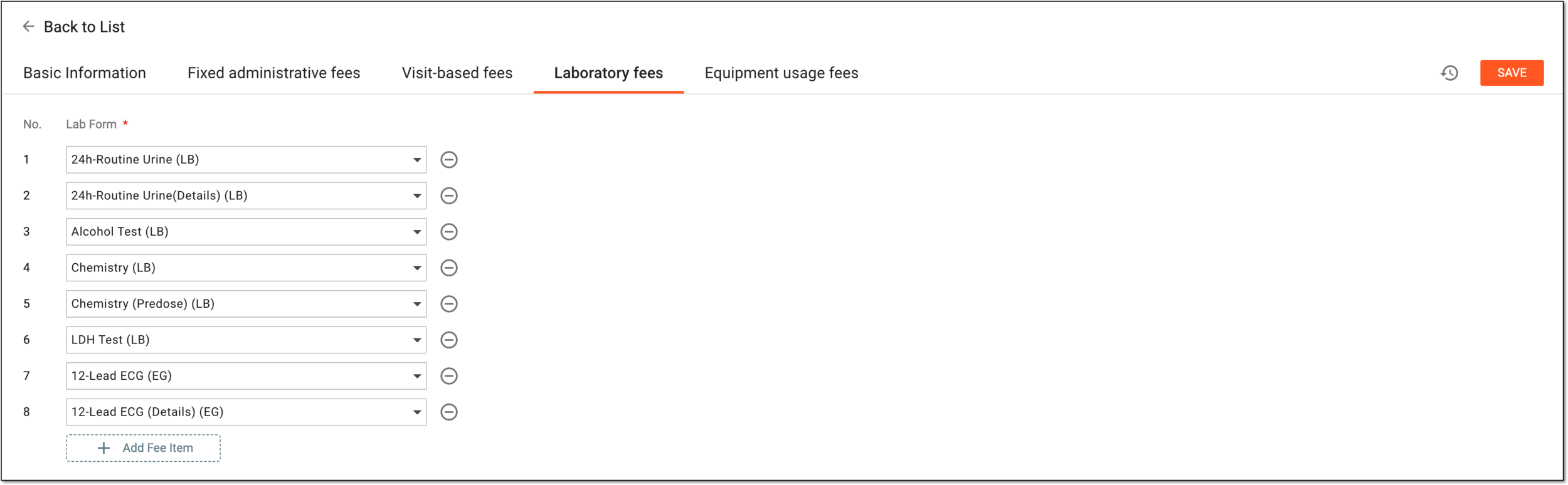 Figure 6. Configuring lab fees
Tip
In the following table, mandatory elements are marked with an asterisk (*).
Element
Details
Add Fee Item
Select
to add a new row for lab fee details. Add as many rows as needed for your billing details.No.
Represents the sequential number of the lab fee you add.
Lab Form*
Select the CRF that, once completed with lab test data in EDC, triggers the payment to the payee.
The pricing for lab tests is defined in EDC. Here, you only select the CRF to entitle them to trigger
                                        payments.
Remove
Select
to remove extra rows.Operation History
Select
to open the Operation History dialog and analyze an exhaustive, structured log of modifications made to
the lab fees.SAVE
Select
to implement the changes.
Once saved, the lab fees are added to your pricing template. You can now use this template in your contracts.
Once a new pricing template is added to CTMS with the By Quantity billing method selected, you need to configure the services to be a part of this template.
Important
Prior to configuring billing details, ensure to prepare the following items via the CTMS library:
-
Access the study management page in one of the following ways:
-
In the CTMS application header, select the DASHBOARD tab and then select the study dashboard of your interest.
Figure 1. Accessing study management from dashboard
-
In the CTMS application header, select the STUDY MANAGEMENT tab. Then from the Study Data List table, select the study name of your interest.
Figure 2. Accessing study management from study data list
-
-
On the page that opens, in the left pane, select Financial Management > Pricing Template.
Figure 3. Accessing pricing templates
-
In Pricing Template List that appears, locate the template for which you need to configure the billing details. Then select the template name or from the Action(s) column, select Edit
.Tip
Both template name and Edit
redirect you to the template details page. If the
template is already used in a contract, you can no longer edit its details, so the Edit option becomes disabled. However, you
can still access the details by selecting the template name, but not make any changes there.Figure 4. Accessing pricing template details
-
On the page that opens, go to the tab that represents the fixed amount fees to be configured. The tab name depends on the Pricing Type Name entered for the By Quantitty billing method.
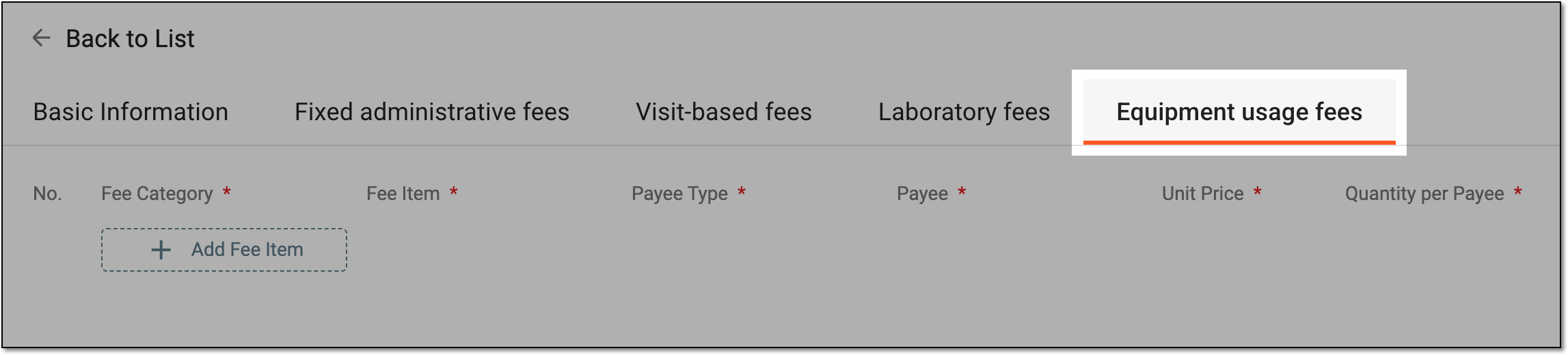 Figure 5. Accessing quantitative billing details to configure
Tip
The details on the tabs corresponding to other pricing templates can be found in the sections:
-
In the contents panel, start configuring the quantitative fees as explained in the following table.
 Figure 6. Configuring quantitative fees
Element
Details
Add Fee Item
Select
to add a new row for quantitative fee details. Add as many rows as needed for your billing details.No
Represents the sequential number of the quantitative fee you add.
Fee Category*
Select the fee category to which belongs the paid service or occurrence you want to add as a quantitative fee.
If there is no needed category on the list, you can add the fee categories via the CTMS library.Fee Item*
Select the fee item—paid service or occurrence that you want to add as a quantitative fee.
If there is no needed category on the list, you can add the fee item via the CTMS library.Payee Type*
Select the classification of the payment recipient:
-
Staff by Role Category: if the payment is intended to the specific role of study personnel, such as principal investigator (PI), clinical research associate (CRA), clinical research coordinator (CRC), or else.
-
Staff by Name: if the payment is intended to the specific person.
-
Participating Organization: if the payment is intended to the specific participating organization of the study.
Payee*
Select the payment recipient. Based on the selected payee type, you get the respective set of available options for selection—the user roles, staff names, or participating organization names.
Unit Price*
Enter the amount of money (up to twelve digits) to be paid to the payee for a single unit of the payable service or occurrence.
For instance, you set up payments for MRI machine usage and specify that one usage costs a certain amount. Then, when the payment request is created, you count how many times the MRI equipment was used and derive the cost by multiplying this number by the unit price.
Total Quantity Budget per Site
Enter the amount of money (up to twelve digits) that will be the maximum amount to be paid to the payee for the provided services at one site.
For instance, if the MRI machine usage at the site costs 2500 and you set the budget cap of 7500, then at that site, the MRI machine will only be used three times.
Remove
Select
to remove extra rows.Operation History
Select
to open the Operation History dialog and analyze an exhaustive, structured log of modifications made to
the quantitative fees.SAVE
Select
to implement the changes. -
Once saved, the quantitative fees are added to your pricing template. You can now use this template in your contracts.
Once a new pricing template is added to CTMS with the By CRF billing method selected, you need to configure the case report form (CRF) details and payments to be a part of this template.
-
Access the study management page in one of the following ways:
-
In the CTMS application header, select the DASHBOARD tab and then select the study dashboard of your interest.
Figure 1. Accessing study management from dashboard
-
In the CTMS application header, select the STUDY MANAGEMENT tab. Then from the Study Data List table, select the study name of your interest.
Figure 2. Accessing study management from study data list
-
-
On the page that opens, in the left pane, select Financial Management > Pricing Template.
Figure 3. Accessing pricing templates
-
In Pricing Template List that appears, locate the template for which you need to configure the billing details. Then select the template name or from the Action(s) column, select Edit
.Tip
Both template name and Edit
redirect you to the template details page. If the
template is already used in a contract, you can no longer edit its details, so the Edit option becomes disabled. However, you
can still access the details by selecting the template name, but not make any changes there.Figure 4. Accessing pricing template details
-
On the page that opens, go to the tab that represents the CRFs to be configured. The tab name depends on the Pricing Type Name entered for the By CRF billing method.
 Figure 5. Accessing CRF billing details to configure
Tip
The details on the tabs corresponding to other pricing templates can be found in the sections:
-
In the contents panel, start configuring the CRF billing details as explained in the following table.
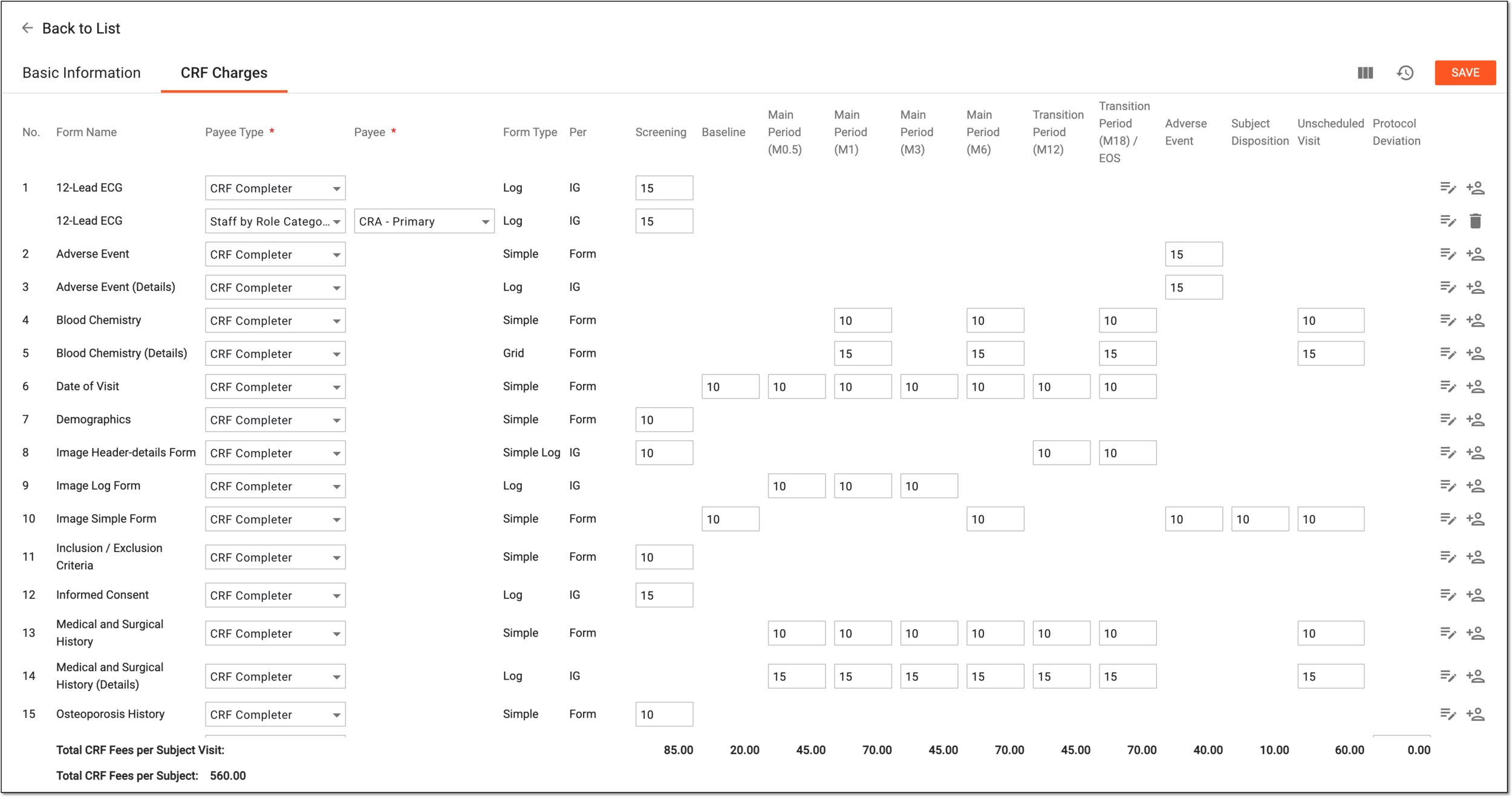 Figure 6. Configuring CRF billing details
Element
Details
No.
Represents the sequential number of the CRF for which you are adding completion fee.
Form Name
Represents the name of the CRF for which you are adding completion fee.
The CRFs available here are pulled from EDC; you do not add them manually as fee items to your pricing template.Payee Type*
Select the classification of the payment recipient:
-
Staff by Role Category: if the payment is intended to the specific role of study personnel, such as principal investigator (PI), clinical research associate (CRA), clinical research coordinator (CRC), or else.
-
Staff by Name: if the payment is intended to the specific person.
-
Participating Organization: if the payment is intended to the specific participating organization of the study.
-
CRF Completer: if the payment is intended to the user who entered data into CRF in the EDC system.
Payee*
Select the payment recipient. Based on the selected payee type, you get the respective set of available options for selection—the user roles, staff names, or participating organization names.
Form Type
Represents the type of the CRF for which you are adding completion fee—simple, log, simple log, or grid.
Per
Represents the instance the completion of which triggers payment:
-
Form: this value is applicable for the simple and grid CRFs, where the entire form completion is a trigger for payment.
-
IG (item group): this value is applicable for the log and simple log CRFs, where completion of each record or entry within the form is a trigger for payment.
[Visit name]
Represents the name of the subject visit (such as "Enrollment," "Screening," "End of Study," and others), to which belongs the CRF whose completion triggers the payment. Under each visit, enter the amount of money (up to twelve digits) to be paid for a certain CRF or form record completion to the payee.
Leave the value blank if the CRF completion at a certain visit is not intended for payment.
Quick Entry
Select
 next to a certain CRF to open the Quick Entry dialog and set the same price (up to twelve
digits) for the CRF or form record completion at all visits.
next to a certain CRF to open the Quick Entry dialog and set the same price (up to twelve
digits) for the CRF or form record completion at all visits.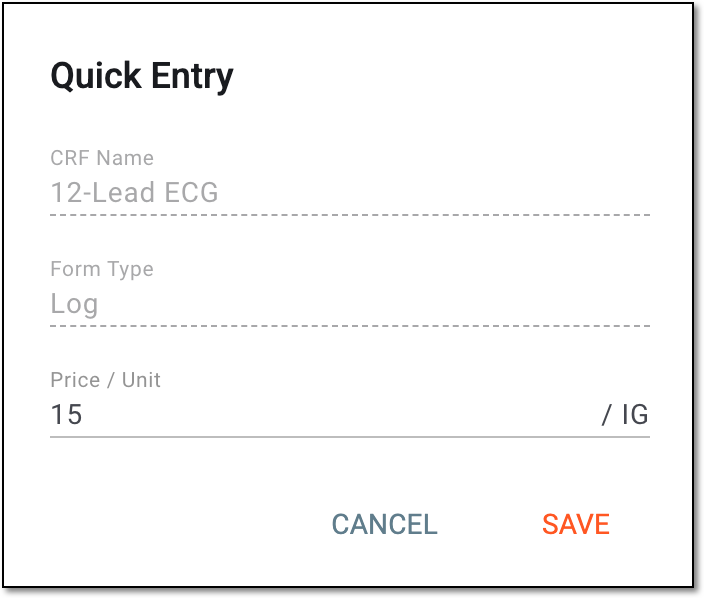 Figure 7. Entering price for CRF at all visits
Add Another Payee
Select
 next to a certain CRF to add a new row and specify additional payment recipient for this CRF completion with their own prices for form
completion per visit.
next to a certain CRF to add a new row and specify additional payment recipient for this CRF completion with their own prices for form
completion per visit.Delete
Select
 next to the added payee to remove them from the CRF if no longer applicable.
Total CRF Fees per Subject Visit
Represents the row beneath the table, autocalculating the total amount of money to be paid for various CRF completion at each subject visit.
Total CRF Fees per Subject
Represents the autocalculated total amount of money to be paid for the CRFs completion at all the subject visits.
SAVE
Select
to implement the changes.Operation History
Select
to open the Operation History dialog and analyze an exhaustive, structured log of modifications made to
the visit-based fees.Visible Columns
Select
 to expand the dropdown list and select or clear the checkboxes next to the visits whose columns you want to show or hide in the table.
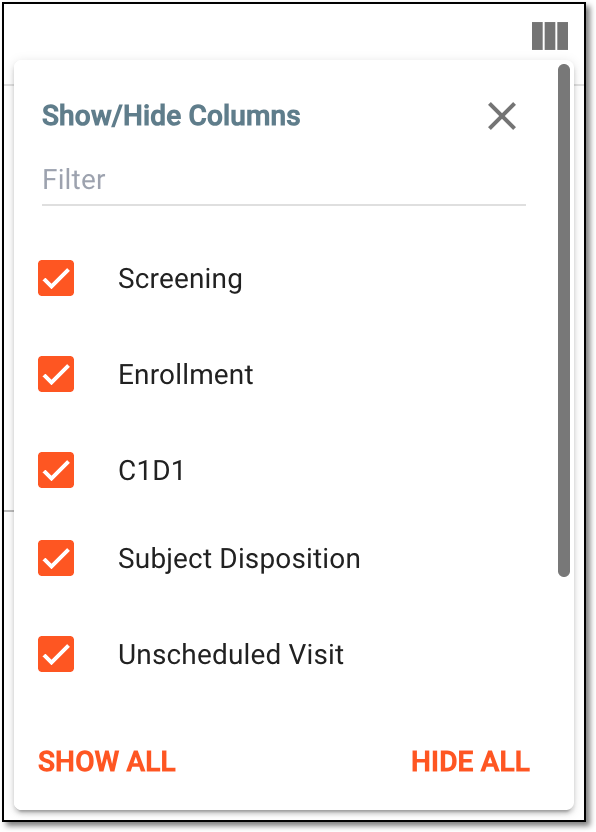 Figure 8. Selecting visible columns
-
Once saved, the CRF-based fees are added to your pricing template. You can now use this template in your contracts.
Once a new pricing template is added to CTMS with the By Procedure billing method selected, you need to configure the procedures and their related case report forms (CRFs) to be a part of this template.
Important
Prior to configuring billing details, ensure to prepare the following items via the CTMS library:
-
Access the study management page in one of the following ways:
-
In the CTMS application header, select the DASHBOARD tab and then select the study dashboard of your interest.
Figure 1. Accessing study management from dashboard
-
In the CTMS application header, select the STUDY MANAGEMENT tab. Then from the Study Data List table, select the study name of your interest.
Figure 2. Accessing study management from study data list
-
-
On the page that opens, in the left pane, select Financial Management > Pricing Template.
Figure 3. Accessing pricing templates
-
In Pricing Template List that appears, locate the template for which you need to configure the billing details. Then select the template name or from the Action(s) column, select Edit
.Tip
Both template name and Edit
redirect you to the template details page. If the
template is already used in a contract, you can no longer edit its details, so the Edit option becomes disabled. However, you
can still access the details by selecting the template name, but not make any changes there.Figure 4. Accessing pricing template details
-
On the page that opens, go to the tab that represents the procedure-related fees to be configured. The tab name depends on the Pricing Type Name entered for the By Procedure billing method.
 Figure 5. Accessing procedure billing details to configure
Tip
The details on the tabs corresponding to other pricing templates can be found in the sections:
-
In the contents panel, start configuring the procedural fees as explained in the following table.
 Figure 6. Configuring procedural fees
Element
Details
Add Fee Item
Select
to add a new row for procedure-based fee details. Add as many rows as needed for your billing details.No.
Represents the sequential number of the procedure-based fee you add.
Fee Category*
Select the fee category to which belongs the paid procedure you want to add.
If there is no needed category on the list, you can add the fee categories via the CTMS library.Fee Item*
Select the fee item—paid procedure that you want to add.
If there is no needed item on the list, you can add the fee item via the CTMS library.Payee Type*
Select the classification of the payment recipient:
-
Staff by Role Category: if the payment is intended to the specific role of study personnel, such as principal investigator (PI), clinical research associate (CRA), clinical research coordinator (CRC), or else.
-
Staff by Name: if the payment is intended to the specific person.
-
Participating Organization: if the payment is intended to the specific participating organization of the study.
Payee*
Select the payment recipient. Based on the selected payee type, you get the respective set of available options for selection—the user roles, staff names, or participating organization names.
Payment Amount per Procedure*
Enter the sum of money (up to twelve digits) to be paid to a payment recipient for a single completed procedure.
Associated Trigger Form*
Select the CRF that must be filled with data based on the procedure, and thus becomes a confirmation of its completion. This CRF submission will trigger the payment for the payee.
Remove
Select
to remove extra rows.Operation History
Select
to open the Operation History dialog and analyze an exhaustive, structured log of modifications made to
the procedure-based fees.SAVE
Select
to implement the changes. -
Once saved, the procedure-based fees are added to your pricing template. You can now use this template in your contracts.