Configure pricing template from file import
A pricing template is a reusable instance that outlines the services and occurrences entitled to financial compensation, billing methods, and other details. Preconfiguring pricing templates simplifies contract design since you do not have to set up pricing details from scratch for every vendor.
For your convenience, you can generate a template XLSX file for any of the previously added pricing templates that are not yet used in any contract, to fill in or update the existing billing details offline, and then import the file back to CTMS when ready.
-
Access the study management page in one of the following ways:
-
In the CTMS application header, select the DASHBOARD tab and then select the study dashboard of your interest.
 Figure 1. Accessing study management from dashboard
-
In the CTMS application header, select the STUDY MANAGEMENT tab. Then from the Study Data List table, select the study name of your interest.
 Figure 2. Accessing study management from study data list
-
-
On the page that opens, in the left pane, select Financial Management > Pricing Template.
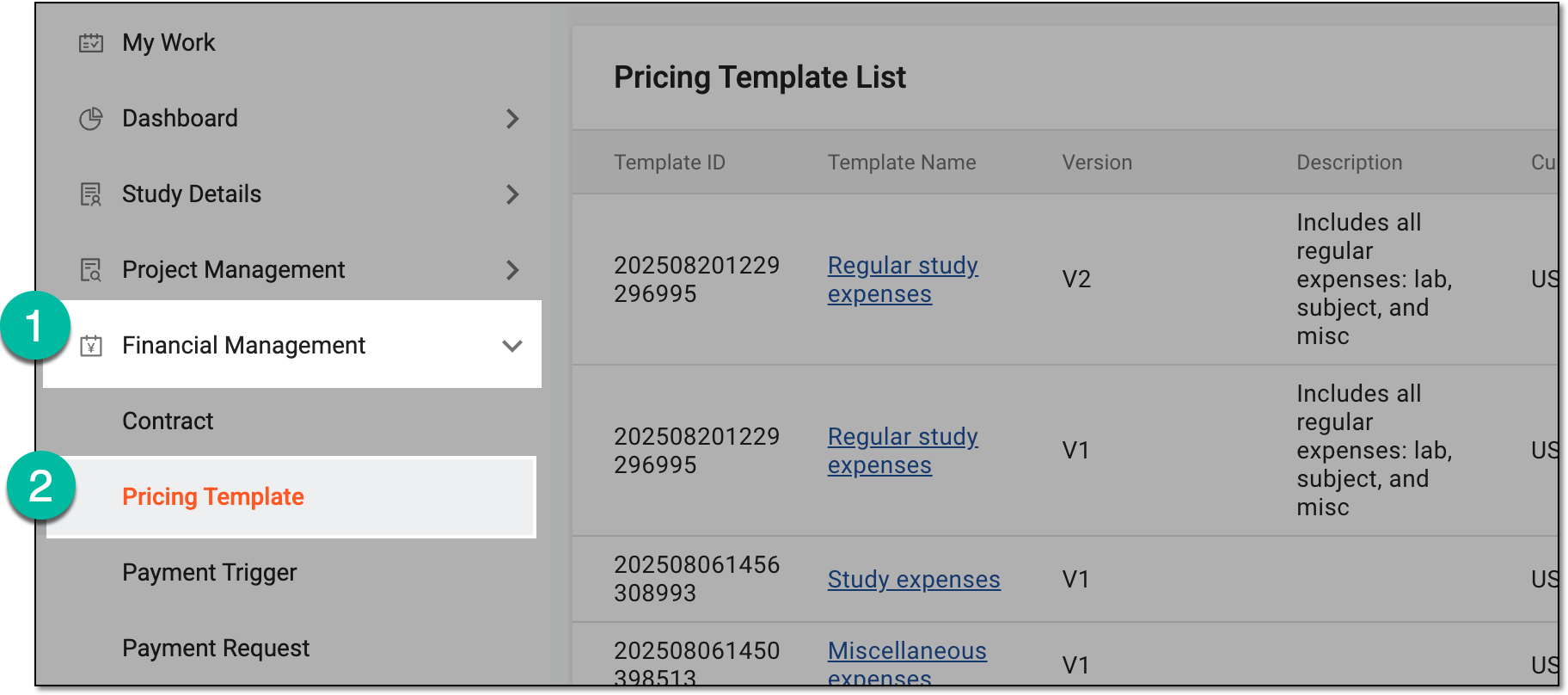 Figure 3. Accessing pricing templates
-
In Pricing Template List that appears, locate the template for which you need to configure the billing details. Then select the template name or from the Action(s) column, select Edit
 .
.Tip
Both template name and Edit
redirect you to the template details page. If the template is
already used in a contract, you can no longer edit its details, so the Edit option becomes disabled. However, you can still access
the details by selecting the template name, but not make any changes there.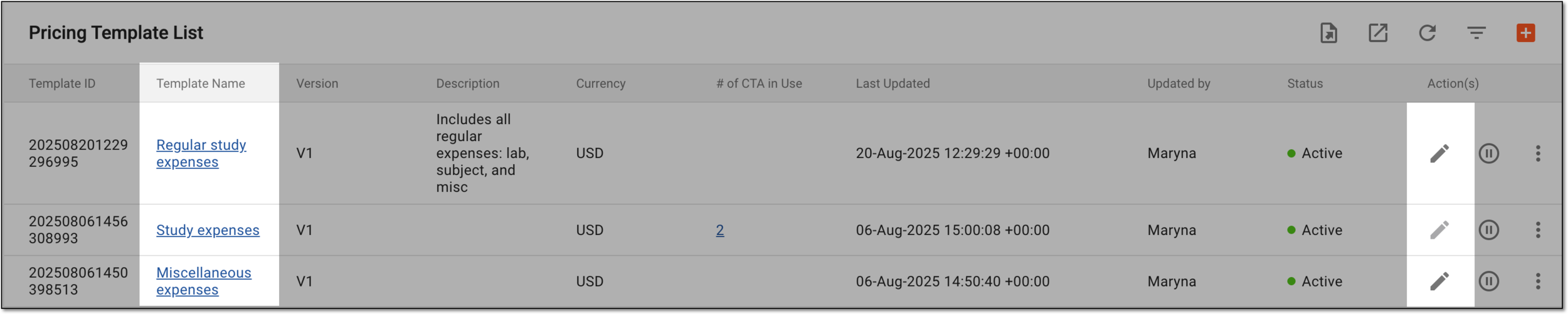 Figure 4. Accessing pricing template details
-
On the pricing template's configuration page that opens, from the workspace toolbar, select Export Template
 and follow the
prompts to save the file on your computer.
and follow the
prompts to save the file on your computer.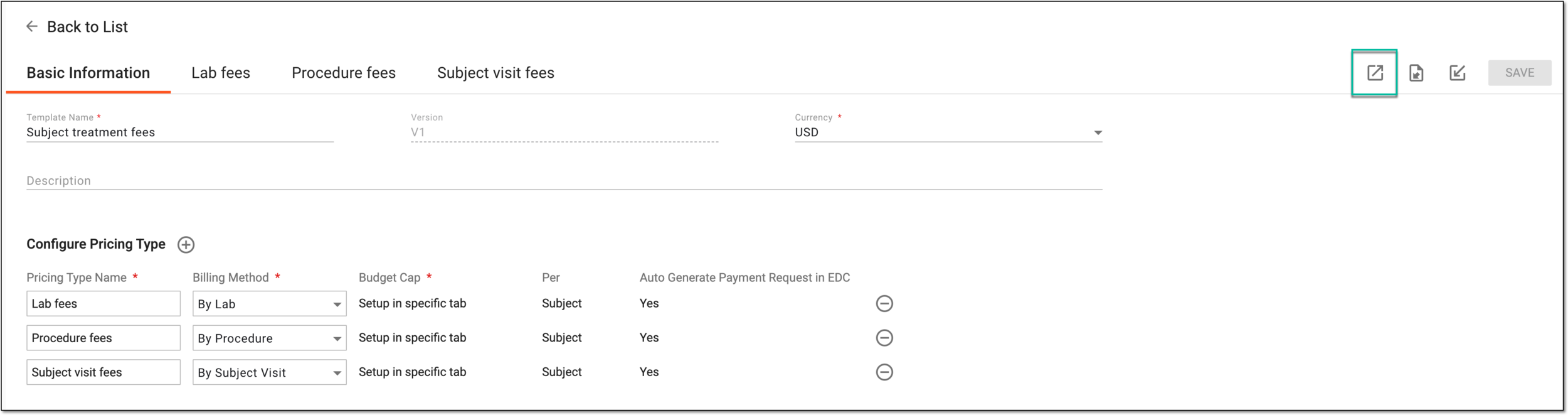 Figure 5. Exporting pricing template
-
In the exported XLSX file, the Basic Information tab comprises all the pricing template's main details preconfigured in CTMS; it is not recommended to amend this sheet. Go through the billing details sheets (one for each billing method configured for the pricing template) and fill in or update the existing details of the fees, payees, and other applicable information. Then save the file that is ready for importing to CTMS.
Tip
The details you provide via Excel are similar to those you configure in CTMS from scratch; the details are explained in the following sections:
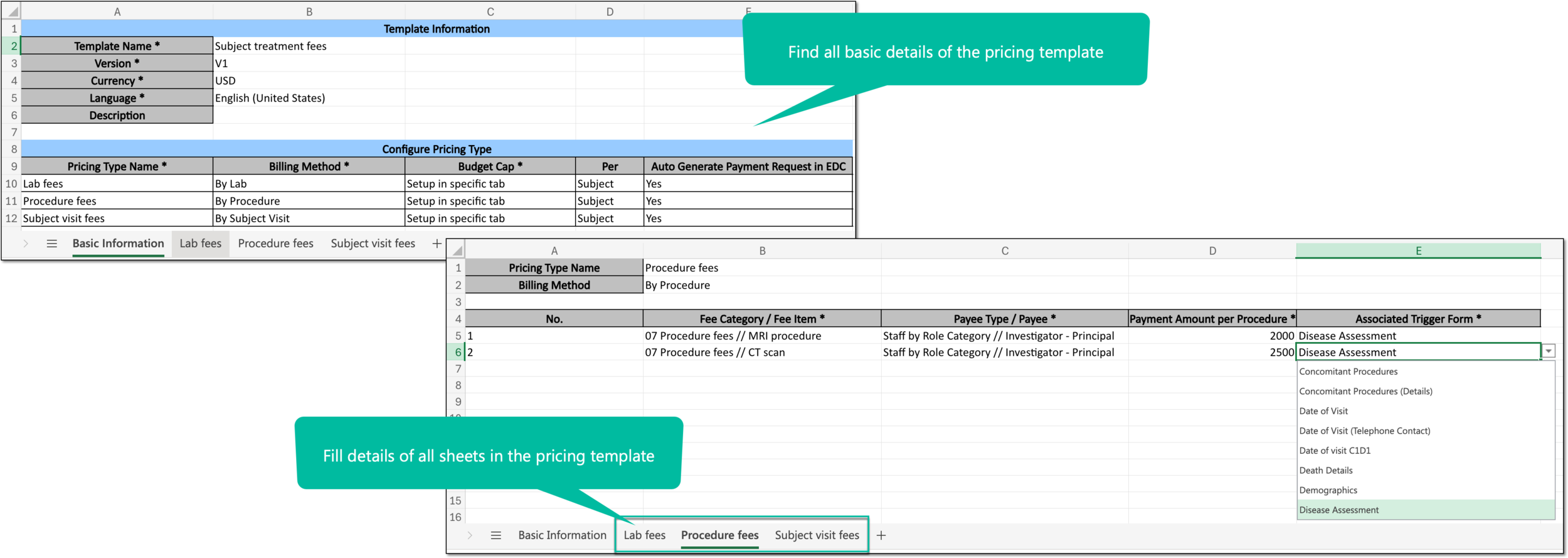 Figure 6. Example of filling pricing template via Excel
-
On the pricing template's configuration page, from the workspace toolbar, select Import
 to upload the configured XLSX file. In
the dialog that appears, select CONFIRM to acknowledge, that the imported configurations override any existing pricing template settings in CTMS.
to upload the configured XLSX file. In
the dialog that appears, select CONFIRM to acknowledge, that the imported configurations override any existing pricing template settings in CTMS. Figure 7. Importing filled pricing template file
Once the file is uploaded, the system populates the imported pricing template details from the sheets of the XLSX file to their respective tabs by billing method. The pricing template is configured; you can now use this template in your contracts.
All the import operations are recorded by the system for traceability and can be analyzed via the import history per pricing template.