View exception query report
Queries serve to turn attention to some issues in a form or visit, such as an incomplete form or item, questionable data, or any other aspect requiring additional supervision.
Once a query is created, it is assigned to a particular role that is responsible for the resolution of the query. If, from the ADMIN application, such a role is deleted that has a query assigned or opened, or the assignees of the query are not able to address the query, it is important to reassign this query to a different role to avoid delaying the process of resolving the query.
Exception Query Report displays the list of all those queries assigned to the deleted roles, or such roles who cannot address the queries assigned to them in a particular study. From this report, you can also update the assignees of the query.
This report contains three subtabs: Exception Creation Roles, Exception Assigned To, and Exception Query Operate History as explained in the following sections.
Once a query is created and assigned to the accountable role, the users of that role are responsible for resolving or closing the query. At times, the role cannot access the queries assigned to them due to various reasons, such as data restrictions. For instance, when certain data is included in the query that is restricted from the role, applied filters in the system that prevent the role from accessing the query, and so on.
From Exception Query Report, you can analyze the list of all those roles that cannot access the queries assigned to them.
-
In the EDC application header, select the REPORTS tab.
-
On the page that opens, in the left pane, select Exception Query Report > Exception Creation Role.
-
On the page that appears, select the relevant hyperlink to view the queries of the role that is not able to access the assigned queries.
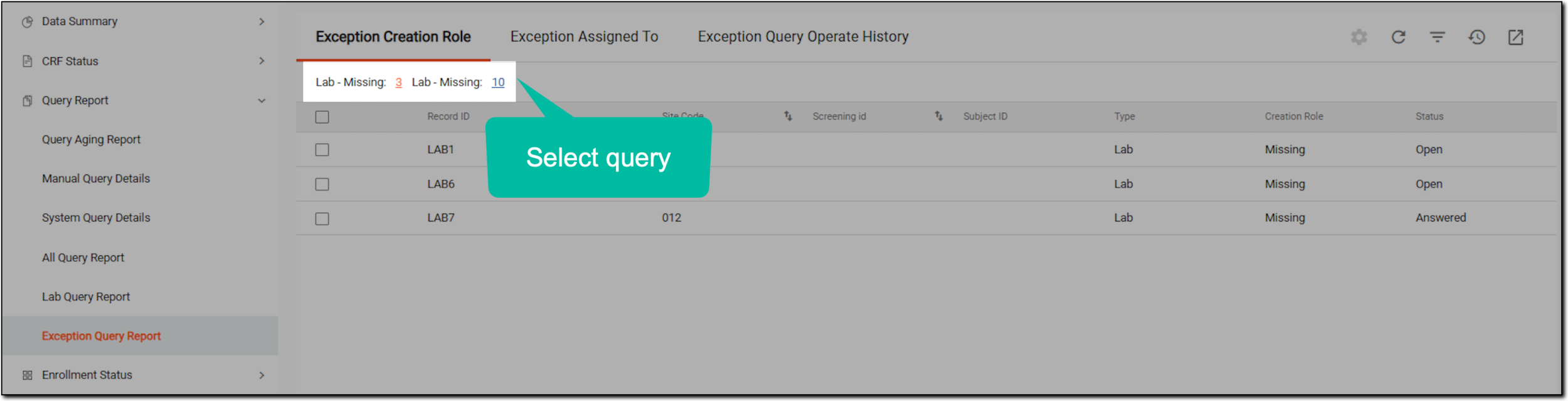 Figure 1. Selecting inaccessible queries by role
-
In the table that appears, view the details as explained in the following table.
 Figure 2. Viewing report data
Column
Details
Record ID
Represents the unique identifier assigned to the query that remains constant throughout the EDC application.
Site Code
Represents the code of the site to which the data item with the query belongs.
[Unique ID Label]
Represents the unique identifier of the subject to whom the data item with the query belongs.
The column name depends on the unique ID label configuration of your study in IWRS.Screening ID
Represents the screening ID to which the data item with the query belongs.
Type
Represents the category of the query, which is either of the following:
-
Manual: these are the queries created by a system user.
-
System: these are the queries generated by the system automatically upon occurrence of a certain event.
For example, if users do not provide their demographic details, such as sex, race, email, and so on, in the form, the system automatically generates the query.
-
Lab: these are the queries generated from the site normal range page due to discrepancies in lab data.
Owner Role
Represents the user role currently responsible for query handling in the EDC system and that is not able to access the query.
Status
Represents the current query status, such as Open, Answered, Closed, or Paused.
-
Once you have viewed the report data, you can reassign a particular query to a different role to avoid delaying the resolution process of the query.
Once a query is created and assigned to the accountable role, the users of that role are responsible for resolving or closing the query. If a particular role is deleted in the ADMIN application, all the queries assigned to the deleted role remain unanswered or unresolved until they are reassigned to a different active role.
From the Exception Assigned To report, you can evaluate the list of all the lab, manual, and system queries that are currently assigned to the deleted role.
-
In the EDC application header, select the REPORTS tab.
-
On the page that opens, in the left pane, select Exception Query Report > Exception Assigned To.
-
On the page that opens, select the relevant hyperlink to view the queries for the deleted role.
 Figure 1. Selecting to view queries of deleted role
-
In the table that appears, view the details as explained in the following table.
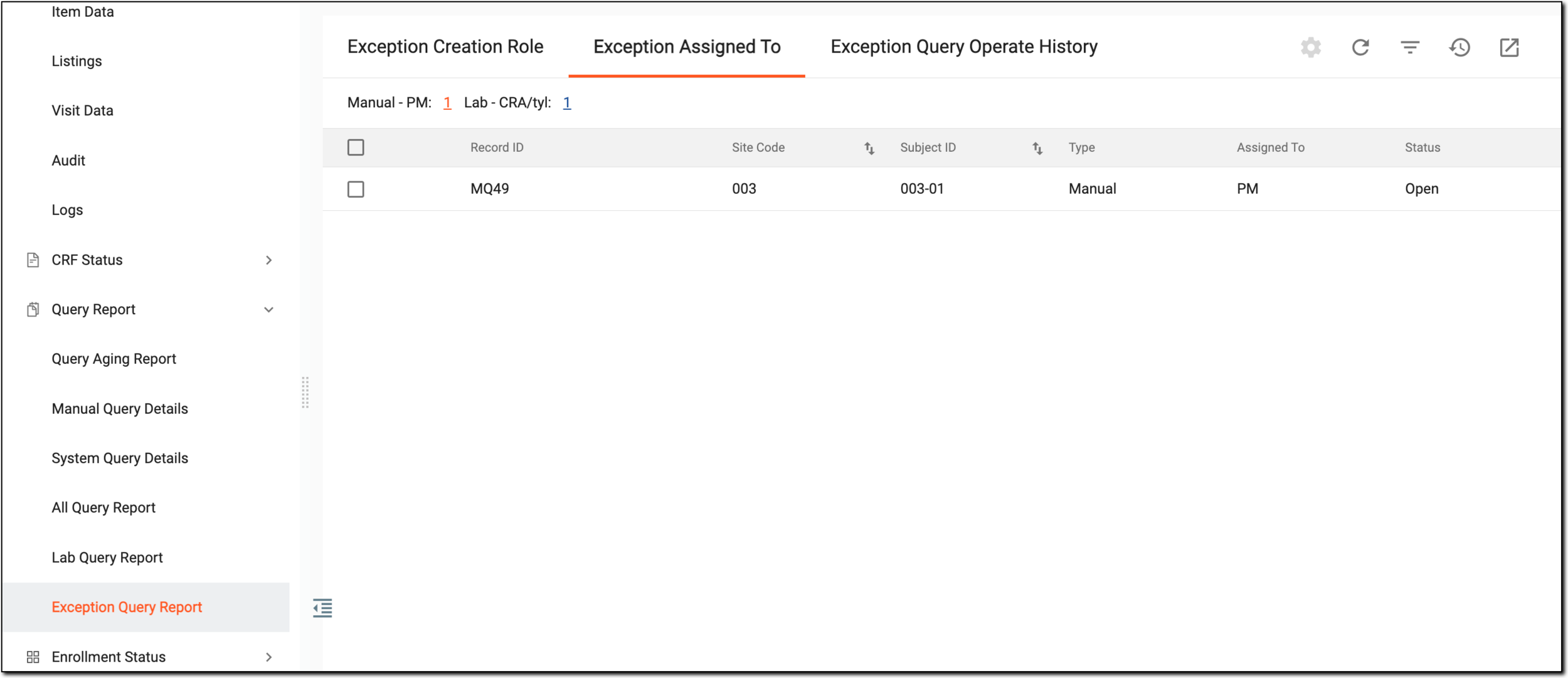 Figure 2. Viewing report data
Element
Details
Record ID
Represents the unique identifier assigned to the query that remains constant throughout the EDC application.
Site Code
Represents the code of the site to which the data item with the query belongs.
[Unique ID Label]
Represents the unique identifier of the subject to which the data item with the query belongs.
The column name depends on the unique ID label configuration of your study in IWRS.If there are additional IDs configured for your study, you see as many such columns as there are IDs.Type
Represents the category of the query, which is either of the following:
-
Manual: these are the queries created by a system user.
-
System: these are the queries generated by the system automatically upon occurrence of a certain event.
For example, if users do not provide their demographic details, such as sex, race, email, and so on, in the form, the system automatically generates the query.
-
Lab: these are the queries generated from the site normal range page due to discrepancies in lab data.
Assigned To
Represents the deleted role to which the query is currently assigned.
Status
Represents the current query status, such as Open, Answered, Closed, or Paused.
-
Once you have viewed the report data, you can reassign a particular query of the deleted role to an active role to avoid delaying the process of answering a query.
In the EDC application, from Exception Query Report, you can analyze and reassign the queries that are not accessible by their assignee due to role deletion in the ADMIN application, or when a certain role is not able to access the queries assigned to them.
The queries that have been reassigned to a different role are removed from the Exception Creation Role or Exception Assigned To lists. However, from the Exception Query Operate History tab, you can analyze all the updated roles of all queries that were not accessible by their assignees or that were assigned to deleted roles. Such a cross-functional check helps you identify all the queries that were reassigned to a different role so that you can have the knowledge of the updated roles responsible for the resolution of the query.
-
In the EDC application header, select the REPORTS tab.
-
On the page that opens, in the left pane, select Exception Query Report > Exception Query Operate History.
-
In the table that appears, view all the attributes of reassigned roles as explained in the following table.
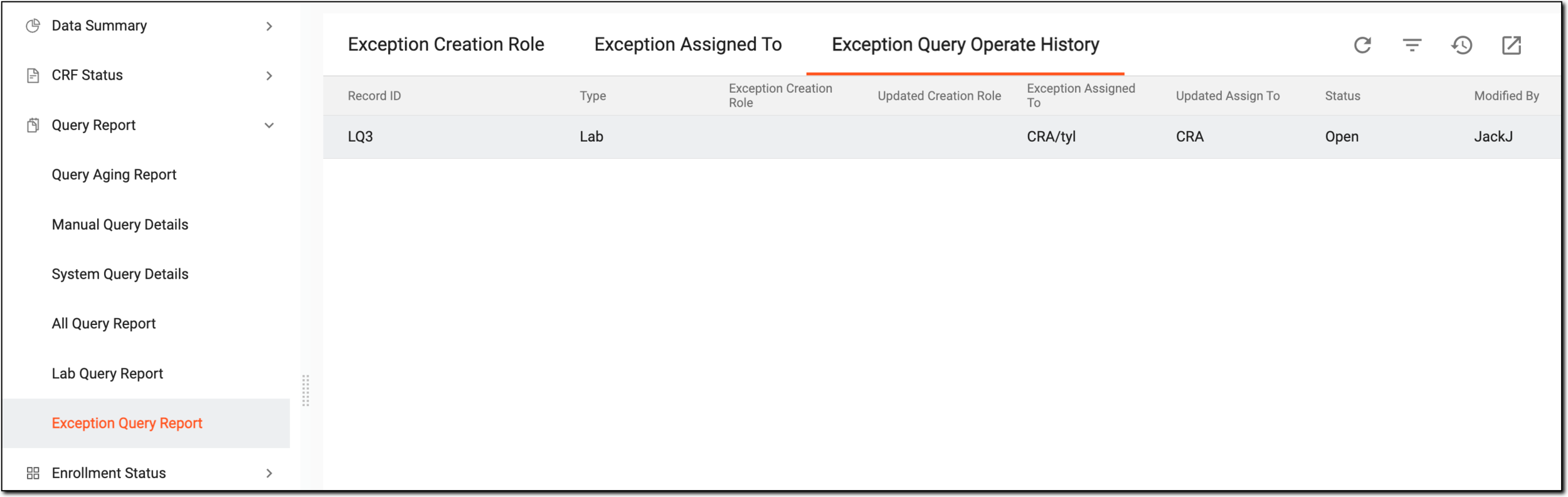 Figure 1. Viewing queries operation history
Element
Details
Record ID
Represents the unique identifier assigned to the query that remains constant throughout the EDC application.
Type
Represents the category of the query, which is either of the following:
-
Manual: these are queries created by a system user.
-
System: these are the queries generated by the system automatically upon occurrence of a certain event.
For example, if users do not provide their demographic details, such as sex, race, email, and so on, in the form, the system automatically generates the query.
-
Lab: these are queries generated from the page due to site normal range discrepancies in lab data.
Exception Owner Role
Represents the role whose assigned query is inaccessible. This field remains blank if the data represents details about the deleted role.
Updated Creation Role
Represents the updated role responsible for the resolution of the query that was inaccessible by the previous assignee.
Exception Assigned To
Represents the deleted role that had a query assigned. This field remains blank if the data represents details about the role that had inaccessible queries assigned.
Updated Assigned To
Represents the updated role responsible for the resolution of the query that was previously assigned to a deleted role.
Status
Represents the current query status, such as Open, Answered, Closed, or Paused.
Modified By
Represents the name of the user who modified the role responsible for the resolution of the query.
Modified Time
Represents the time when the role of the query has been reassigned.
-
You have viewed the history of operations applied to queries in Exception Query Report.