Configure additional IDs for subjects
In a clinical trial, unique identifiers (IDs) are used to identify trial participants, protecting their personal information and maintaining confidentiality.
In EDC, you can configure the unique ID parameters for your study subjects depending on your requirements. Different studies can have one or multiple IDs for their subjects during a trial. Multiple IDs might be required if you want your subjects to receive new specific identifiers when passing through the trial phases.
For instance, you want three different IDs to be assigned to the subjects of your trial, depending on the phases that they pass: application, registration, and enrollment. Thus, you can configure the following:
-
All the potential participants who apply for the trial and are added to the study database receive their unique Database ID.
-
All the participants registered for the screening procedures receive their Screening ID.
-
All the participants who have passed the screening and are enrolled in a trial get their Subject ID.
-
In the EDC application header, select the STUDY INFO tab.
-
On the Study Information page that opens, in the contents panel, select the ID Configuration tab.
 Figure 1. Accessing subject ID configuration
-
On the page that opens, in the Additional ID Configuration block, select New Item
 .
.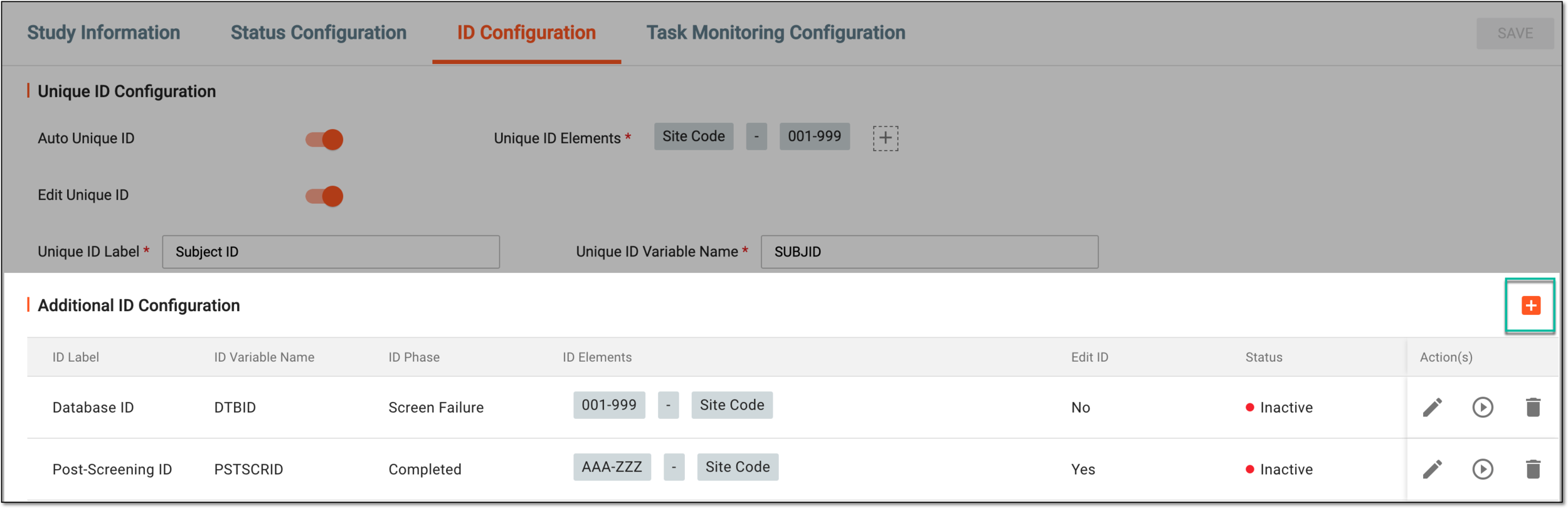 Figure 2. Selecting option to add additional ID
-
In the New dialog that opens, configure the ID parameters as explained in the following table.
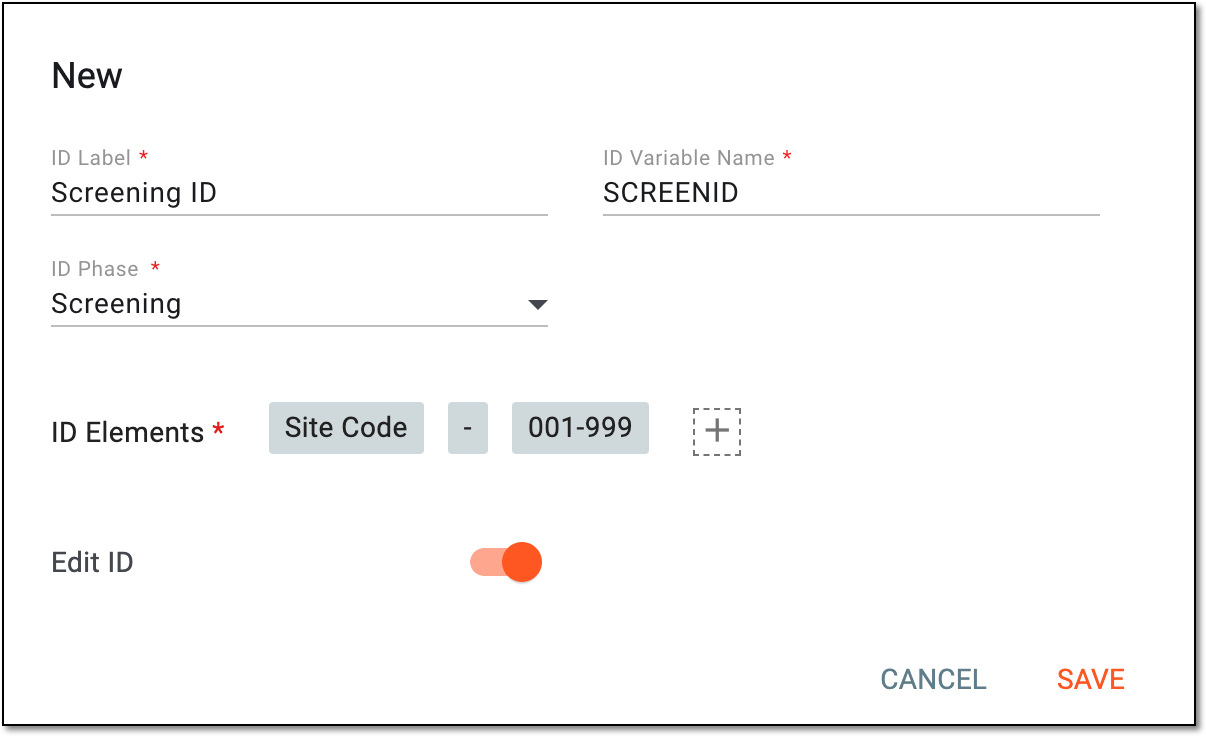 Figure 3. Configuring additional ID for subjects
Tip
In the following table, mandatory elements are marked with an asterisk (*).
Element
Details
ID Label*
Enter the name of the unique identifier that is to be displayed in the system.
For instance, Subject ID, Pre-screening ID, Screening ID, and so on.
For the substudy, the additional
                                  ID label cannot be the same as the unique ID label of the master study.
ID Variable Name*
Enter the name of the variable that is to represent your unique ID in the raw data extracted from EDC.
For the substudy, the additional ID variable name cannot be the same as the unique ID variable
                                  name of the master study.
ID Phase*
Select the phase upon reaching which the subject is to be assigned the ID you are creating. The subject phase is selected upon creation and, once saved, cannot be changed.
For instance, you need the participants of your study to be assigned Screening ID upon entering the screening phase, so you select the Screening subject phase. Thus, once the participant's phase is changed to Screening, they obtain their Screening ID.
ID Elements*
Site Code
Select
 and then select the Site Code option to add the code of the site at which the subject is registered as
a part of their ID.
and then select the Site Code option to add the code of the site at which the subject is registered as
a part of their ID.Number Range (asc)
Select
and then select the Number Range (asc) option to specify the range of numbers (for instance, from 001
to 999 or from 101 to 200) that should be added to the ID. This option is mandatory, so it is automatically added if the Site Code option is selected.Double-click the node to open the dialog and specify the number of digits in the ID (for instance, 1 for 1-9; 2 for 01-99; 3 for 001-999, and so on) and the starting number of the range (for instance, 001, 101, 201, and so on). Select SAVE to implement the changes.
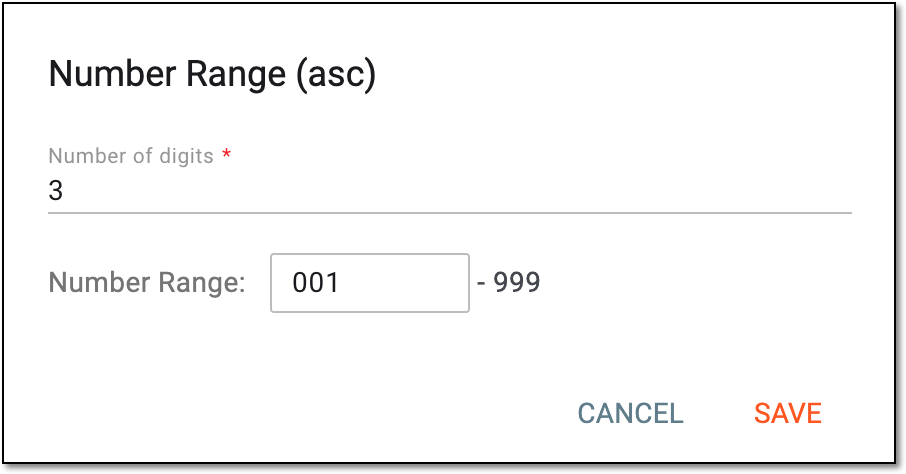 Figure 4. Defining number range for subject ID
Letter Range (asc)
Select
and then select the Letter Range (asc) option to specify the range of letters (for instance, from AAA
to ZZZ) that should be added to the ID.Double-click the node to open the dialog and specify the number of letters in the ID (1 for A-Z; 2 for AA-ZZ; 3 for AAA-ZZZ, and so on) and the starting letter of the range (for instance, AAA, EEE, LLL, and so on). Select SAVE to implement the changes.
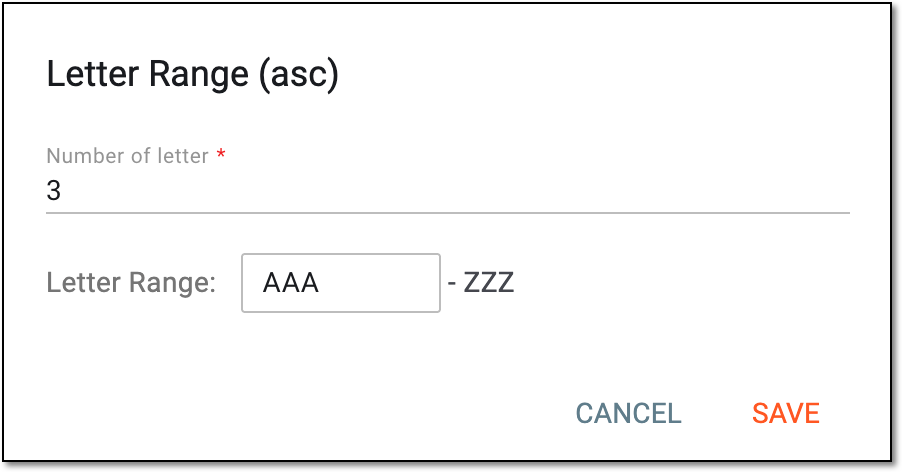 Figure 5. Defining letter range for subject ID
Dash
Select
and then select the Dash option to add a dash to the ID.Edit ID
Turn this toggle on or off to allow or restrict editing of the ID parameter when creating new subjects in DATA ENTRY or registering subjects in the STUDY INFO module.
SAVE
Select
 to implement the changes.
Once saved, your additional ID is configured and all subjects that reached the specified phase are now assigned with the respective identifiers. If needed, you can configure more additional IDs for your study following the same procedure.
In EDC, you can view the additional IDs, for instance, from the Subject List page, reports functionality, and other places featuring subject details.

An individual component of a master study protocol with its specific objectives, such as evaluating a product, dose, or subject category. Substudy inherits the core structure and governance from the master one but has its own endpoints.
An overarching clinical trial protocol designed to achieve clinical trial objectives under a unified framework. This approach simplifies clinical development by introducing multiple substudies to operate under the same regulatory and operational entity.
A specific phase that a subject has to complete in the course of a clinical trial to move further to the next phase. For instance, Screening, Enrolled, Randomized, and others.
 |
In eClinical, subject phases are designed individually for each study via the SD application, although they are referenced in others, like IWRS or EDC.