Configuring unique ID for subjects
In a clinical trial, unique identifiers (IDs) are used to identify trial participants, protect their personal information, and maintain confidentiality. Using IDs can facilitate data integrity, blinding, randomization, monitoring, analysis, and other purposes in the course of a clinical trial.
In EDC, you can configure an ID assigned to each subject newly registered in the system. You can specify the elements of the unique ID, whether the ID can be edited, and so on. Depending on the sponsor's requirements, the unique ID can be the only identifier with which the subject passes through all the study phases or the first of several identifiers assigned to the subject when passing certain study phases. To have multiple identifiers, you can configure additional IDs for your study.
Watch this short video and learn how to configure subject ID parameters in EDC and proceed to study the detailed instructions as described in the following procedure.
-
In the EDC application header, select the STUDY INFO tab.
-
On the Study Information page that opens, in the contents panel, select the ID Configuration tab.
 Figure 1. Accessing subject ID configuration
-
On the page that opens, in the Unique ID Configuration block, configure your ID settings as explained in the following table.
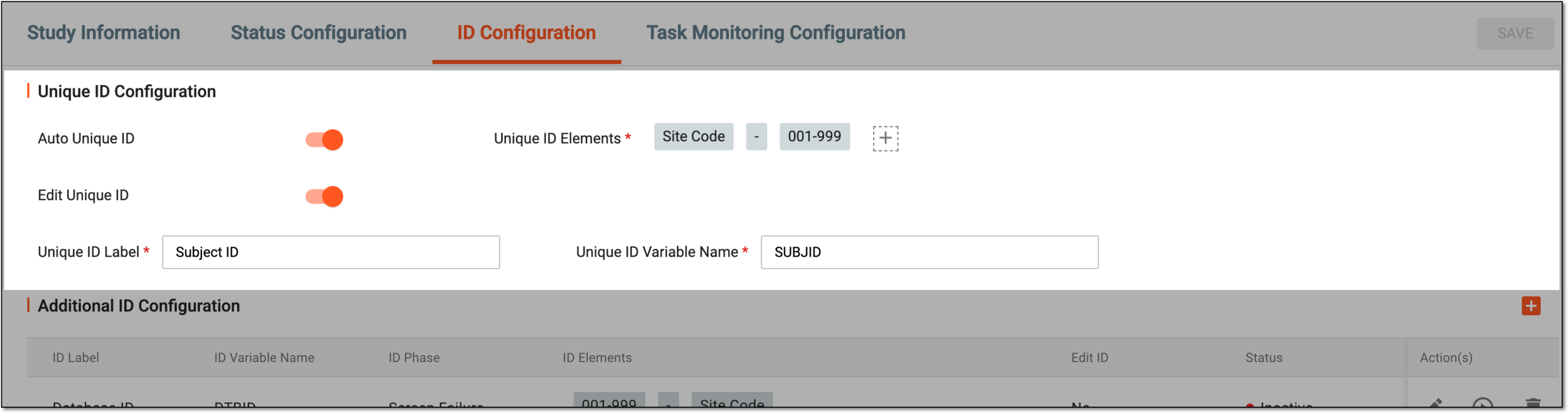 Figure 2. Configuring unique ID
Tip
In the following table, mandatory elements are marked with an asterisk (*).
Element
Details
Auto Unique ID
Turn on the toggle to enable the system to automatically assign the unique identifier to all subjects upon registration.
Edit Unique ID
Turn this toggle on or off to allow or restrict editing of the unique ID parameter when creating new subjects in DATA ENTRY or registering subjects in the STUDY INFO module.
The is turned off by default and cannot be turned on for the substudy as it is inherited from the master study to maintain subject identification consistency.Unique ID Label*
Enter the name of the unique identifier that is to be displayed in the system.
For instance, if you only have one ID for the subjects of your study, you can simply name it Subject ID.
On the contrary, if you are planning to have multiple IDs for your study participants, the first assigned can be called Database ID to reflect that this is the identifier for a person who is only applying to become a participant and is now registered in the database.
The ID label is read-only for the substudy as it is inherited from the master study to maintain subject identification consistency.Unique ID Variable Name*
Enter the name of the variable that is to represent your unique ID in the raw data extracted from EDC.
The variable name is read-only for the substudy as it is inherited from the master study to maintain subject identification consistency.Unique ID Elements*
Site Code
Select
 and then select the Site Code option to add the code of the site at which the subject is registered as
a part of their unique ID.
and then select the Site Code option to add the code of the site at which the subject is registered as
a part of their unique ID.Number Range (asc)
Select
and then select the Number Range (asc) option to specify the range of numbers (for instance, from 001
to 999) that should be added to the unique ID. This option is mandatory, so it is automatically added if the Site Code option is selected.Double-click the node to open the dialog and specify the number of digits in the ID (for instance, 1 for 1-9; 2 for 01-99; 3 for 001-999, and so on) and the starting number of the range (for instance, 001, 101, 201, and so on). Select SAVE to implement the changes.
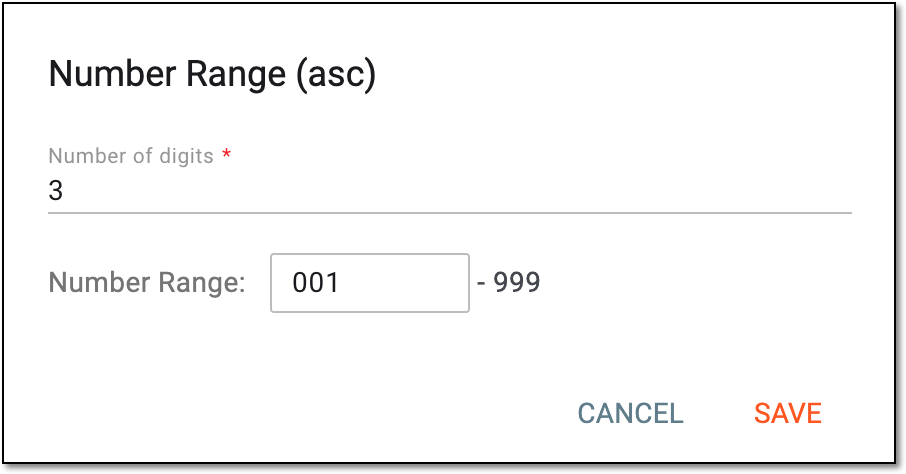 Figure 3. Defining number range for subject ID
Letter Range (asc)
Select
and then select the Letter Range (asc) option to specify the range of letters (for instance, from AAA
to ZZZ) that should be added to the unique ID.Double-click the node to open the dialog and specify the number of letters in the ID (1 for A-Z; 2 for AA-ZZ; 3 for AAA-ZZZ, and so on) and the starting letter of the range (for instance, AAA, EEE, LLL, and so on). Select SAVE to implement the changes.
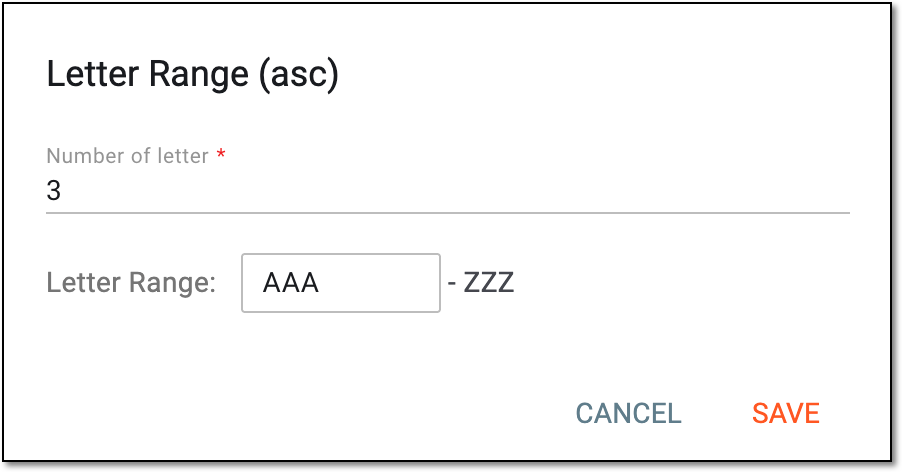 Figure 4. Defining letter range for subject ID
Dash
Select
and then select the Dash option to add a dash to the unique ID.SAVE
Select
 to save the implemented changes.
Once saved, your unique ID is configured and respective identifiers are now assigned to all the subjects first registered in the system. If needed, you can configure additional IDs for your study.