Activate/Inactivate additional ID
In a clinical trial, unique identifiers (IDs) are used to identify trial participants, protecting their personal information and maintaining confidentiality.
In EDC, you can configure the unique ID parameters for your study subjects depending on your requirements. Different studies can have one or multiple IDs for their subjects during a trial. Multiple IDs might be required if you want your subjects to receive new specific identifiers when passing through the trial phases.
Once an additional ID is configured for your study, it is activated automatically. Nevertheless, you can inactivate it manually.
For instance, you have created an additional ID for your study, which must be put on hold until required. You can inactivate it, and the system will not assign identifiers of this kind to the users until activated.
-
In the EDC application header, select the STUDY INFO tab.
-
On the Study Information page that opens, in the contents panel, select the ID Configuration tab.
 Figure 1. Accessing subject ID configuration
-
On the page that opens, in the Additional ID Configuration block, locate the ID you want to activate or inactivate. Then in the Action(s) column next to it, select Activate
 or Inactivate
  .
.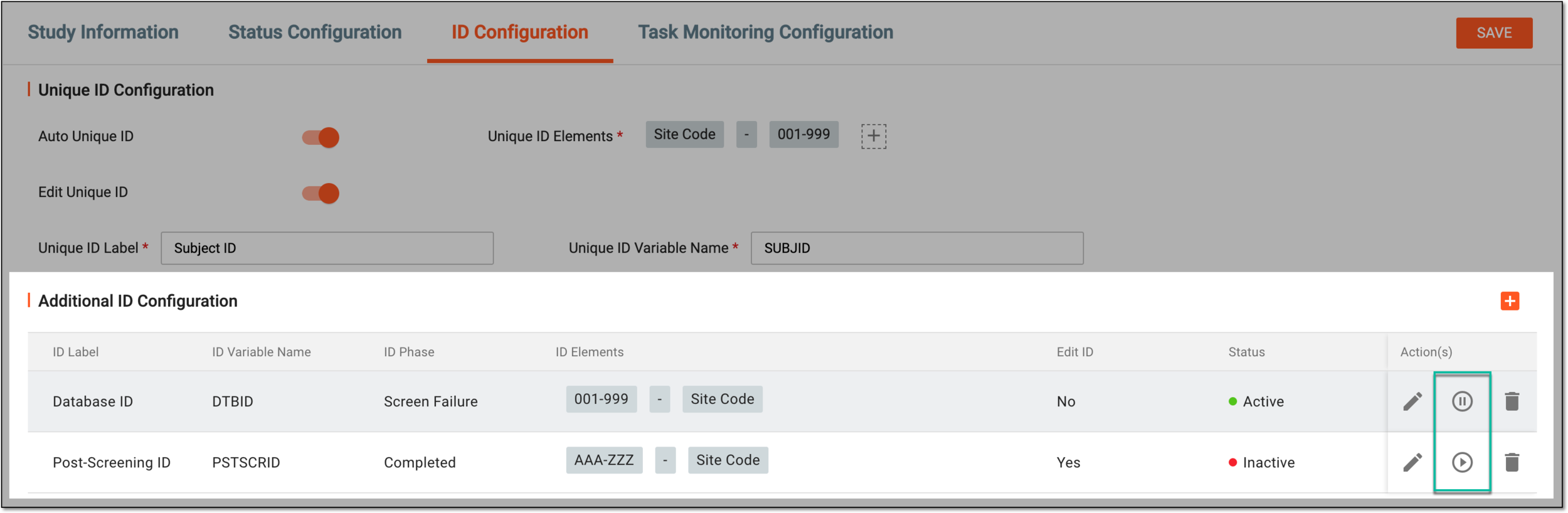 Figure 2. Selecting options to activate and inactivating additional ID
Depending on the selected option, the additional ID is activated or inactivated.