Initiate data-driven monitoring
The data-driven monitoring uses the real-time data collected through the EDC system to provide insights and enable remote monitoring, reducing the need for frequent on-site visits. This integration of CTMS and EDC enables seamless data flow between the systems, to access EDC data, which includes subject enrollment, adverse events, laboratory results, and other relevant trial data comprised in the KRI central monitoring and other reports.
To start monitoring the data in the CTMS system, you need to initiate the process.
-
Access the study management page in one of the following ways:
-
In the CTMS application header, select the DASHBOARD tab and then select the study dashboard of your interest.
 Figure 1. Accessing study management from dashboard
-
In the CTMS application header, select the STUDY MANAGEMENT tab. Then from the Study Data List table, select the study name of your interest.
 Figure 2. Accessing study management from study data list
-
-
On the study page that opens, in the left pane, expand Data-driven Monitoring and select Indicators.
-
Next to the name of the Indicator table that appears, select Setting
 .
.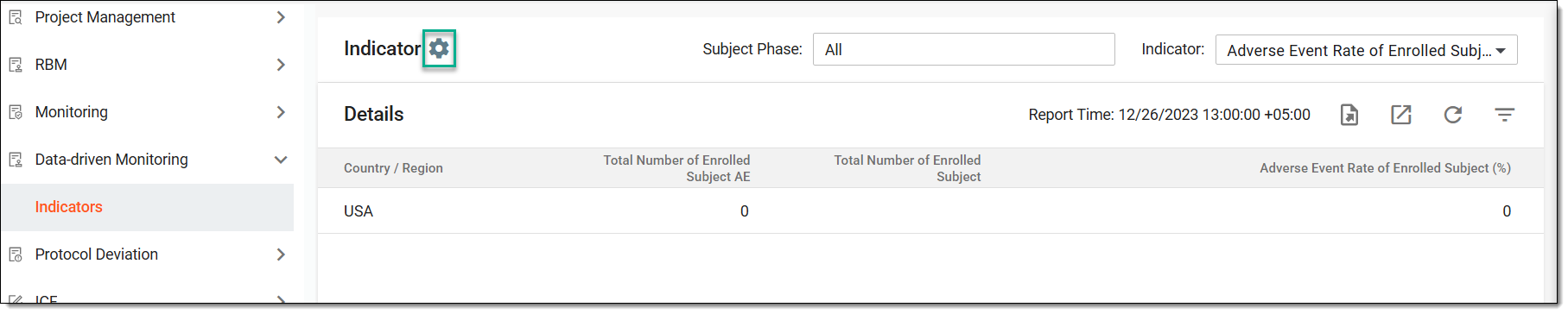 Figure 3. Accessing indicator settings
-
In the Setting tab of the dialog that appears, select checkboxes next to the indicators whose pertaining data you want to retrieve from EDC. The available indicators are explained in the following table.
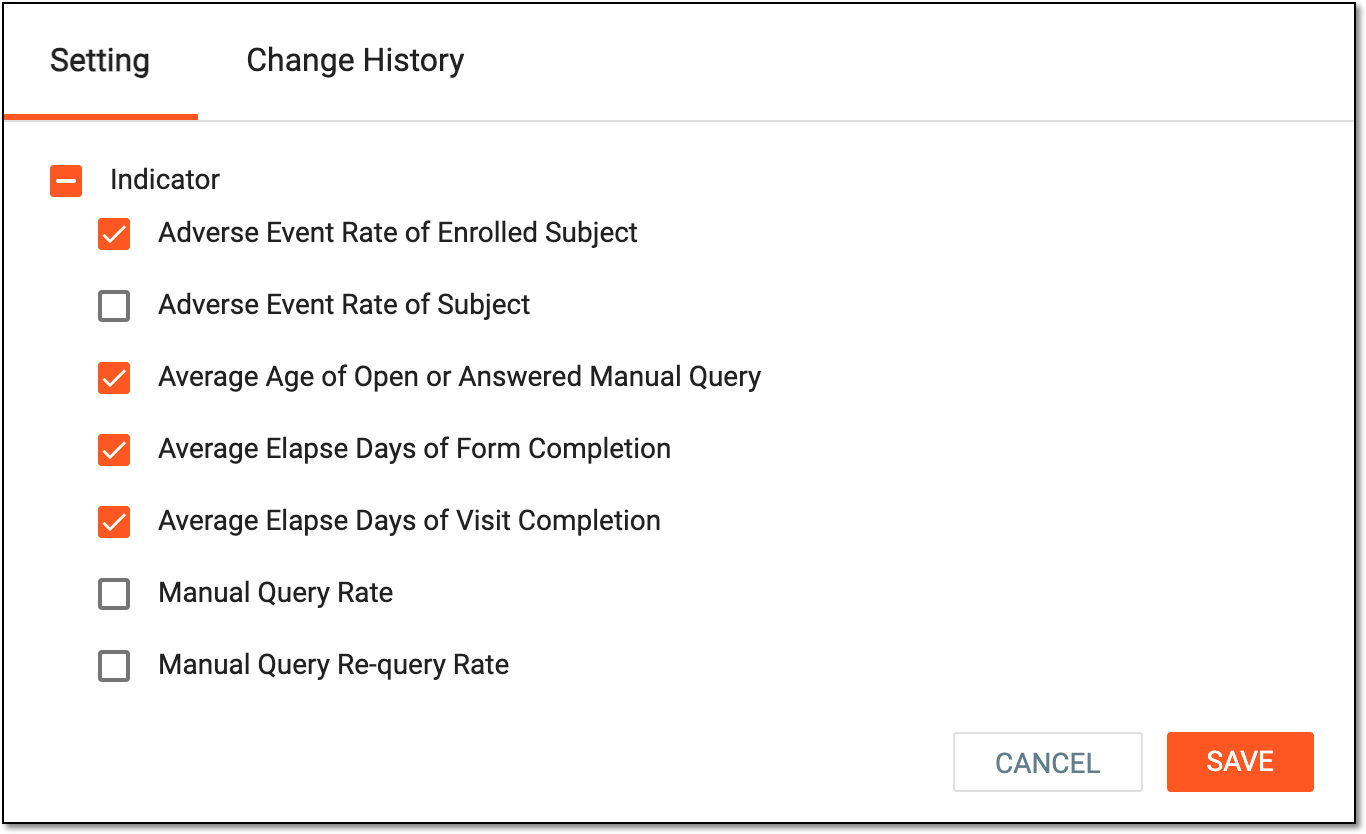 Figure 4. Applying indicator settings
Indicator
Details
Adverse Event Rate of Enrolled Subjects
The report by this indicator shows the rate (in percentage) of adverse events (AEs) recorded for the subjects enrolled in a study by comparing the total number of enrolled subjects to the total number of enrolled subjects with AEs, displaying the statistics by country or region.
A high rate of AEs amongst the subjects enrolled in a study may indicate safety concerns.
The data is pulled from the subject safety report in EDC.
Adverse Event Rate of Subject
The report by this indicator shows the rate (in percentage) of AEs recorded for all the subjects in a study by comparing the total number of subjects to the total number of recorded AEs, displaying the statistics by country or region.
A high rate of AEs amongst subjects at different stages of participation in a study may indicate the need for closer review due to frequent safety events.
The data is pulled from the subject safety report in EDC.
Average Age of Open or Answered Manual Query
The report by this indicator shows the mean of days the manual query in the CRF of the site remains open—even if answered—without closure. The indicator is calculated by comparing the total age of open or answered queries to the total number of open or answered queries, displaying the statistics by country or region.
This indicator measures the timeliness of data issue resolution and highlights potential grounds for concerns, allowing to prevent potential delays in data cleaning activities.
The data is pulled from the all query report in CTMS.
Average Days of Answering for Answered Queries
The report by this indicator shows the mean of days it takes the study personnel to answer to the query, considering only the queries that are answered but not yet closed and displaying the statistics by country or region.
This indicator allows to assess the responsiveness of the study personnel and their data management efficiency.
The data is pulled from the all query report in CTMS.
Average Days of Answering for Closed Queries
The report by this indicator shows the mean of days it takes the study personnel to answer the query, considering the queries that are answered and closed and displaying the statistics by country or region.
This indicator reflects the overall efficiency of the query management process.
The data is pulled from the all query report in CTMS.
Average Elapse Days of Form Completion
The report by this indicator shows the mean of days it takes the study personnel to complete the CRF, comparing the total number of elapsed days of all the forms completion to the total number of completed forms, displaying the statistics by country or region.
This indicator helps identify delays in data entry that may impact data quality and study oversight.
The data is pulled from the form completion timeliness report in EDC.
Average Elapse Days of Visit Completion
The report by this indicator shows the mean of the number of days it took to complete and submit the visits by comparing the total number of elapsed days of the visit completion to the total number of completed visits of a particular site, displaying the statistics by country or region.
This indicator helps monitor timeliness of visit documentation and study conduct.
The data is pulled from the visit completion timeliness report in EDC.
Manual Query Rate
The report by this indicator shows the rate (in percentage) of manual queries in CRF forms for the study by comparing the total number of manual queries relative to all queries (both system-generated and manual) and displaying the statistics by country or region.
A high manual query rate indicates that a large proportion of data issues at the site are being caught by reviewers (DMs or CRAs) rather than by automated system edit checks. This may suggest the site has data quality issues that fall outside the scope of programmed validations, or that the edit check design needs improvement.
The data is pulled from the query reports in EDC.
Manual Query Re-query Rate
The report by this indicator shows the rate (in percentage) of how often manual queries needed to be issued again because the initial response to them was inadequate.
A high re-query rate means the site frequently provides incomplete or incorrect responses to queries, requiring the DM to issue the query again. This signals poor site understanding of query requirements, insufficient training, or systemic data quality problems that aren't resolved on the first attempt.
The data is pulled from the query reports in EDC.
Maximum Elapse Days of Form Completion
The report by this indicator shows the longest (in days) it took the study personnel to complete the CRF from the day it became ready for data entry to the submission date; displaying the statistics by country or region.
This indicator highlights extreme data entry delays that may represent serious incompliance risks.
The data is pulled from the form completion timeliness report in EDC.
Pending SDV and/or SDR Workload
The report by this indicator shows how much time (in minutes) is required to complete the pending Source Data Verification (SDV) and Source Data Review (SDR) tasks for the study; displaying the statistics by country or region.
This indicator shows outstanding monitoring workload to improve planning and prioritization of activities to cover the sites with higher risks.
The data is pulled from the SDV & SDR workload report in EDC.
Screen and Re-screen Failure Rate
The report by this indicator shows the rate (in percentage) of screening and re-screening failures for subjects in a study by comparing the total number of screened subjects to the number of those who failed to pass the screening or re-screening, respectively, and displaying the statistics by country or region.
This indicator helps identify potential issues of recruitment, inconsistent application of inclusion and exclusion criteria, and other aspects preventing potential participants from joining the study.
The data is pulled from the enrollment summary report in EDC.
Serious Adverse Event Rate of Enrolled Subject
The report by this indicator shows the rate (in percentage) of serious adverse events (SAEs) recorded for the subjects enrolled in a study by comparing the total number of enrolled subjects to the total number of enrolled subjects with SAEs, displaying the statistics by country or region.
This indicator represents potential risks for safety of participants, highlighting treatment-related risks where increased control and monitoring is required.
The data is pulled from the subject safety report in EDC.
Serious Adverse Event Rate of Subject
The report by this indicator shows the rate (in percentage) of SAEs recorded for all the subjects in a study by comparing the total number of subjects to the total number of recorded SAEs, displaying the statistics by country or region.
This indicator represents overall view of study safety to identify populations of elevated safety risk.
The data is pulled from the subject safety report in EDC.
Subject Lost to Follow-up Rate
The report by this indicator shows the rate (in percentage) of subjects on whose case the study personnel failed to follow-up.
This indicator shows where there is a difficulty retaining study participants. This directly impacts data completeness and statistical power; may indicate low participant enrollment, inadequate follow-up procedures, or excessive protocol workload at that center.
The data is pulled from the subject enrollment report in EDC.
System Query Re-query Rate
The report by this indicator shows the rate (in percentage) of system re-queries in CRF forms for the study by comparing the total number of forms to the total number of follow-up system queries and displaying the statistics by country or region.
This indicator helps assess data quality and effectiveness of query resolution.
The data is pulled from the all query report in CTMS.
Total Missing Forms
The report by this indicator shows how many forms where not submitted during their completion window.
This indicator identifies gaps in data collection and helps prioritize actions to maintain data completeness.
The data is pulled from the CRF completion status report in EDC.
Total Number of Open Queries
The report by this indicator shows how many queries are open and of a certain age (in days). You can adjust the age of query you want to see on the report as needed.
This indicator provides overall measure of outstanding data issues and helps assess study data quality and operational performance.
The data is pulled from the all query report in CTMS.
-
Once you have chosen the indicators, select
 .
. -
Then from the workspace toolbar, in the Indicator dropdown menu, select the needed indicator.
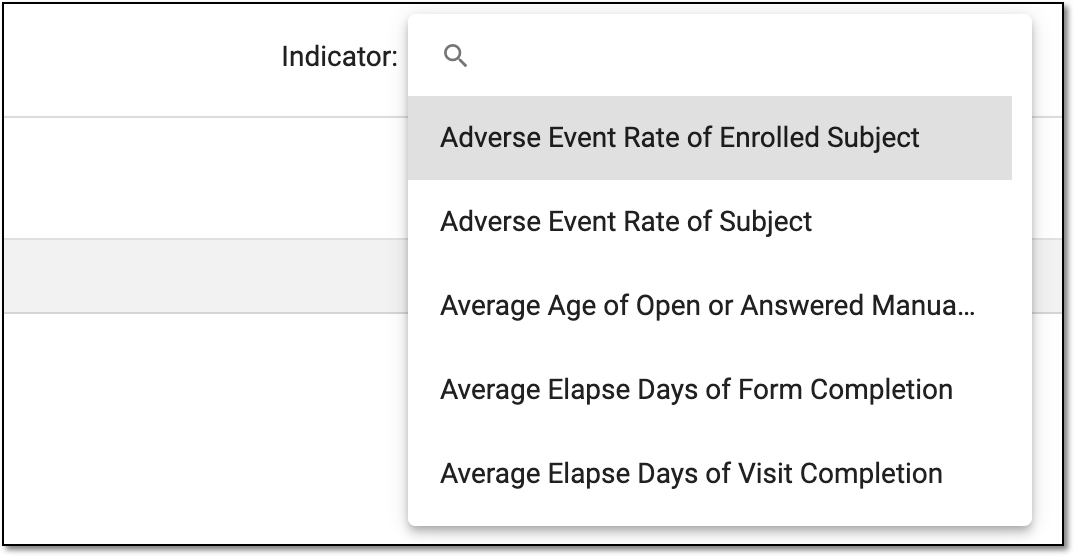 Figure 5. Selecting indicator
Important
Every selected indicator generates its variety of columns in the Details table that appears next. These columns represent risk assessment data describing in detail each selected indicator, allowing for precise analysis and monitoring.
-
In the Details table, view the risk assessment data extracted from EDC. Note that the data may not be available right away due to synchronization activities between CTMS and EDC. It can take some time before the data appears in the table.
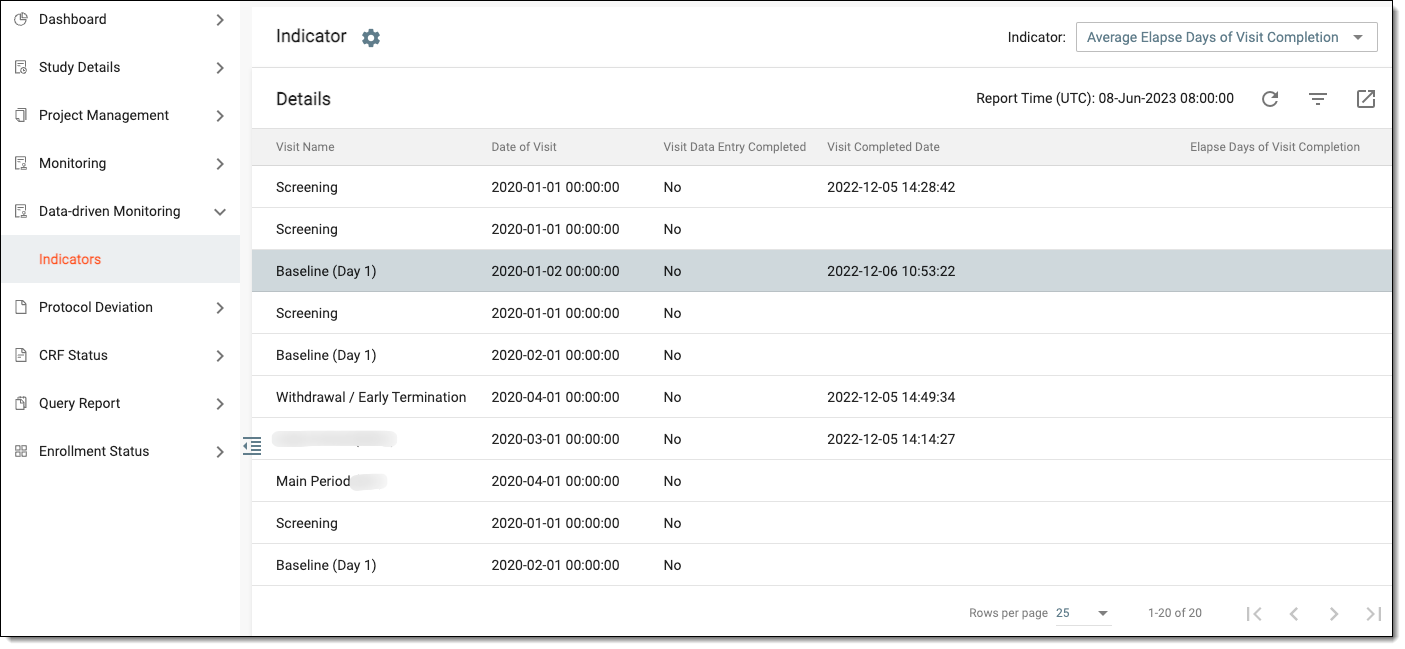 Figure 6. Viewing indicator data
Tip
In the toolbar of the CTMS application, you can select the country and site to filter the indicator assessment data in the Details table. The columns vary depending on the indicator as the data extracted from EDC can have different meanings.
Once viewed, you can now export the specific indicator data to your computer.