Review all query details
A query refers to the request for clarification on some data items collected in EDC on the CRF during a clinical trial. Usually, query requests are posted by data managers (DM) so that clinical research coordinators (CRC) can resolve errors or inconsistencies discovered during the data review.
There are two types of queries—manual and system.
-
Manual queries: these are created by the system users and assigned to responsible users to address the issues and either correct them or confirm the data's accuracy.
-
System queries: these are generated automatically by the system and require user interaction to manage and resolve them.
To track all the queries, their statuses, resolution rates, replies, and other details, it becomes handy to have a comprehensive report comprising all the details in one table.
In CTMS, the All Query Details report is similar to All Query Report in EDC. The data is pulled from EDC to CTMS to facilitate data management and review processes and eliminate the need to switch between applications.
Tip
You can also export the query details if you prefer to work with the data offline.
-
Access the study management page in one of the following ways:
-
In the CTMS application header, select the DASHBOARD tab and then select the study dashboard of your interest.
 Figure 1. Accessing study management from dashboard
-
In the CTMS application header, select the STUDY MANAGEMENT tab. Then from the Study Data List table, select the study name of your interest.
 Figure 2. Accessing study management from study data list
-
-
On the study management page that opens, from the left pane, select Query Report > All Query Details.
-
On the All Query Details page that opens, review the statistical data pulled from the EDC system on both manual and system queries. This statistical data is explained in the following table.
Important
Turn the Show Activated Data toggle on/off for your report to exclude/include the data on queries that belong to inactivated forms.
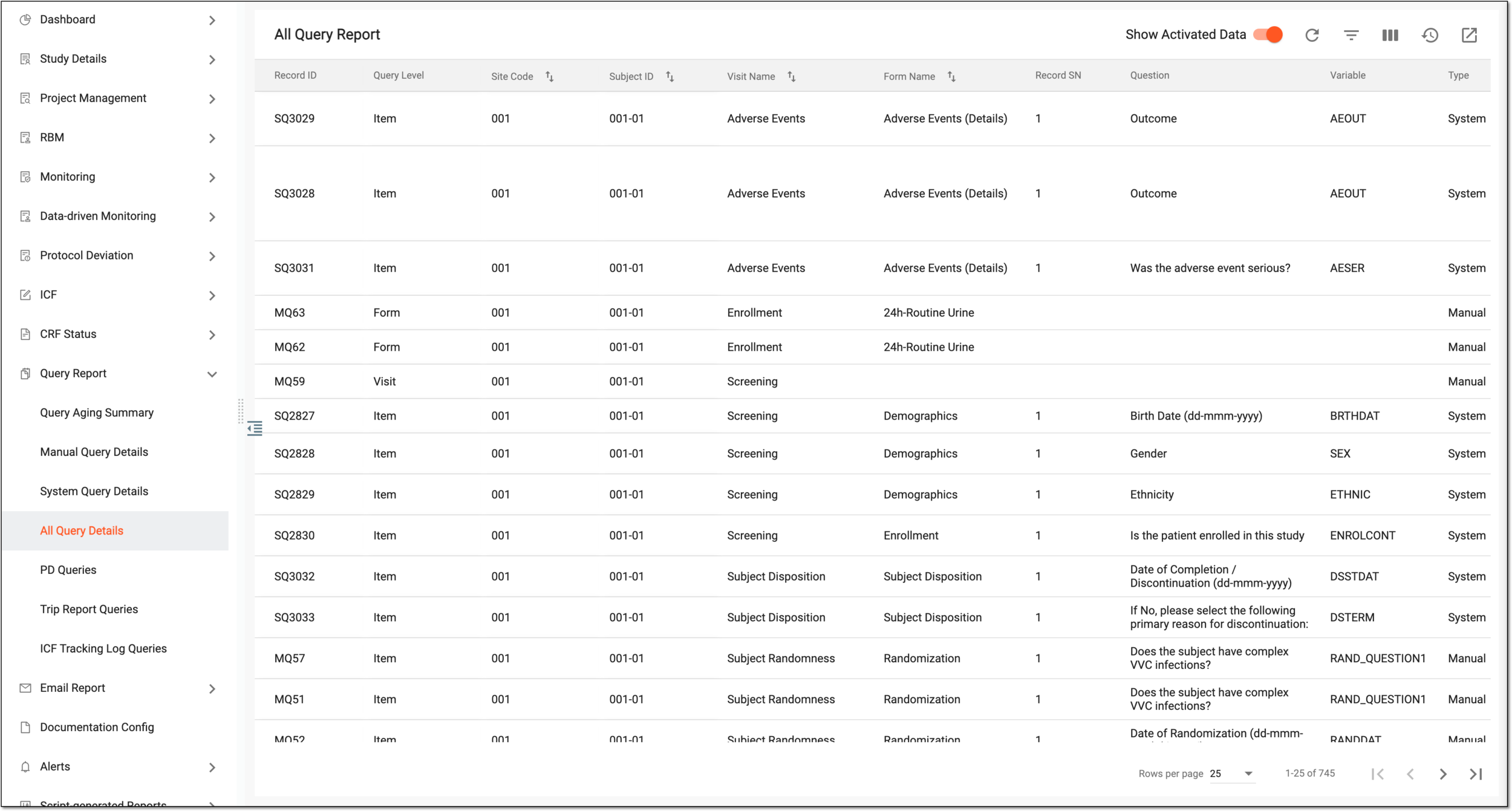 Figure 3. Reviewing all query report
Column
Details
Record ID
Represents the unique identifier of the query record in the system.
Query Level
Represents the level on which the query is opened—visit, form, record, or item.
Site Code
Represents the code of the site where the data being queried has been collected.
Subject ID
Represents the ID of the subject to whose data the created query is related.
Visit Name
Represents the name of the visit during which the data being queried has been collected.
Form Name
Represents the CRF name on which the query has been created.
Question
Represents the question text on the CRF to which the created query is related.
Variable
Represents the CDASH variable in the source standard to which the created query is related.
Type
Indicates whether the query is manual—created manually by the user—or system-generated.
Query Topic
Represents the topic of the created query. The query topic usually explains the reason why the query has been added.
Queried By
Represents the name of the user who created a corresponding query.
Creation Role
Represents the role of the user who created a corresponding query.
Creation Date
Represents the date when the query has been opened.
Query Age (days)
Represents the total number of days since a corresponding query has been opened.
Assigned To
Represents the name of the user role responsible for the resolution of the created query.
Status
Represents either the Open or Closed status of the query.
Overdue
Represents whether the query is overdue or not.
Final Reply Text
Represents the response text of the responsible user to the query.
Final Reply Date
Represents the date when the responsible user has responded to the query.
Final Reply By
Represents the name of the responsible user who has responded to the query.
Closed By
Represents the name of the user who has resolved the query and closed it.
Closed Date
Represents the date when the query has been closed.
You have reviewed the details of all manual and system-created queries from EDC.