Export indicator data
Traditionally, monitoring in clinical trials involves on-site visits by monitors to ensure protocol compliance, data accuracy, and participant safety. The data-driven monitoring utilizes the real-time data collected through the EDC system to provide insights and enable remote monitoring, reducing the need for frequent on-site visits. This integration enables seamless data flow between CTMS and EDC, allowing CTMS to access EDC data, which includes subject enrollment, adverse events, laboratory results, and other relevant trial data.
All data-driven monitoring activities are done under the Data-driven Monitoring tab of CTMS. Within this tab, you can switch between different risk assessment indicators that provide the overall statistics on various aspects of the clinical trial. This statistical data can help monitors to analyze study management activities in order to initiate any required corrective actions. You can download the data pertaining to a specific indicator in XLSX format to your computer so you can work with this data offline.
-
Access the study management page in one of the following ways:
-
In the CTMS application header, select the DASHBOARD tab and then select the study dashboard of your interest.
 Figure 1. Accessing study management from dashboard
-
In the CTMS application header, select the STUDY MANAGEMENT tab. Then from the Study Data List table, select the study name of your interest.
 Figure 2. Accessing study management from study data list
-
-
On the study page that opens, in the left pane, expand Data-driven Monitoring and select Indicators.
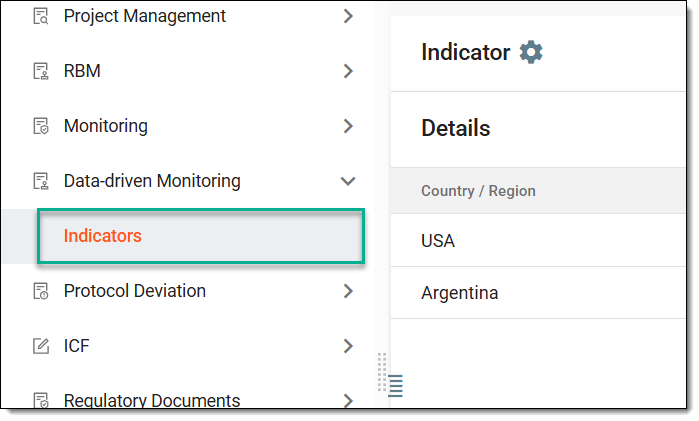 Figure 3. Accessing indicators
-
From the workspace toolbar of the Indicators table that appears, select the needed indicator.
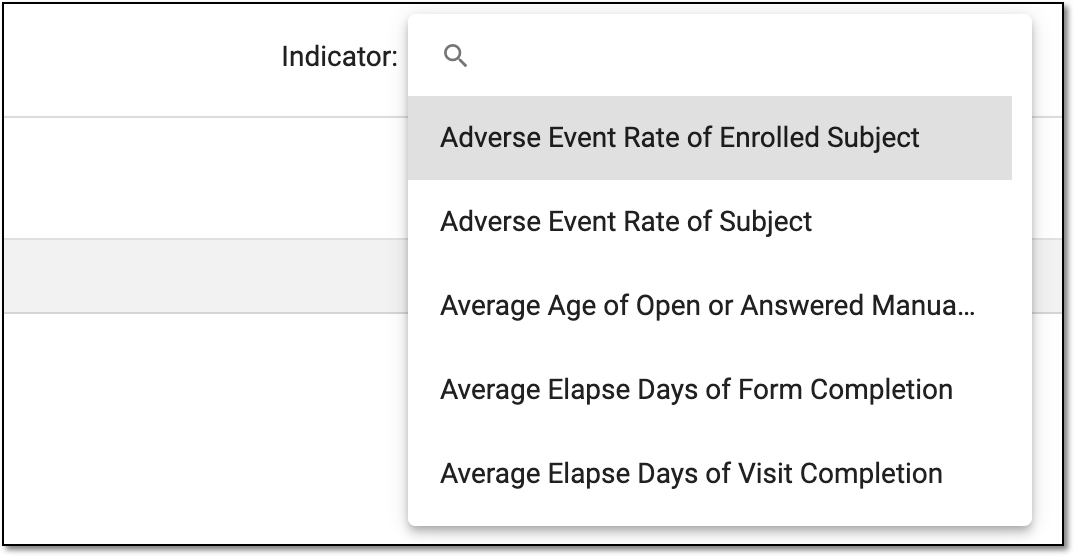 Figure 4. Selecting indicator
Tip
In the toolbar of the CTMS application, you can select the country and site to filter the indicator assessment data in the Details table. The columns vary depending on the indicator as the data extracted from EDC can have different meanings.
-
Then from the same workspace toolbar, select Export
 . Then choose if you want to export data from all the indicators or the
specific indicator selected previously.
. Then choose if you want to export data from all the indicators or the
specific indicator selected previously.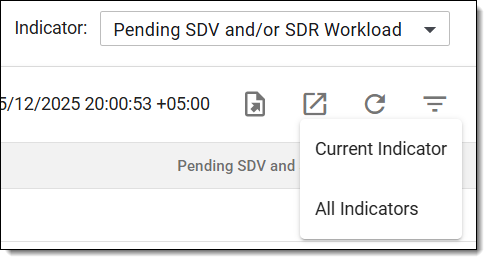 Figure 5. Exporting indicator data
-
The downloads widget appears showing the export progress. Select the widget to access exported files.
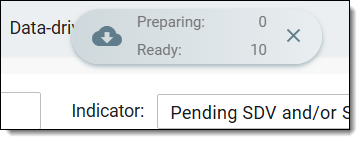 Figure 6. Downloads widget showing indicator data being exported
-
In the My Downloads dialog that appears, in the Download is Ready tab, select
 next to the required exported file.
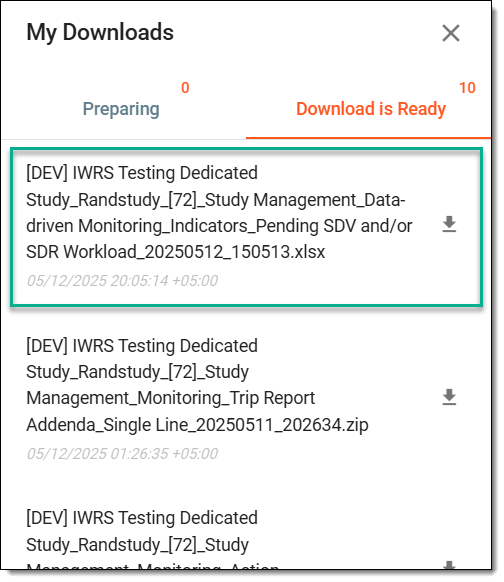 Figure 7. Downloading indicator data
Once selected, the data pertaining to a specific indicator is downloaded in the XLSX format to your computer. You can now work with it offline.