Analyze enrollment summary report
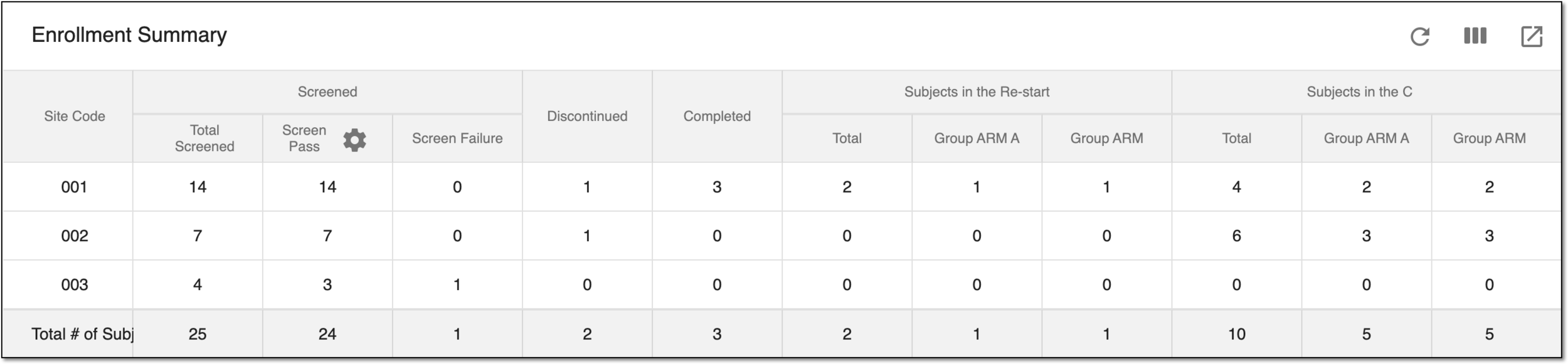
In EDC, the Enrollment Summary report is designed to demonstrate the current and complete statistics of the study subjects per each site that have been screened and either passed or failed the screening. The report also includes the number of discontinued and completed subjects per site, and for the randomized studies, the enrollment statistics per arm are given.
Tip
As this report is study-specific, you can select the subject phase as the screen pass criteria. Simply select  in the Screen Pass column, and in the dialog that opens, select/clear the checkbox(es) next to the phase(s) you want to account as such that passed the screening.
-
In the EDC application header, select the REPORTS tab.
-
On the page that opens, in the left pane, select the Enrollment Status subtab to expand the list of available reports.
-
From the list that appears, select Enrollment Summary.
The Enrollment Summary report page opens. You can also export the report to use its data offline or share it with those who have no access to the EDC system.
A specific phase that a subject has to complete in the course of a clinical trial to move further to the next phase. For instance, Screening, Enrolled, Randomized, and others.
 |
In eClinical, subject phases are designed individually for each study via the SD application, although they are referenced in others, like IWRS or EDC.