Adding data extraction jobs
Jobs are automated processes that can be set up in EDC to perform various tasks on your behalf. Instead of manually triggering these tasks regularly, you can add jobs and prepare schedules for the execution of various activities, such as data extraction to external servers. Thus, you can save your time and effort and avoid potential human error.
Important
To configure the job—upon adding or editing—you must have the Write permission for the respective job category granted to your user role via ADMIN.
 |
In the following sections, you can learn about adding jobs for various data extraction in EDC.
This automated job is intended for the extraction of the most recent version of raw data from EDC to the sponsor's server.
-
In the EDC application header, select the JOB tab.
-
In the left pane of the page that opens, select Raw Data Extraction.
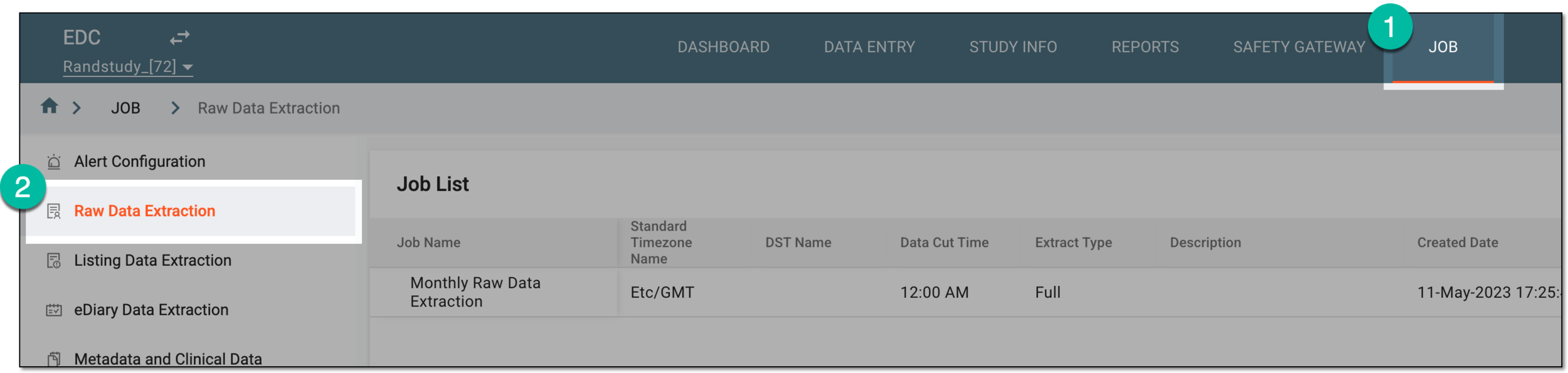 Figure 1. Accessing raw data extraction jobs
-
On the Job List page that opens, from the workspace toolbar, select New Item
 .
. Figure 2. Selecting option to add raw data extraction job
-
In the New dialog that opens, complete the form as explained in the following table.
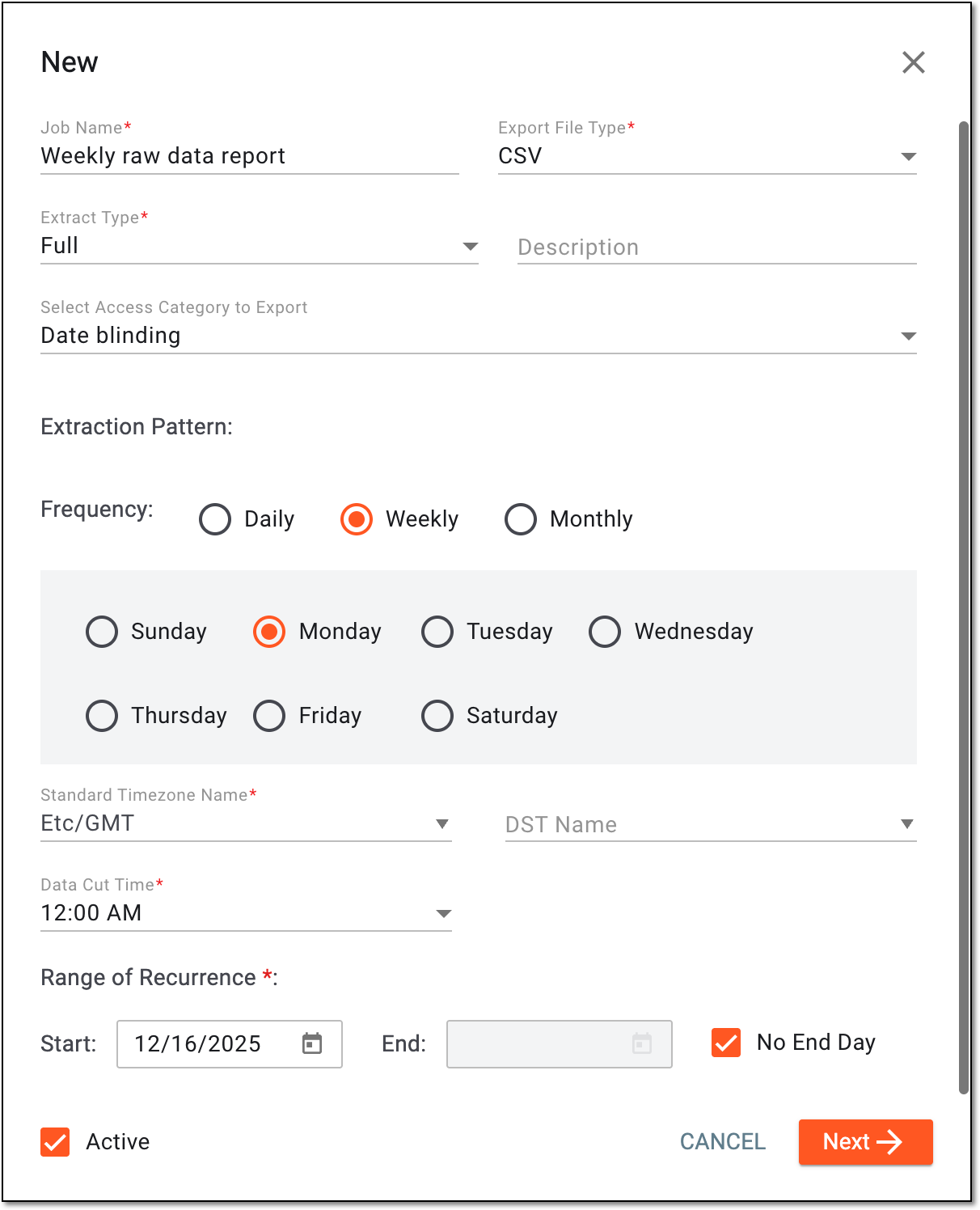 Figure 3. Configuring raw data extraction job
Tip
In the following table, mandatory elements are marked with an asterisk (*).
Element
Details
Job Name*
Enter a unique name for the raw data extraction job you create.
Export File Type*
Select one of the available options—CSV or SAS —to export the data in the CSV or SAS format, respectively.
Extract Type*
Select one of the following:
-
Full: for the job run to extract the report with all the raw data collected in the clinical trial.
-
Incremental: for the job run to extract only the raw data that is new or updated since the previous job extraction.
Description
Enter any important details or auxiliary information about the data extraction job you create.
Select Access Category to Export
Select one of the blinding or access restriction categories that are applied to the data. Only blinded or restricted data of a specific category is extracted if selected.
The available here access categories are maintained in SD and populated to EDC upon CRF version publishing.Extraction Pattern
Daily
Select this option to extract the data to the server daily. Select Everyday if you want the data to be extracted every day of the week or select Every Weekday to extract data only on weekdays.
Weekly
Select this option to extract the data to the server once every week. Then select the day on which you want the data to be extracted.
Monthly
Select this option to extract the data to the server monthly. Then customize the schedule by selecting to extract data on a specific day of the month (for instance, every second day of the month) or a particular weekday (for instance, every first Monday).
Standard Timezone Name*
Select the time zone according to which the data is extracted to the server based on the selected pattern.
DST Name
Select the Daylight Saving Time (DST) for the system to switch automatically from summer to winter time when needed.
For instance, if you select Central European Time for your time zone, the system may suggest the current DST, which is Central European Summer Time. By hovering over
 , you can view the details of the selected DST.
Data Cut Time*
Select the time for the system to extract the data to the server based on the selected pattern, time zone, and DST, if any.
For instance, if you select for the data to be extracted monthly every second day of the month Central European Time and set the Data Cut Time value to 12:00 AM, the data is extracted each second day of the month at midnight according to the Central European Time.
Range of Recurrence
Start
Set the date when you want the system to start running the data extraction job according to the defined pattern.
End
Set the date when you want the system to stop running the data extraction job according to the defined pattern.
No End Day
Select this checkbox if you want the system to run the data extraction job indefinitely until it is manually deleted.
Active
Select this checkbox to make the data extraction job active so it starts running according to the selected pattern and range of recurrence right after being created.
Next
Select
 to go to the domain and variable configuration step.
SAVE
Select
 to create the data extraction job.
CANCEL
Select
 to discard the changes.
 -
-
In the domain and filter settings that appear, configure your raw data extraction details as explained in the following table.
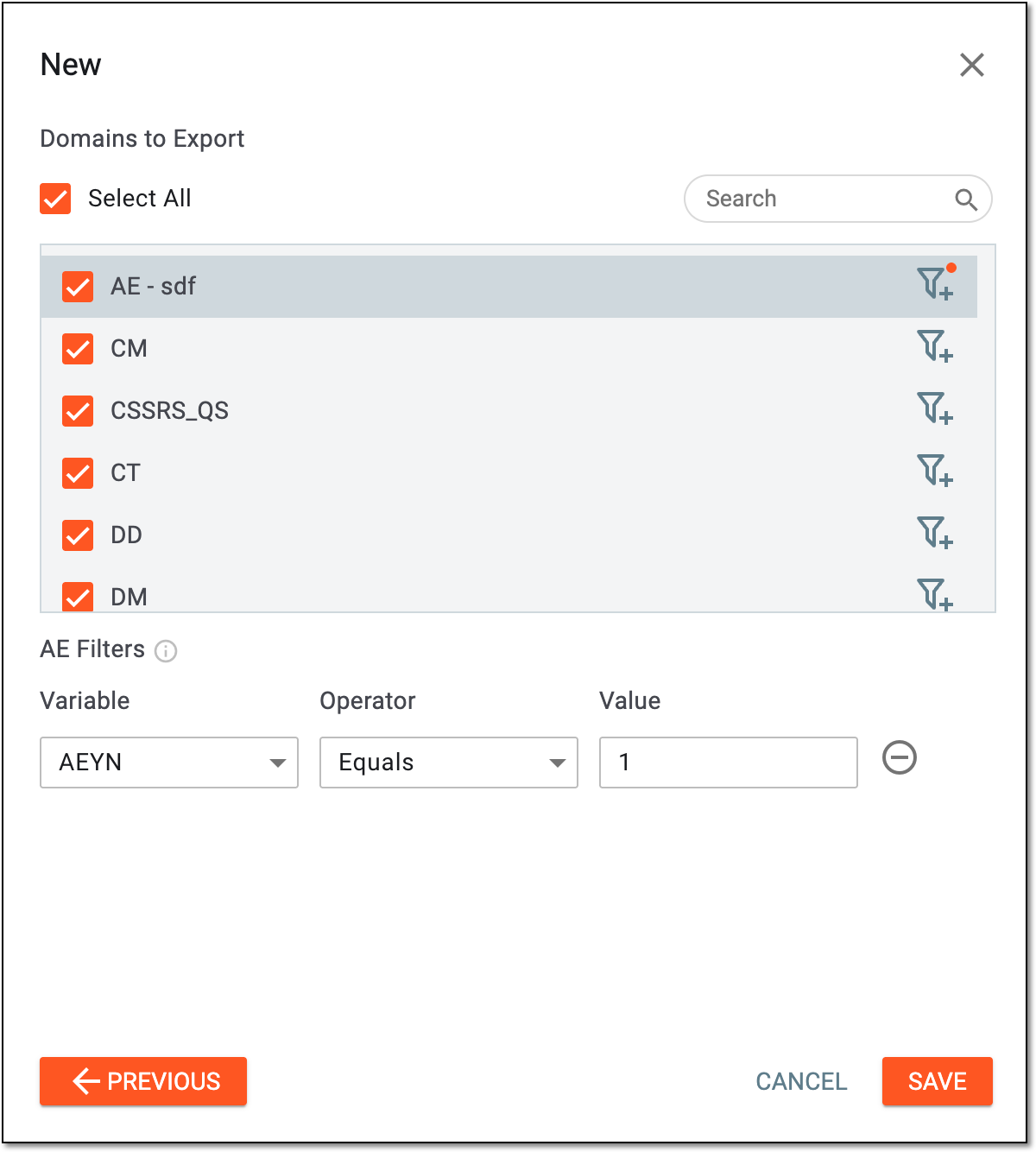 Figure 4. Selecting domains for raw data extraction job
Element
Details
Domains to Export
Select All
Select this checkbox to choose all the data domains of your study to be included into the extracted report.
Search
Use the search feature to find the needed domain on the list faster.

Select this option next to the domain to add more filters for its variables that must be included into the extracted report.
[Domain name] Filters
Variable
Select the variable whose raw data elements must be included into the extracted report.
Operator
Select one of the following:
-
Equals: to only include the entered raw data elements that match the set value into the extracted report.
-
Not Equals: to only include the entered raw data elements that do not match the set value into the extracted report.
Value
Enter the value that the entered raw data must match to be included into the extracted report.
Delete
Select
 next to the variable row to remove it from the raw data extraction configuration.
SAVE
Select
to create the data extraction job.PREVIOUS
Select
 to return to the previous step of raw data extraction configurations.
CANCEL
Select
to discard the changes. -
Once saved, the data extraction job is created. Now you can associate this job with the server and alert configuration.
This automated job is intended for the extraction of the most recent version of the listings data from EDC to the sponsor's server.
-
In the EDC application header, select the JOB tab.
-
In the left pane of the page that opens, select Listing Data Extraction.
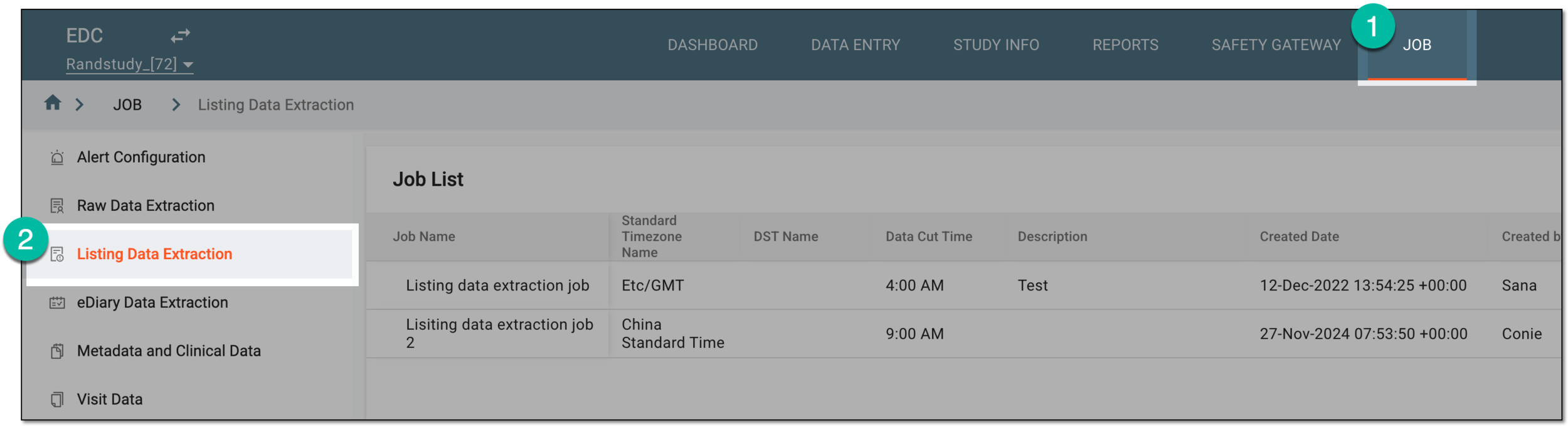 Figure 1. Accessing listing data extraction jobs
-
On the Job List page that opens, from the workspace toolbar, select New Item
. Figure 2. Selecting option to add listing data extraction job
-
In the New dialog that opens, complete the form as explained in the following table.
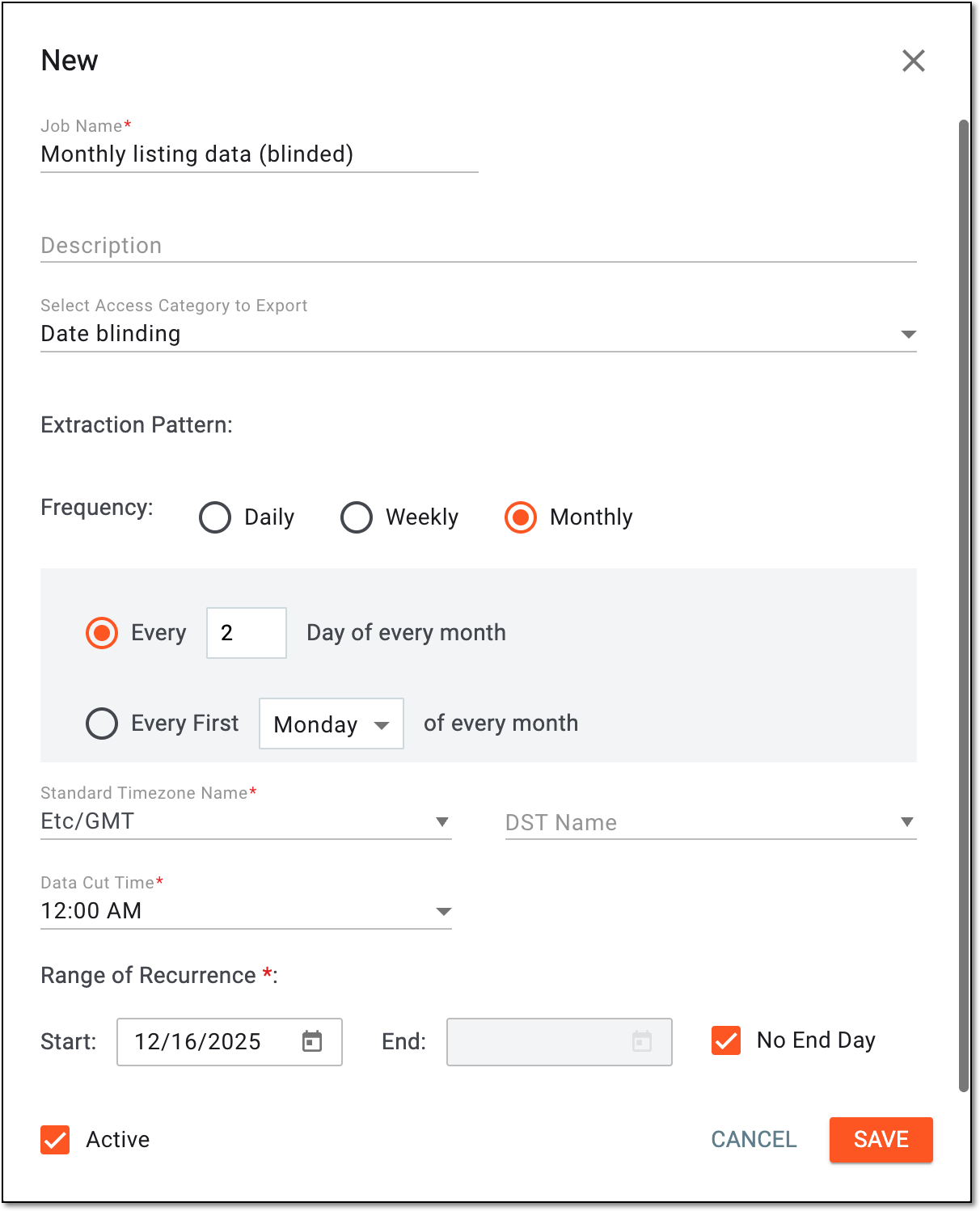 Figure 3. Configuring listing data extraction job
Tip
In the following table, mandatory elements are marked with an asterisk (*).
Element
Details
Job Name*
Enter a unique name for the listings data extraction job you create.
Description
Enter any important details or auxiliary information about the data extraction job you create.
Select Access Category to Export
Select one of the blinding or access restriction categories that are applied to the data. Only blinded or restricted data of a specific category is extracted if selected.
The available here access categories are maintained in SD and populated to EDC upon CRF version publishing.Extraction Pattern
Daily
Select this option to extract the data to the server daily. Select Everyday if you want the data to be extracted every day of the week or select Every Weekday to extract data only on weekdays.
Weekly
Select this option to extract the data to the server once every week. Then select the day on which you want the data to be extracted.
Monthly
Select this option to extract the data to the server monthly. Then customize the schedule by selecting to extract data on a specific day of the month (for instance, every second day of the month) or a particular weekday (for instance, every first Monday).
Standard Timezone Name*
Select the time zone according to which the data is extracted to the server based on the selected pattern.
DST Name
Select the Daylight Saving Time (DST) for the system to switch automatically from summer to winter time when needed.
For instance, if you select Central European Time for your time zone, the system may suggest the current DST, which is Central European Summer Time. By hovering over
, you can view the details of the selected DST.Data Cut Time*
Select the time for the system to extract the data to the server based on the selected pattern, time zone, and DST, if any.
For instance, if you select for the data to be extracted monthly every second day of the month Central European Time and set the Data Cut Time value to 12:00 AM, the data is extracted each second day of the month at midnight according to the Central European Time.
Range of Recurrence
Start
Set the date when you want the system to start running the data extraction job according to the defined pattern.
End
Set the date when you want the system to stop running the data extraction job according to the defined pattern.
No End Day
Select this checkbox if you want the system to run the data extraction job indefinitely until it is manually deleted.
Active
Select this checkbox to make the data extraction job active so it starts running according to the selected pattern and range of recurrence right after being created.
SAVE
Select
to create the data extraction job.CANCEL
Select
to discard the changes.
Once saved, the data extraction job is created. Now you can associate this job with the server and alert configuration.
This automated job is intended for the extraction of the most recent version of the clinical trial data collected via the eDiary app and sending it to the sponsor's server.
-
In the EDC application header, select the JOB tab.
-
In the left pane of the page that opens, select eDiary Data Extraction.
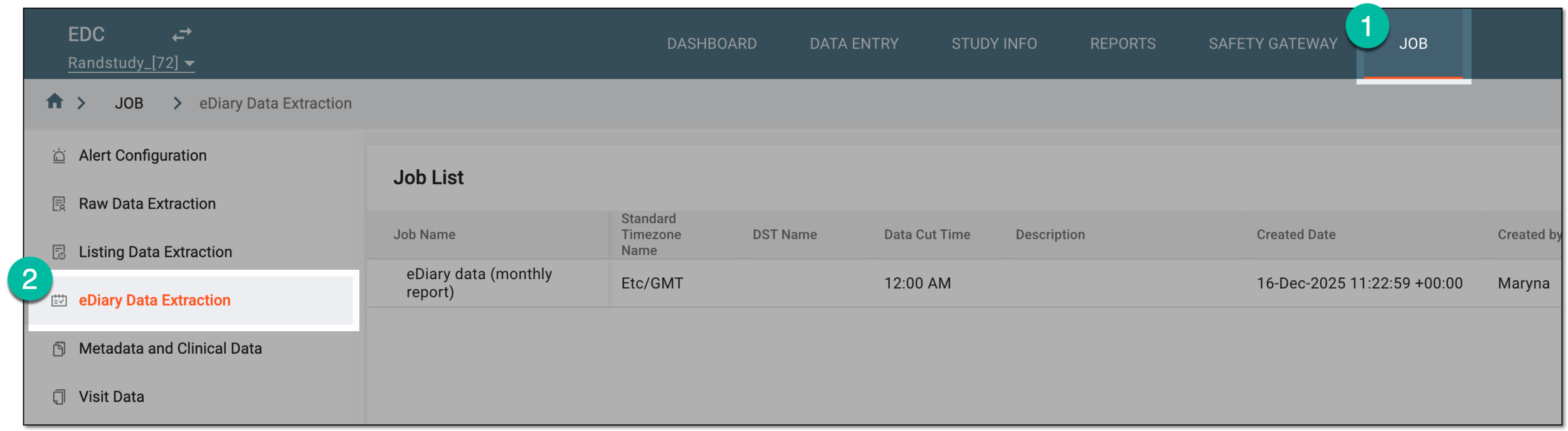 Figure 1. Accessing eDiary data extraction jobs
-
On the Job List page that opens, from the workspace toolbar, select New Item
. Figure 2. Selecting option to add eDiary data extraction job
-
In the New dialog that opens, complete the form as explained in the following table.
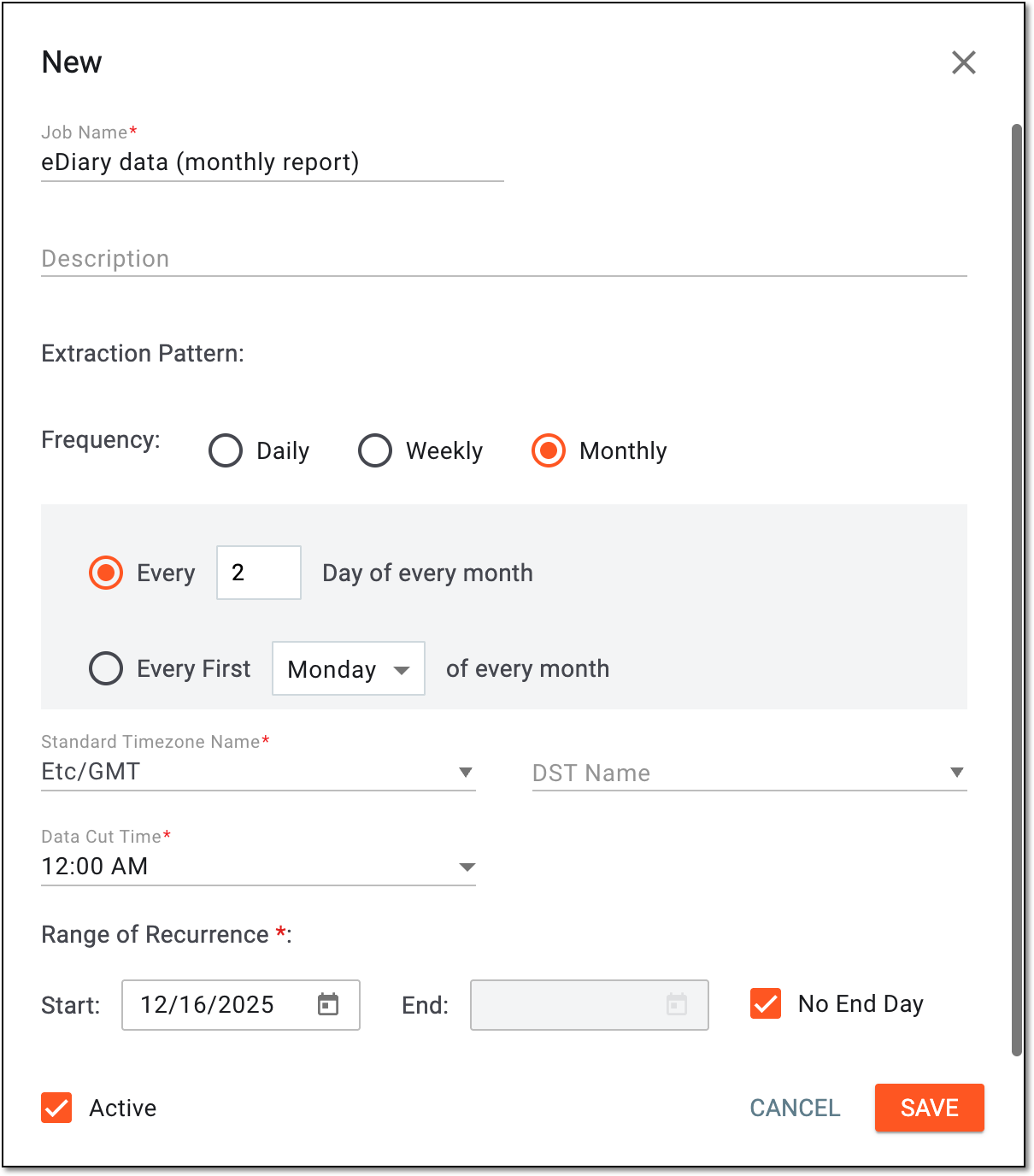 Figure 3. Configuring eDiary data extraction job
Tip
In the following table, mandatory elements are marked with an asterisk (*).
Element
Details
Job Name*
Enter a unique name for the eDiary data extraction job you create.
Description
Enter any important details or auxiliary information about the data extraction job you create.
Extraction Pattern
Daily
Select this option to extract the data to the server daily. Select Everyday if you want the data to be extracted every day of the week or select Every Weekday to extract data only on weekdays.
Weekly
Select this option to extract the data to the server once every week. Then select the day on which you want the data to be extracted.
Monthly
Select this option to extract the data to the server monthly. Then customize the schedule by selecting to extract data on a specific day of the month (for instance, every second day of the month) or a particular weekday (for instance, every first Monday).
Standard Timezone Name*
Select the time zone according to which the data is extracted to the server based on the selected pattern.
DST Name
Select the Daylight Saving Time (DST) for the system to switch automatically from summer to winter time when needed.
For instance, if you select Central European Time for your time zone, the system may suggest the current DST, which is Central European Summer Time. By hovering over
, you can view the details of the selected DST.Data Cut Time*
Select the time for the system to extract the data to the server based on the selected pattern, time zone, and DST, if any.
For instance, if you select for the data to be extracted monthly every second day of the month Central European Time and set the Data Cut Time value to 12:00 AM, the data is extracted each second day of the month at midnight according to the Central European Time.
Range of Recurrence
Start
Set the date when you want the system to start running the data extraction job according to the defined pattern.
End
Set the date when you want the system to stop running the data extraction job according to the defined pattern.
No End Day
Select this checkbox if you want the system to run the data extraction job indefinitely until it is manually deleted.
Active
Select this checkbox to make the data extraction job active so it starts running according to the selected pattern and range of recurrence right after being created.
SAVE
Select
to create the data extraction job.CANCEL
Select
to discard the changes.
Once saved, the data extraction job is created. Now you can associate this job with the server and alert configuration.
This automated job is intended for the extraction of the most recent version of the metadata and clinical data from EDC to the sponsor's server.
-
In the EDC application header, select the JOB tab.
-
In the left pane of the page that opens, select Metadata and Clinical Data.
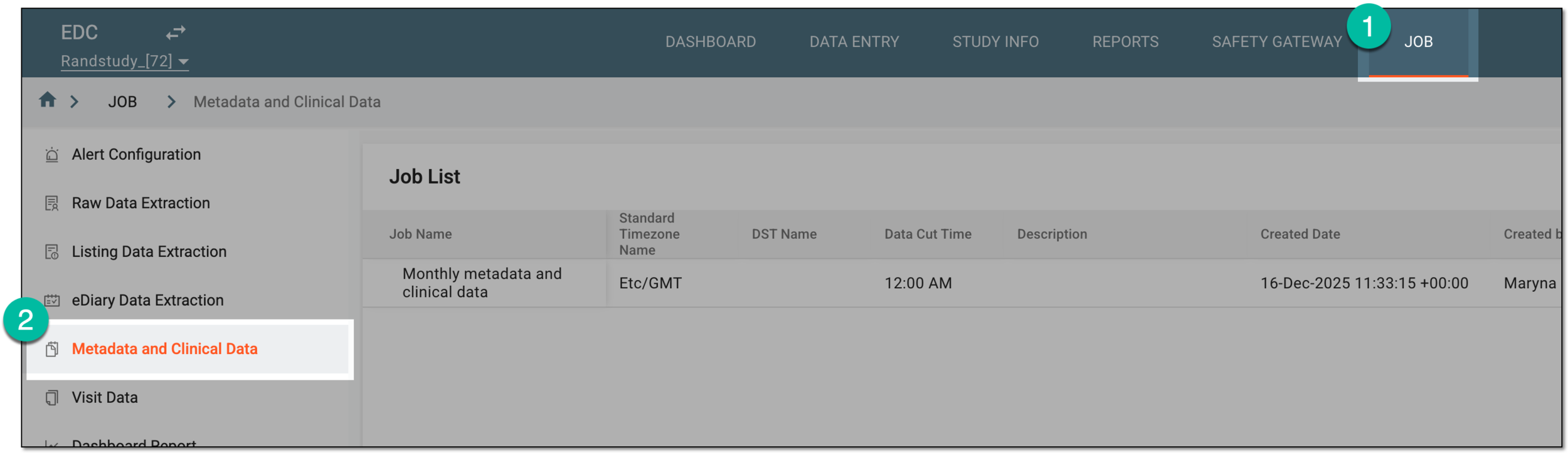 Figure 1. Accessing listing data extraction jobs
-
On the Job List page that opens, from the workspace toolbar, select New Item
. Figure 2. Selecting option to add metadata and clinical data extraction job
-
In the New dialog that opens, complete the form as explained in the following table.
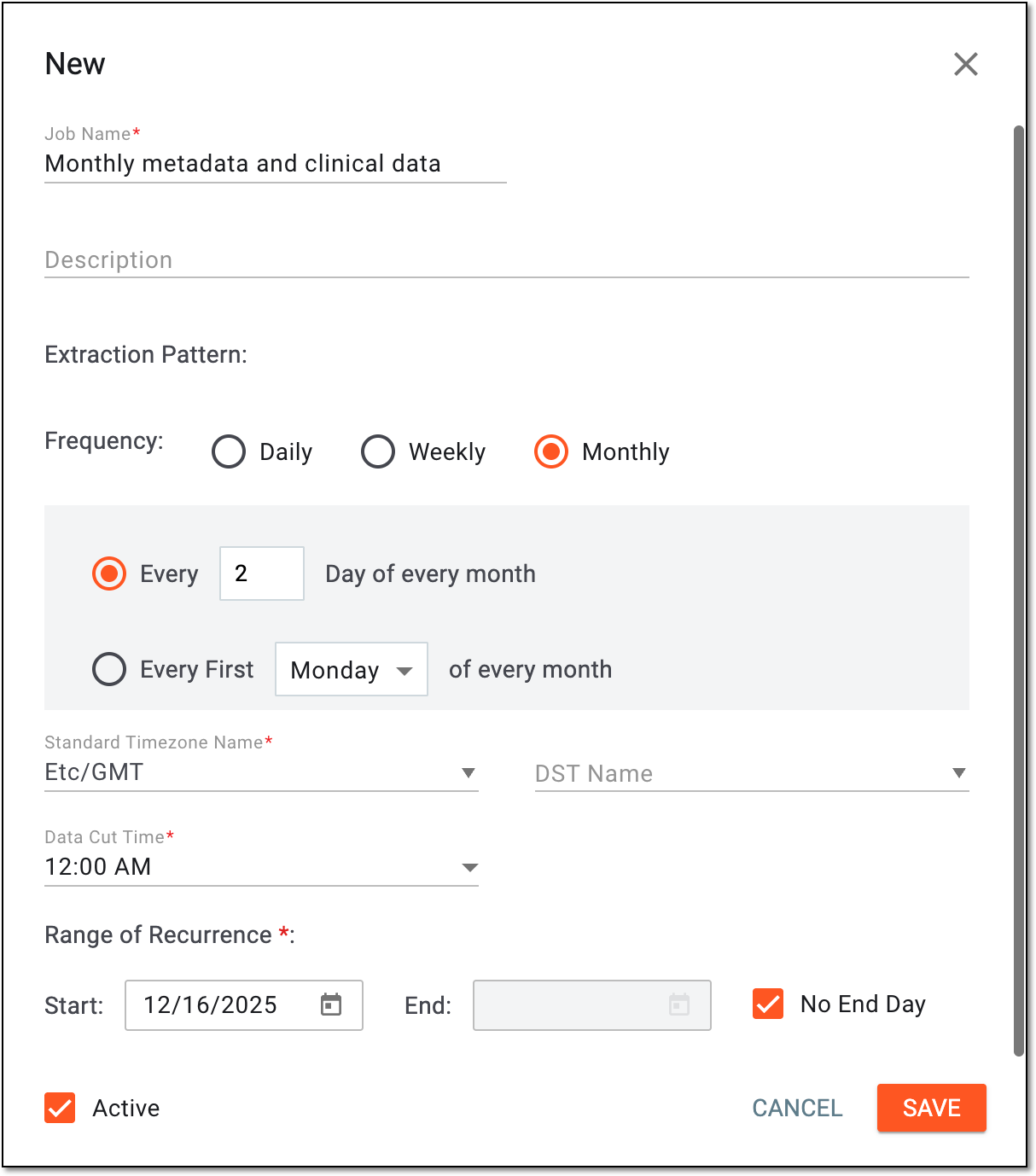 Figure 3. Configuring metadata and clinical data extraction job
Tip
In the following table, mandatory elements are marked with an asterisk (*).
Element
Details
Job Name*
Enter a unique name for the metadata and clinical data extraction job you create.
Description
Enter any important details or auxiliary information about the data extraction job you create.
Extraction Pattern
Daily
Select this option to extract the data to the server daily. Select Everyday if you want the data to be extracted every day of the week or select Every Weekday to extract data only on weekdays.
Weekly
Select this option to extract the data to the server once every week. Then select the day on which you want the data to be extracted.
Monthly
Select this option to extract the data to the server monthly. Then customize the schedule by selecting to extract data on a specific day of the month (for instance, every second day of the month) or a particular weekday (for instance, every first Monday).
Standard Timezone Name*
Select the time zone according to which the data is extracted to the server based on the selected pattern.
DST Name
Select the Daylight Saving Time (DST) for the system to switch automatically from summer to winter time when needed.
For instance, if you select Central European Time for your time zone, the system may suggest the current DST, which is Central European Summer Time. By hovering over
, you can view the details of the selected DST.Data Cut Time*
Select the time for the system to extract the data to the server based on the selected pattern, time zone, and DST, if any.
For instance, if you select for the data to be extracted monthly every second day of the month Central European Time and set the Data Cut Time value to 12:00 AM, the data is extracted each second day of the month at midnight according to the Central European Time.
Range of Recurrence
Start
Set the date when you want the system to start running the data extraction job according to the defined pattern.
End
Set the date when you want the system to stop running the data extraction job according to the defined pattern.
No End Day
Select this checkbox if you want the system to run the data extraction job indefinitely until it is manually deleted.
Active
Select this checkbox to make the data extraction job active so it starts running according to the selected pattern and range of recurrence right after being created.
SAVE
Select
to create the data extraction job.CANCEL
Select
to discard the changes.
Once saved, the data extraction job is created. Now you can associate this job with the server and alert configuration.
This automated job is intended for the extraction of the most recent version of the visit report data from EDC to the sponsor's server.
-
In the EDC application header, select the JOB tab.
-
In the left pane of the page that opens, select Visit Data.
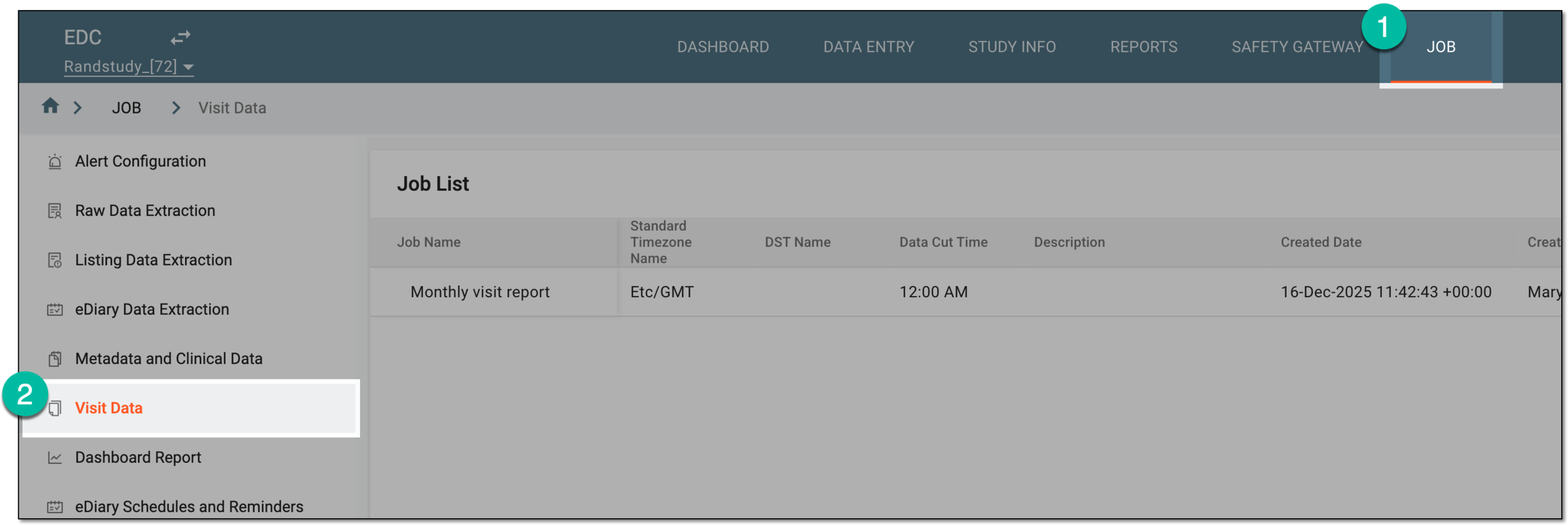 Figure 1. Accessing visit data extraction jobs
-
On the Job List page that opens, from the workspace toolbar, select New Item
. Figure 2. Selecting option to add visit data extraction job
-
In the New dialog that opens, complete the form as explained in the following table.
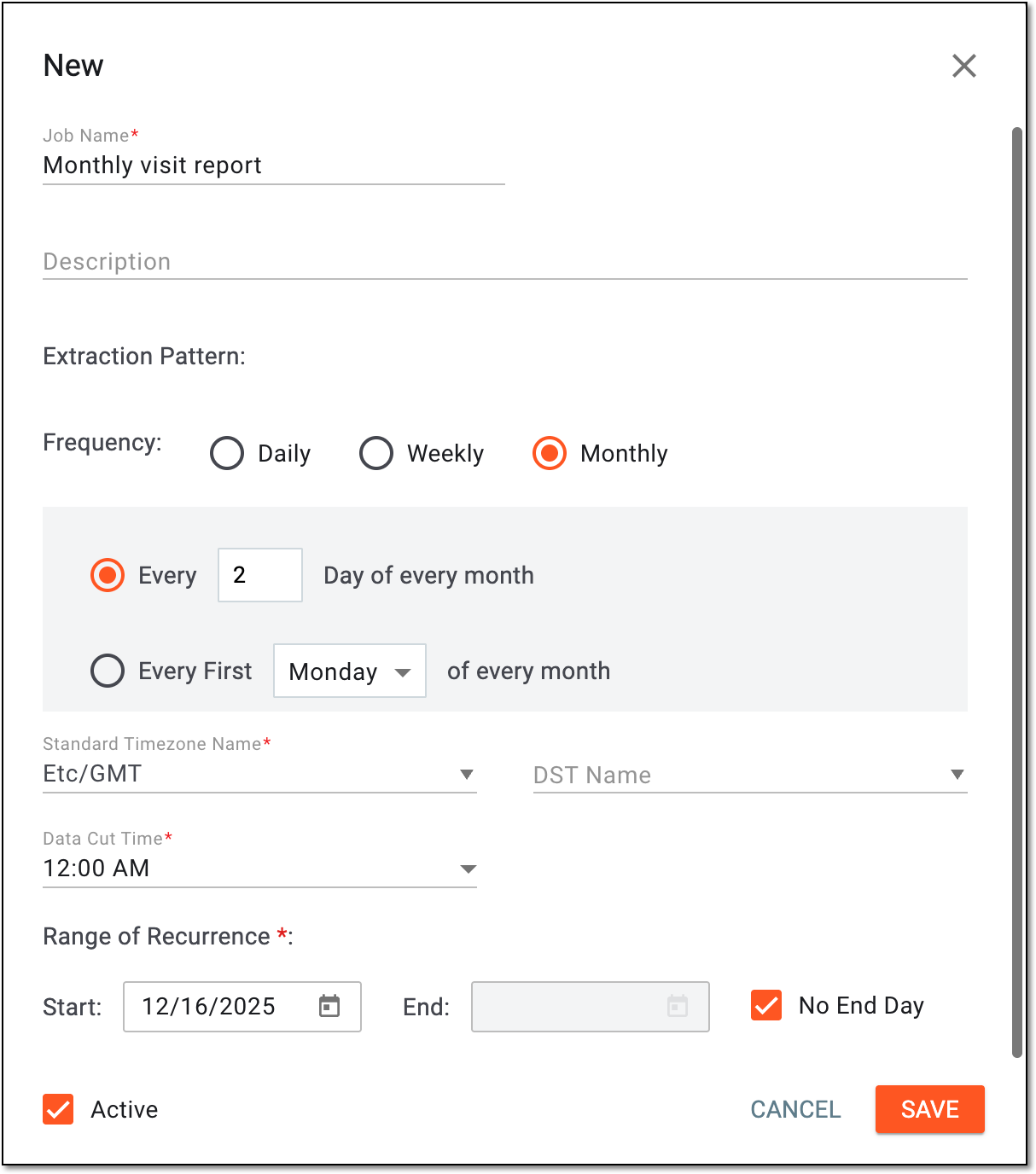 Figure 3. Configuring visit data extraction job
Tip
In the following table, mandatory elements are marked with an asterisk (*).
Element
Details
Job Name*
Enter a unique name for the visit data extraction job you create.
Description
Enter any important details or auxiliary information about the data extraction job you create.
Extraction Pattern
Daily
Select this option to extract the data to the server daily. Select Everyday if you want the data to be extracted every day of the week or select Every Weekday to extract data only on weekdays.
Weekly
Select this option to extract the data to the server once every week. Then select the day on which you want the data to be extracted.
Monthly
Select this option to extract the data to the server monthly. Then customize the schedule by selecting to extract data on a specific day of the month (for instance, every second day of the month) or a particular weekday (for instance, every first Monday).
Standard Timezone Name*
Select the time zone according to which the data is extracted to the server based on the selected pattern.
DST Name
Select the Daylight Saving Time (DST) for the system to switch automatically from summer to winter time when needed.
For instance, if you select Central European Time for your time zone, the system may suggest the current DST, which is Central European Summer Time. By hovering over
, you can view the details of the selected DST.Data Cut Time*
Select the time for the system to extract the data to the server based on the selected pattern, time zone, and DST, if any.
For instance, if you select for the data to be extracted monthly every second day of the month Central European Time and set the Data Cut Time value to 12:00 AM, the data is extracted each second day of the month at midnight according to the Central European Time.
Range of Recurrence
Start
Set the date when you want the system to start running the data extraction job according to the defined pattern.
End
Set the date when you want the system to stop running the data extraction job according to the defined pattern.
No End Day
Select this checkbox if you want the system to run the data extraction job indefinitely until it is manually deleted.
Active
Select this checkbox to make the data extraction job active so it starts running according to the selected pattern and range of recurrence right after being created.
SAVE
Select
to create the data extraction job.CANCEL
Select
to discard the changes.
Once saved, the data extraction job is created. Now you can associate this job with the server and alert configuration.
This automated job is intended for the extraction of the most recent version of the dashboard data from EDC to the sponsor's server.
-
In the EDC application header, select the JOB tab.
-
In the left pane of the page that opens, select Dashboard Report.
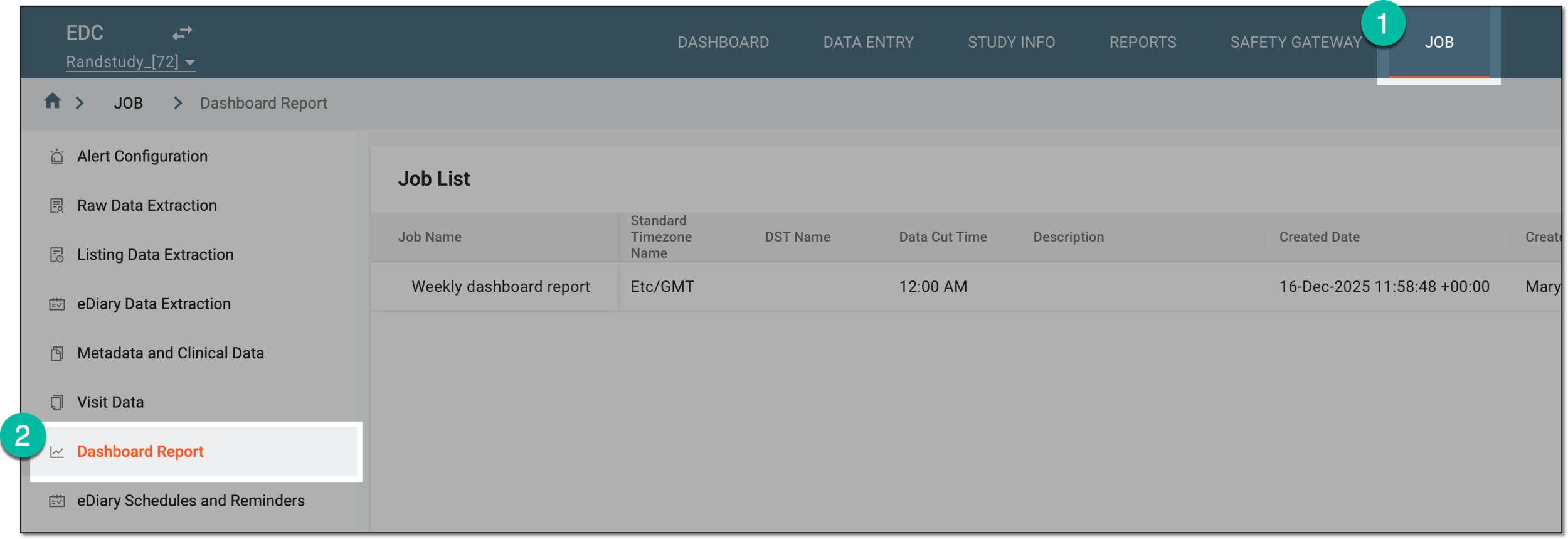 Figure 1. Accessing dashboard report data extraction jobs
-
On the Job List page that opens, from the workspace toolbar, select New Item
. Figure 2. Selecting option to add dashboard report extraction job
-
In the New dialog that opens, complete the form as explained in the following table.
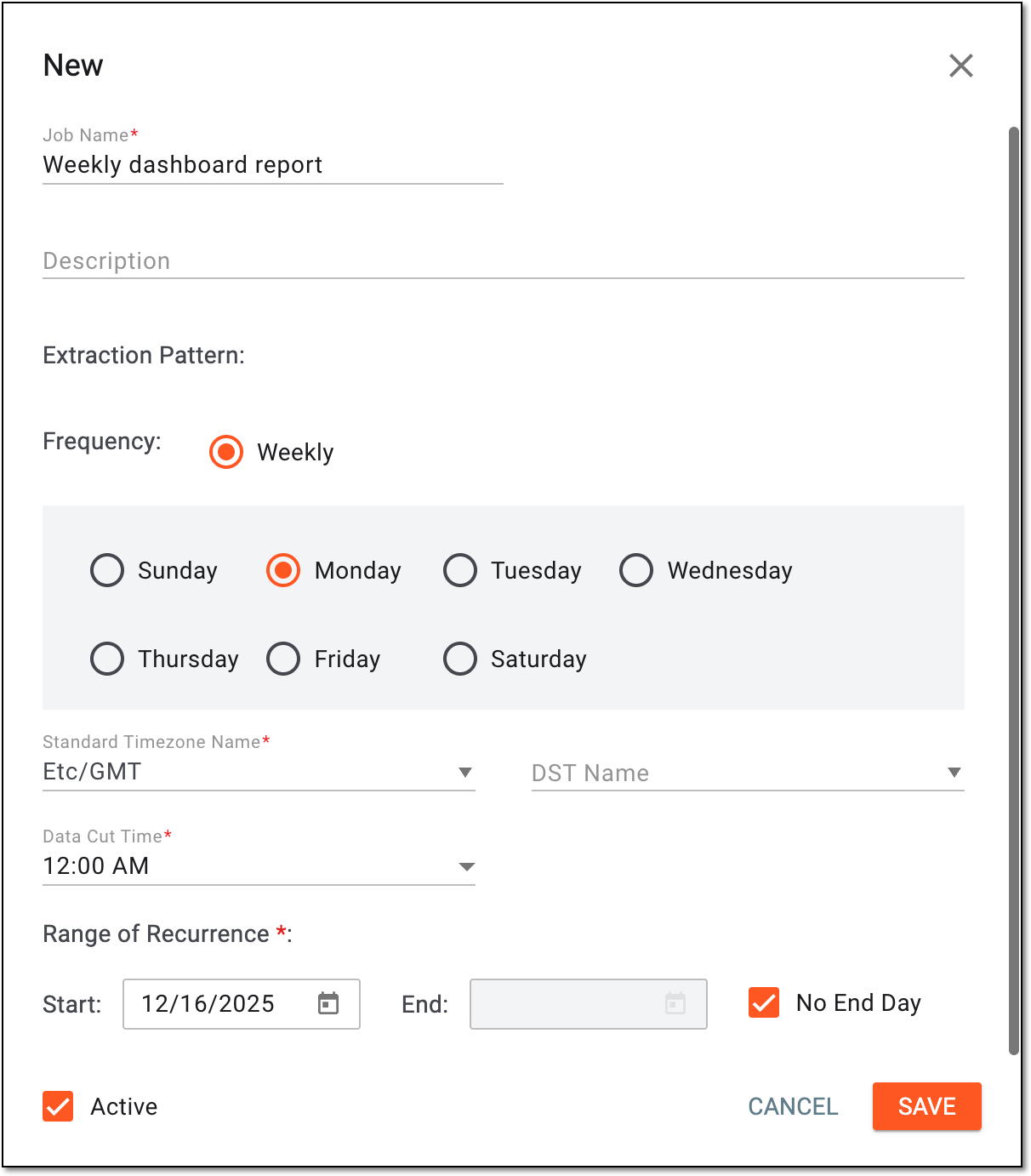 Figure 3. Configuring dashboard report extraction job
Tip
In the following table, mandatory elements are marked with an asterisk (*).
Element
Details
Job Name*
Enter a unique name for the dashboard report extraction job you create.
Description
Enter any important details or auxiliary information about the data extraction job you create.
Extraction Pattern
Weekly
Select this option to extract the data to the server once every week. Then select the day on which you want the data to be extracted.
Standard Timezone Name*
Select the time zone according to which the data is extracted to the server based on the selected pattern.
DST Name
Select the Daylight Saving Time (DST) for the system to switch automatically from summer to winter time when needed.
For instance, if you select Central European Time for your time zone, the system may suggest the current DST, which is Central European Summer Time. By hovering over
, you can view the details of the selected DST.Data Cut Time*
Select the time for the system to extract the data to the server based on the selected pattern, time zone, and DST, if any.
For instance, if you select for the data to be extracted monthly every second day of the month Central European Time and set the Data Cut Time value to 12:00 AM, the data is extracted each second day of the month at midnight according to the Central European Time.
Range of Recurrence
Start
Set the date when you want the system to start running the data extraction job according to the defined pattern.
End
Set the date when you want the system to stop running the data extraction job according to the defined pattern.
No End Day
Select this checkbox if you want the system to run the data extraction job indefinitely until it is manually deleted.
Active
Select this checkbox to make the data extraction job active so it starts running according to the selected pattern and range of recurrence right after being created.
SAVE
Select
to create the data extraction job.CANCEL
Select
to discard the changes.
Once saved, the data extraction job is created. Now you can associate this job with the server and alert configuration.
This automated job is intended for the extraction of the most recent version of the eDiary schedules and reminders from EDC to the sponsor's server.
-
In the EDC application header, select the JOB tab.
-
In the left pane of the page that opens, select eDiary Schedules and Reminders.
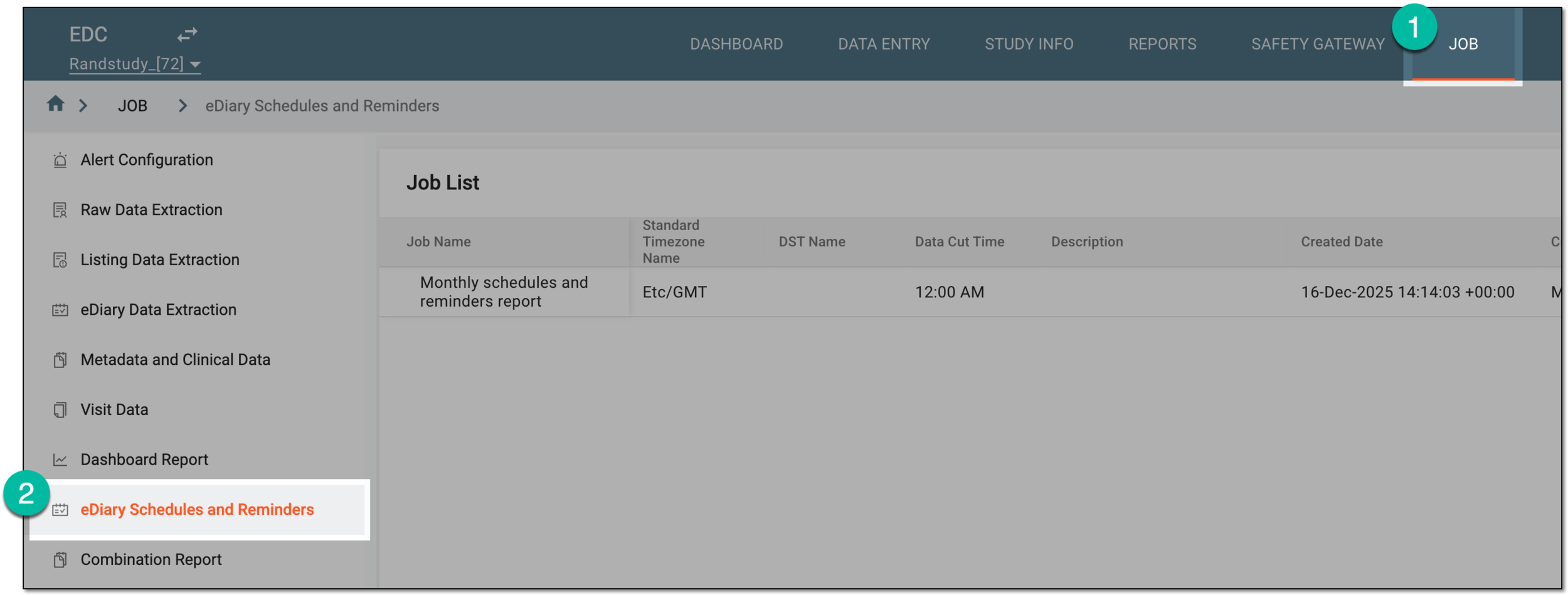 Figure 1. Accessing eDiary schedules and reminders extraction jobs
-
On the Job List page that opens, from the workspace toolbar, select New Item
. Figure 2. Selecting option to add eDiary schedules and reminders extraction job
-
In the New dialog that opens, complete the form as explained in the following table.
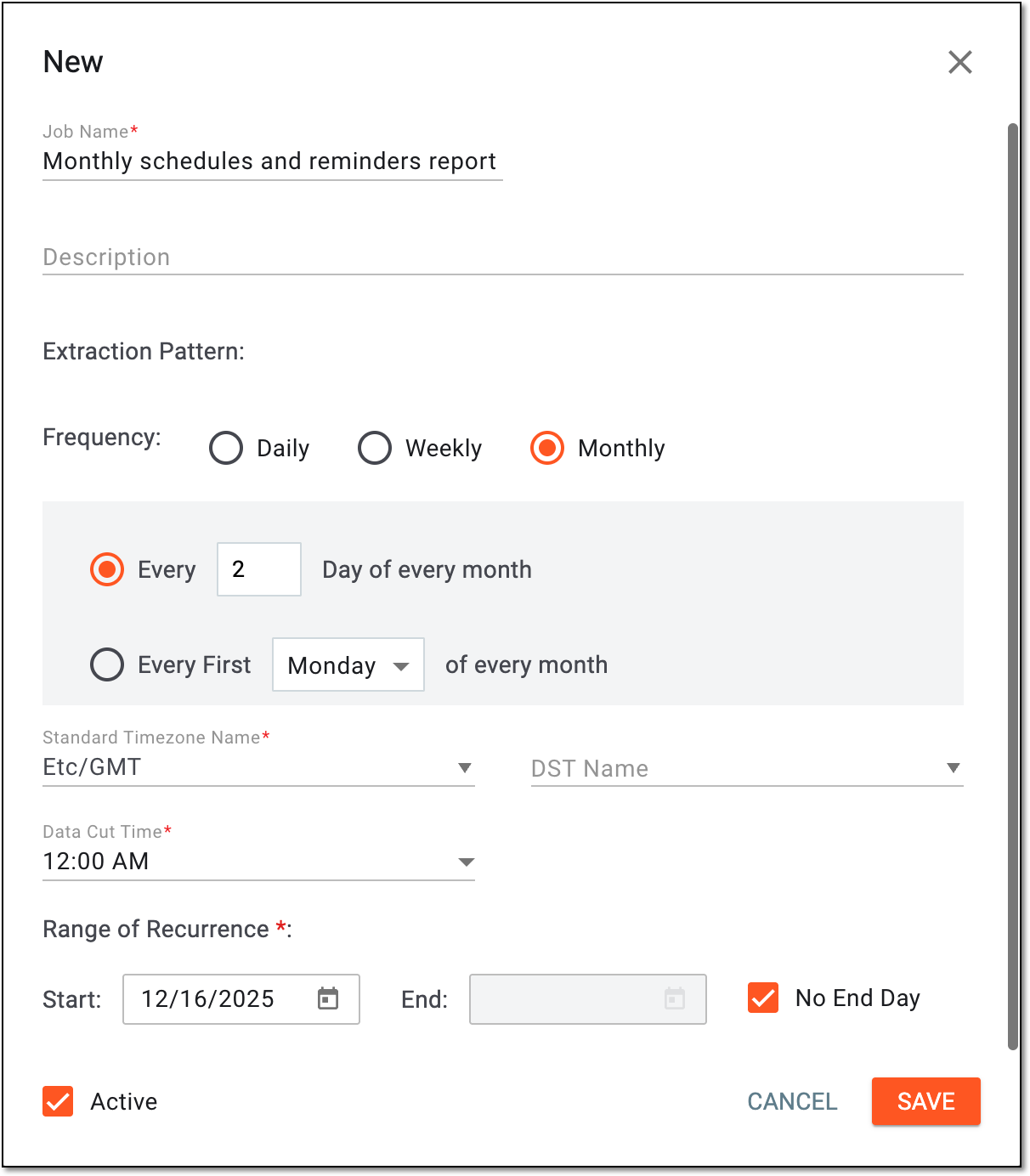 Figure 3. Configuring eDiary schedules and reminders extraction job
Tip
In the following table, mandatory elements are marked with an asterisk (*).
Element
Details
Job Name*
Enter a unique name for the eDiary schedules and reminders data extraction job you create.
Description
Enter any important details or auxiliary information about the data extraction job you create.
Extraction Pattern
Daily
Select this option to extract the data to the server daily. Select Everyday if you want the data to be extracted every day of the week or select Every Weekday to extract data only on weekdays.
Weekly
Select this option to extract the data to the server once every week. Then select the day on which you want the data to be extracted.
Monthly
Select this option to extract the data to the server monthly. Then customize the schedule by selecting to extract data on a specific day of the month (for instance, every second day of the month) or a particular weekday (for instance, every first Monday).
Standard Timezone Name*
Select the time zone according to which the data is extracted to the server based on the selected pattern.
DST Name
Select the Daylight Saving Time (DST) for the system to switch automatically from summer to winter time when needed.
For instance, if you select Central European Time for your time zone, the system may suggest the current DST, which is Central European Summer Time. By hovering over
, you can view the details of the selected DST.Data Cut Time*
Select the time for the system to extract the data to the server based on the selected pattern, time zone, and DST, if any.
For instance, if you select for the data to be extracted monthly every second day of the month Central European Time and set the Data Cut Time value to 12:00 AM, the data is extracted each second day of the month at midnight according to the Central European Time.
Range of Recurrence
Start
Set the date when you want the system to start running the data extraction job according to the defined pattern.
End
Set the date when you want the system to stop running the data extraction job according to the defined pattern.
No End Day
Select this checkbox if you want the system to run the data extraction job indefinitely until it is manually deleted.
Active
Select this checkbox to make the data extraction job active so it starts running according to the selected pattern and range of recurrence right after being created.
SAVE
Select
to create the data extraction job.CANCEL
Select
to discard the changes.
Once saved, the data extraction job is created. Now you can associate this job with the server and alert configuration.
This automated job is intended for the extraction of the most recent version of multiple reports at once from EDC and sending it to the sponsor's server.
For instance, you can select the raw data and query report data to be extracted as one compressed file if this suits your business needs.
-
In the EDC application header, select the JOB tab.
-
In the left pane of the page that opens, select Combination Report.
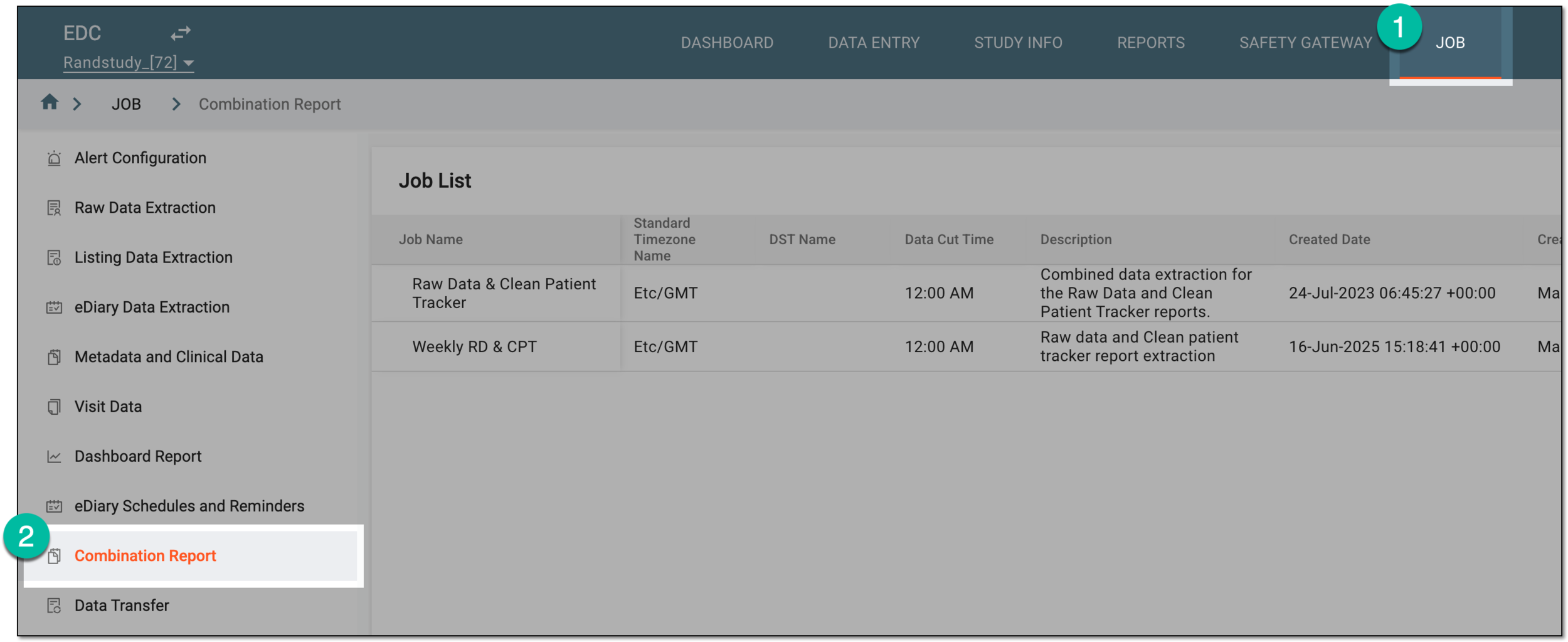 Figure 1. Accessing combination report extraction jobs
-
On the Job List page that opens, from the workspace toolbar, select New Item
. Figure 2. Selecting option to add combination report extraction job
-
In the New dialog that opens, complete the form as explained in the following table.
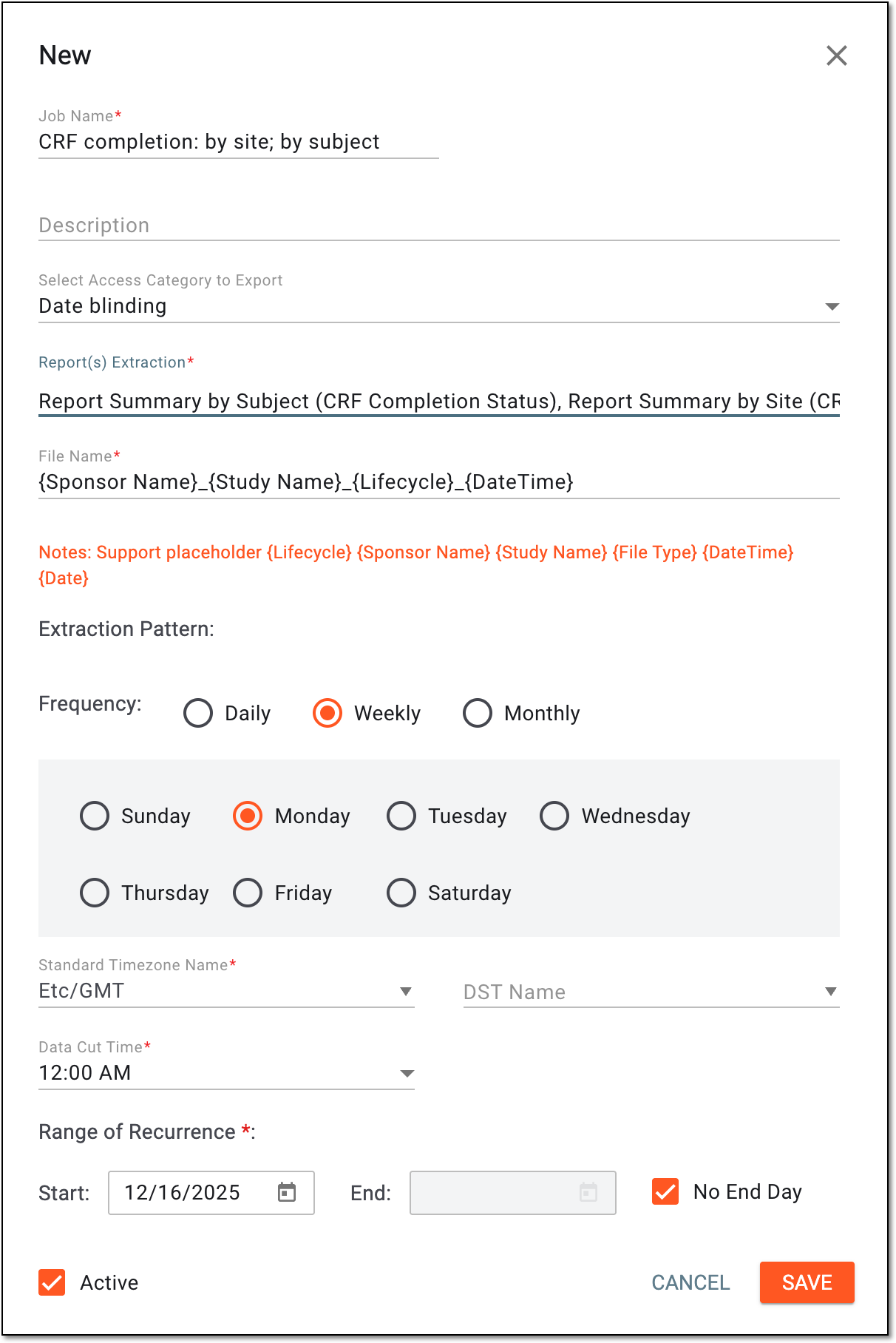 Figure 3. Configuring combination report extraction job
Tip
In the following table, mandatory elements are marked with an asterisk (*).
Element
Details
Job Name*
Enter a unique name for the combination report extraction job you create.
Description
Enter any important details or auxiliary information about the data extraction job you create.
Select Access Category to Export
Select one of the blinding or access restriction categories that are applied to the data. Only blinded or restricted data of a specific category is extracted if selected.
The available here access categories are maintained in SD and populated to EDC upon CRF version publishing.Report(s) Extraction*
Select specific data reports to be extracted. You can select raw data and one or all of the custom on-demand reports.
File Name*
Enter a naming convention for the file report that is to be generated upon data extraction. You can use available placeholders, such as Lifecycle, Sponsor Name, Study Name, File Type, and DateTime.
Extraction Pattern
Daily
Select this option to extract the data to the server daily. Select Everyday if you want the data to be extracted every day of the week or select Every Weekday to extract data only on weekdays.
Weekly
Select this option to extract the data to the server once every week. Then select the day on which you want the data to be extracted.
Monthly
Select this option to extract the data to the server monthly. Then customize the schedule by selecting to extract data on a specific day of the month (for instance, every second day of the month) or a particular weekday (for instance, every first Monday).
Standard Timezone Name*
Select the time zone according to which the data is extracted to the server based on the selected pattern.
DST Name
Select the Daylight Saving Time (DST) for the system to switch automatically from summer to winter time when needed.
For instance, if you select Central European Time for your time zone, the system may suggest the current DST, which is Central European Summer Time. By hovering over
, you can view the details of the selected DST.Data Cut Time*
Select the time for the system to extract the data to the server based on the selected pattern, time zone, and DST, if any.
For instance, if you select for the data to be extracted monthly every second day of the month Central European Time and set the Data Cut Time value to 12:00 AM, the data is extracted each second day of the month at midnight according to the Central European Time.
Range of Recurrence
Start
Set the date when you want the system to start running the data extraction job according to the defined pattern.
End
Set the date when you want the system to stop running the data extraction job according to the defined pattern.
No End Day
Select this checkbox if you want the system to run the data extraction job indefinitely until it is manually deleted.
Active
Select this checkbox to make the data extraction job active so it starts running according to the selected pattern and range of recurrence right after being created.
SAVE
Select
to create the data extraction job.CANCEL
Select
to discard the changes.
Once saved, the data extraction job is created. Now you can associate this job with the server and alert configuration.
This automated job is intended for the extraction of the most recent version of clinical trial data collected via eDiary and eCOA apps and stored in EDC, and sending it to the sponsor's server.
-
In the EDC application header, select the JOB tab.
-
In the left pane of the page that opens, select Data Transfer.
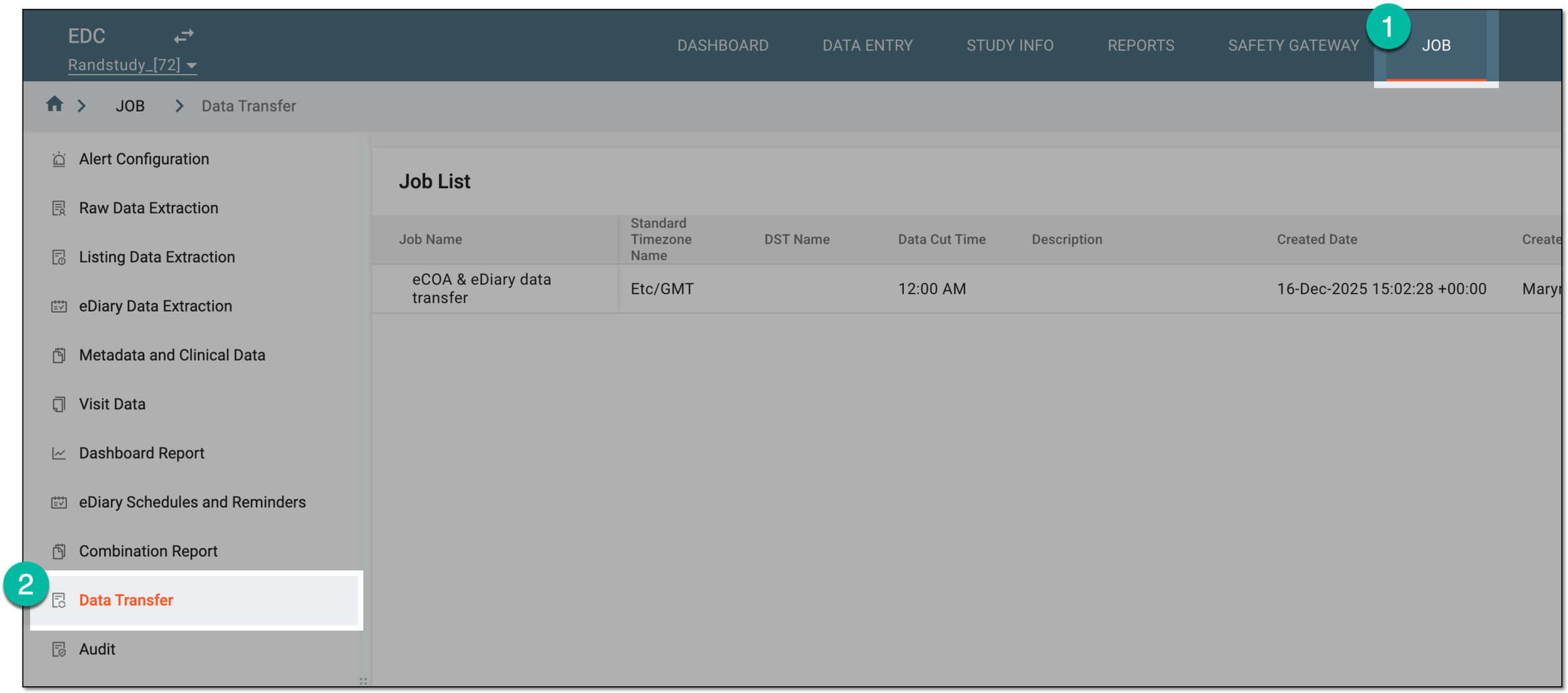 Figure 1. Accessing data transfer jobs
-
On the Job List page that opens, from the workspace toolbar, select New Item
. Figure 2. Selecting option to add data transfer job
-
In the New dialog that opens, complete the form as explained in the following table.
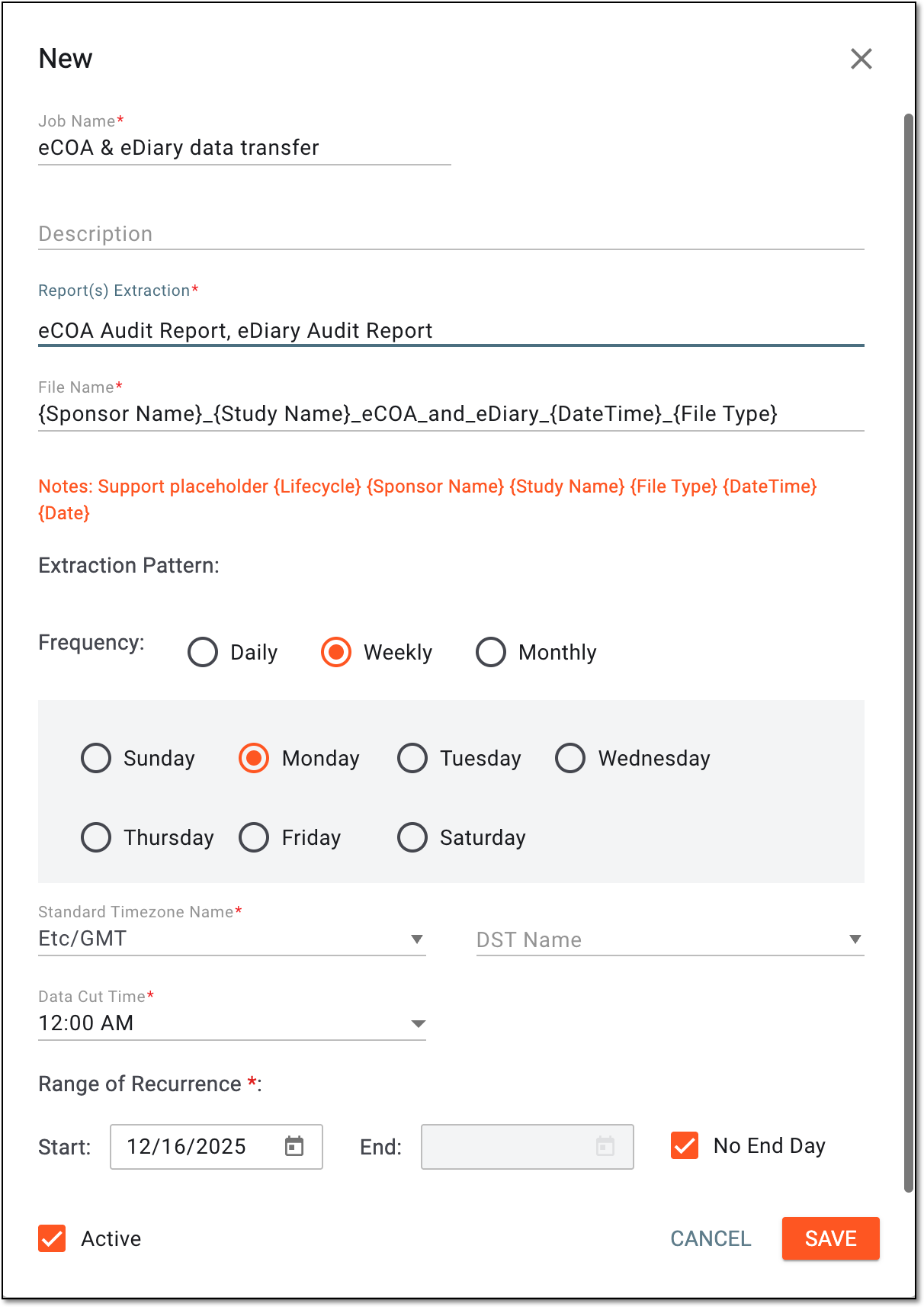 Figure 3. Configuring data transfer job
Tip
In the following table, mandatory elements are marked with an asterisk (*).
Element
Details
Job Name*
Enter a unique name for the data transfer job you create.
Description
Enter any important details or auxiliary information about the data extraction job you create.
Report(s) Extraction*
Select specific data reports to be extracted. You can select raw data and one or all of the custom on-demand reports.
File Name*
Enter a naming convention for the file report that is to be generated upon data extraction. You can use available placeholders, such as Lifecycle, Sponsor Name, Study Name, File Type, and DateTime.
Extraction Pattern
Daily
Select this option to extract the data to the server daily. Select Everyday if you want the data to be extracted every day of the week or select Every Weekday to extract data only on weekdays.
Weekly
Select this option to extract the data to the server once every week. Then select the day on which you want the data to be extracted.
Monthly
Select this option to extract the data to the server monthly. Then customize the schedule by selecting to extract data on a specific day of the month (for instance, every second day of the month) or a particular weekday (for instance, every first Monday).
Standard Timezone Name*
Select the time zone according to which the data is extracted to the server based on the selected pattern.
DST Name
Select the Daylight Saving Time (DST) for the system to switch automatically from summer to winter time when needed.
For instance, if you select Central European Time for your time zone, the system may suggest the current DST, which is Central European Summer Time. By hovering over
, you can view the details of the selected DST.Data Cut Time*
Select the time for the system to extract the data to the server based on the selected pattern, time zone, and DST, if any.
For instance, if you select for the data to be extracted monthly every second day of the month Central European Time and set the Data Cut Time value to 12:00 AM, the data is extracted each second day of the month at midnight according to the Central European Time.
Range of Recurrence
Start
Set the date when you want the system to start running the data extraction job according to the defined pattern.
End
Set the date when you want the system to stop running the data extraction job according to the defined pattern.
No End Day
Select this checkbox if you want the system to run the data extraction job indefinitely until it is manually deleted.
Active
Select this checkbox to make the data extraction job active so it starts running according to the selected pattern and range of recurrence right after being created.
SAVE
Select
to create the data extraction job.CANCEL
Select
to discard the changes.
Once saved, the data extraction job is created. Now you can associate this job with the server and alert configuration.
This automated job is intended for the extraction of the most recent version of audit trail data from EDC, eDiary, or eCOA to the sponsor's server. This can be used to pull from EDC the history of changes made to a certain entity by generating the respective report, such as subject, visit, or form management logs, and so on.
-
In the EDC application header, select the JOB tab.
-
In the left pane of the page that opens, select Audit.
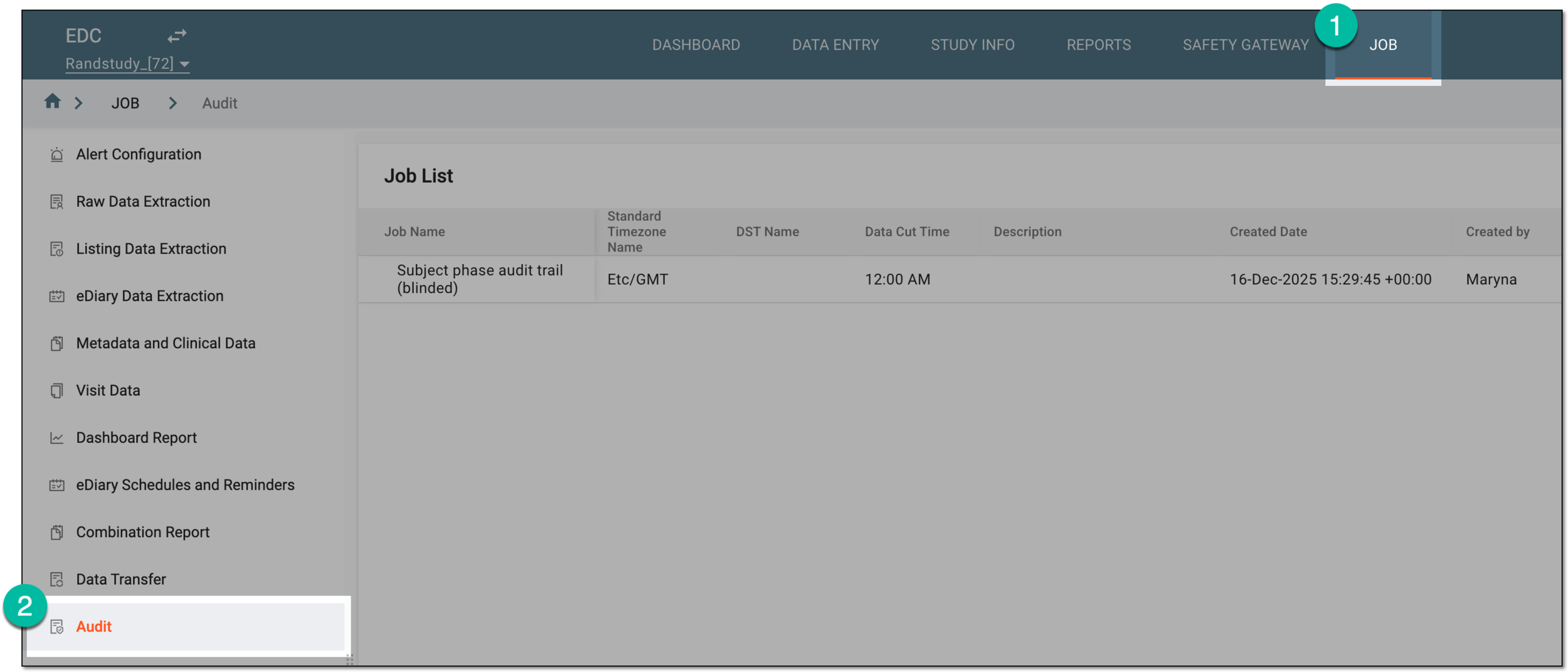 Figure 1. Accessing audit trail data extraction jobs
-
On the Job List page that opens, from the workspace toolbar, select New Item
. Figure 2. Selecting option to add audit trail data extraction job
-
In the New dialog that opens, complete the form as explained in the following table.
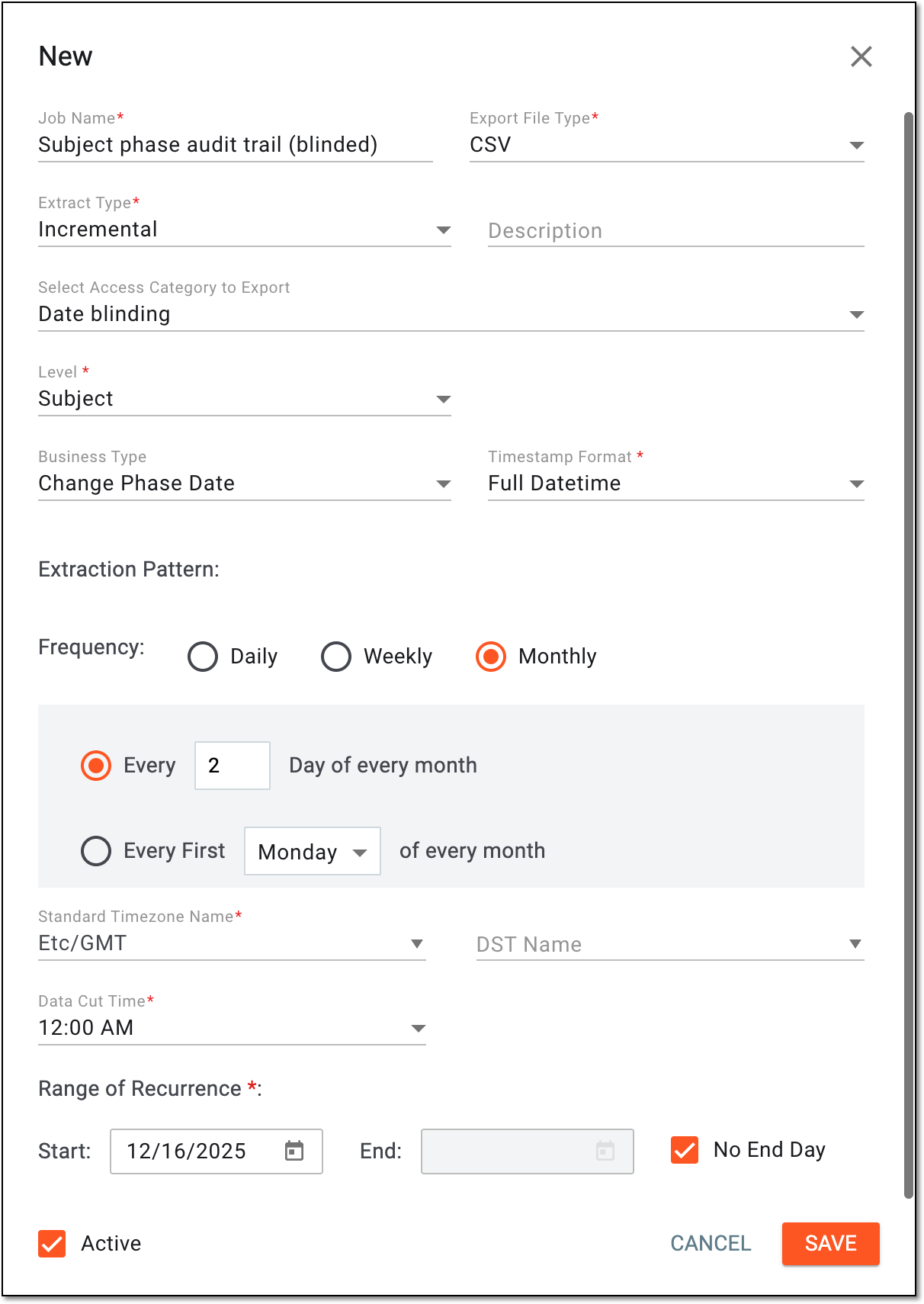 Figure 3. Configuring audit trail data extraction job
Tip
In the following table, mandatory elements are marked with an asterisk (*).
Element
Details
Job Name*
Enter a unique name for the audit trail data extraction job you create.
Export File Type*
Select one of the available options:
-
CSV: to export the data in the CSV file format.
-
EXCEL: to export the data in the XLSX file format.
-
ZIP (Containing CSVs): to export the compressed data package in the ZIP format that contains files in CSV.
Extract Type*
Select one of the following:
-
Full: for the job run to extract the report with the full version of audit data by appending the records that are new since the previous job extraction to the records of the latest extracted report.
This option is only available if the export file type is CSV or ZIP (Containing CSVs). -
Incremental: for the job run to extract only the audit records that are new or updated since the previous job extraction.
Description
Enter any important details or auxiliary information about the data extraction job you create.
Select Access Category to Export
Select one of the blinding or access restriction categories that are applied to the data. Only blinded or restricted data of a specific category is extracted if selected.
The available here access categories are maintained in SD and populated to EDC upon CRF version publishing.Level*
Select the level at which you want to extract the audit trail data—subject, visit, form, record, or item.
Report Type*
Select the source of the audit trail data of your preference—eCRF for the EDC data; eDiary or eCOA for data from the respective mobile apps.
The report type field is not available if:-
The selected level of data extraction is Subject. -
The export file type is ZIP.
Business Type
Select the type of the operation for which you want to get the audit trail data, such as status change, inactivation, query creation, and other operations.
The values available here depend on the selected level of the audit trail data.The business type field is not available if the export file type is ZIP.Timestamp Format*
Select how you want the date and time of the performed operation to be recorded in the resulting report—as a single value or two separate ones.
Extraction Pattern
Daily
Select this option to extract the data to the server daily. Select Everyday if you want the data to be extracted every day of the week or select Every Weekday to extract data only on weekdays.
Weekly
Select this option to extract the data to the server once every week. Then select the day on which you want the data to be extracted.
Monthly
Select this option to extract the data to the server monthly. Then customize the schedule by selecting to extract data on a specific day of the month (for instance, every second day of the month) or a particular weekday (for instance, every first Monday).
Standard Timezone Name*
Select the time zone according to which the data is extracted to the server based on the selected pattern.
DST Name
Select the Daylight Saving Time (DST) for the system to switch automatically from summer to winter time when needed.
For instance, if you select Central European Time for your time zone, the system may suggest the current DST, which is Central European Summer Time. By hovering over
, you can view the details of the selected DST.Data Cut Time*
Select the time for the system to extract the data to the server based on the selected pattern, time zone, and DST, if any.
For instance, if you select for the data to be extracted monthly every second day of the month Central European Time and set the Data Cut Time value to 12:00 AM, the data is extracted each second day of the month at midnight according to the Central European Time.
Range of Recurrence
Start
Set the date when you want the system to start running the data extraction job according to the defined pattern.
End
Set the date when you want the system to stop running the data extraction job according to the defined pattern.
No End Day
Select this checkbox if you want the system to run the data extraction job indefinitely until it is manually deleted.
Active
Select this checkbox to make the data extraction job active so it starts running according to the selected pattern and range of recurrence right after being created.
SAVE
Select
to create the data extraction job.CANCEL
Select
to discard the changes. -
Once saved, the data extraction job is created. Now you can associate this job with the server and alert configuration.