Analyze and export listings report
The Listings report is designed to extract and analyze specific data entry values from various case report forms (CRFs) of EDC. It shows raw or cleaned data of a certain form that you can compare to the previous versions and trace the changes. This report is vital for data analysis for safety or audit purposes, cross-check and validation of data, and other data integrity checks.
-
In the EDC application header, select the REPORTS tab.
-
On the page that opens, in the left pane, select the Data Summary subtab to expand the list of available reports and select Listings.
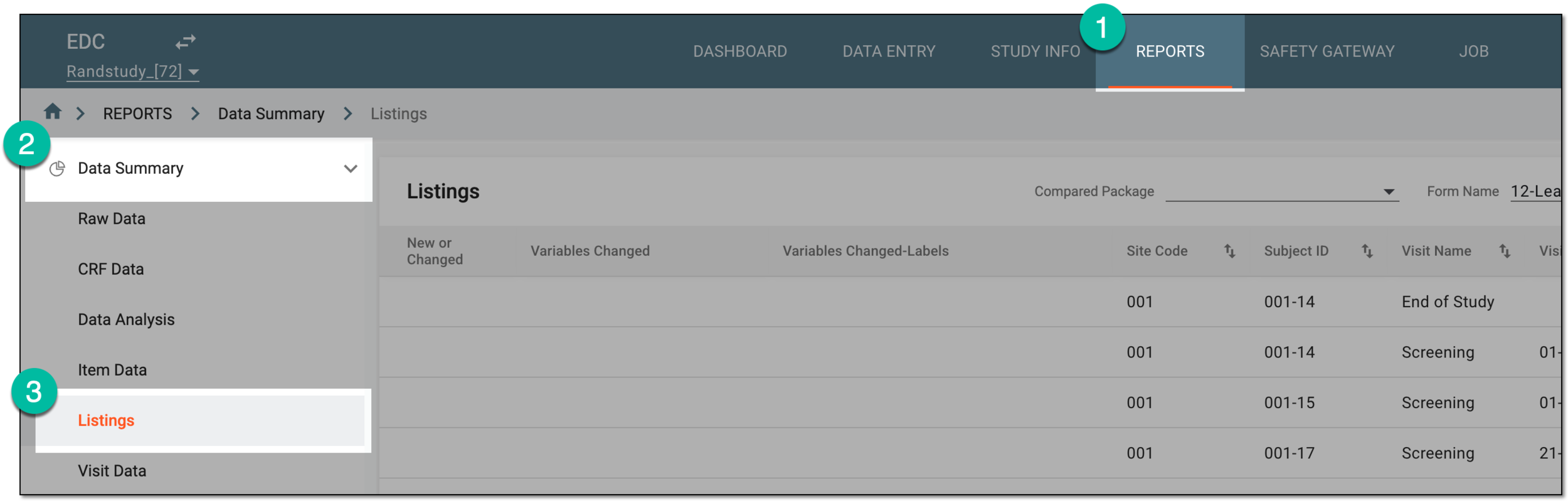 Figure 1. Accessing listings report
-
From the workspace toolbar, select Settings
 .
. Figure 2. Accessing listing report settings
-
On the Listings page that opens, configure the listing report as follows:
-
In the Set Exported Form block, select the checkboxes next to the forms you want available for selection when generating the listings report.
-
In the Set columns for combined form block, next to the related visit and form, select Related Column(s)
 and choose the data items from both related CRFs that you want to be merged into a single column in the resulting listing report.
For instance, you can merge the values of adverse event and concomitant medication start dates to see these values next to each other in the listing report for easy comparison and analysis.
Once done, select
 to implement the changes. Then select Back to List
  to return to the Listings page.
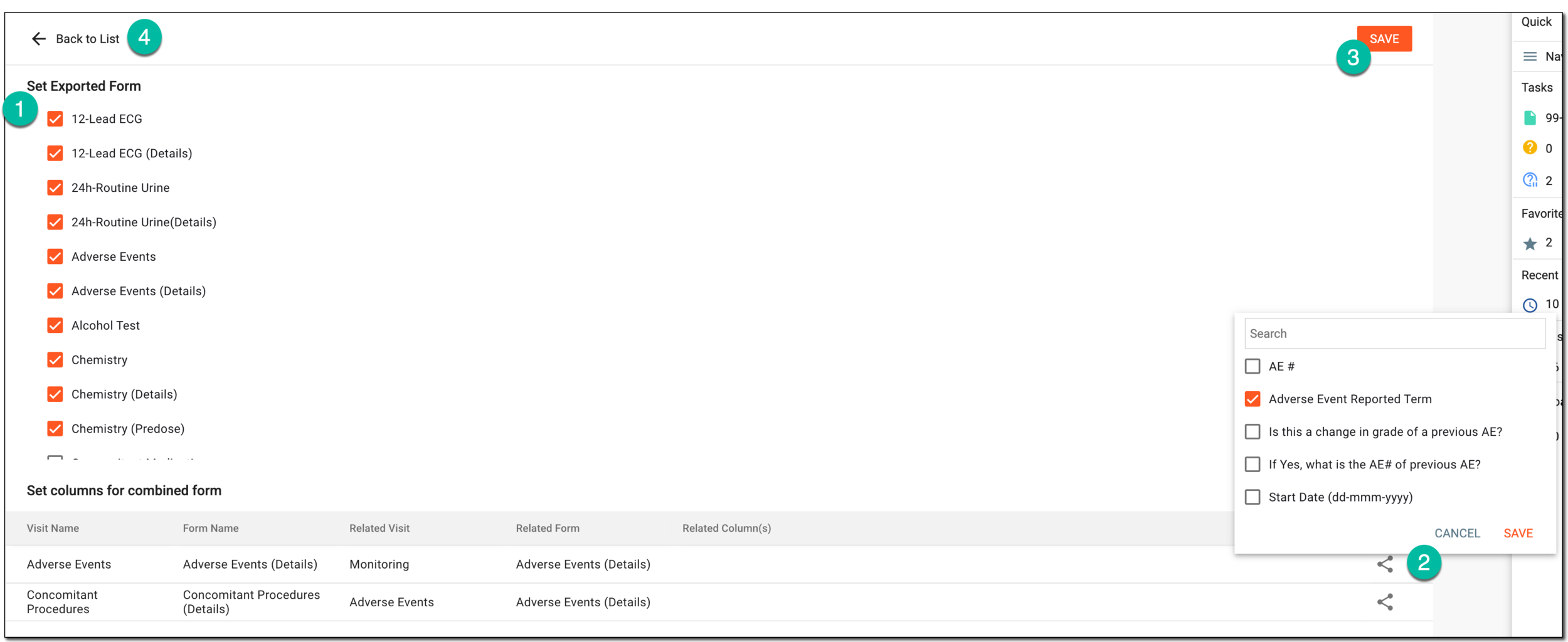 Figure 3. Setting exported forms and related data entries
-
-
On the Listings page that opens, from the Form Name field, select the CRF whose data entry details you want to generate as a listing report.
Tip
The CRFs available for selection depend on those you set up in the previous step.
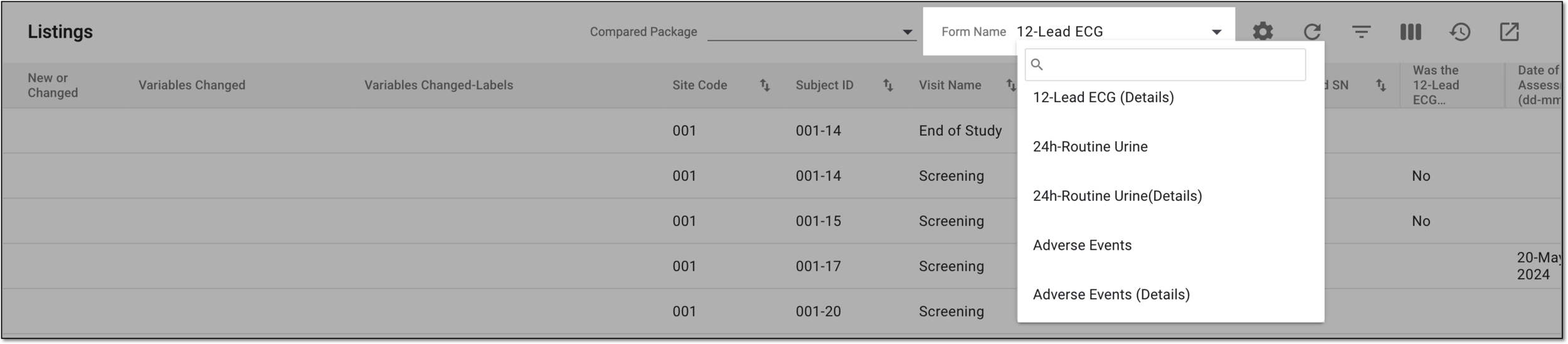 Figure 4. Selecting form to generate listing
-
From the Compared Package field, select any previously generated listing report version to which you want to compare the current data.
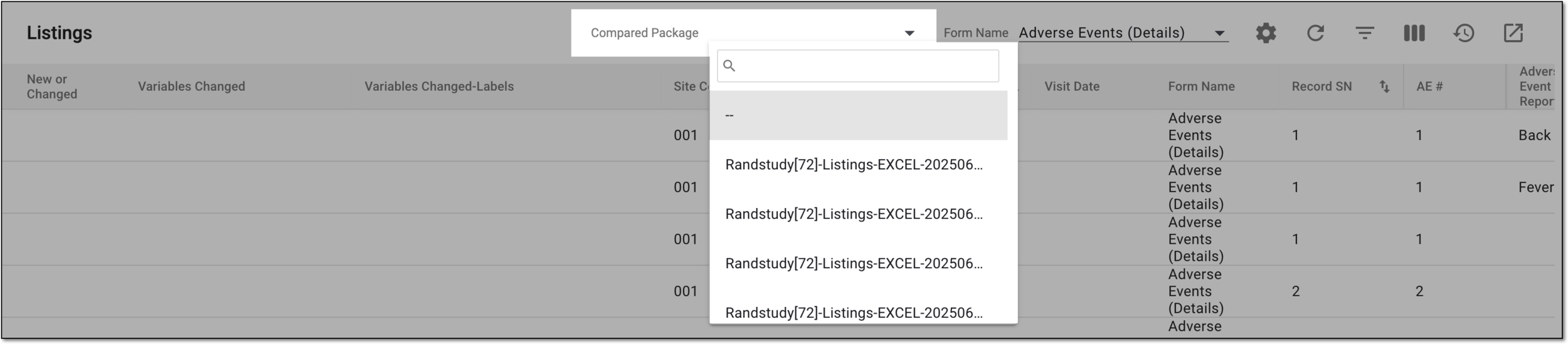 Figure 5. Selecting data package for comparison
Tip
Once comparison package is selected, the report displays changed and new values in red for easy detection.
 Figure 6. Locating changed variable values
-
Once the report satisfies your business needs, from the workspace toolbar, select Export
 .
.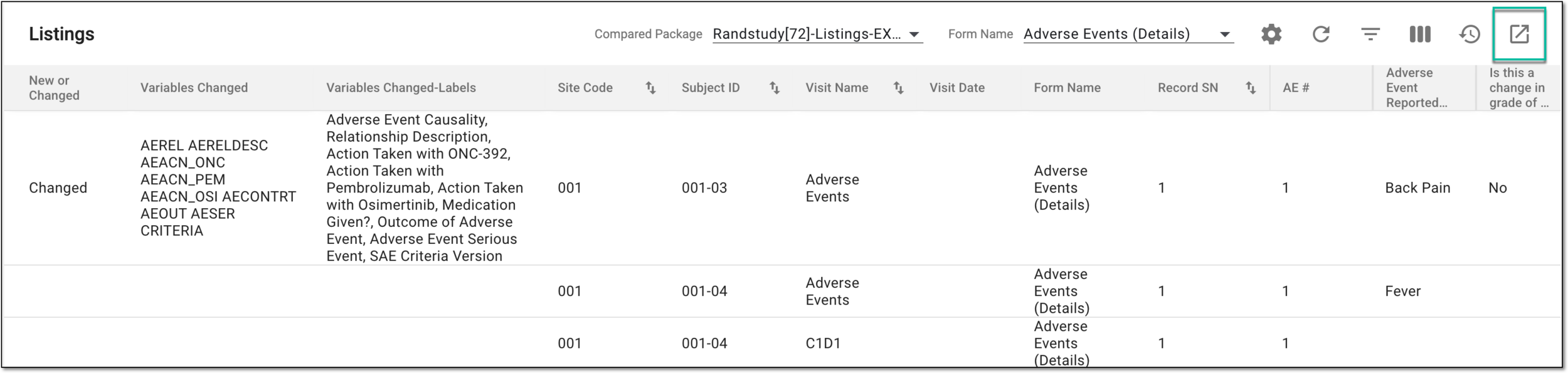 Figure 7. Exporting CRF data listing report
-
In the Export Template dialog that opens, the system autopopulates the previously selected comparison listing report version; you can change the selection or clear the field if needed. Then select
 to proceed with the data extraction.
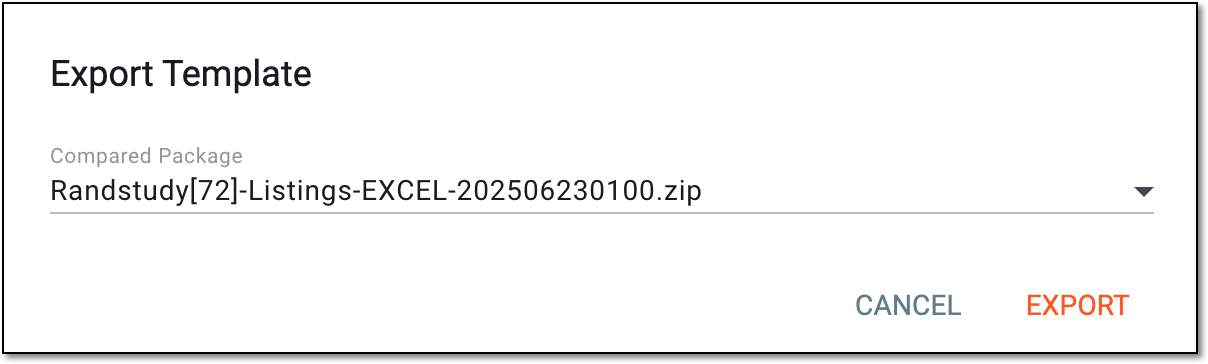 Figure 8. Selecting export template
-
In the download widgets that appear, view your download progress. Select the topmost widget to open the My Downloads dialog.
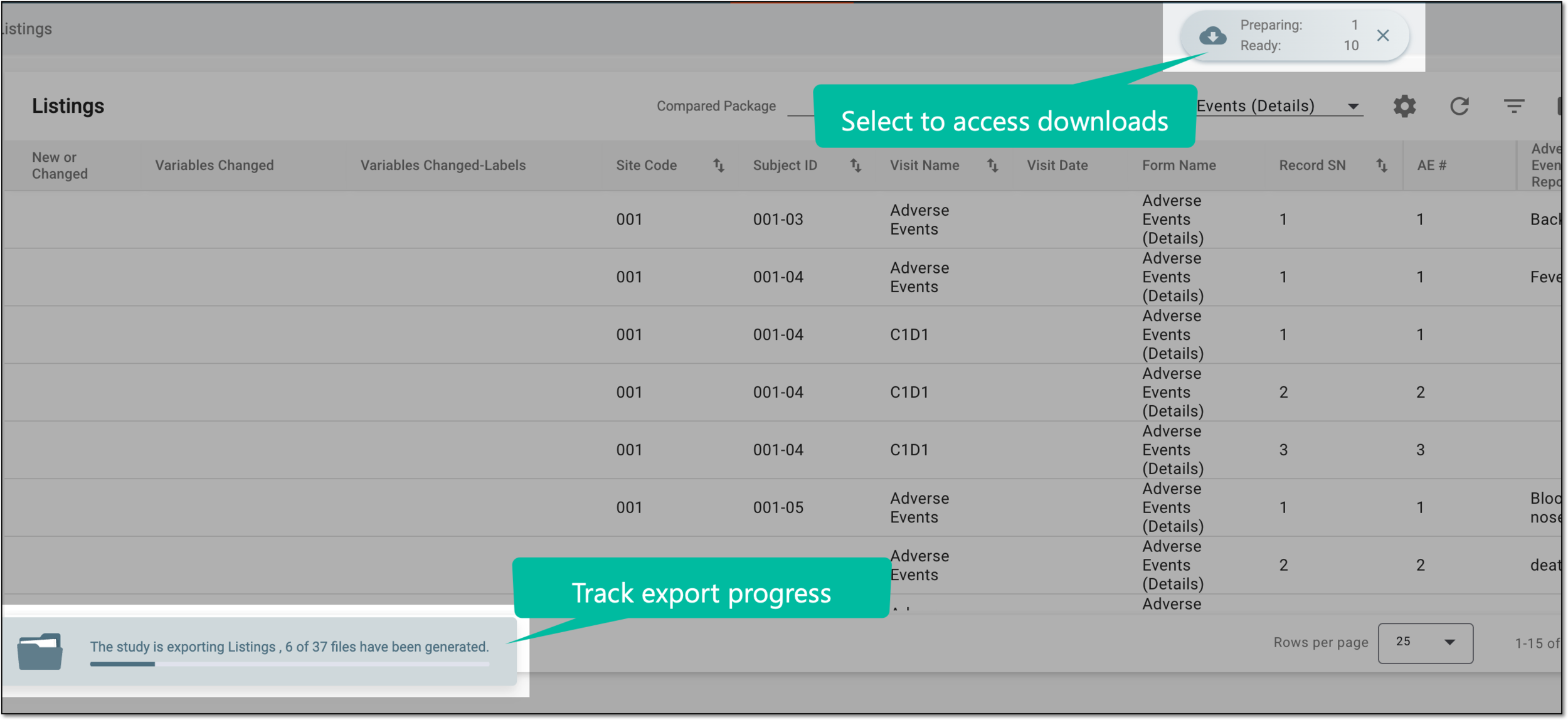 Figure 9. Download widgets for listings report
-
In the My Downloads dialog that opens, you can find the following tabs:
-
Preparing: lists all the files whose export is in progress, and they are not yet ready for download. Wait until the needed file moves to the Download is Ready tab.
-
Download is Ready: lists the files whose export is complete, and they can be downloaded to your computer by selecting
 .
.
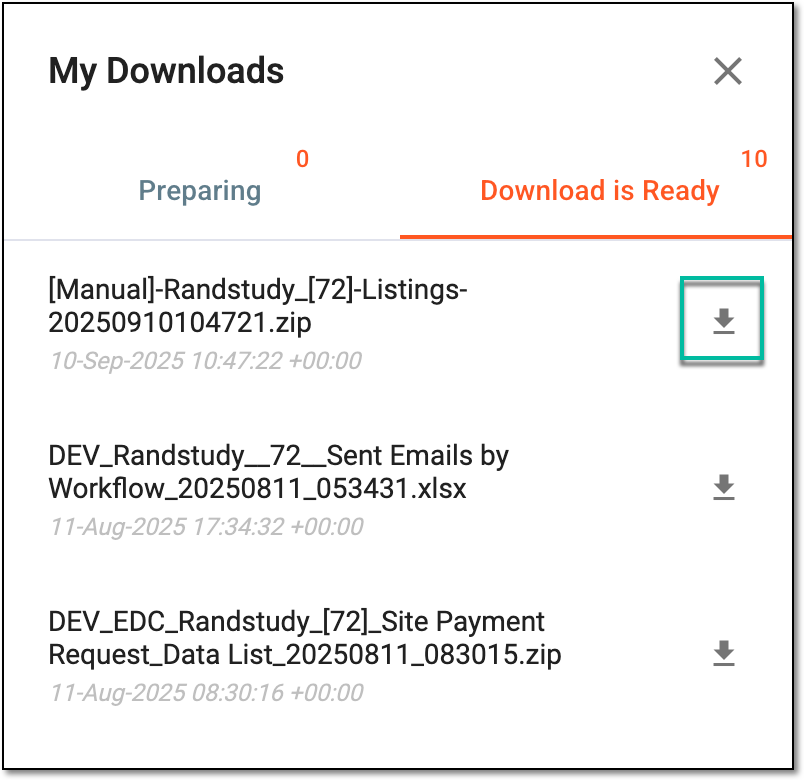 Figure 10. Downloading extracted listings report
-
You have generated the listings report for the selected CRF and exported it for analysis and other needs to your computer. You can also access this report version whenever needed and download it from the export history.