Edit supply plan for site
In IWRS, you can select and modify a supply plan that the site follows when managing item shipment and dispensation. Sometimes, you might need to make individual amendments or modifications to the currently effective supply plan for your site, for instance, adding more product units.
Important
Editing a supply plan for a site only changes its values for that individual site. It does not affect the supply plan configurations under the TREATMENT DESIGN > Supply Plan page.
The resupply shipment requests start triggering according to the selected plan only after the initial shipment request is sent manually or autotriggered based on the set conditions.
-
In the IWRS application header, select the SITE tab.
-
On the Site List page that opens, in the table, select the site code of your interest.
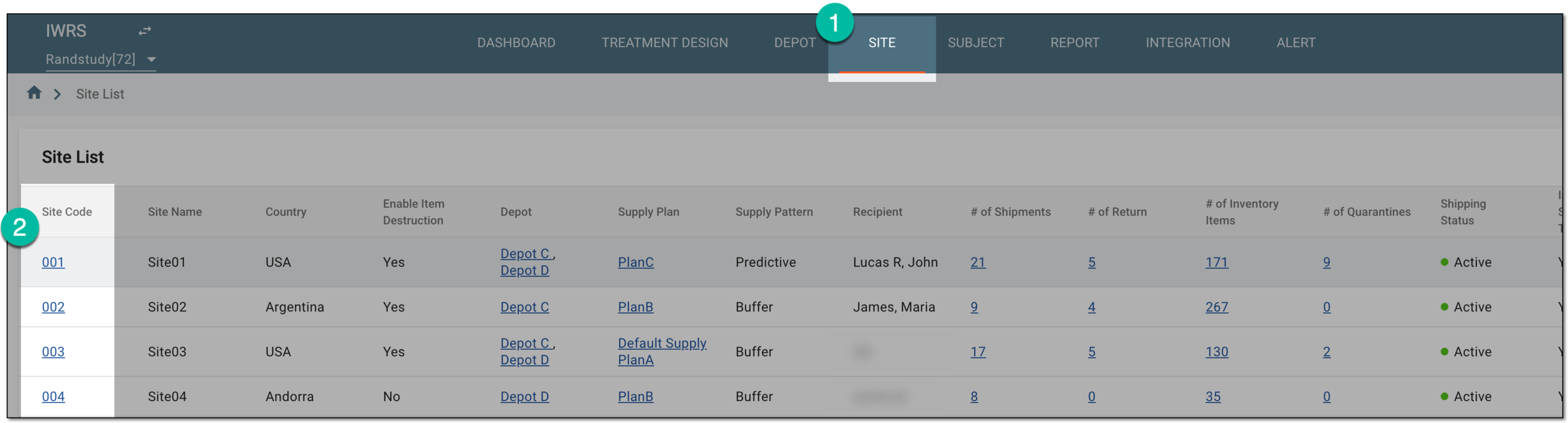 Figure 1. Selecting site to open its details
-
On the page that opens, in the left pane, select the Supply Plan subtab.
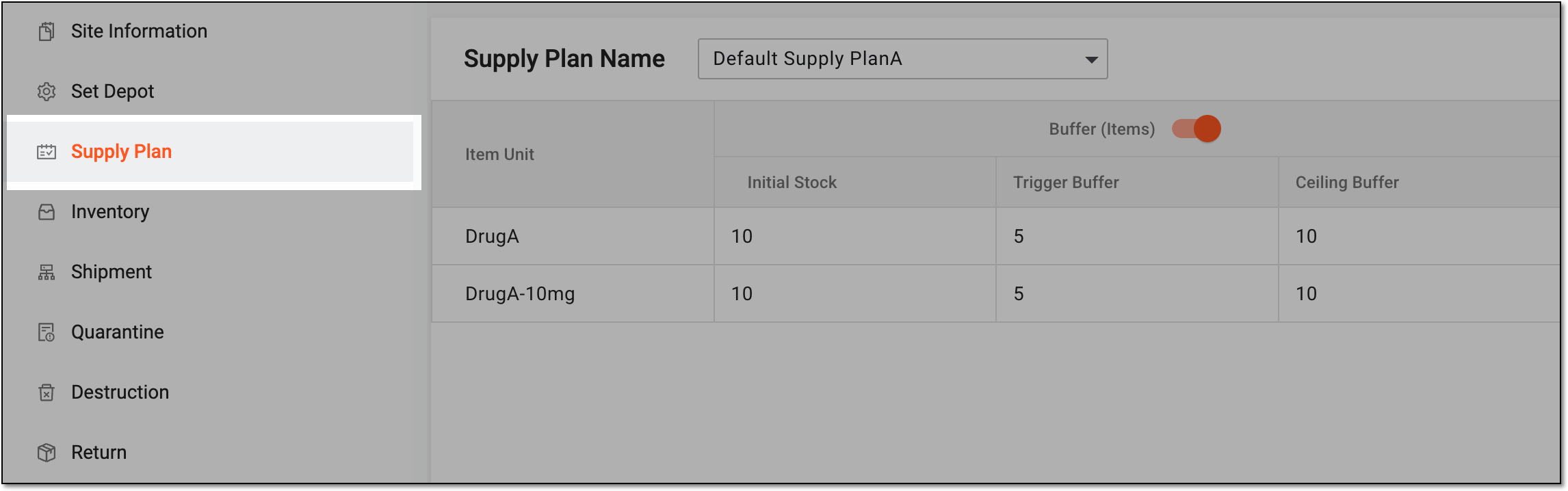 Figure 2. Accessing site supply plan
-
On the Supply Plan page that opens, from the workspace toolbar, select Edit
 .
. Figure 3. Selecting to edit supply plan for site
-
On the page that opens, update the supply plan details as explained in the following table.
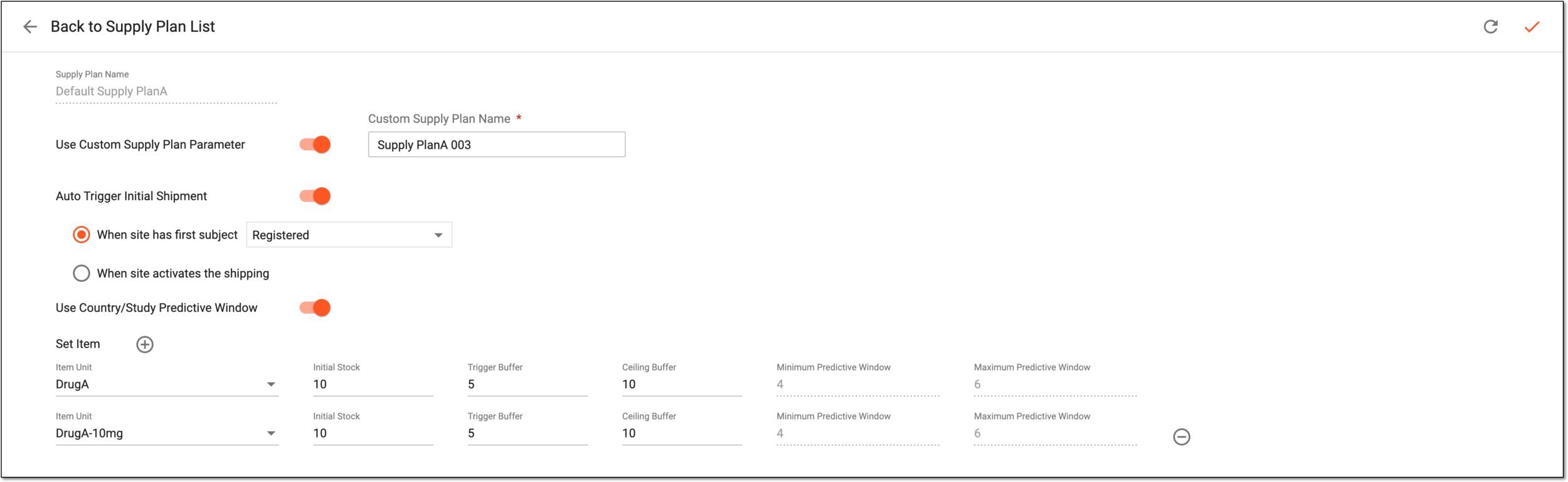 Figure 4. Editing supply plan for site
Element
Details
Supply Plan Name
Represents the name of the selected supply plan and is read-only.
Use Custom Supply Plan Parameter
Configure as follows:
-
Turn on the toggle if you do not want to automatically sync the changes made in the master supply plan to the supply plan assigned to your site and to be able to customize the supply plan manually if needed.
-
Turn off the toggle to apply the master plan changes to your site supply plan automatically. If the toggle is turned off, the Auto Tigger Initial Shipment and Use Country/Study Predictive Window parameters can be changed from the master supply plan.
Custom Supply Plan Name*
Enter the supply plan name. Once all the changes are saved,
 appear alongside the name given to the custom supply plan.
This field only appears if the site is using the Use Custom Supply Plan Parameter.Auto Trigger Initial Shipment
Configure as follows:
-
Turn on the toggle to automatically trigger the initial shipment request for a site.
-
Turn off the toggle to not trigger the initial shipment request automatically and leave it up to the site personnel to create the initial shipment manually.
When site has first subject
Select this option and the subject phase that when enrolls at least one subject at the site triggers the initial shipment request.
The number of items in the initial shipment request depends on the initial stock configured for the supply plan.
This field is only available if the Auto Trigger Initial Shipment toggle is turned on.When site activates the shipping
Select this option if you want the initial shipment request to be automatically created when the site is activated and becomes available for shipping.
This field is only available if the Auto Trigger Initial Shipment toggle is turned on.Use Country/Study Predictive Window
Configure as follows:
-
Turn on this toggle to apply the study or country-level predictive window on site. By turning on this toggle, you cannot edit the prediction window.
-
Turn off this toggle to enable the custom setting of the maximum and minimum prediction windows for the site.
Set Item

Select this icon to add a new row and configure an additional item unit for the supply plan.
Item Unit
Select a product unit to add to the supply plan.
Initial Stock
Enter the number of items that must be present in the site inventory when the dispensation starts. This value is decided by the sponsor keeping in mind several factors, including the site storage capacity, estimated consumption rate, and others.
Trigger Buffer
Enter the number of items that, when the existing item count reaches or falls below it, triggers an automatic stock replenishment request. The automated shipment requests a quantity that does not exceed the item's ceiling buffer.
Several factors must be kept in mind while defining this value, such as the recruitment rate, the rate of item consumption, transportation time, and other factors that might prevent the timely administration of the item.
Ceiling Buffer
Enter the maximum number of items that can be present in the site inventory.
Usually, when the trigger buffer is surpassed, an automatic shipment request is sent to the supplier depot, and the number of items in the request is calculated like this:
Requested quantity = Ceiling Buffer - (number of items available on site + number of items in transit).
Minimum Predictive Window
Enter the number of days from the current date to outline the time frame for the calculation of the site inventory sufficiency for all dispensations that are supposed to occur during this time frame.
If configured, the system checks all the subject dispensing schedules during the outlined time frame and compares the estimated number of items needed for upcoming dispensations to the current site inventory and does the following:
-
If the inventory is not sufficient for all dispensations, the system automatically generates the supply shipment request.
-
If the site inventory is sufficient for all dispensations, the supply shipment request is not created.
The value can only be edited when the Use Country/Study Predictive Window toggle is turned off.Maximum Predictive Window
Enter the number of days from the current date to outline the time frame for the calculation of the number of items to be included in the supply shipment generated based on the Minimum Predictive Window period calculations.
If based on the Minimum Predictive Window time frame, the site inventory is insufficient for all upcoming dispensations, the system generates a supply shipment request. The total quantity of items in the request is calculated for all the subject dispensations that are supposed to occur during the time frame outlined by Maximum Predictive Window.
The value can only be edited when the Use Country/Study Predictive Window toggle is turned off.
Select this icon to delete a row with an item unit you no longer need or an extra empty row.
SAVE
Select
 to save the implemented changes.
Refresh
Select
 to discard all the changes you made to the supply plan and start over.
 -
Upon saving, the supply plan is updated and customized to the site's needs.