Subject management tasks dashboard
In IWRS, you can find a summary of your subject management tasks under the Subject Management category of the My Work dashboard.
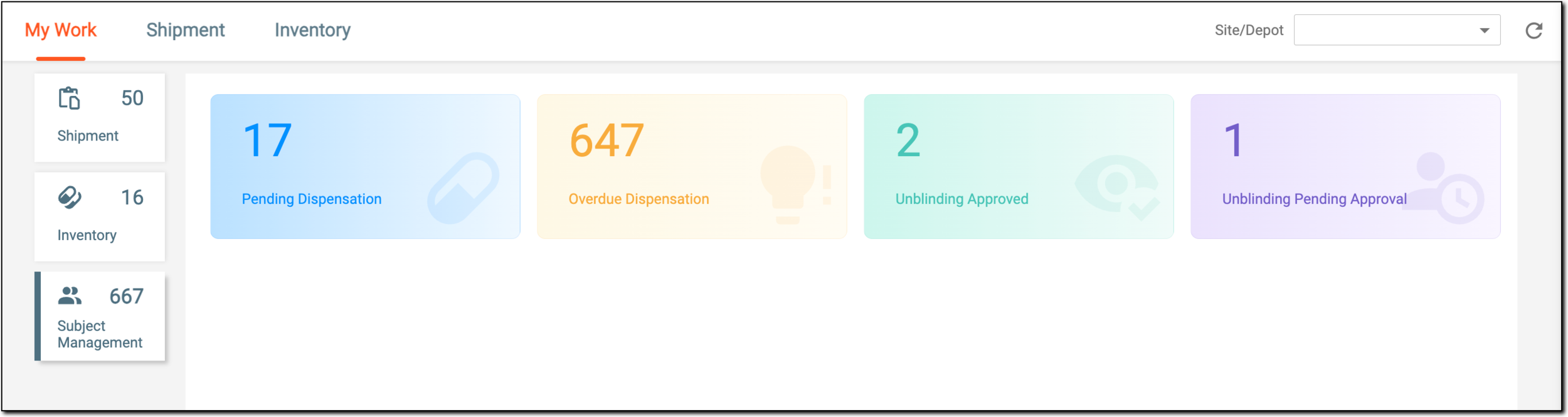
Tip
To facilitate the task search, use the Site/Depot filter to view the dashboard data pertinent to the institution of your interest.
When a planned subject visit is assigned to a specific item, the dispensation process starts. All these scheduled dispensing plans remain pending until the dispensation is completed according to the planned treatment.
The Pending Dispensation category of subject management tasks provides the total count of scheduled dispensations that are assigned to you and await completion.
-
In the IWRS application header, select the DASHBOARD tab.
-
On the page that appears, select My Work > Subject Management.
-
From the dashboard contents panel that opens, select the Pending Dispensation tile.
-
In the Pending Dispensation list that appears, analyze the tasks and their attributes as explained in the following table.
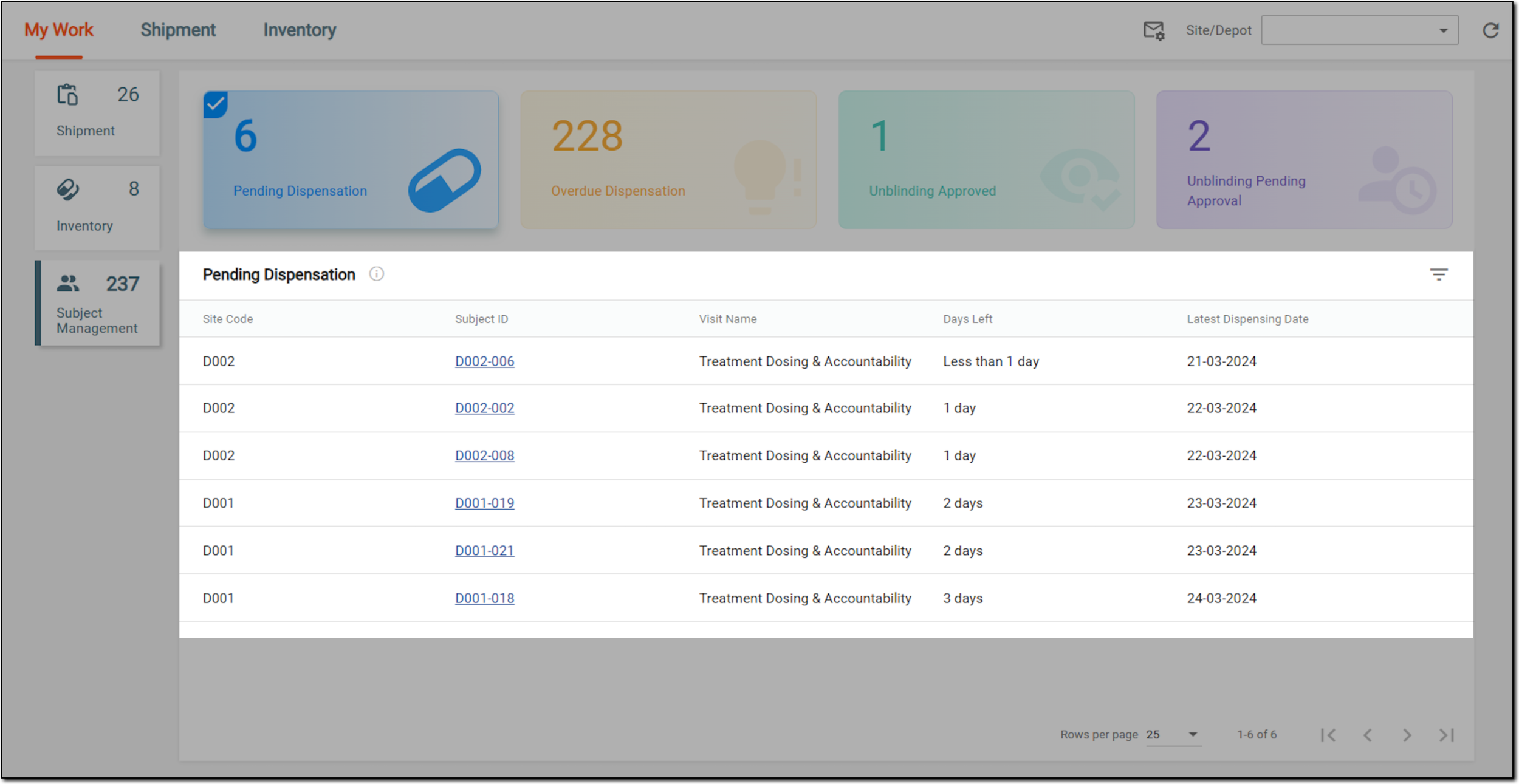 Figure 1. Viewing pending dispensation
Tip
To facilitate the task search, use the Site/Depot filter to view the dashboard data pertinent to the institution of your interest.
Element
Details
Site Code
Represents the identifier of the site where the scheduled dispensation must take place during the subject visit.
[Unique ID Label]
Represents the identifier of the subject who has the dispensation scheduled. Select the hyperlink to go directly to the subject dispensing functionality and create a dispensation record.
The column name depends on the unique ID label configuration of your
                                        study.
Visit Name
Represents the name of the subject visit whose scheduled dispensing plans are in progress.
Days Left
Represents the days remaining to complete the dispensation process.
Latest Dispensing Date
Represents the latest date when the subject received their previous dispensation.
You have viewed the details of the pending dispensation tasks and accessed the ones you want to complete.
When a planned subject visit is assigned to a specific item, the dispensation process initiates. All these scheduled dispensing visits become overdue if, after a certain date, their dispensation is not completed according to planned treatment. The details of all such overdue dispensations that you must complete can be accessed under the Overdue Dispensation category of subject management tasks.
-
In the IWRS application header, select the DASHBOARD tab.
-
On the page that appears, select My Work > Subject Management.
-
From the dashboard contents panel that opens, select the Overdue Dispensation tile.
-
In the Overdue Dispensation list that appears, analyze the tasks and their attributes as explained in the following table.
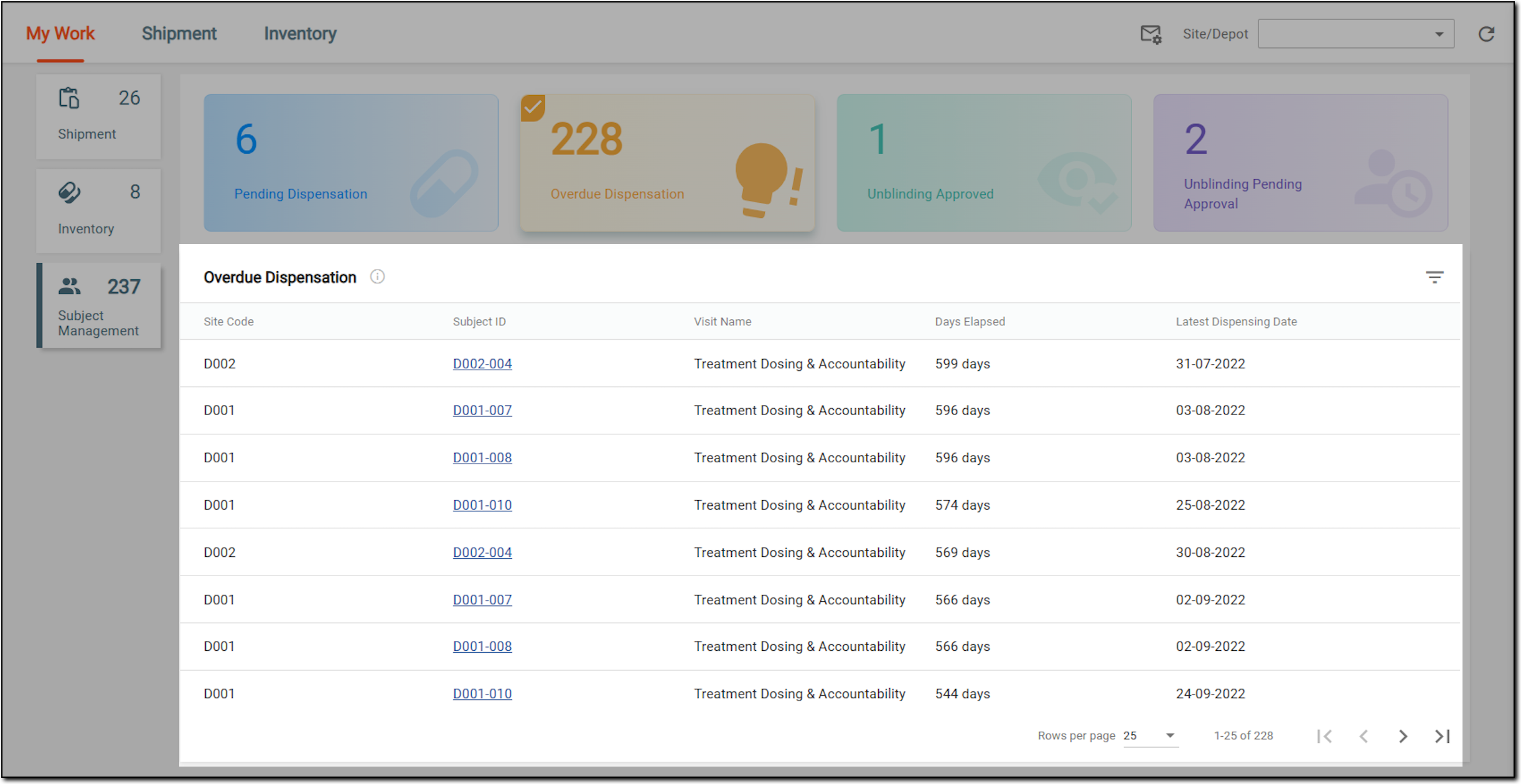 Figure 1. Viewing overdue dispensations
Tip
To facilitate the task search, use the Site/Depot filter to view the dashboard data pertinent to the institution of your interest.
Element
Details
Site Code
Represents the identifier of the site where the scheduled dispensation did not take place and became overdue.
[Unique ID Label]
Represents the identifier of the subject who has the overdue dispensation. Select the hyperlink to go directly to the subject dispensing functionality and create a dispensation record.
The column name depends on the unique ID label configuration of your
                                        study.
Visit Name
Represents the name of the subject visit whose dispensations are overdue.
Days Elapsed
Represents for how many days the dispensation has been overdue.
Latest Dispensing Date
Represents the latest date when the subject received their previous dispensation.
You have viewed the details of the overdue dispensation tasks and accessed the ones you want to complete.
Unblinding of any aspect of a clinical trial involves serious risks, thus, this process has multiple tiers of security. First, you need to request permission to unblind the subject and only once it is approved, you can unblind them. For your convenience, all the tasks for unblinding of already approved subjects can be accessed under the Unblinding Approved category of subject management tasks.
-
In the IWRS application header, select the DASHBOARD tab.
-
On the page that appears, select My Work > Subject Management.
-
From the dashboard contents panel that opens, select the Unblinding Approved tile.
-
In the Unblinding Approved list that appears, analyze the tasks and their attributes as explained in the following table.
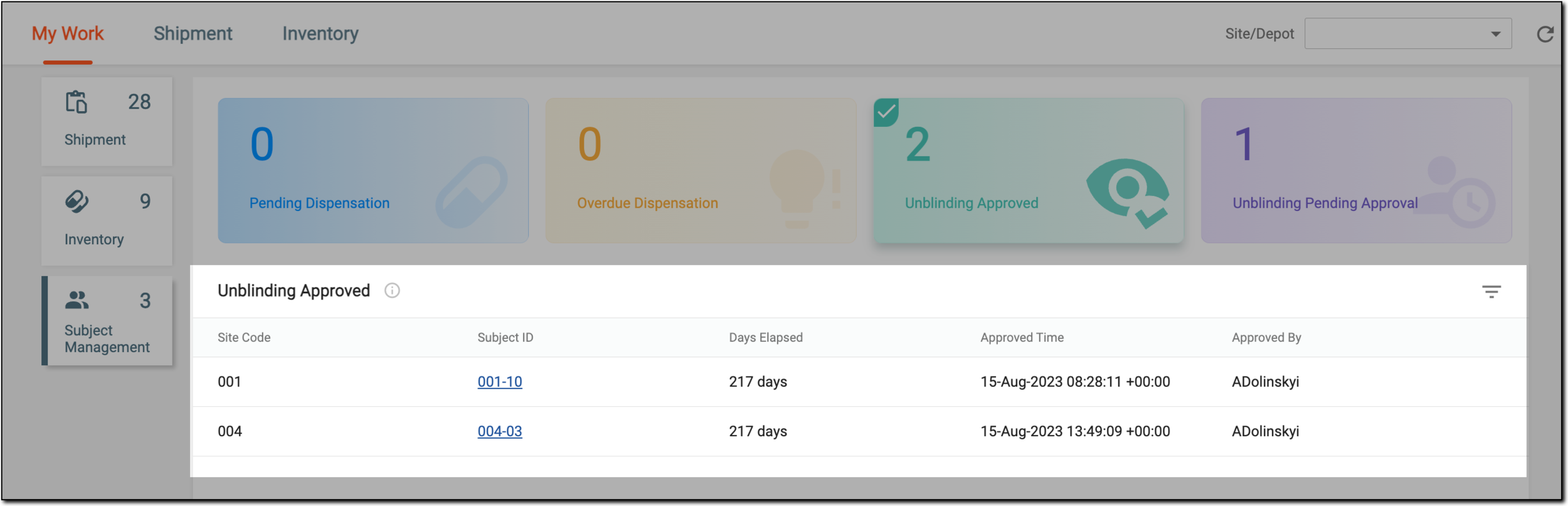 Figure 1. Viewing approved subject unblinding tasks
Tip
To facilitate the task search, use the Site/Depot filter to view the dashboard data pertinent to the institution of your interest.
Element
Details
Site Code
Represents the identifier of the site where belongs the subject that needs to be unblinded.
[Unique ID Label]
Represents the identifier of the subject that needs to be unblinded. Select the hyperlink to go directly to the subject management page where you can unblind the subject.
The column name depends on the unique ID label configuration of your
                                        study.
Days Elapsed
Represents the number of days passed since the subject was approved for unblinding and is still awaiting to be unblinded.
Approved Time
Represents the time when the subject was approved for unblinding.
Approved By
Represents the name of the user who approved the subject for unblinding.
You have viewed the details of your subject unblinding tasks and accessed the ones you want to complete.
In the IWRS DASHBOARD tab, the My Work tasks dashboard provides a summary of the tasks you handle. The Unblinding Pending Approval tile on the Subject Management tasks dashboard provides the total count of subjects for whom the unblinding request is sent and still awaits approval.
When a subject unblinding request is sent, it remains in the pending list until approved. The details of all such tasks you handle which have subjects awaiting for unblinding approval can be viewed from the Unblidning Pending Approval tile.
-
In the IWRS application header, select the DASHBOARD tab.
-
On the page that appears, select My Work > Subject Management.
-
From the dashboard contents panel that opens, select the Unblinding Pending Approval tile.
-
In the Unblinding Pending Approval list that appears, analyze the tasks and their attributes as explained in the following table.
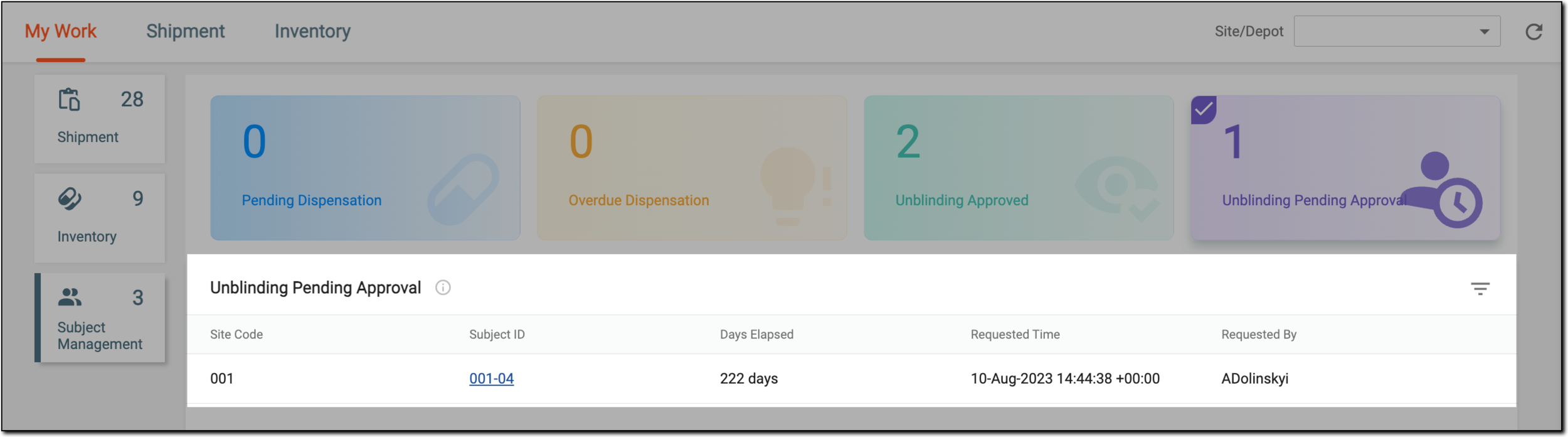 Figure 1. Viewing unblinding requests pending approval
Tip
To facilitate the task search, use the Site/Depot filter to view the dashboard data pertinent to the institution of your interest.
Element
Details
Site Code
Represents the identifier of the site where belongs the subject for whom the unblinding is requested.
[Unique ID Label]
Represents the identifier of the subject for whom the unblinding is requested. Select the hyperlink to go directly to the subject management page where you can review and approve the subject unblinding request.
The column name depends on the unique ID label configuration of your
                                        study.
Days Elapsed
Represents the total number of days passed since the unblinding was requested for the subject.
Requested Time
Represents the time when the unblinding was requested for the subject.
Requested By
Represents the username who requested for unblinding.
You have viewed the details of your tasks on pending subject unblinding requests and accessed the ones you want to complete.
During a clinical trial, the subject who is already enrolled can drop out of the study or decide to cease their participation due to various reasons. To maintain the study conduct uninterrupted and treatment assignment balanced, it is possible to replace such subjects with other ones that fit the same criteria and meet the expectations to be enrolled in the same cohort and arm and receive the same treatment.
To introduce an additional tier of scrutiny, enable the subject replacement approval for the study. Then, for those in charge of the review and approval for subject replacement, all such tasks can be accessed under the Replacement Pending Approval category of subject management tasks.
-
In the IWRS application header, select the DASHBOARD tab.
-
On the page that appears, select My Work > Subject Management.
-
From the dashboard contents panel that opens, select the Replacement Pending Approval tile.
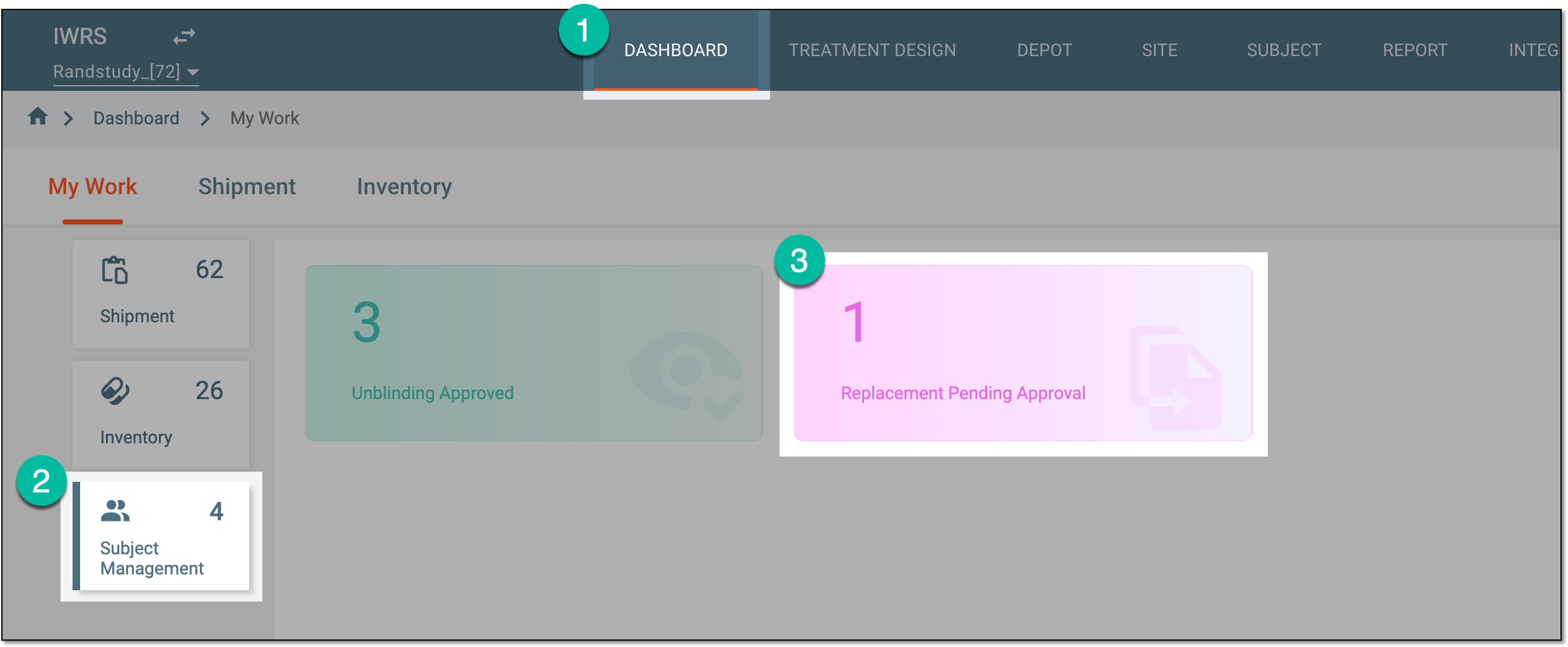 Figure 1. Accessing subject replacement approval tasks
-
In the Replacement Pending Approval list that appears, analyze the tasks and their attributes as explained in the following table.
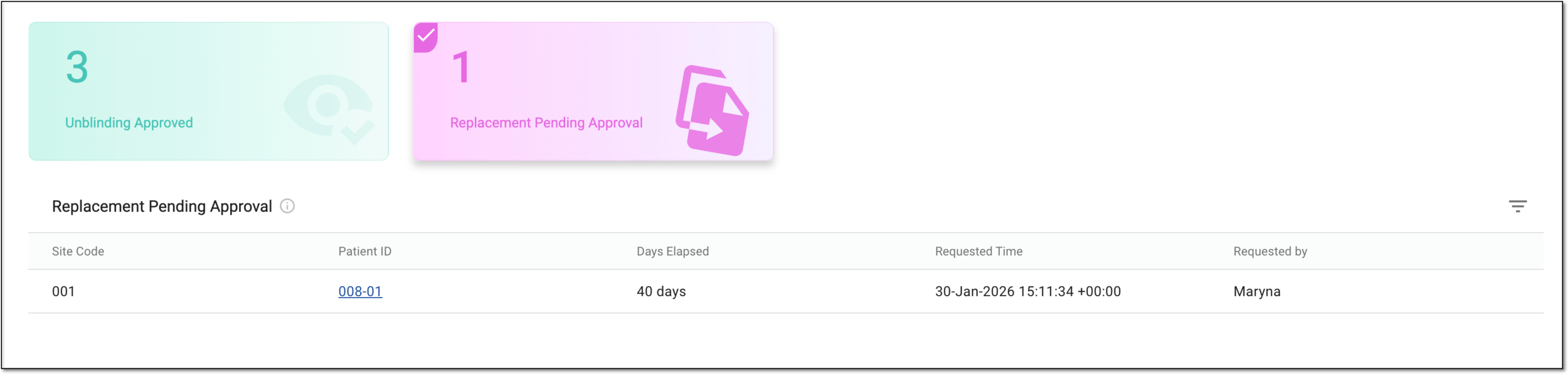 Figure 2. Analyzing subject replacement approval tasks
Element
Details
Site Code
Represents the identifier of the site where belongs the subject whose replacement is requested.
[Unique ID Label]
Represents the identifier of the subject whose replacement is requested. Select the hyperlink to go directly to the subject details page and review and approve or reject the replacement request.
The column name depends on the unique ID label configuration of your
                                        study.
Days Elapsed
Represents how many days have passed since the subject replacement has been requested.
Requested Time
Represents the exact date, time, and time zone indicator when the subject replacement has been requested.
Requested by
Represents the name of the user who has requested the subject replacement.
You have viewed the details of the subject replacement approval tasks and accessed the ones you want to complete.