Subject replacement
During a clinical trial, the subject who is already enrolled can drop out of the study or decide to cease their participation due to various reasons. To maintain the study conduct uninterrupted and treatment assignment balanced, it is possible to replace such subjects with other ones that fit the same criteria and meet the expectations to be enrolled in the same cohort and arm and receive the same treatment.
Important
The subject replacement functionality is only available for the cohorts of the permuted block randomization method.
In the following sections, you can learn how to manage subject replacement for your study in IWRS.
In IWRS, you can configure the procedure of subject replacement to best suit your business scenario—introducing the automated subject replacement based on the set conditions or involving accountable personnel in the review and approval process for scrutiny.
For instance, you can set up for the users to manually request subject replacement from the personnel in charge, and only upon approval, the replacement can be made. However, if such a precaution is unnecessary, the approval can be skipped, and the system can replace the subject automatically upon meeting the respective conditions.
-
In the IWRS application header, select the TREATMENT DESIGN tab.
-
In the left pane, select Subject Replacement.
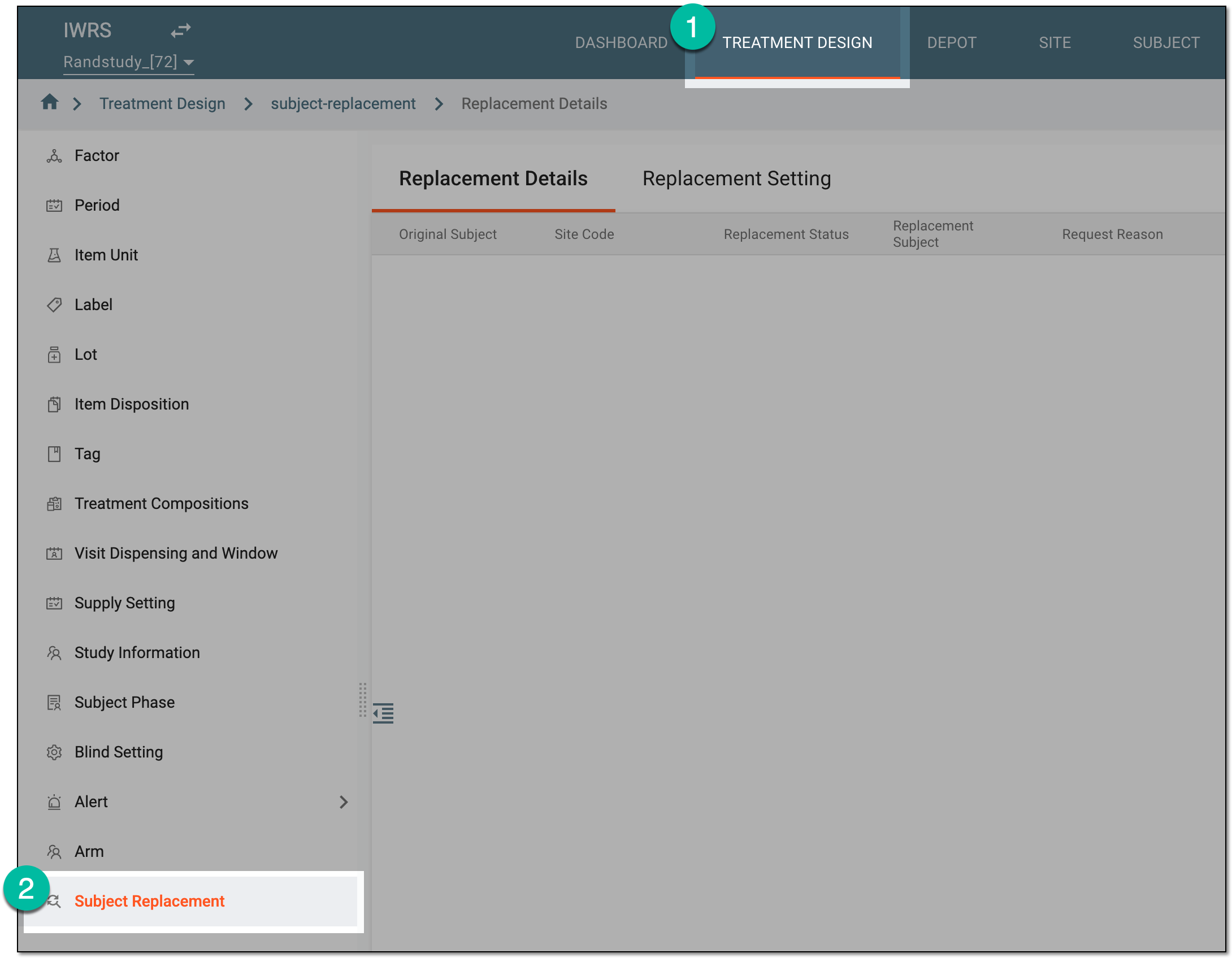 Figure 1. Accessing subject replacement
-
On the page that opens, select the Replacement Setting tab.
-
On the Replacement Setting page, configure the procedure of subject replacement for your study as explained in the following table.
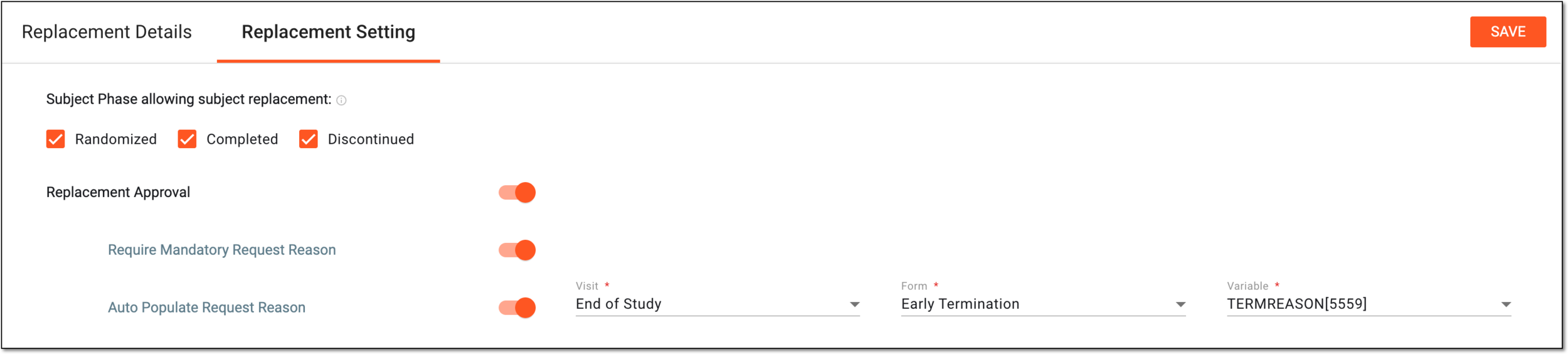 Figure 2. Configuring subject replacement settings
Element
Details
Subject Phase allowing subject replacement
Select the checkboxes next to the subject phases during which the system can replace the subject upon meeting the set replacement condition.
The list of available subject phases depends on the subject phase composition in SD.Replacement Approval
Set as follows:
-
Turn on the toggle to enable the process of requesting subject replacement from the personnel in charge to review and approve or reject the request, introducing an additional tier of scrutiny in subject management of your study.
-
Turn off the toggle to replace the subjects automatically upon meeting the set replacement conditions, automating the procedure of subject management and minimizing human interaction for studies where additional precautions are unnecessary.
If you have previously enabled the approval and there are already subject replacement requests in any status, turning off this toggle discards them, and they disappear from the Replacement Details table along with the related functionality of the Subject Information page—request, approve or reject, and revoke the replacement. Turn the toggle back on to reinstate all the subject replacement requests and their historic records.Require Mandatory Request Reason
Set as follows:
-
Turn on the toggle to make the reason entry mandatory upon requesting the subject replacement approval.
-
Turn off the toggle to make the reason entry optional upon requesting the subject replacement approval.
This toggle is only available if the Replacement Approval is enabled.Auto Populate Request Reason
Set as follows:
-
Turn on the toggle to enable the system to automatically pull the selected variable value from EDC and populate it as the reason for replacement in IWRS.
-
Turn off the toggle to keep the reason entry manual upon requesting the subject replacement approval.
Visit*
Select the visit to which belongs the form whose data contains the reason for subject replacement.
This field is only available if the Auto Populate Request Reason toggle is turned on.Form*
Select the CRF whose data contains the reason for subject replacement.
This field is only available if the Auto Populate Request Reason toggle is turned on.Variable*
Select the variable whose value must be populated to IWRS upon subject replacement request as the reason.
This field is only available if the Auto Populate Request Reason toggle is turned on.SAVE
Select
 to implement the changes.
 -
Once saved, the subject replacement settings for your study are configured.
In IWRS, you can enable the approval procedure for subject replacement. If enabled, the users can manually request subject replacement from the personnel in charge to review and approve or reject the request, introducing an additional tier of scrutiny in subject management of your study. The interim and final results of this procedure are reflected and can be at any time analyzed via Replacement Details.
-
In the IWRS application header, select the TREATMENT DESIGN tab.
-
In the left pane, select Subject Replacement.
Figure 1. Accessing subject replacement
-
On the page that opens, under the Replacement Details tab, analyze the available data as explained in the following table.
 Figure 2. Analyzing subject replacement details
Element
Details
Original Subject
Represents the unique identifier of the subject who no longer participates in the study and must be or is already replaced by another subject.
Site Code
Represents the unique identifier of the site where the original subject is enrolled and must be replaced.
Replacement Status
Represents the most current status of subject's replacement:
-
Pending Approval: the subject replacement is requested and awaits the reviewer's decision.
-
Ready for Replacement: the subject replacement request is reviewed and approved.
-
Replaced: the original subject is already replaced with the new one.
-
Rejected: the subject replacement request is reviewed and rejected.
Replacement Subject
Represents the unique identifier of the subject who replaced the original subject in the study.
This value is only available if the replacement status is Replaced.Request Reason
Represents the reason entered by the user when requesting the subject replacement to justify their request.
Request Date
Represents the exact date, time, and time zone indicator when the subject replacement request is created.
Requested by
Represents the name of the user who created the subject replacement request.
Review Comment
Represents the comment left by the reviewer when approving or rejecting the subject replacement request to justify their action.
Review Date
Represents the exact date, time, and time zone indicator when the subject replacement request has been reviewed.
Reviewed by
Represents the name of the user who reviewed the subject replacement request.
-
You have analyzed the subject replacement details.
A group of subjects who share a set of specific factors (characteristics) that is first defined and composed, then studied or tracked over a given time period. In a clinical trial, outlining the study cohort begins with clearly defined, study-specific inclusion criteria.
A group of subjects formed as a result of randomization for blinding purposes that has its own schedule of visits and treatment plan according to a study protocol.
Medical care given to a subject to mitigate or cure an illness, injury, or reduced health status. In a clinical trial, treatment may include prescribed drugs, biologics, devices, physical or psychotherapies, and such other procedures.
A specific phase that a subject has to complete in the course of a clinical trial to move further to the next phase. For instance, Screening, Enrolled, Randomized, and others.
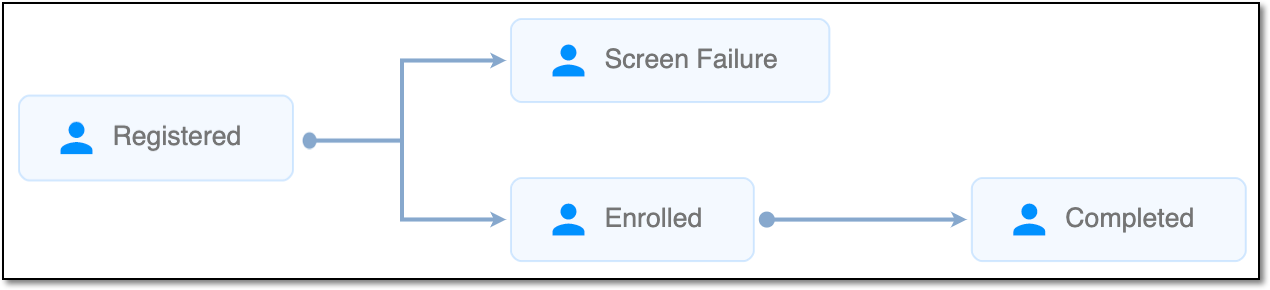 |
In eClinical, subject phases are designed individually for each study via the SD application, although they are referenced in others, like IWRS or EDC.
An eClinical application that provides functionality to design and configure a study (clinical trial), namely to configure CRFs, set subject phases, visits, and others.
The application supports the design of the CDSIC ODM-compliant electronic CRFs to support EDC and eDiary data collection and management.
Get to know all the possibilities of the app with the comprehensive SD User Guide.
A specialized document in a clinical trial designed to collect the subject data.
See also eCRF.
An individual piece of data collected within a domain. It represents a specific attribute or characteristic that can vary among subjects in a study. Each variable is defined by its format (such as categorical, continuous, and so on) and plays a crucial role in data analysis, allowing researchers to assess relationships and outcomes in the study.
For instance, within the "Demographics" domain, variables might include "Age," "Gender," and "Ethnicity."