Create new cohort
In a clinical trial, a cohort refers to a group of participants (subjects) who share certain characteristics or experiences and receive specific treatment over some time.
In the IWRS system, you need to create a variety of cohorts to which you can allocate subjects based on specific inclusion criteria for further randomization purposes.
-
In the IWRS application header, select the TREATMENT DESIGN tab.
-
On the page that opens, in the left pane, select the Period subtab.
-
In the Period List table that appears, locate the period of your interest. Then in the Period Name column, select the value to open the period configurator.
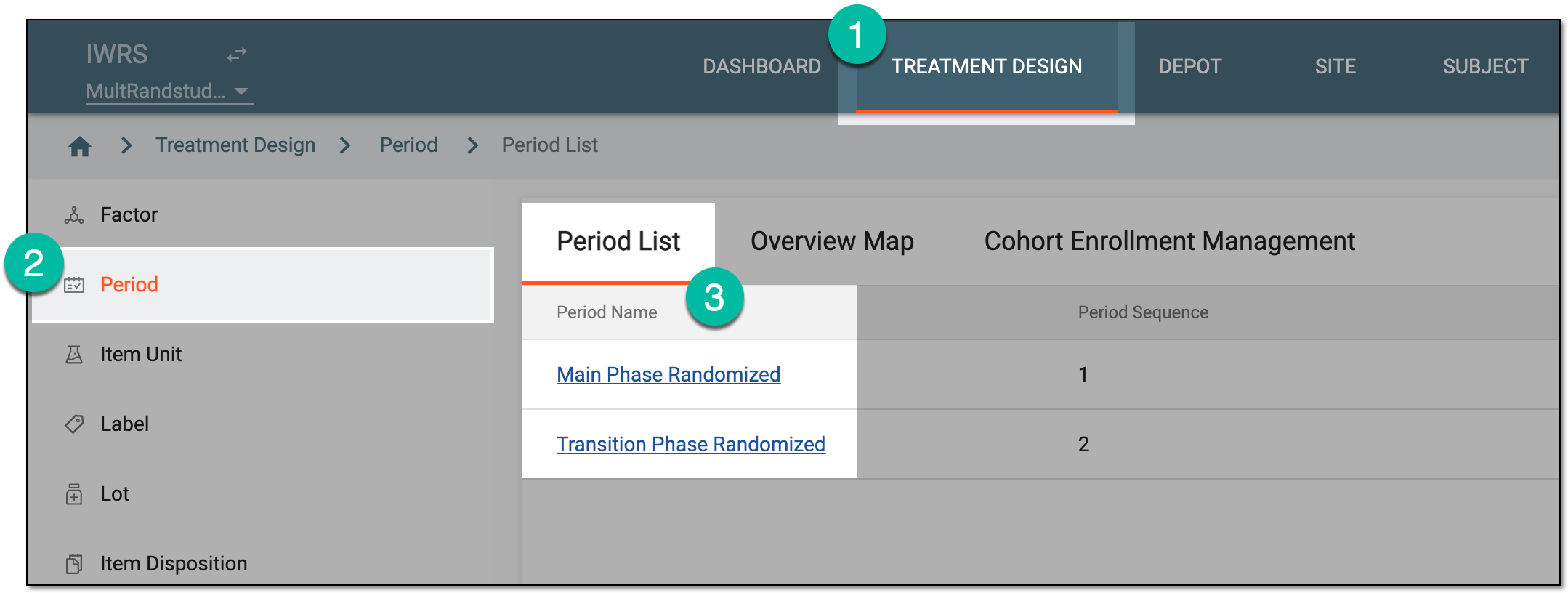 Figure 1. Accessing period configurator
-
In the period configurator, drill down the explorer menu and select the Cohort List subtab.
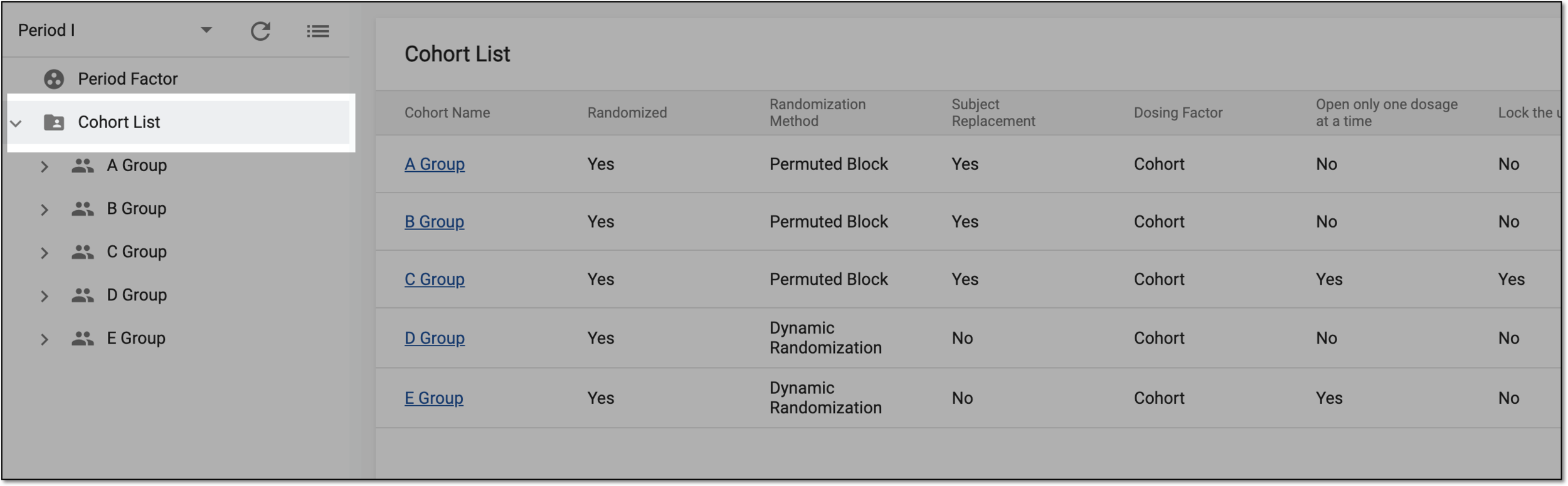 Figure 2. Accessing cohort list
-
On the page that opens, above the Cohort List table, select New Item
 .
. Figure 3. Adding new cohort
-
In the Add dialog that appears, start creating your cohort by setting the preferences as described in the following table.
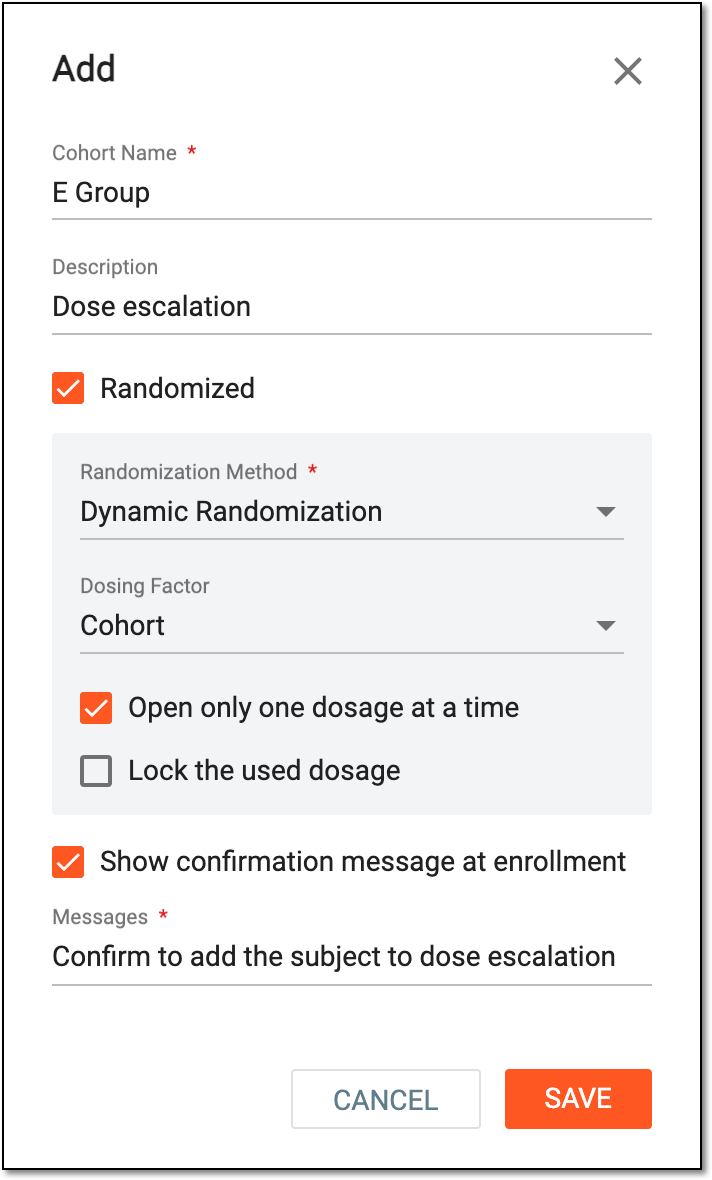 Figure 4. Configuring new cohort details
Tip
In the following table, mandatory elements are marked with an asterisk (*).
Element
Details
Cohort Name*
Enter a unique name of the cohort you create.
Description
Enter a meaningful description of your cohort.
Randomized
Set this parameter as follows:
-
Select the checkbox if you want the subjects in this cohort to be randomized.
-
Clear the checkbox if the subjects of the cohort will not be randomized.
Note that the non-random cohort is generally used to accept subjects who do not meet certain criteria but still need to take medication.
Randomization Method
Select one of the randomization methods as follows:
-
Permuted Block: select this option to establish the permuted block method of randomization for your cohort. This method involves the preparation of a randomization list before initiating the randomization process for the study. Randomization of subjects is first performed into blocks according to preset stratification factors and then into arms according to specific ratios.
-
Dynamic Randomization: select this option to establish the dynamic method of randomization for your cohort. This method adjusts the allocation probabilities based on the current distribution of participants. Thus, when each patient comes to the study, the system assesses their compliance with established factors, evaluates the existing patient groups and site imbalance, and allocates the new patient to the most imbalanced group. Unlike permuted block randomization, dynamic randomization does not involve the predefined randomization list and offers more adaptivity to achieve arm balance at all times.
Allow Subject Replacement
Set this parameter as follows:
-
Select the checkbox if you want the discontinued subjects in this cohort to be replaced based on the defined condition.
-
Clear the checkbox to disable the subject replacement for the cohort.
This checkbox only appears if the Permuted Block randomization method is selected.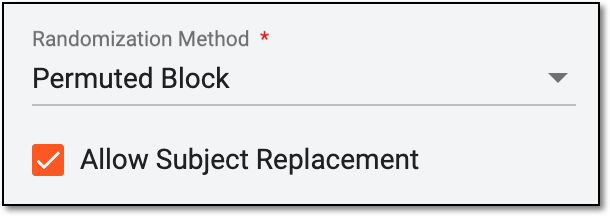 Figure 5. Allow subject replacement
Dosing Factor
Select the condition under which the dosage is given to the subjects of the cohort.
Open only one dosage at a time
Select the checkbox if you want to allow for only one dosage parameter to be selected simultaneously when setting dosages for the cohort. If cleared, multiple dosages can be selected at once for the same cohort.
Opening only one dosage option can be convenient for dose escalation cohorts, where you need to go from the lowest dosage of the drug and gradually increase it, so you only want to allow one option for selection to avoid the mistreatment of patients with different dosages simultaneously.
Lock the used dosage
Select this checkbox if you want to lock the previous dosage after it has been once selected as a cohort dosing factor when setting dosages for the cohort. If cleared, you can select the same dosage parameter multiple times going back and forth with doses for your cohort subjects.
Locking the used dosage can be convenient for dose escalation cohorts, where once you have already treated the subjects with a lower dosage of the drug and increased it, you do not want to allow going back and decreasing the dosage.
Show confirmation message at enrollment
Select the checkbox if you want to trigger a confirmation message when this cohort is selected for subject allocation upon phase change. If cleared, the cohort enrollment is completed with no additional confirmation.
If selected, you must enter the confirmation message text in the Messages field that appears.Messages*
Enter the text of the confirmation message that is triggered when this cohort is selected for subject allocation upon phase change.
The field is only available if the Show confirmation message at enrollment checkbox is selected.SAVE
Select
 to create your cohort.
CANCEL
Select
 to stop creating a cohort, close the dialog, and return to the cohort list of the Period configurator. In such a case, no changes are saved.
 -
Once saved, the new cohort is created and displayed both in the Period configurator as a separate subtab and as a cohort card in the overview map. Respective marking  indicates that the subjects in the cohort will be randomized, and you can right-click the cohort card to quickly access the cohort settings.
Now you can add cohort inclusion criteria and arms to your cohort and start configuring the randomization scheme.