Add arms to cohort
Arms within the cohorts refer to groups of subjects in a clinical trial that receive specific treatment or intervention or no treatment at all according to the study protocol.
-
In the IWRS application header, select the TREATMENT DESIGN tab.
-
On the page that opens, in the left pane, select the Period subtab.
-
In the Period List table that appears, locate the period of your interest. Then in the Period Name column, select the value to open the period configurator.
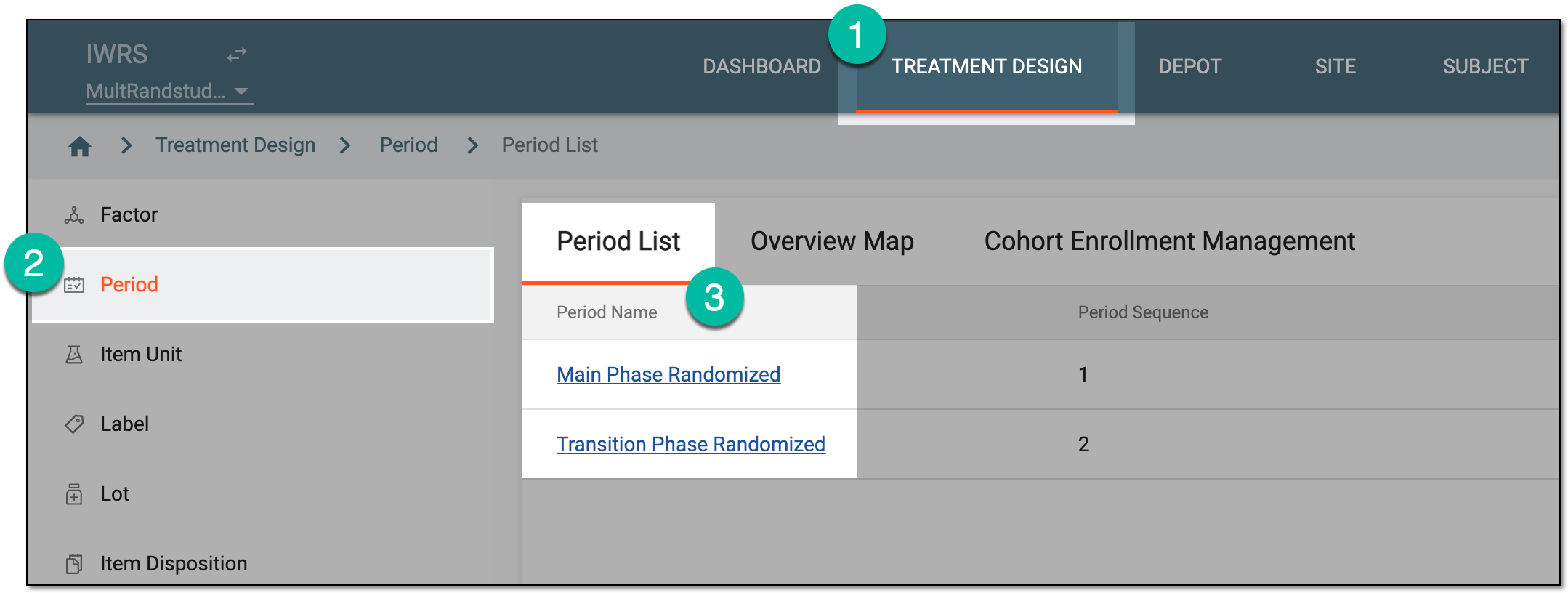 Figure 1. Accessing period configurator
-
In the period configurator, drill down the explorer menu and select the Cohort List subtab.
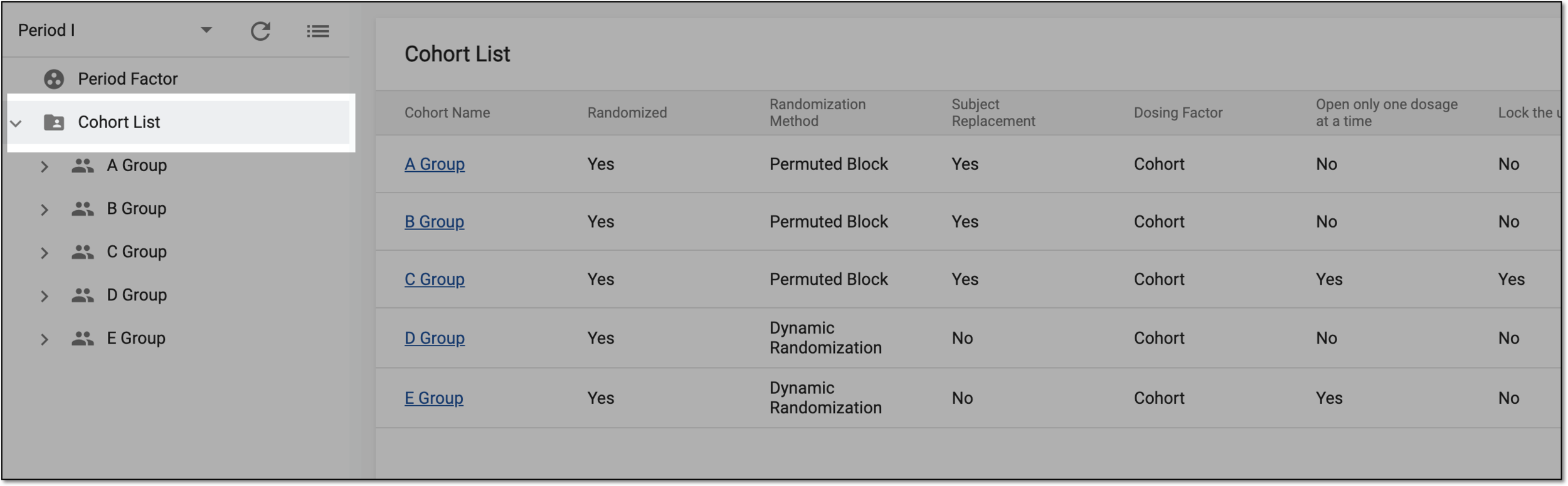 Figure 2. Accessing cohort list
-
From the list of cohorts, expand the one of your interest and select Arms.
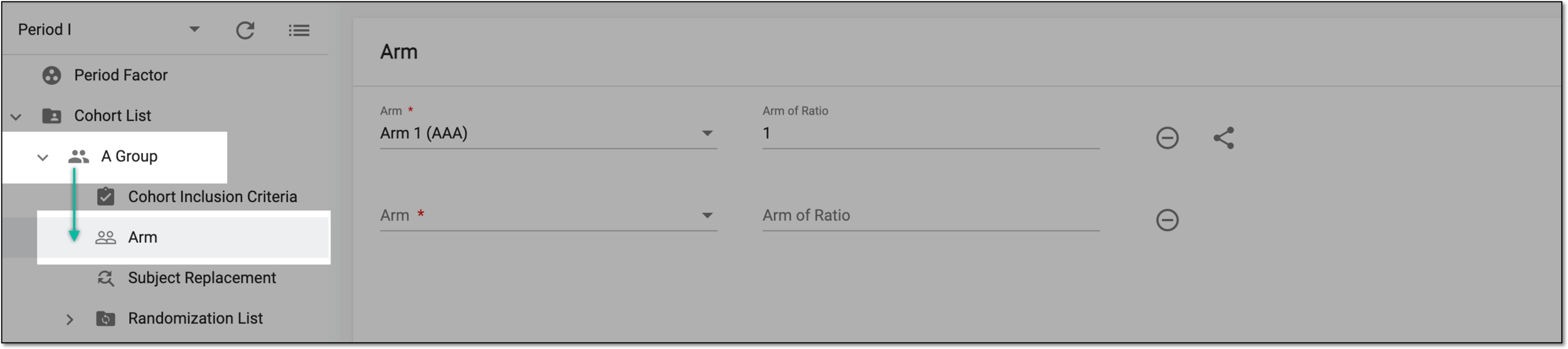 Figure 3. Accessing cohort arms
-
On the Arm page that appears, fill in the fields as explained in the following table.
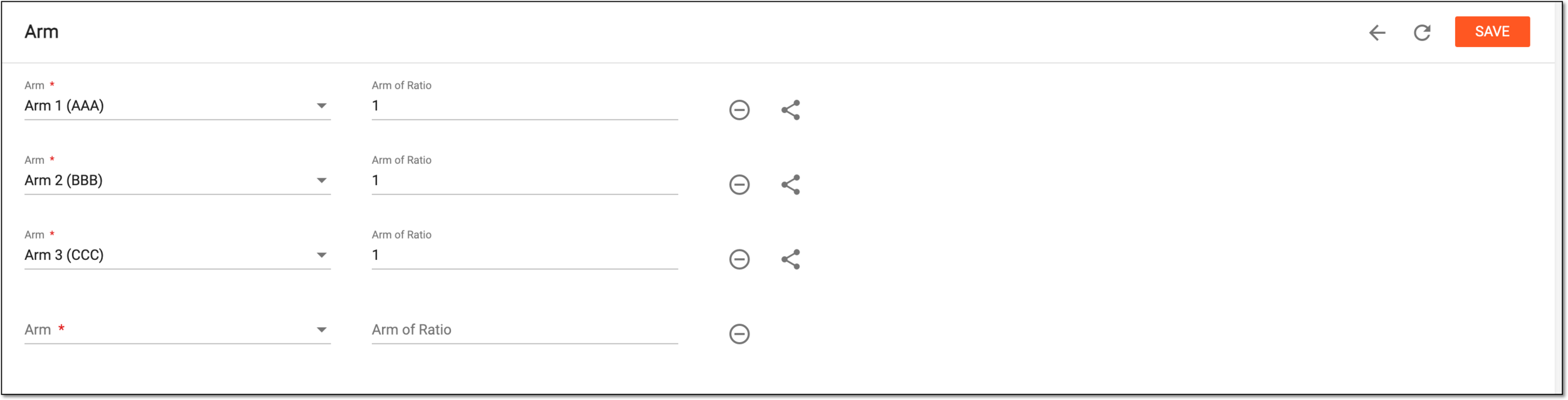 Figure 4. Adding arms to cohort
Tip
In the following table, mandatory elements are marked with an asterisk (*).
Element
Details
Arm*
Select the arm you want to add to your cohort. The list of arms is populated from the EDC application.
Arm of Ratio
Enter the number that represents the ratio of arms. This field is optional for manually uploaded randomization schemes and mandatory for system-generated randomization schemes. Non-randomized cohort does not have this field available.
Arm ratio setting is only available here if the Permuted Block randomization method is selected for the
                                  cohort.
Select this icon next to any of the rows to delete it.

Select this icon next to any of the rows to associate the arm with a specific factor(s).
Once you fill in one row, the subsequent empty one appears automatically. You can remove this row or ignore it as it does not
                                  influence saving.
Refresh
Select
 to dismiss all the implemented changes and return the page to its initial state.
SAVE
Select
 to add the selected arm(s) to a cohort.
Important
Adding, editing, or deleting arms does not affect the randomization scheme that has finished mapping.
Cohorts with the Randomized checkbox cleared can only have one arm.
Once the arms are added, they are displayed on the cohort card in the overview map.
The added arms are used to map the randomization scheme.