Inventory tasks dashboard
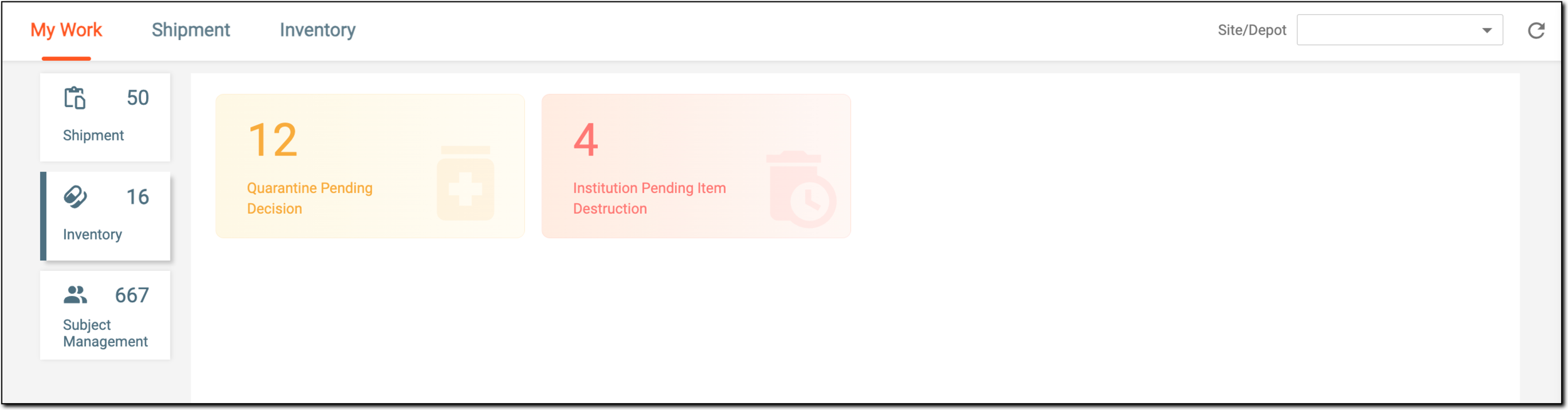
In IWRS, you can find a summary of your inventory-related tasks under the Inventory category of the My Work dashboard.
Tip
To facilitate the task search, use the Site/Depot filter to view the dashboard data pertinent to the institution of your interest.
When a certain item cannot be used temporarily, it can be added to quarantine to ensure the quality is maintained. When an item is quarantined, the status of the quarantine remains open until the decision is made on the items within and the quarantine is closed. The details of all such open quarantine tasks that need to be closed by you can be viewed in the Quarantine Pending Decision tile.
-
In the IWRS application header, select the DASHBOARD tab.
-
On the page that appears, select My Work > Inventory.
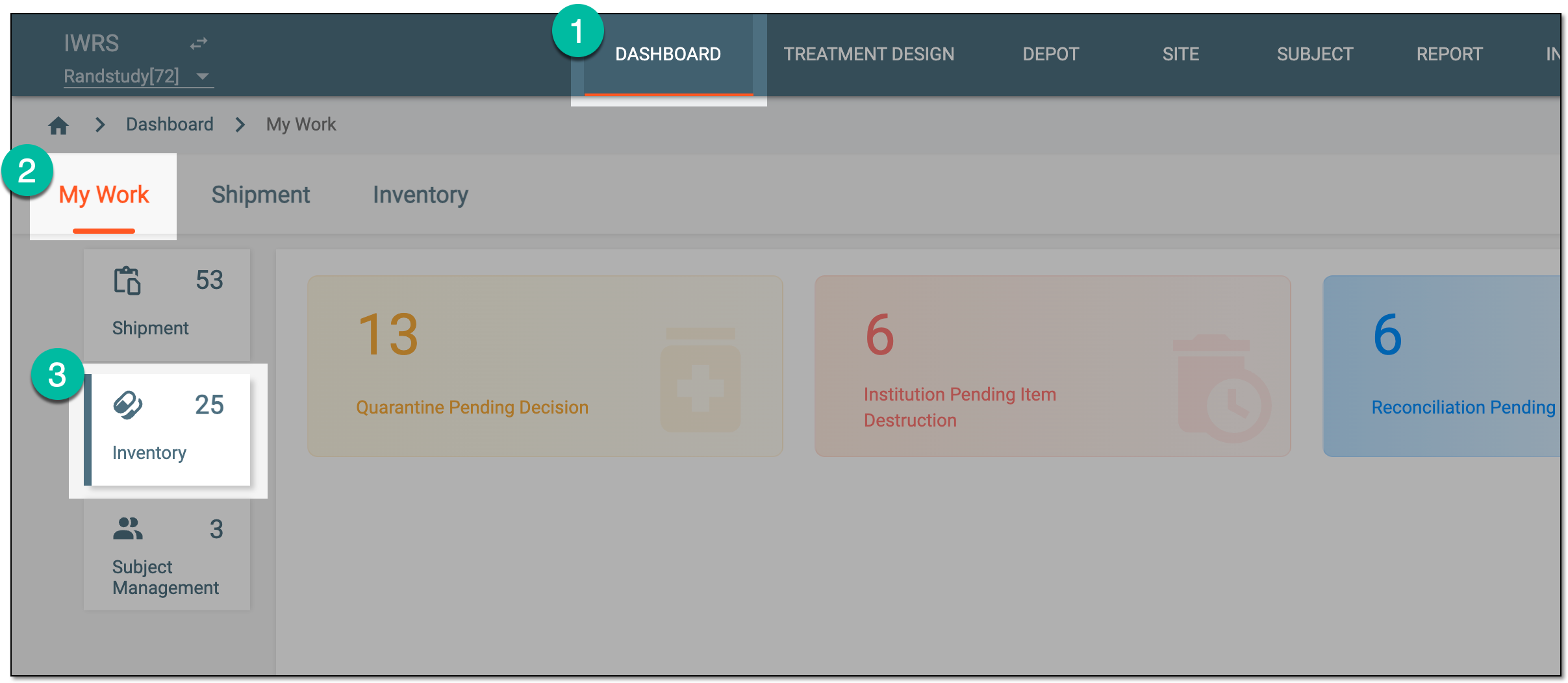 Figure 1. Accessing inventory tasks dashboard
-
From the dashboard contents panel that opens, select the Quarantine Pending Decision tile.
-
In the Quarantine Pending Decision list that appears, analyze the tasks and their attributes as explained in the following table.
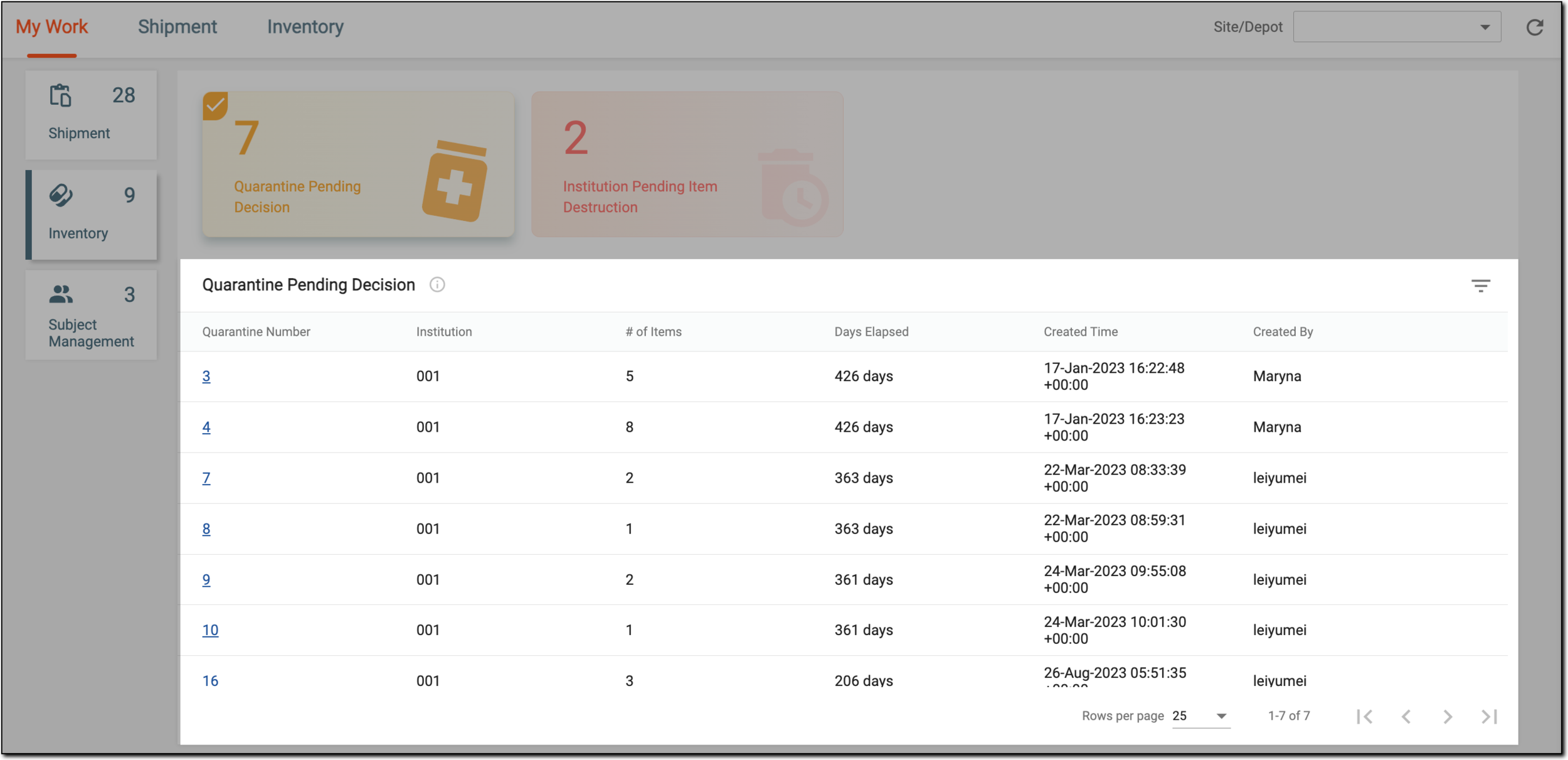 Figure 2. Viewing quarantines pending decision
Tip
To facilitate the task search, use the Site/Depot filter to view the dashboard data pertinent to the institution of your interest.
Element
Details
Quarantine Number
Represents the sequential number of the quarantine that can be used as its identifier. Select the hyperlink to go to the quarantine details page where you can manage the quarantined items as follows:
Institution
Represents the identifier of the place—site or depot—to which the open quarantine belongs.
# of Items
Represents the total number of items in the open quarantine.
Days Elapsed
Represents the number of days passed since the quarantine was set as open.
Created Time
Represents the time when the open quarantine was created.
Created By
Represents the user name who created the open quarantine.
You have viewed details of the tasks on open quarantines awaiting the decision.
The Institution Pending Item Destruction tile on the Inventory tasks dashboard provides the total count of institutions—sites and depots—that have items awaiting your decision on their destruction because they are damaged, left over, or for other reasons.
-
In the IWRS application header, select the DASHBOARD tab.
-
On the page that appears, select My Work > Inventory.
Figure 1. Accessing inventory tasks dashboard
-
From the dashboard contents panel that opens, select the Institution Pending Item Destruction tile.
-
On the Institution Pending Item Destruction table that appears, view attributes as explained in the following table.
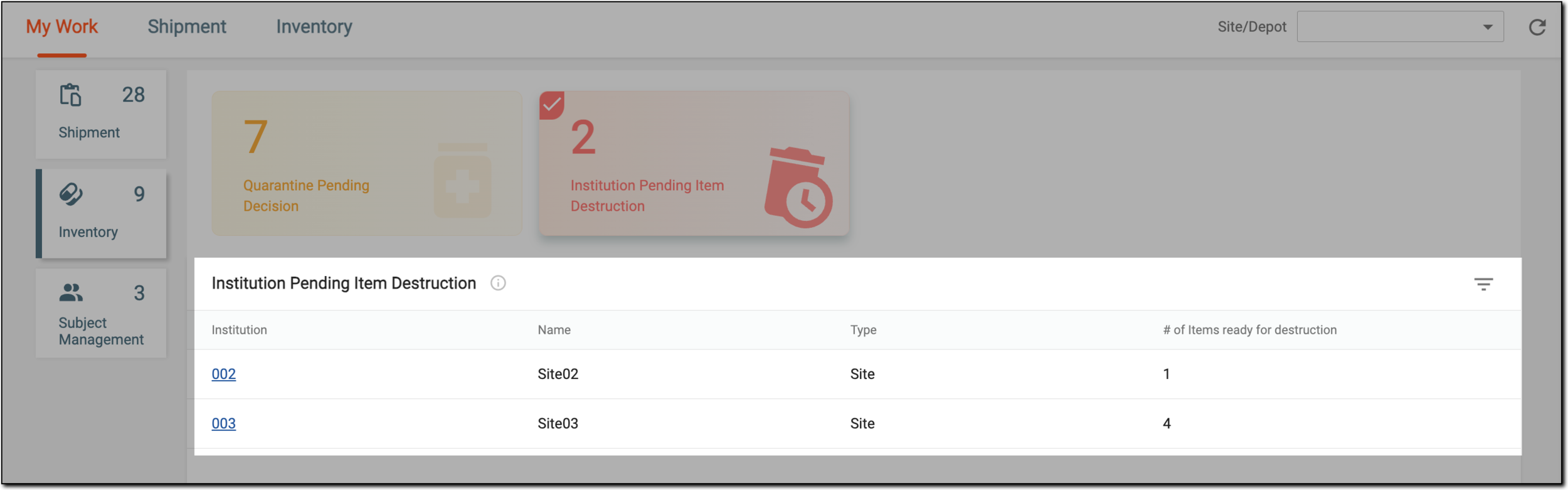 Figure 2. Viewing institutions with items pending destruction
Tip
To facilitate the task search, use the Site/Depot filter to view the dashboard data pertinent to the institution of your interest.
Element
Details
Institution
Represents the code of an institution—depot or site—that has the items ready for destruction. Select the hyperlink to go to the Ready for Destruction page and manage the items as follows:
Name
Represents the name of the institution—depot or site—that has the items ready for destruction.
Type
Represents the type of the institution—Site or Depot—that has the items ready for destruction.
# of Items ready for destruction
Represents the total number of items that are ready for destruction.
You have viewed the details of your tasks on items that are ready for destruction.
An inventory reconciliation is a practice mostly performed by the clinical research associate (CRA) to ensure the quantity of items to be returned to the depot or destroyed at the site is valid according to the previously reported numbers by the clinical research coordinator (CRC).
Once all the required reconciliation activities are performed at the depot or site, the CRA in charge must sign the reconciliation list to verify it.
In IWRS, all the tasks on reconciliation signature that you need to handle are conveniently accessible via the Inventory section of the My Work dashboard.
-
In the IWRS application header, select the DASHBOARD tab.
-
On the page that appears, select My Work > Inventory.
Figure 1. Accessing inventory tasks dashboard
-
From the dashboard contents panel that opens, select the Reconciliation Pending Signature tile.
-
In the Reconciliation Pending Signature list that appears, analyze the tasks and their attributes as explained in the following table.
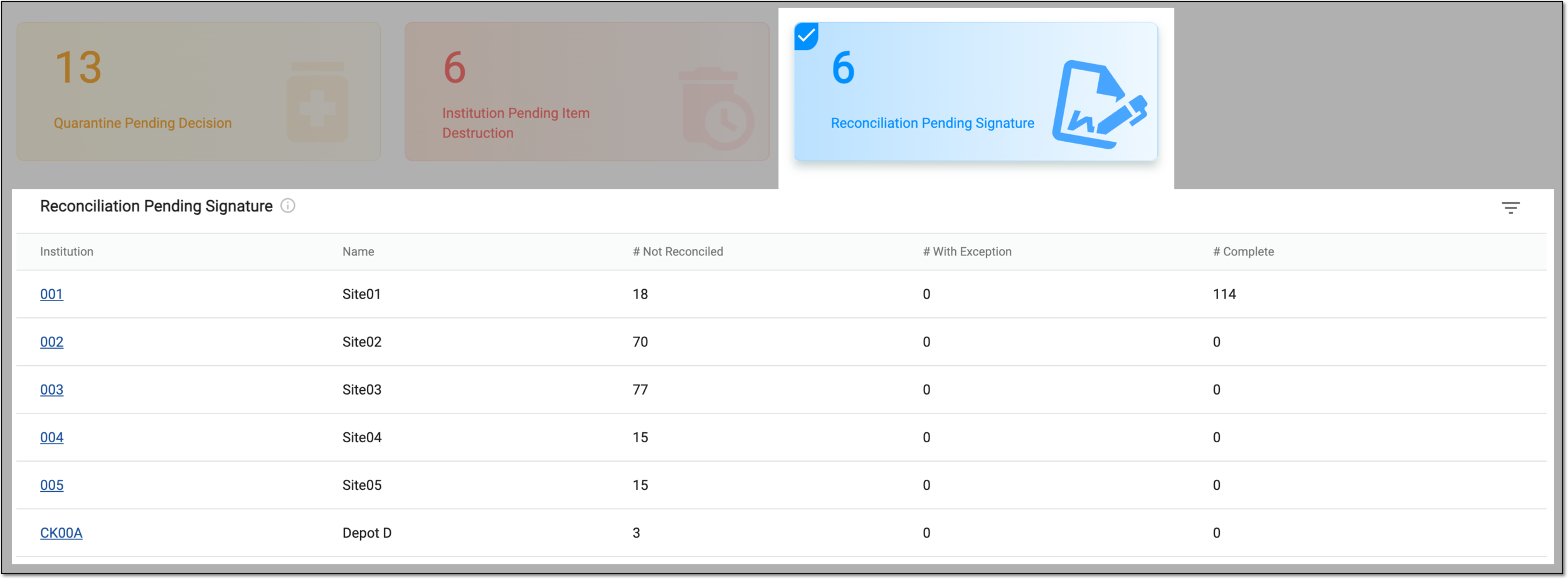 Figure 2. Reviewing reconciliation signature tasks
Tip
To facilitate the task search, use the Site/Depot filter to view the dashboard data pertinent to the institution of your interest.
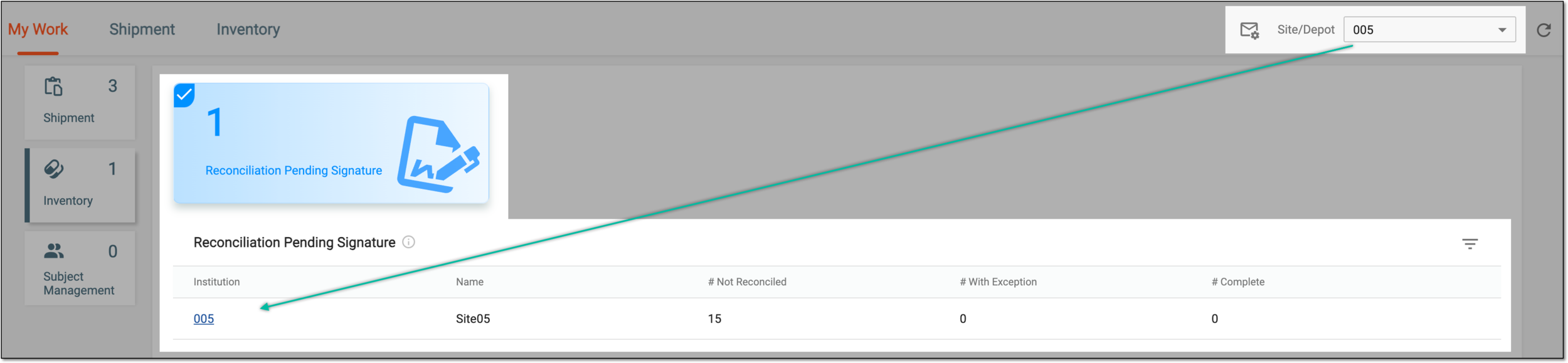 Figure 3. Filtering reconciliation signature tasks by institution
Column
Details
Institution
Represents the unique identifier of the institution—site or depot—where the reconciliation list must be signed by you.
Select the institution code to go directly to the reconciliation list and sign it as follows:
Name
Represents the name of the institution—site or depot—where the reconciliation list must be signed by you.
# Not Reconciled
Represents the number of items in the reconciliation list that currently do not have reconciliation status.
# With Exception
Represents the number of items that upon reconciliation obtained the With Exception status, meaning that for some subitems the reconciliation result is different from expected.
# Complete
Represents the number of items that upon reconciliation obtained the Completed status, meaning that all returned items are accounted for.
You have viewed the details of your tasks on the reconciliation list signatures.