Shipment tasks dashboard
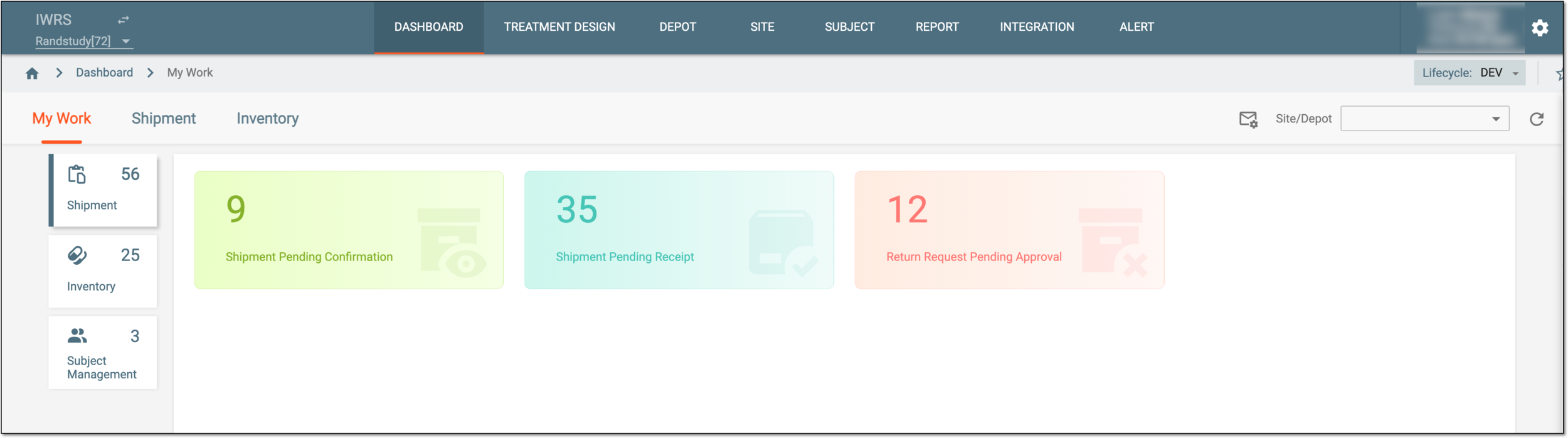
In IWRS, under the Shipment category of the My Work dashboard, you can find all the shipment-related tasks assigned to you, such as receipt, dispatch, return of shipments, and so on.
Tip
To facilitate the task search, use the Site/Depot filter to view the dashboard data pertinent to the institution of your interest.
When a shipment is created, it maintains the draft status until submitted. The details of all such shipments that await your confirmation to be submitted can be accessed under the Shipment Pending Confirmation category of the My Work dashboard.
-
In the IWRS application header, select the DASHBOARD tab.
-
On the page that appears, select My Work > Shipment.
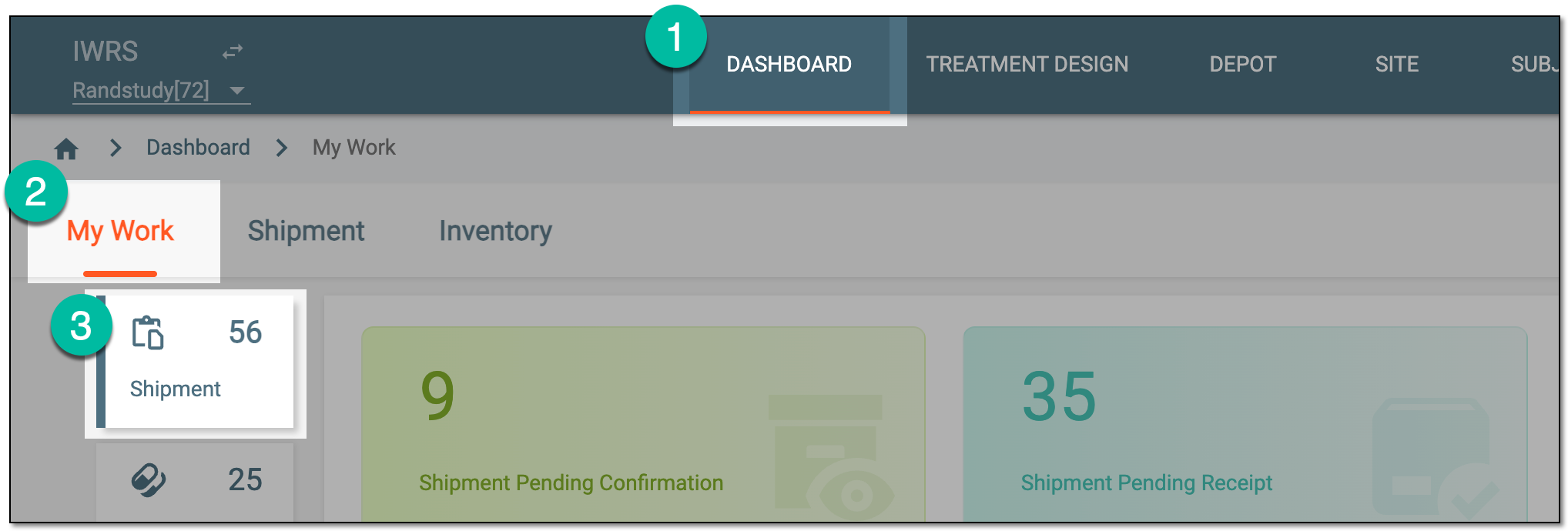 Figure 1. Accessing shipment management tasks
-
From the dashboard contents panel that opens, select the Shipment Pending Confirmation tile.
-
In the Shipment Pending Confirmation table that appears, analyze the tasks and their attributes as explained in the following table.
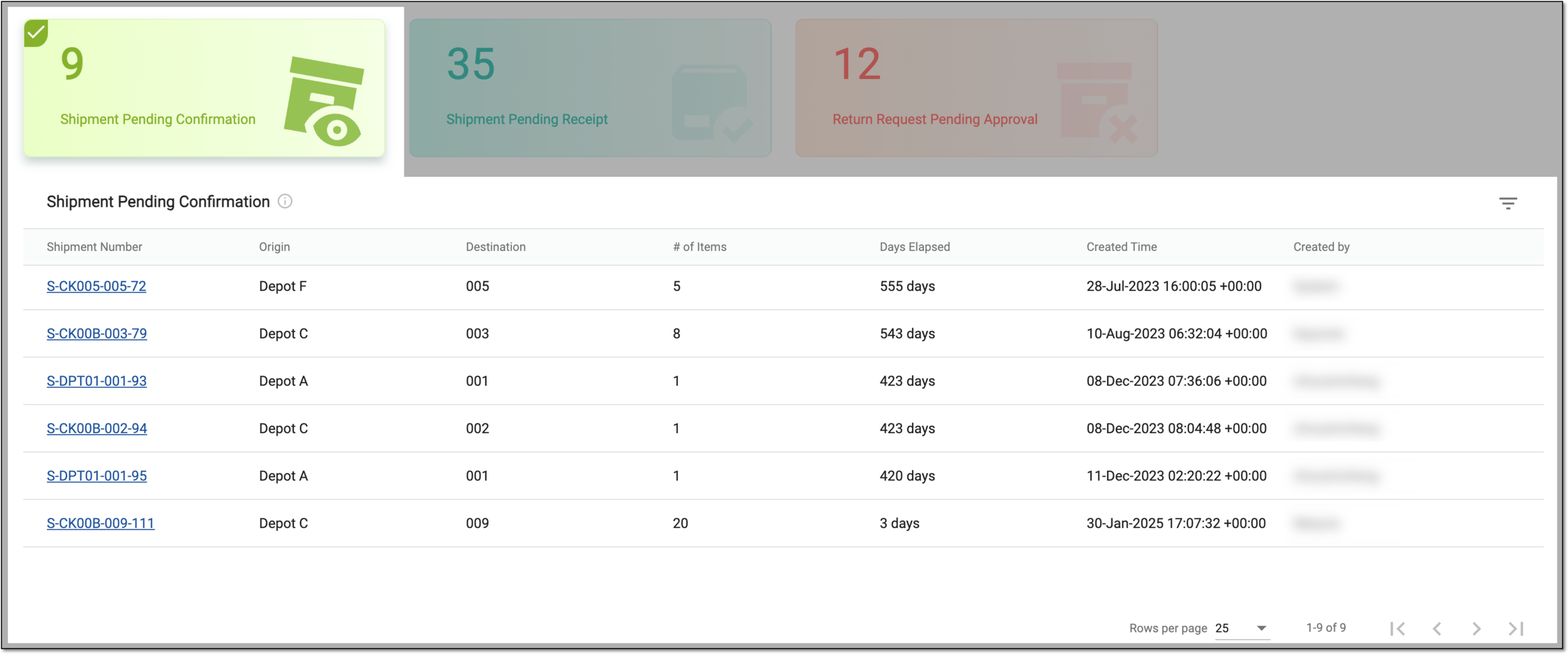 Figure 2. Viewing shipments pending confirmation
Tip
To facilitate the task search, use the Site/Depot filter to view the dashboard data pertinent to the institution of your interest.
Elements
Details
Shipment Number
Represents the shipment number against which the draft shipment details are displayed. Select the hyperlink to go to the Draft Shipment page where the respective task can be completed as follows:
Origin
Represents the identifier of the place from where the shipment is to be sent.
Destination
Represents the identifier of the place where the draft shipment is to be delivered.
# of Items
Represents the total number of items in the shipment.
Days Elapsed
Represents the number of days since the shipment was created in the draft status.
Created Time
Represents the time when the draft shipment was created.
Created By
Represents the name of the user who has created the shipment in the draft status.
You have analyzed the details of the tasks awaiting confirmation and accessed the shipments to manage them as needed.
When a shipment is sent to the destination, it obtains the In Transit status in the IWRS system. This shipment remains in-transit until it is marked as received or lost by the applicant institution. All such in-transit shipments that you need to handle can be accessed under the Shipment Pending Receipt category of the My Work dashboard.
-
In the IWRS application header, select the DASHBOARD tab.
-
On the page that appears, select My Work > Shipment.
Figure 1. Accessing shipment management tasks
-
From the dashboard contents panel that opens, select the Shipment Pending Receipt tile.
-
In the Shipment Pending Receipt list that appears, analyze the tasks and their attributes as explained in the following table.
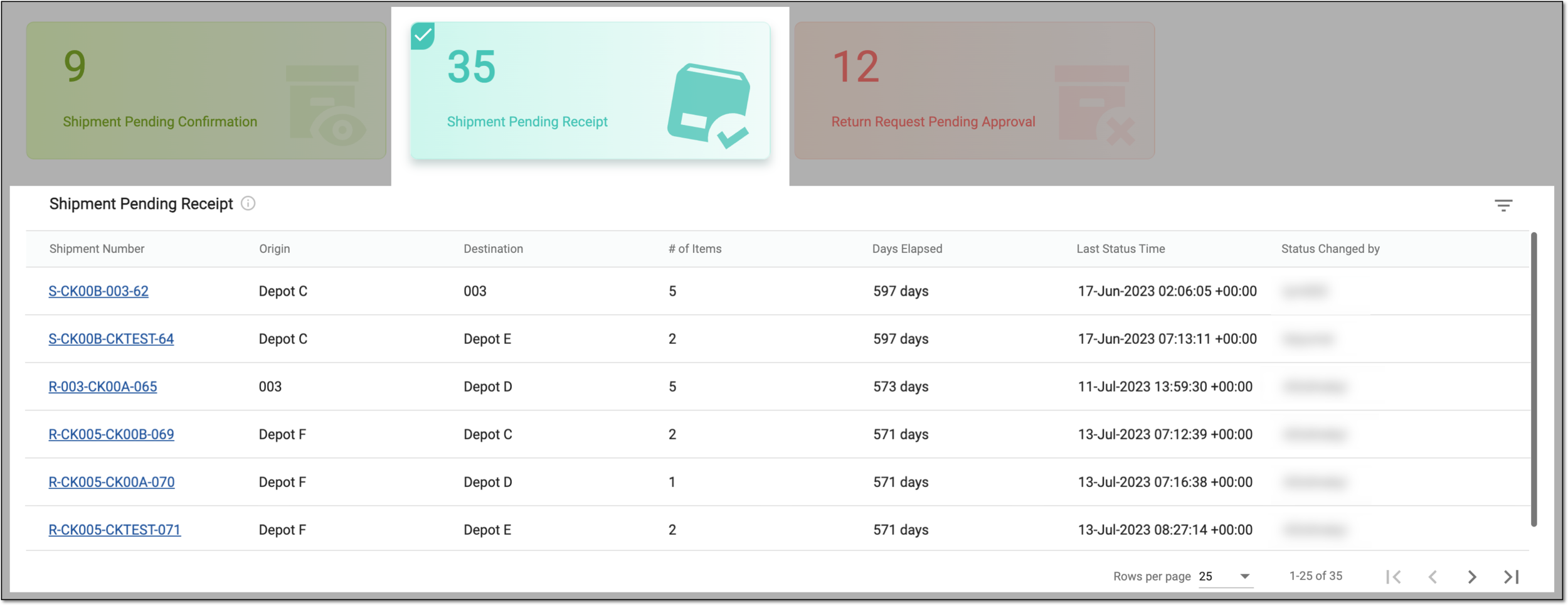 Figure 2. Viewing shipments pending receipt
Tip
To facilitate the task search, use the Site/Depot filter to view the dashboard data pertinent to the institution of your interest.
Element
Details
Shipment Number
Represents the identifier of the shipment in the in-transit status. Select the hyperlink to go to the details page of the in-transit shipment and manage it as follows:
Origin
Represents the identifier of the place from where the shipment has been sent.
Destination
Represents the identifier of the place to where the shipment must be delivered.
# of Items
Represents the total number of items in the shipment.
Days Elapsed
Represents the number of days that passed since the shipment was set to in-transit status.
Last Status Time
Represents the time when the shipment status was last changed.
Status Changed By
Represents the name of the user who last changed the shipment status.
You have analyzed the details of the in-transit shipment tasks and accessed those you want to work on.
When a shipment is waiting to get dispatched, it remains in pending status until approved. The details of all such tasks that are pending to be shipped and require your attention can be accessed under the Shipment Pending Dispatch category of the My Work dashboard.
-
In the IWRS application header, select the DASHBOARD tab.
-
On the page that appears, select My Work > Shipment.
Figure 1. Accessing shipment management tasks
-
From the dashboard contents panel that opens, select the Shipment Pending Dispatch tile.
-
In the Shipment Pending Dispatch table that appears, analyze the tasks and their attributes as explained in the following table.
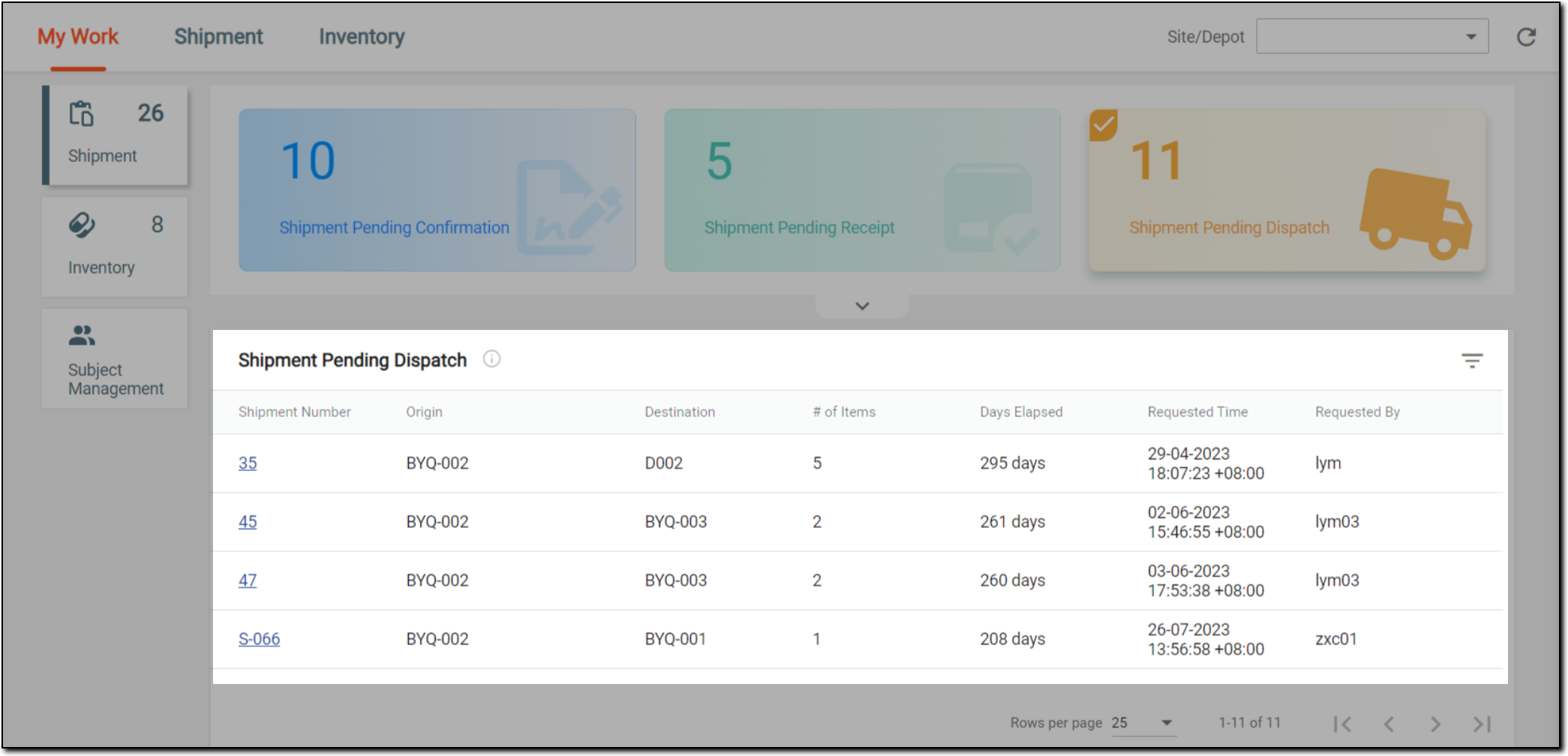 Figure 2. Viewing shipments pending dispatch
Tip
To facilitate the task search, use the Site/Depot filter to view the dashboard data pertinent to the institution of your interest.
Element
Details
Shipment Number
Represents the identifier of the shipment waiting for dispatch. Select the hyperlink to access the shipment request page and act on it as follows:
Origin
Represents the identifier of the place from where the shipment is to be sent.
Destination
Represents the identifier of the place to where the shipment is to be delivered.
# of Items
Represents the total number of items in the shipment that need to be dispatched.
Days Elapsed
Represents the number of days since the shipment is requested.
Requested Time
Represents the time when the shipment is requested for dispatch.
Requested By
Represents the username who requested shipment dispatch.
You have analyzed the details of the tasks on shipments awaiting dispatch and accessed those you want to work on.
A return request is created by a site or depot to send items back to the eligible return institution for various reasons—disposal of damaged products, balancing out an excess supply, and so on. When the return request is initiated, it remains in pending status until you approve the return shipment. The summary of the return shipment tasks awaiting your approval can be accessed under the Return Request Pending Approval category of the My Work dashboard.
-
In the IWRS application header, select the DASHBOARD tab.
-
On the page that appears, select My Work > Shipment.
Figure 1. Accessing shipment management tasks
-
From the dashboard contents panel that opens, select the Return Request Pending Approval tile.
-
In the Return Request Pending Approval list that appears, analyze the tasks and their attributes as explained in the following table.
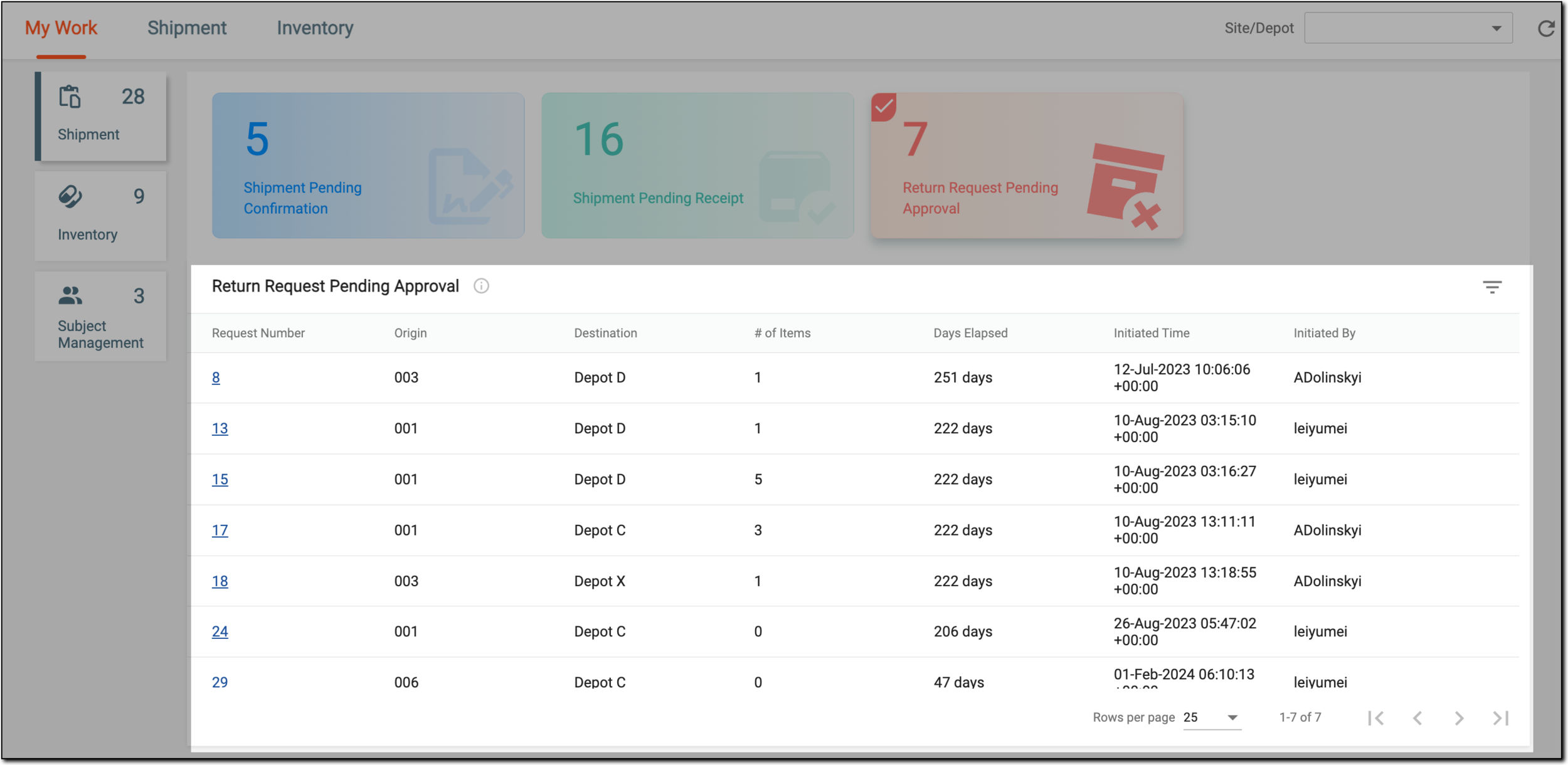 Figure 2. Viewing return requests pending approval
Tip
To facilitate the task search, use the Site/Depot filter to view the dashboard data pertinent to the institution of your interest.
Element
Details
Request Number
Represents the identifier of the return shipment. Select the hyperlink to go to the New Return Shipment page where you can manage the selected return shipment as follows:
Origin
Represents the origin of the return shipment pending approval.
Destination
Represents the destination of the return shipment pending approval.
# of Items
Represents the total number of items of the return shipment.
Days Elapsed
Represents the number of days passed since the return shipment was created and not approved.
Initiated Time
Represents the time when the return shipment was initiated.
Initiated By
Represents the name of the user who initiated the return shipment.
You have analyzed the details of the tasks on return shipment requests awaiting approval and accessed those you want to work on.