Manage site shipment as supplier
A shipment in IWRS is the act of sending items (drugs) by a supplier to an applicant at a location specified by the latter.
Important
In IWRS, for the site to be entitled to send items as a supplier, you need to enable site-to-site shipments.
Managing the shipment as a supplier means reflecting its current delivery status in the system. The available actions for suppliers are to confirm the sending from the site, revoke the shipment if needed, or restore the revoked shipment.
The details of all the required procedures for shipment management from the supply site are explained in the following sections.
Important
For shipments with statuses Received, Partially Received, and Lost, no actions are available as these are final.
For shipments with the status Revoked only the restoration action is available.
In IWRS, managing a shipment as a supplier means reflecting its current delivery status in the system. If the shipment is sent to its applicant, the supplier has to confirm the sending from the site.
Tip
In IWRS, for the site to be entitled to send items as a supplier, you need to enable site-to-site shipments.
To manage the shipment from the supplier's side, you need to open the draft shipment details from the site where the requested items are to be delivered and confirm that the requested items have been sent out.
-
In the IWRS application header, select the SITE tab.
-
On the Site List page that opens, in the table, go to the site for which you want to manage the shipment.
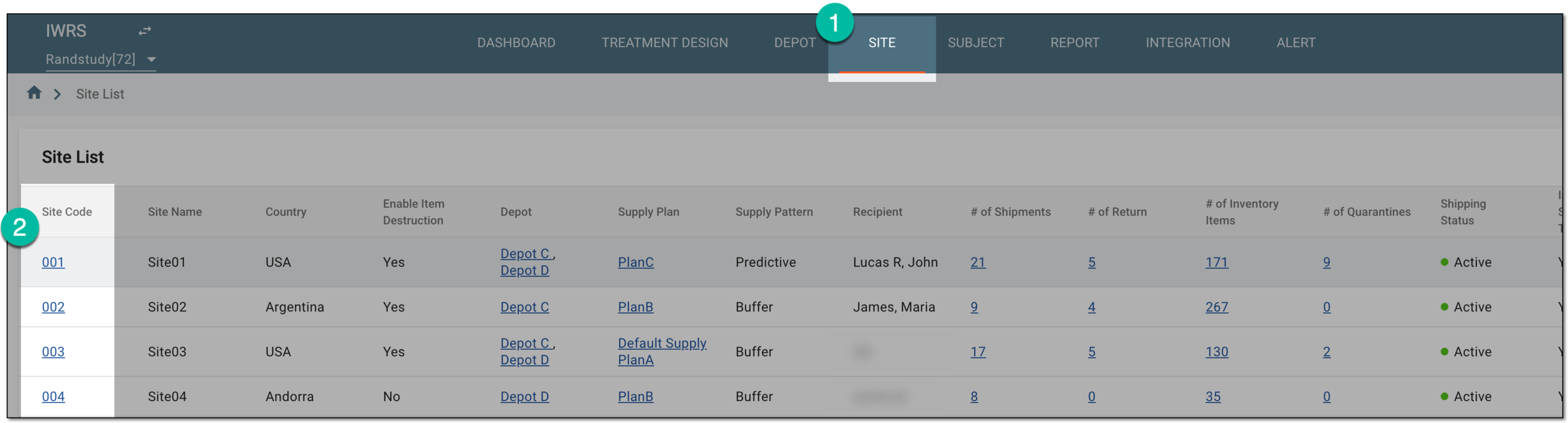 Figure 1. Selecting site to open its details
-
On the page that opens, in the left pane, select the Shipment subtab.
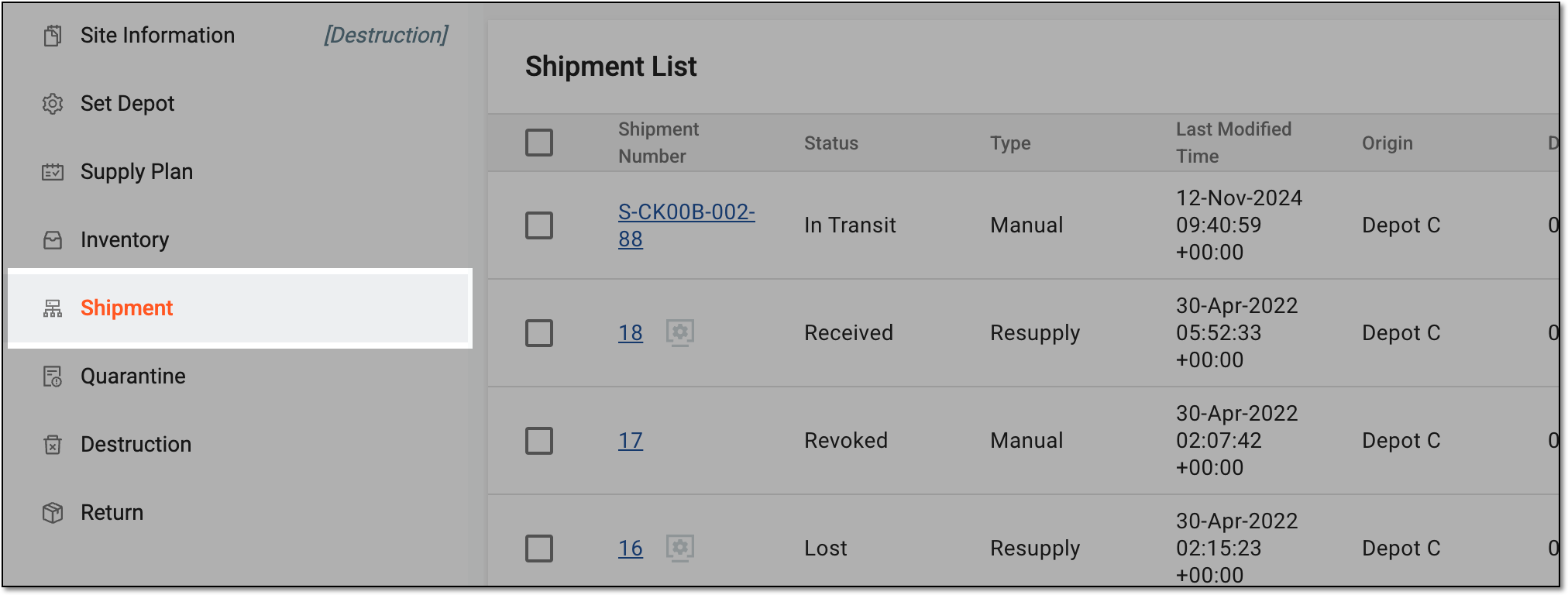 Figure 2. Accessing site shipments
-
In the Shipment List table that appears, locate the needed shipment and select the Shipment Number value.
 Figure 3. Selecting shipment number
-
On the Details page that opens, view your shipment details as explained in the table of the View site shipment details and status section.
-
Go to the Item Details block containing the list of all items requested in the shipment, their lot numbers, expiry dates, as well as item and sequence numbers. Select
 to send out the requested items.
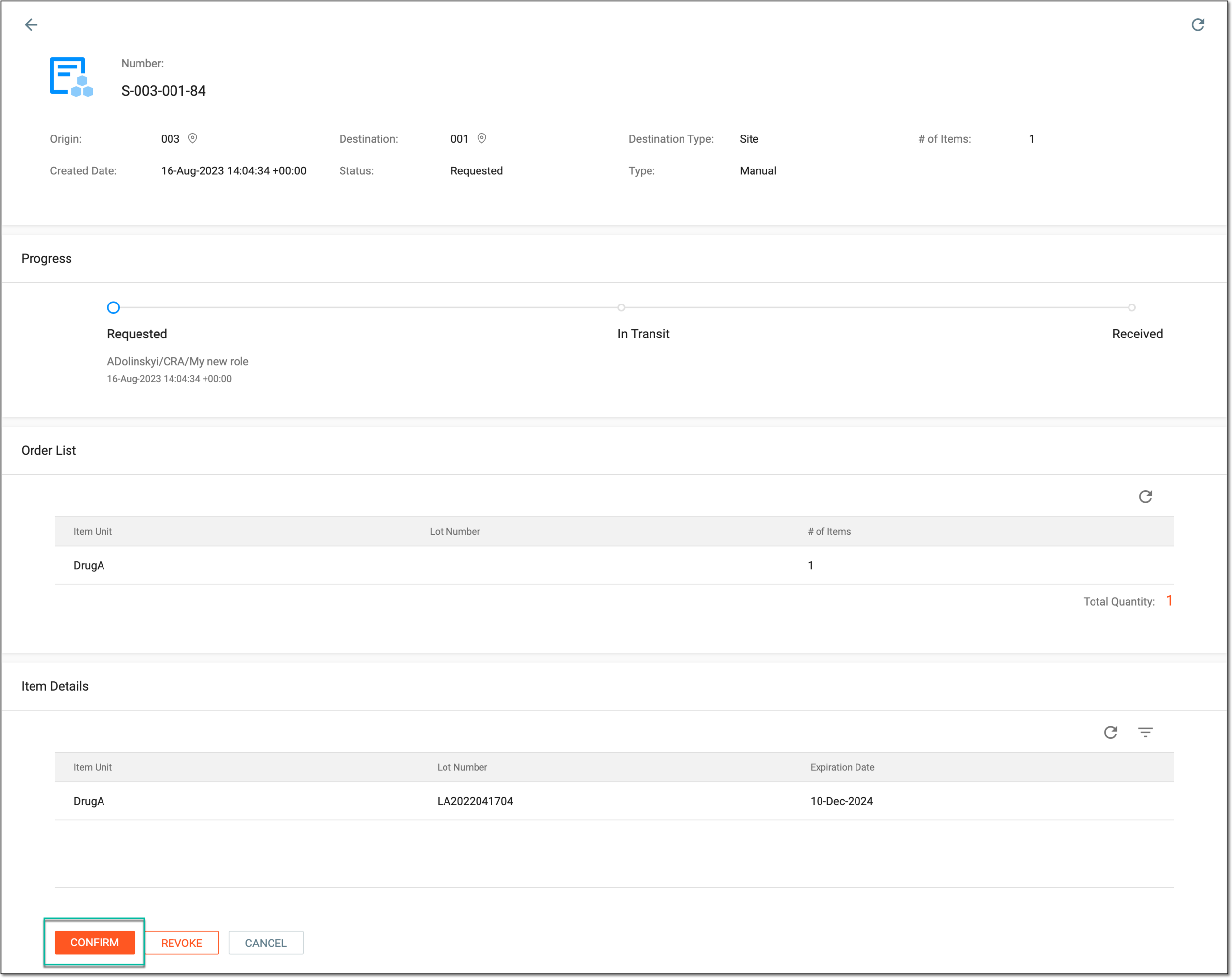 Figure 4. Confirming shipment as supply site
-
In the confirmation dialog that opens, enter the details of the shipment in transit as explained in the following table.
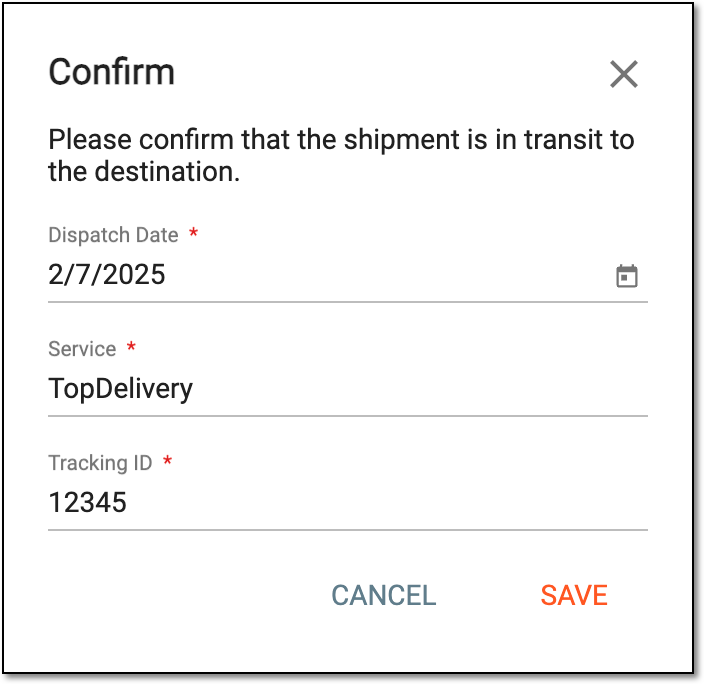 Figure 5. Confirming shipment in transit from site
Tip
In the following table, mandatory elements are marked with an asterisk (*).
Element
Details
Dispatch Date*
Enter the actual date when the shipment is sent from your site to the applicant. This helps you precisely reflect shipments sent on a date other than the current one and ensure their shipping details are entered correctly in IWRS.
You cannot select a date later than the current one to avoid registering future (planned) shipments in the system and only log the occurred ones.Service*
Enter the name of the delivery service that handles the shipment.
Tracking ID*
Enter the unique identifier of your shipment provided by the delivery service to ensure precise tracking.
SAVE
Select
 to implement the changes and confirm the shipment dispatch.
CANCEL
Select
 to discard the changes and return to the shipment details page.
Upon confirmation, the shipment is sent out from your site. An email notifies the applicant that the requested shipment has been sent. The items listed in the shipment obtain the In Transit status.
You can also revert the site shipment to its previous status.
In IWRS, managing a shipment as a supply site means reflecting its current status of delivery in the system. If the shipment is not sent to its applicant and must be canceled in the system, the supplier has to revoke the sending from the site.
Tip
In IWRS, for the site to be entitled to send items as a supplier, you need to enable site-to-site shipments.
To manage the shipment from the supplier's side, you need to open the draft shipment details from the depot where the requested items were supposed to be delivered.
Important
Only the users with the respective permission granted via the ADMIN application can revoke shipments.
-
In the IWRS application header, select the SITE tab.
-
On the Site List page that opens, in the table, go to the site for which you want to manage the shipment.
Figure 1. Selecting site to open its details
-
On the page that opens, in the left pane, select the Shipment subtab.
Figure 2. Accessing site shipments
-
In the Shipment List table that appears, locate the needed requested shipment or the shipment in transit and select the Shipment Number value.
 Figure 3. Selecting shipment in transit
-
On the Details page that opens, view your shipment details as explained in the table of the View site shipment details and status section.
-
Go to the Item Details block which displays the list of all items requested in the shipment, their lot numbers, expiry dates, as well as item and sequence numbers. Select
 to cancel the shipment.
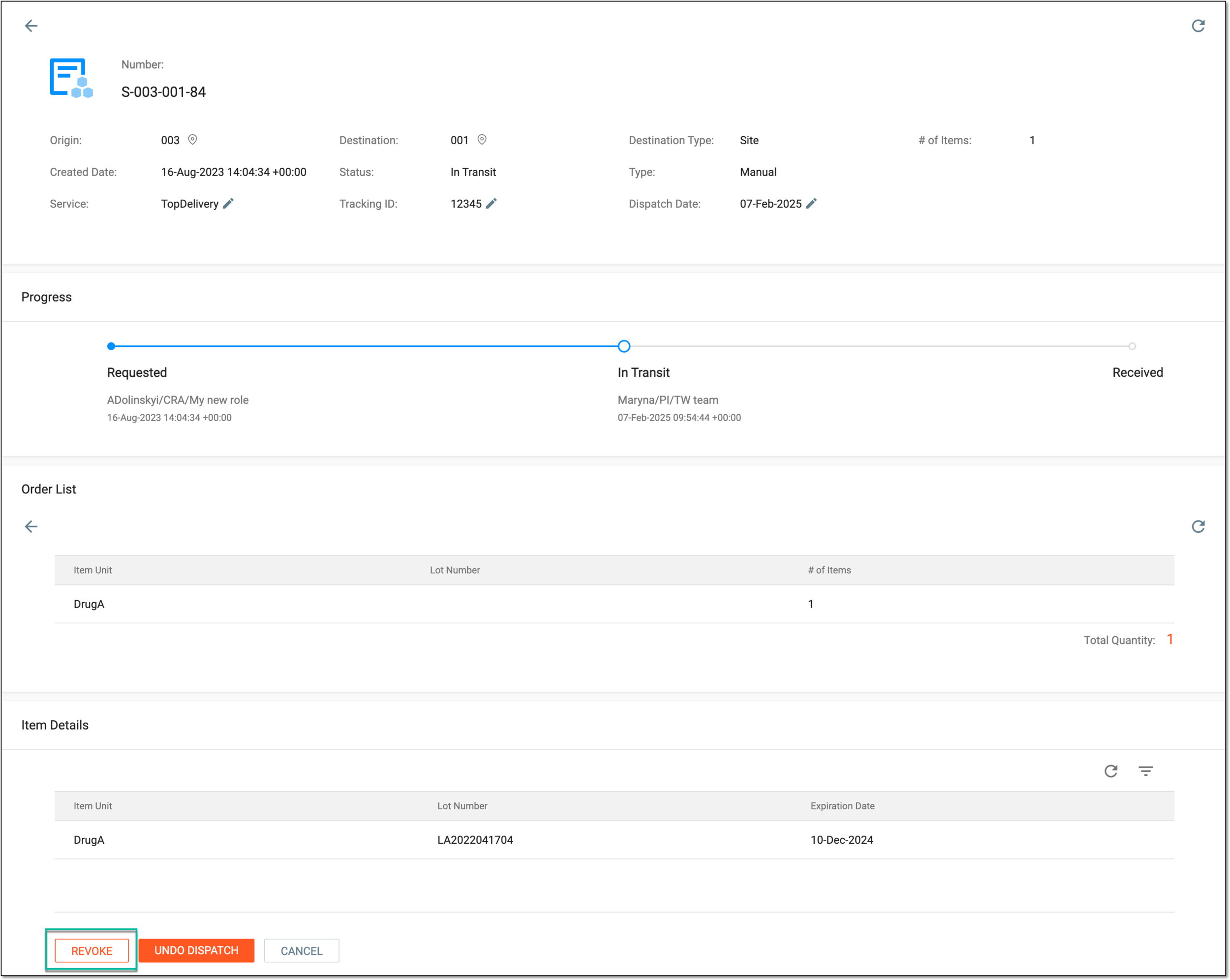 Figure 4. Revoking shipment as supply site
-
In the Revoke Reason dialog that appears, provide a reason for revoking the shipment and select
 .
.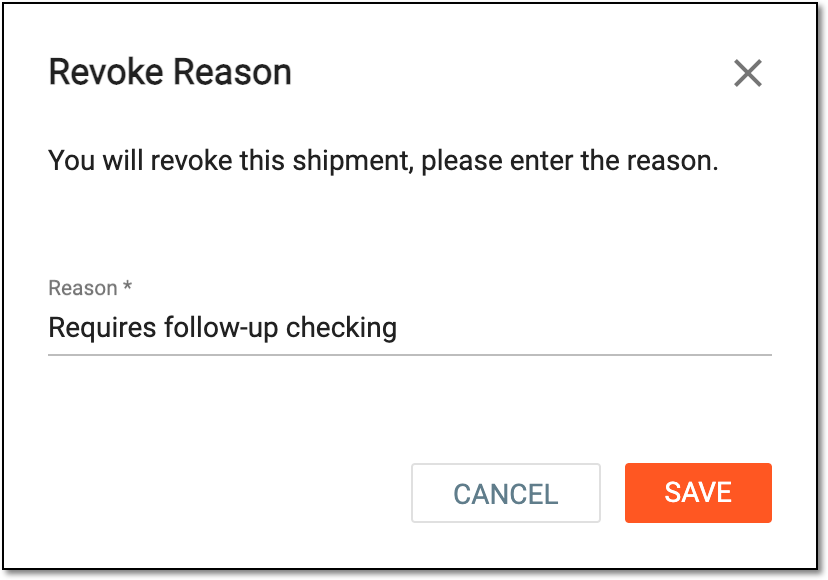 Figure 5. Providing reason for revoking shipped items
Upon saving, you have revoked the shipment. The final result of revoking the shipment varies as follows:
-
For the shipment in the Requested status, all the shipment items are canceled and the item status is set to Revoked.
-
For the shipment in the In Transit status, all the shipment items are canceled and the item status is set to Available in the supplier’s inventory.
The shipment applicant receives an email notification that the shipment has been revoked.
In IWRS, managing a shipment as a supply site means reflecting its current status of delivery in the system.
Tip
In IWRS, for the site to be entitled to send items as a supplier, you need to enable site-to-site shipments.
There might be cases when the shipment has been revoked (canceled), however, it becomes possible to ship the items from the site. In such a case, the supplier can restore the previously revoked shipment.
To manage the shipment from the supplier's side, you need to open the revoked shipment from the site where the requested items are to be delivered.
Important
You can only restore the shipment whose items are available in the site inventory. If some items in the shipment are no longer available—their status in the system has changed—you cannot restore the shipment and instead, you receive the respective error prompt.
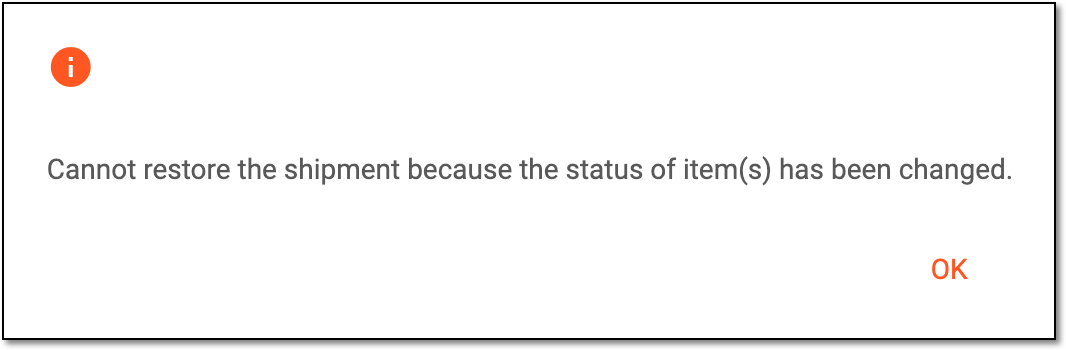 |
-
In the IWRS application header, select the SITE tab.
-
On the Site List page that opens, in the table, go to the site for which you want to manage the shipment.
Figure 2. Selecting site to open its details
-
On the page that opens, in the left pane, select the Shipment subtab.
Figure 3. Accessing site shipments
-
In the Shipment List table that appears, locate the needed shipment and select the Shipment Number value.
 Figure 4. Selecting revoked shipment
-
On the Details page that opens, view your shipment details as explained in the table of the View site shipment details and status section.
-
Go to the Item Details block which displays the list of all items requested in the shipment, their lot numbers, expiry dates, as well as item and sequence numbers. Select
 to reinstate the shipment.
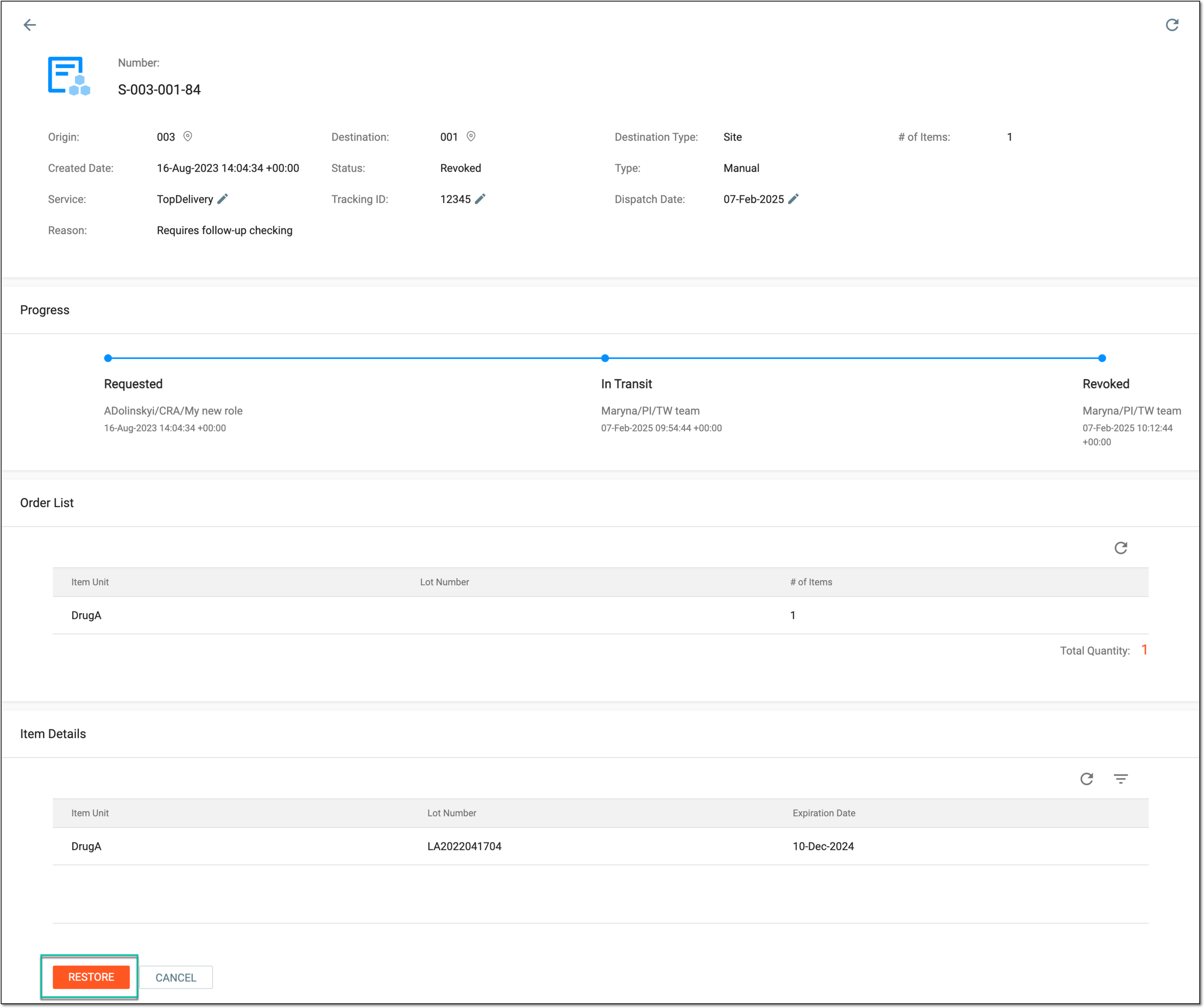 Figure 5. Restoring shipment
-
In the Restore dialog that appears, provide a reason for revoking the shipment and select
 .
.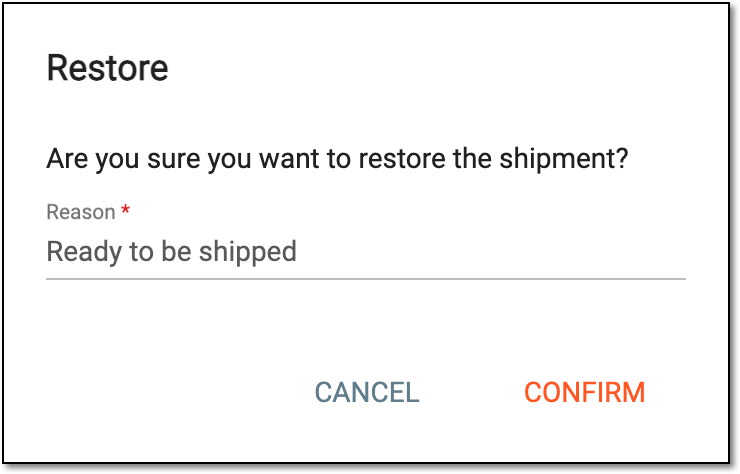 Figure 6. Providing restoration reason
Upon confirmation, you have restored the shipment, and its status is reverted to the previously obtained one, for instance, In Transit.