View site shipment details and status
A shipment in IWRS is the act of sending items (drugs) by a supplier to an applicant at a location specified by the latter. The location of the shipment can be a depot or a site where the shipment can be managed by the applicant and supplier from the Shipment List page of IWRS.
The Shipment List table for the site contains shipment records, their respective statuses, tracking information, and other necessary details. From the Status column of the table, you can view the latest status of the shipments, and from the Shipment Number column, you can open the shipment details page for review and management.
-
In the IWRS application header, select the SITE tab.
-
On the Site List page that opens, in the table, go to the site for which you want to view the shipment details.
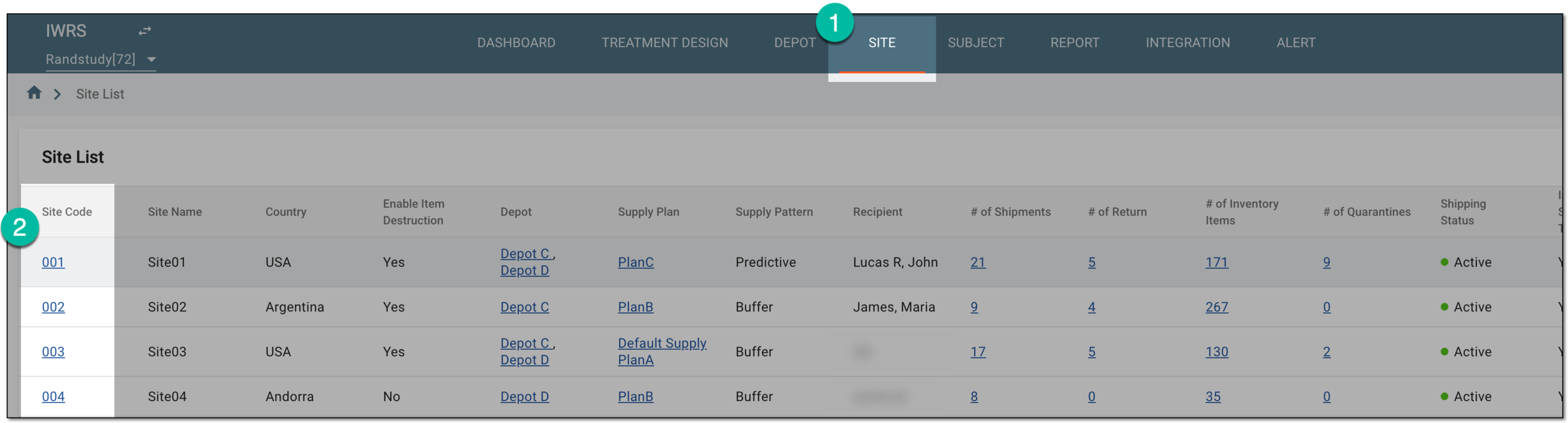 Figure 1. Selecting site to open its details
-
On the page that opens, in the left pane, select the Shipment subtab.
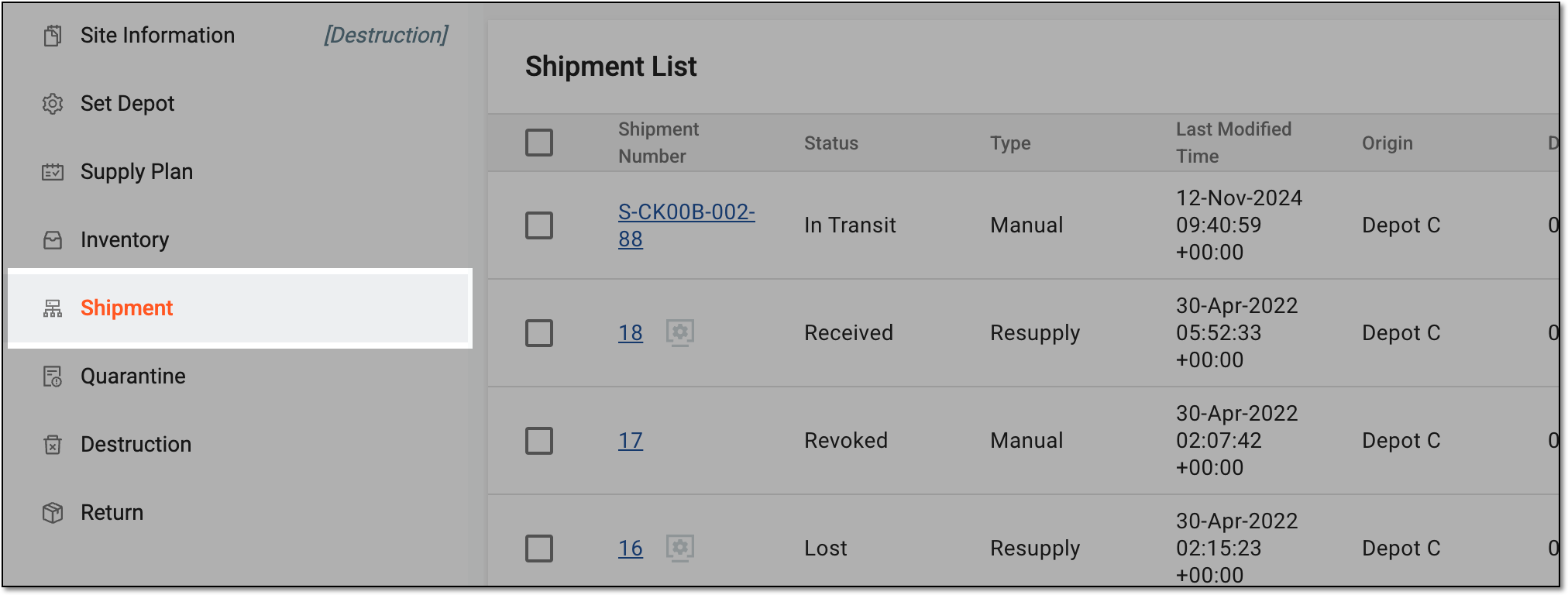 Figure 2. Accessing site shipments
-
In the Shipment List table that appears, locate the needed shipment. Here, in the Status column, you can view its status. For further processing, from the Shipment Number column, select the active link to view the shipment details.
 Figure 3. Reviewing shipment status and accessing details
-
On the Details page that opens, review the four blocks of shipment details as described in the following table.
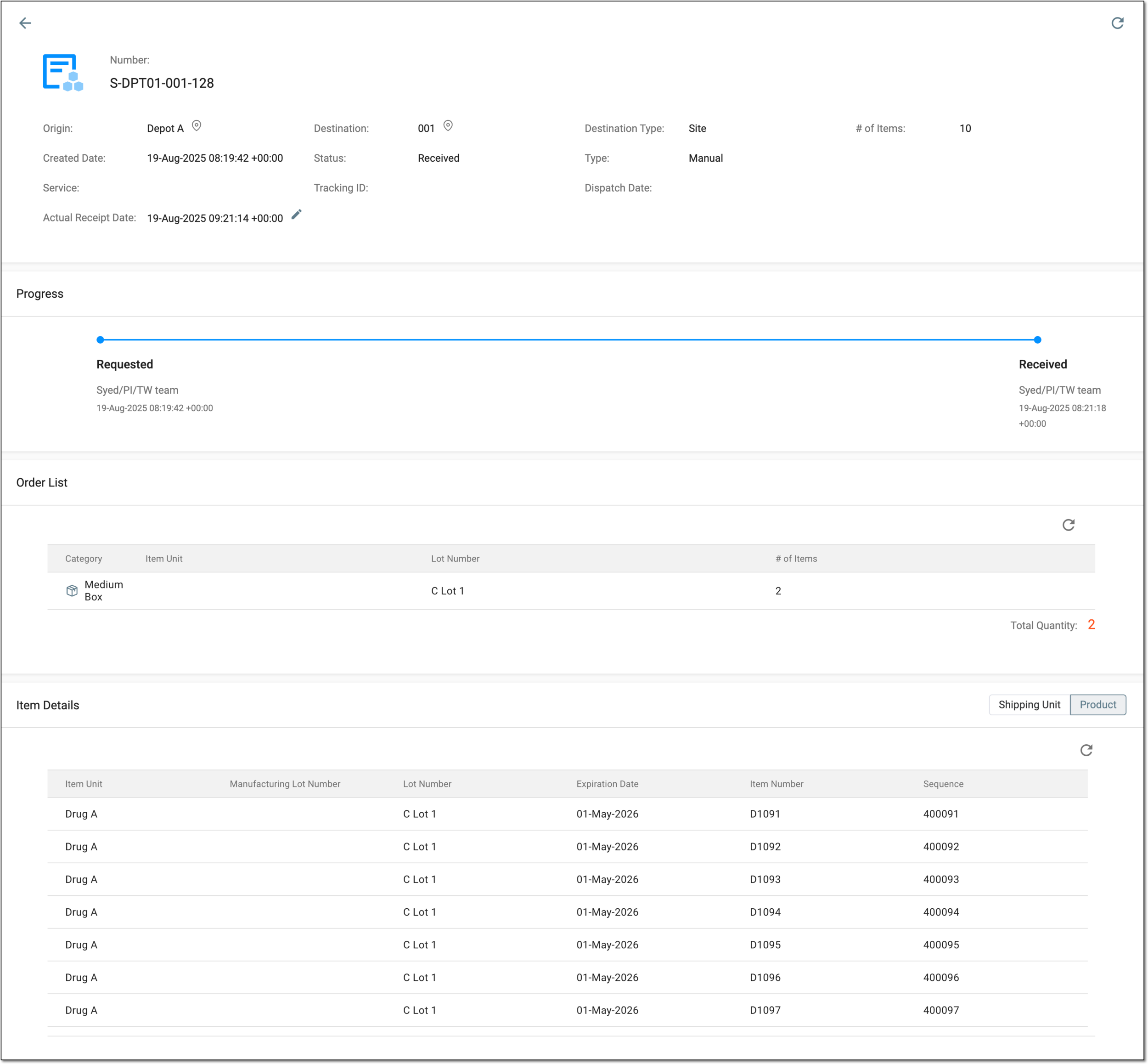 Figure 4. Analyzing site shipment details
Important
If you are a blinded user, you cannot see the sequence numbers of the items here or anywhere else in the application.
Element
Details
Number
Represents the unique shipment identifier in the IWRS system.
Origin
Represents the identifier of the supplier—site or depot—of the items in the shipment.
Select to open detailed information about the supplier of the shipment.
Destination
Represents the identifier of the applicant—site or depot—of the items in the shipment.
Select to open detailed information about the recipient of the shipment.Destination Type
Represents what location is the applicant of the shipment—site or depot.
# of Items
Represents the total number of items—product units and container units—in the shipment.
Created Date
Represents the exact date, time, and time zone indicator when the shipment was requested.
Status
Represents the latest delivery status for the shipment—Requested, In Transit, or Received.
Type
Represents the method of shipment request creation—Manual for shipments created by users or System for those triggered automatically by the system based on the supply plan.
Service
Represents the name of the delivery service (vendor) entered upon shipment confirmation on the supplier side.
This field is only available for the shipments confirmed by the supplier since before the dispatch, the delivery service is not known.Tracking ID
Represents the tracking number of your shipment provided by the delivery service and entered upon shipment confirmation on the supplier side.
This field is only available for the shipments confirmed by the supplier since before the dispatch, the tracking ID is not known.Dispatch Date
Represents the date when the shipment was sent out by the supplier. This date is entered upon shipment confirmation on the supplier side.
This field is only available for the shipments confirmed by the supplier since before the dispatch, the date is not known.Comments
Represents the latest comment added to the shipment at any of the processing stages.
For instance, if the shipment is marked as received by mistake and then you revert it to the In Transit status, the comment Not yet received added upon this action is displayed in the details block. If later on this shipment is marked as lost and the comment Lost by delivery service is added, then that latest comment appears in the details block.
This field is only available if any comments are added to the shipment.Progress
Requested
Represents a point on the progress bar that equals the status of the shipment when the applicant requests it from the supplier but the latter has not yet shipped it.
In Transit
Represents a point on the progress bar that equals the status of the shipment when the supplier has already shipped the requested items to the applicant and the delivery is in progress.
Received
Represents a point on the progress bar that equals the status of the shipment when the applicant has already received the shipment.
Order List
Category
Represents one of the following:
-
Product: the item is a preconfigured product unit, the name of which you can see in the Item Unit column.
-
[Container category]: the item is a container unit. The container category names are configured upon adding container units to the system, for instance, Large Box and Medium Box.
Item Unit
Represents the name of the product.
The item units are not displayed for container units as they are enclosed within the container.Lot Number
Represents a packaging lot number to which belongs the product or container unit requested in a shipment.
# of Items
Represents the total number of certain product or container units.
Total Quantity
Represents the total number of items—product or container units—requested in the shipment.
Item Details
Shipping Unit/Product
Switch between these filters to display the shipment statistics either by both shipping units (containers and products) or only by products.
This filters are only available if container units are configured for your study.Category
Represents one of the following:
-
Product: the item is a preconfigured product unit, the name of which you can see in the Item Unit column.
-
[Container category]: the item is a container unit. The container category names are configured upon adding container units to the system, for instance, Large Box and Medium Box.
Item Unit
Represents a list of all products requested in a shipment. Here, the individual items are listed as opposed to the Order List block, where the list of item units is given.
Manufacturing Lot Number
Represents the unique identifier of a manufacturing lot to which the product unit belongs.
Lot Number
Represent the number of the packaging lot to which the item belongs.
Expiration Date
Represents the expiration date associated with the packaging lot of the item.
Sequence
Represents the sequential number of the product or container unit assigned to it in the system.
Disposition
Represents the current item status in the IWRS system, such as In Transit, Available, Lost, and so on.
-