Associate expiration date with packaging lot items
In a clinical trial, the investigational product is released in lots that have their specific number and expiry terms. In IWRS, once you have created a lot, you can also manage multiple expiration dates applicable to different items within the same lot. When the list of expiration dates is prepared, you can associate them with respective items within the lot. This gives you the flexibility of product maintenance and ensures timeliness and safety of their consumption by subjects, return for proper destruction, and more.
Important
Note that associating your items with the new expiration date might affect their status in the system, so that the previously considered expired items can become available according to the new expiry term, or available items can become expired if the associated due date has already passed.
-
In the IWRS application header, select the TREATMENT DESIGN tab.
-
In the left pane, select the Lot subtab.
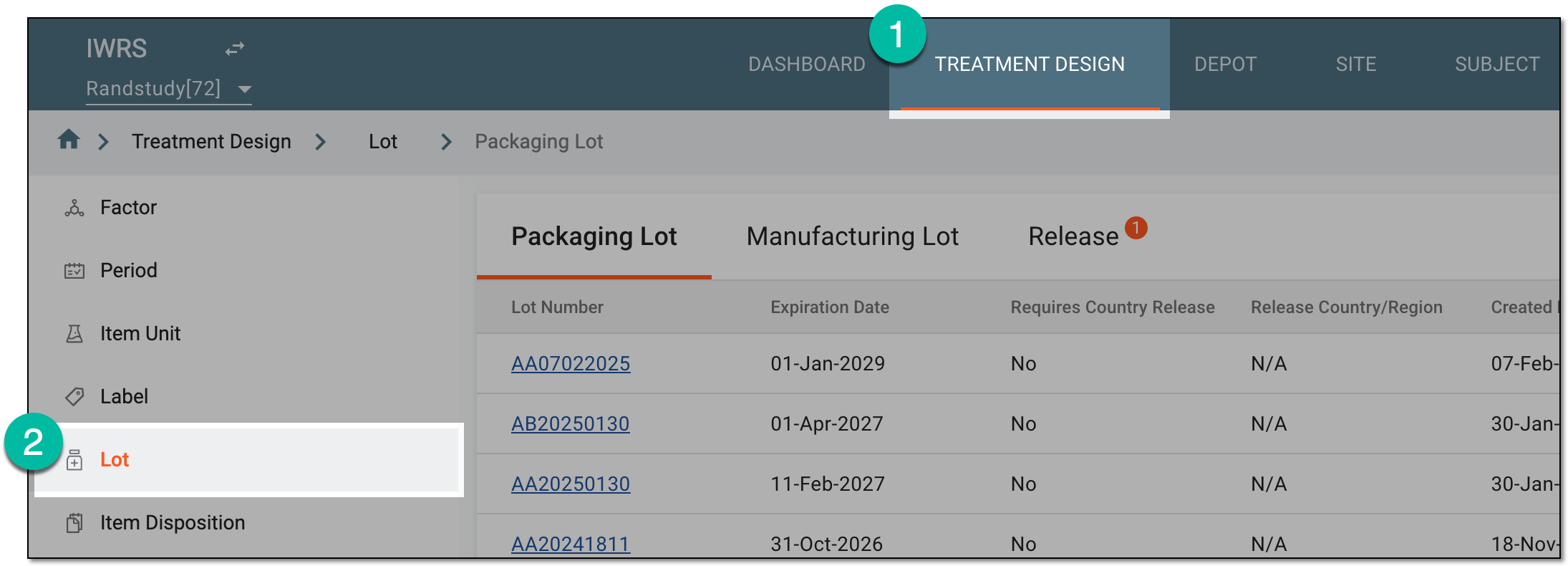 Figure 1. Accessing lot subtab
-
In the Packaging Lot table that appears, in the Lot Number column, select the lot for which you want to associate expiration dates with items.
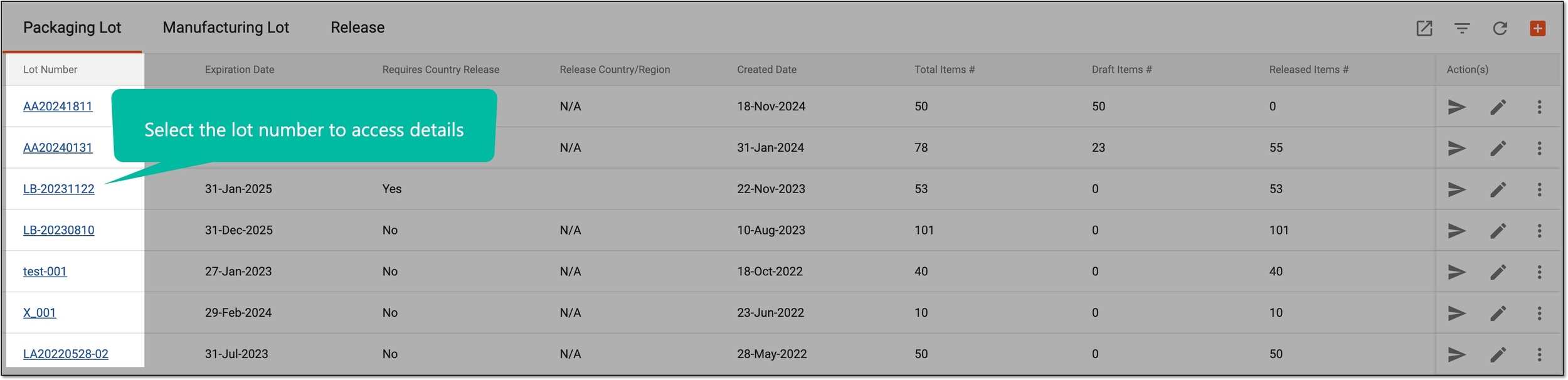 Figure 2. Accessing packaging lot details
-
In the Item List table that opens, select the checkboxes next to the items you want to associate with the specific expiration date.
-
From the workspace toolbar, select Set Expiration Date
 .
.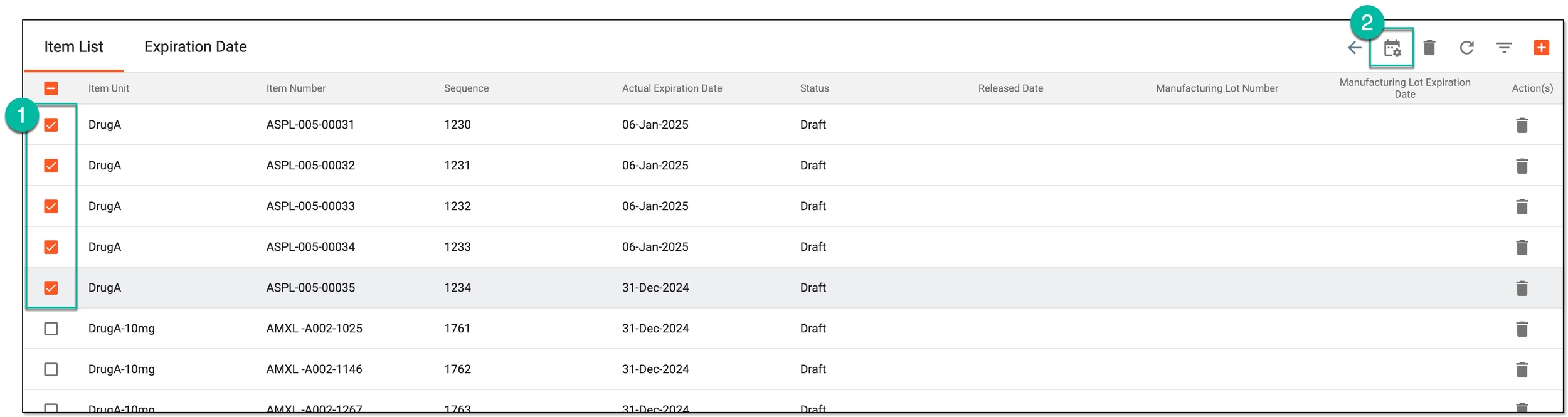 Figure 3. Associating items with expiration date
-
In the Set Expiration Date dialog that appears, select one of the expiration dates previously added to the lot to associate it with the selected items.
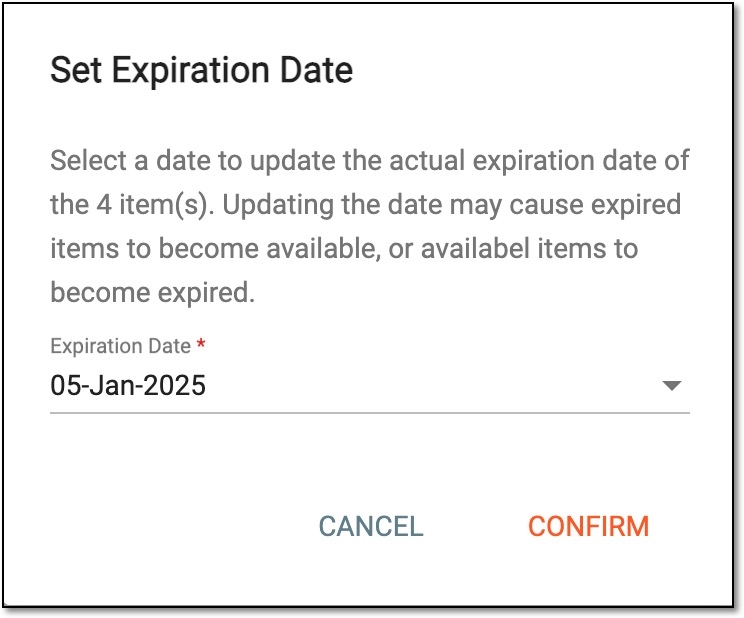 Figure 4. Setting expiration date
-
Select
 to save the implemented changes.
Once confirmed, the new expiration date becomes effective for the selected items. You can repeat this procedure until you assign all the respective expiration dates to your packaging lot items. Once ready, you can proceed to release your lot items to its intended destination.