Analyze study workload from dashboard
The My Work dashboard helps you quickly find your expected activities during a clinical trial, such as completing assigned tasks, addressing queries, processing original files, pending placeholders, active and expired files, and more.
The data on the dashboard is populated from the Query Tasks and Essential Documents.
Tip
The My Work dashboard is by default accessible for all system users and does not require special permission settings.
-
In the eTMF application header, select the TMF tab.
-
On the page that opens, in the left pane, select the Study List subtab.
-
In the Study List table, select the study to access relevant dashboard data for analysis.
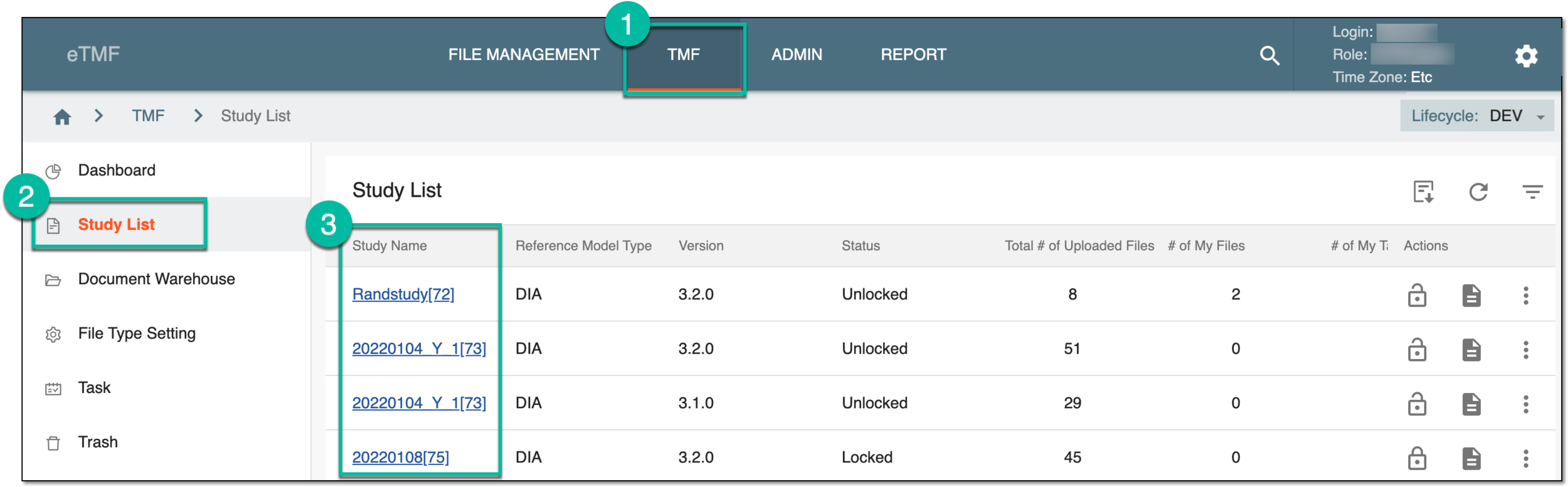 Figure 1. Accessing study data
-
Select the study, level, and other parameters from the toolbar dropdown menus to organize the My Work dashboard statistics display.
 Figure 2. Selecting study, level, and country dashboard parameters
-
Upon selecting the study name, the My Work dashboard page opens. Analyze all your queries as explained in the following table.
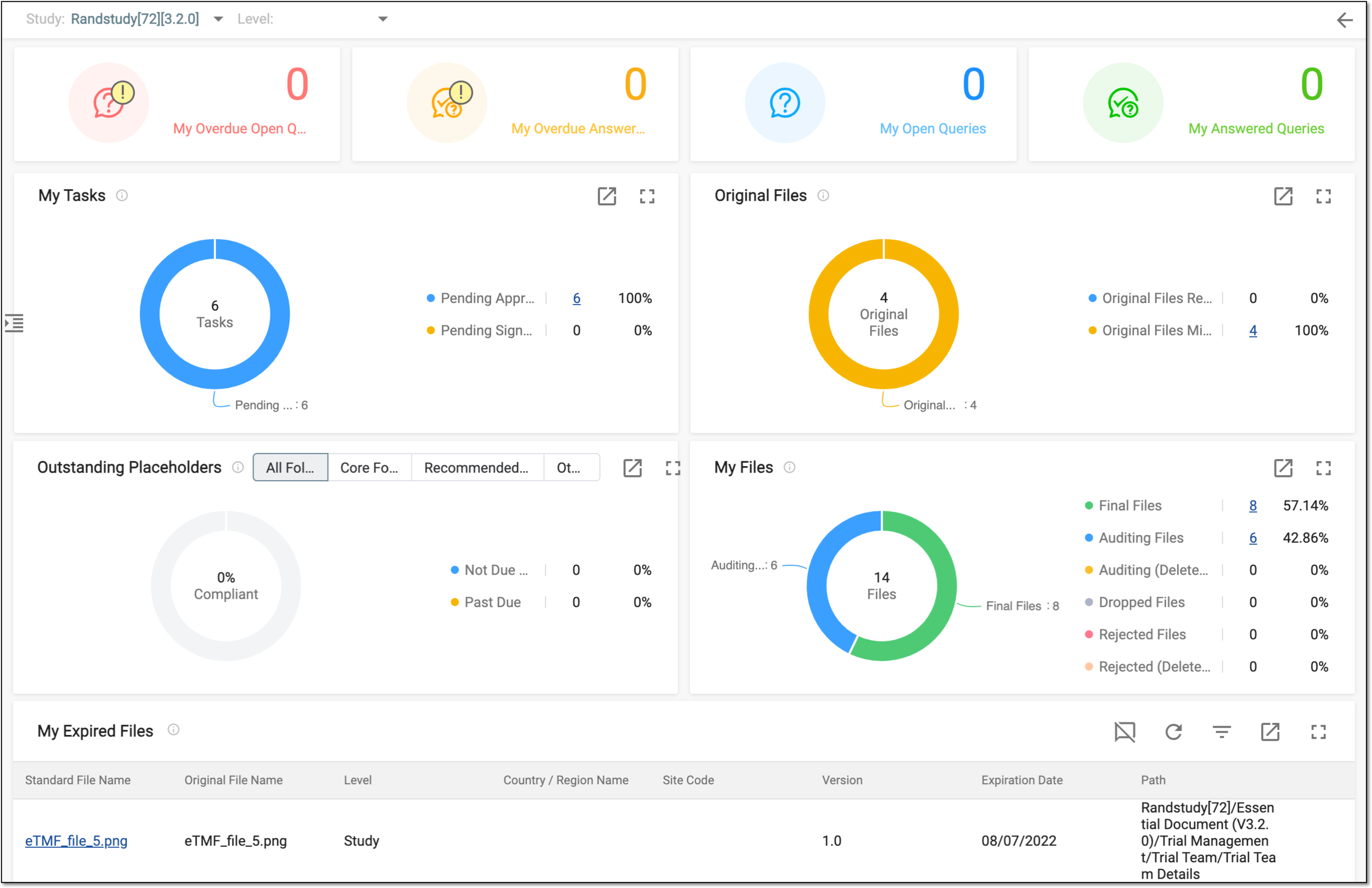 Figure 3. Accessed dashboard with work scope
Tip
You can view each dashboard block in a more enhanced view by selecting Full screen
 , or
export the dashboard content to an Excel file by selecting Export to Excel
, or
export the dashboard content to an Excel file by selecting Export to Excel  .
.Element
Details
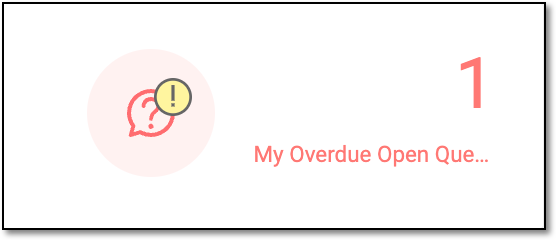 Figure 4. Overdue open queries
This tile displays a pie chart with the number of overdue open queries assigned to you.
Select the linked number to view and manage your queries from the My Task page.
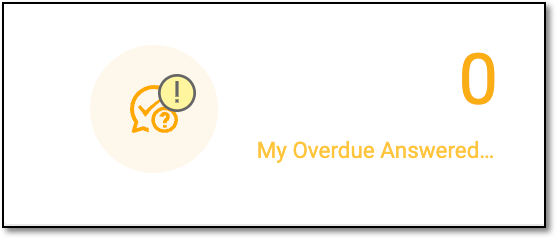 Figure 5. Overdue answered queries
The tile displays the number of overdue answered queries assigned to you.
Select the linked number to view and manage your queries from the My Task page.
 Figure 6. Open queries
The tile displays the number of open queries assigned to you.
Select the linked number to view and manage your queries from the My Task page.
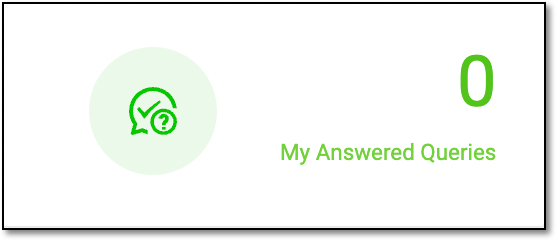 Figure 7. Answered queries
The tile displays the number of answered queries assigned to you.
Select the linked number to view and manage your queries from the My Task page.
-
Now, switch to the analysis and completion of the task and file-related assignments that follow in the respective blocks.
You have now successfully reviewed your workload from the My Work dashboard. Select Back  to return to the Study List page.
The pie chart of My Tasks on the My work dashboard displays the percentage and count of files pending your audit and signature.
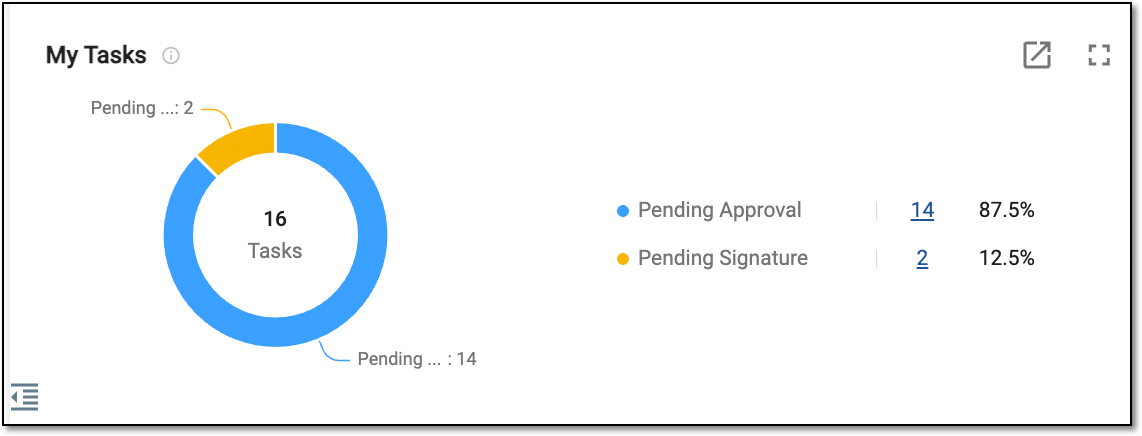
With the data you have in this block, you can do the following:
-
Export the dialog data by selecting Export
. -
Select Full screen
to view the dashboard in a more enhanced view. -
Hover over the pie part to check the percentage.
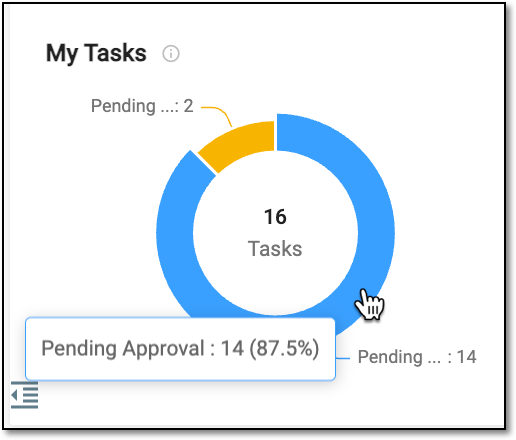 Figure 2. Checking task percentage
-
Click the colored pie part or select the colored task references—
 or
or  —next to the pie to disable and hide the part of the pie and its data. Select the disabled dot again to make it available.
 -
Select the linked numbers to visit the Batch Process page and audit the files as required, namely:
-
Pending approval: to approve or reject the tasks that are pending approval.
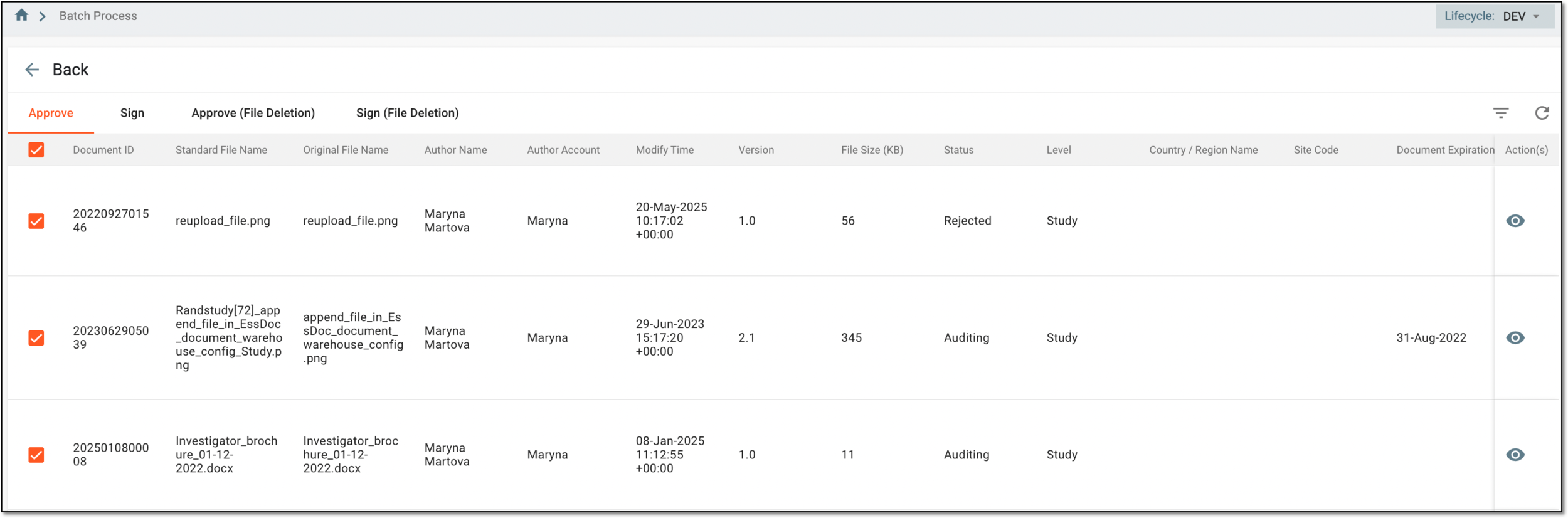 Figure 3. Managing tasks pending approval
-
Pending signature: to sign the required tasks.
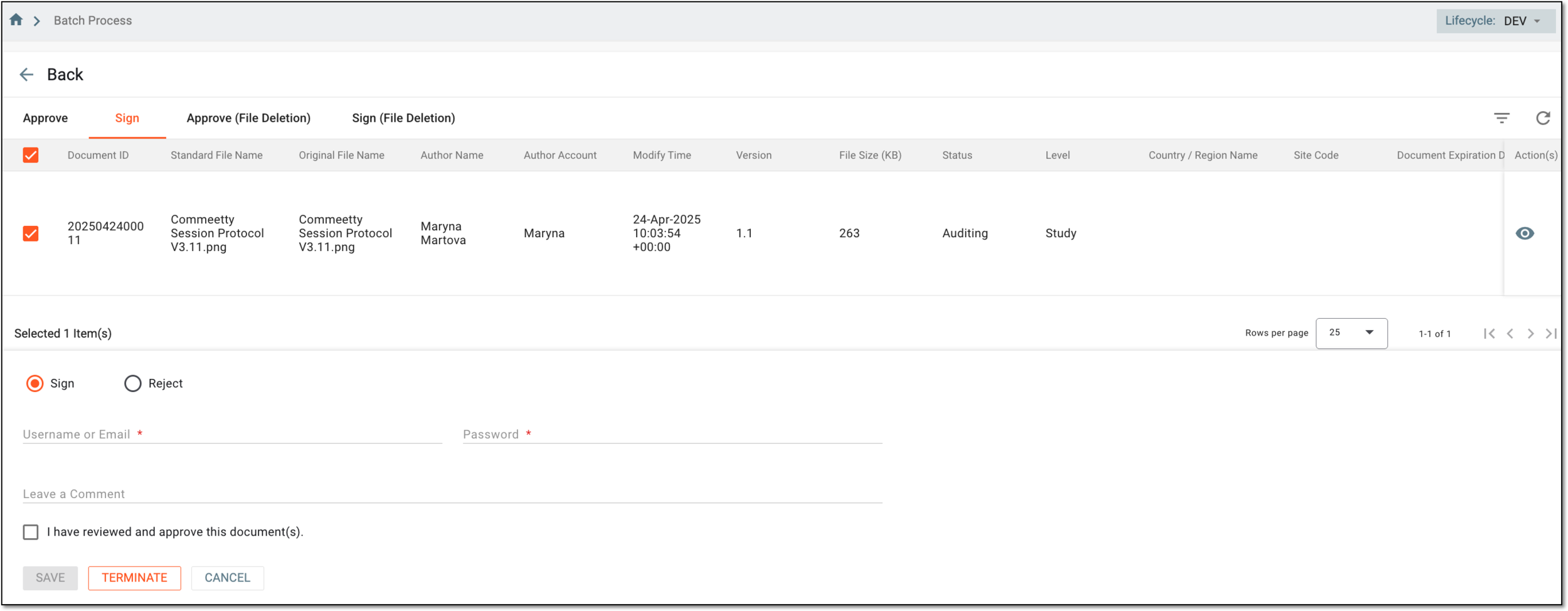 Figure 4. Managing tasks pending signature
-
The pie chart of Original files on the My work dashboard displays the percentage and count of files pending the collection of original (source) documents and those for which the original has already been collected.
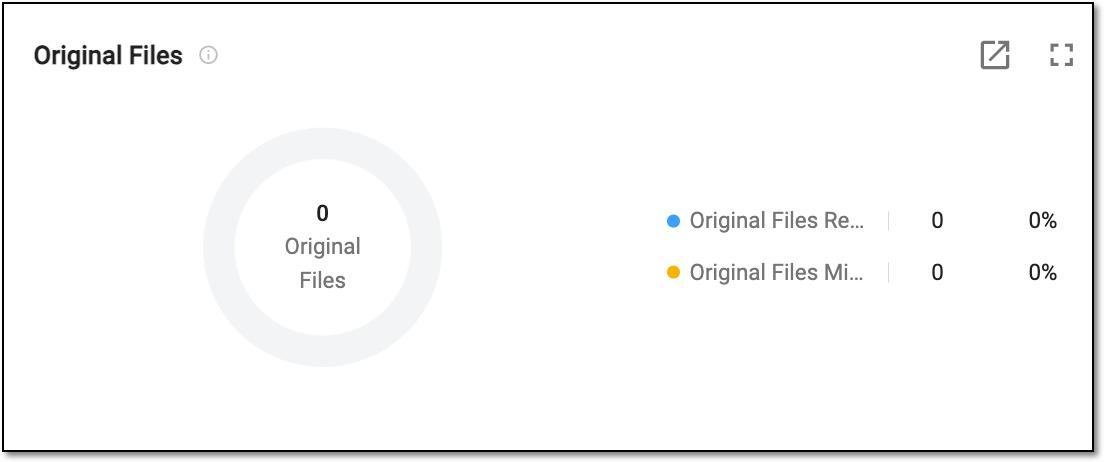
With the data you have in this block, you can do the following:
-
Export the dialog data by selecting Export
. -
Select Full screen
to view the dashboard in a more enhanced view. -
Hover over the pie part to check the percentage.
-
Click the colored pie part or select the colored task references—
or —next to the pie to disable and hide the part of the pie and its data. Select the disabled dot again to make it available. -
Select the linked number (if present) of Original Files Missing or Original Files Received to open the Original Files dialog and view the file details.
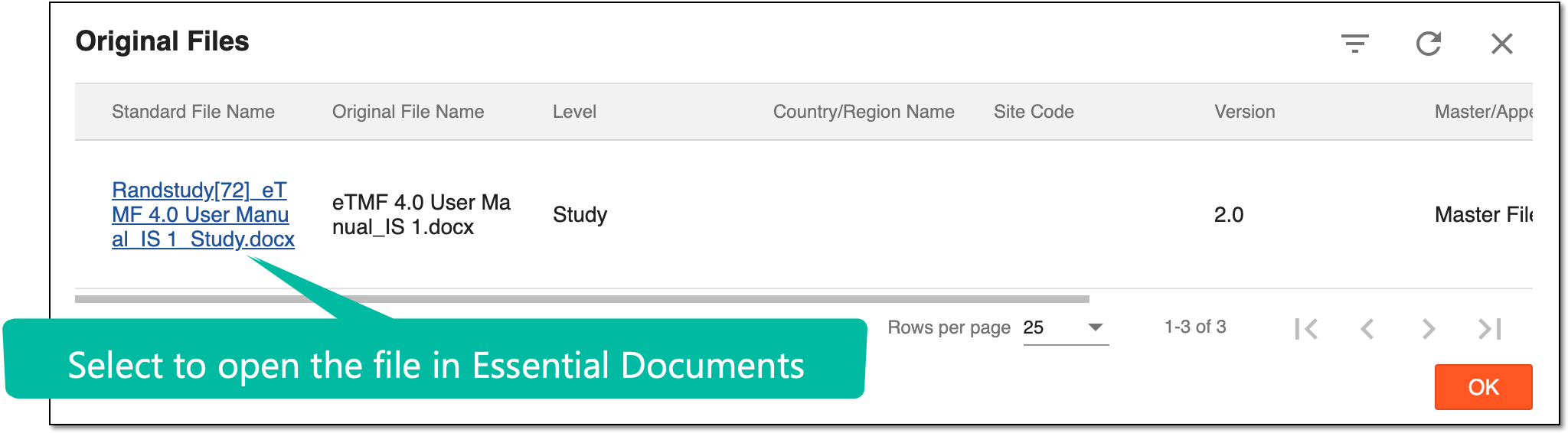 Figure 2. Original files dialog
In the dialog, select the required file link to open it in the Essential Documents directory, where you can specify whether the original document is needed or already received upon file upload or editing.
Click
 to close the dialog and return to the My work dashboard.
The pie chart of Outstanding placeholders on the My work dashboard displays the percentage and count of empty placeholders that are either Not Due Yet or Past Due based on the expiration period of the milestones with which they are associated.
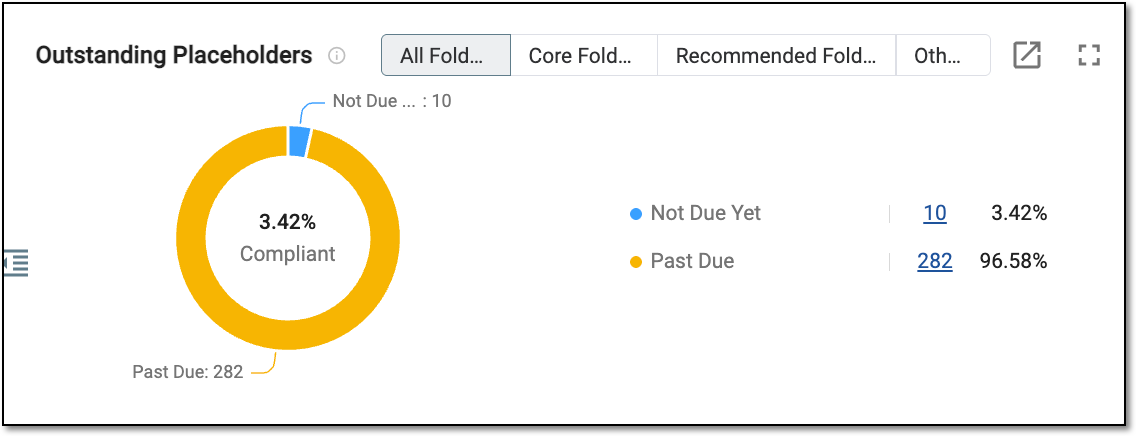
With the data you have in this block, you can do the following:
-
Select the Core Folders tab to filter the folders by the DIA RM to specify whether the artifacts in this folder are mandatory (core).
-
Select the Recommended Folders tab to filter the folders by the DIA RM to specify whether the artifacts in this folder are optional (recommended) for collection.
-
Select the Other Folders tab to filter all other folders that have been created for your study.
-
Export the dialog data by selecting Export
. -
Select Full screen
to view the dashboard in a more enhanced view. -
Hover over the pie part to check the percentage.
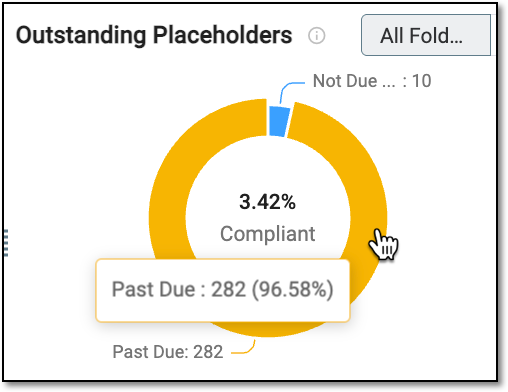 Figure 2. Checking outstanding placeholders
-
Click the colored pie part or select the colored task references—
or —next to the pie to disable and hide the part of the pie and its data. Select the disabled dot again to make it available. -
Next to the needed placeholder type (Not Due Yet or Past Due), select the linked number placeholders to open the respective dialog and view the details.
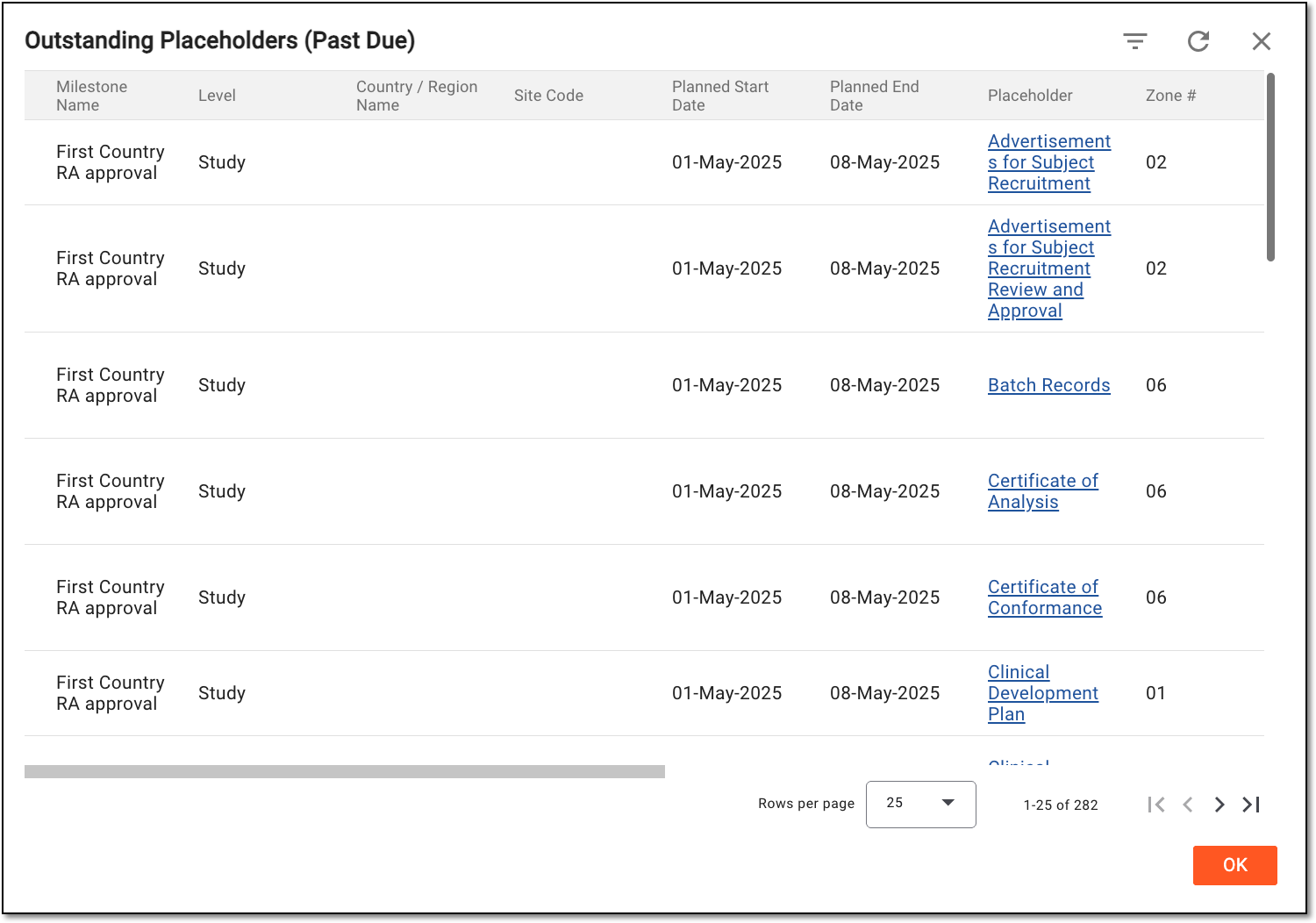 Figure 3. Studying past due placeholders via dialog
In the dialog, you can select the Placeholder link to open it in the Essential Documents directory with which the placeholder is associated.
Click
to close the dialog and return to the My work dashboard.
The pie chart in My Files on the My work dashboard shows the percentage and count of the files you uploaded to a study. The files are organized by their auditing status—Auditing, Replaced, Dropped, and so on.
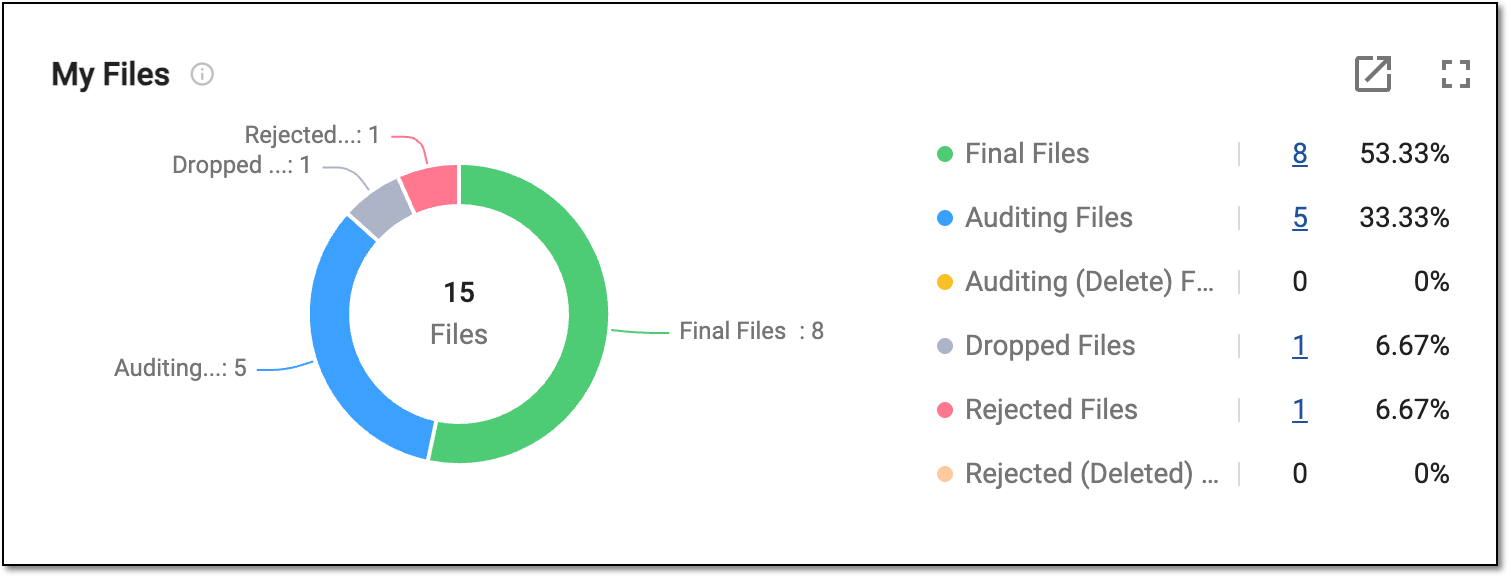
With the data you have in this block, you can do the following:
-
Export the dialog data by selecting Export
. -
Select Full screen
to view the dashboard in a more enhanced view. -
Hover over the pie part to check the percentage.
-
Click the colored pie part or select the colored task references—
, , or else—next to the pie to disable and hide the part of the pie and its data. Select the disabled dot again to make it available. -
Select the linked number (if present) of files of any status to open the My Files dialog and view file details.
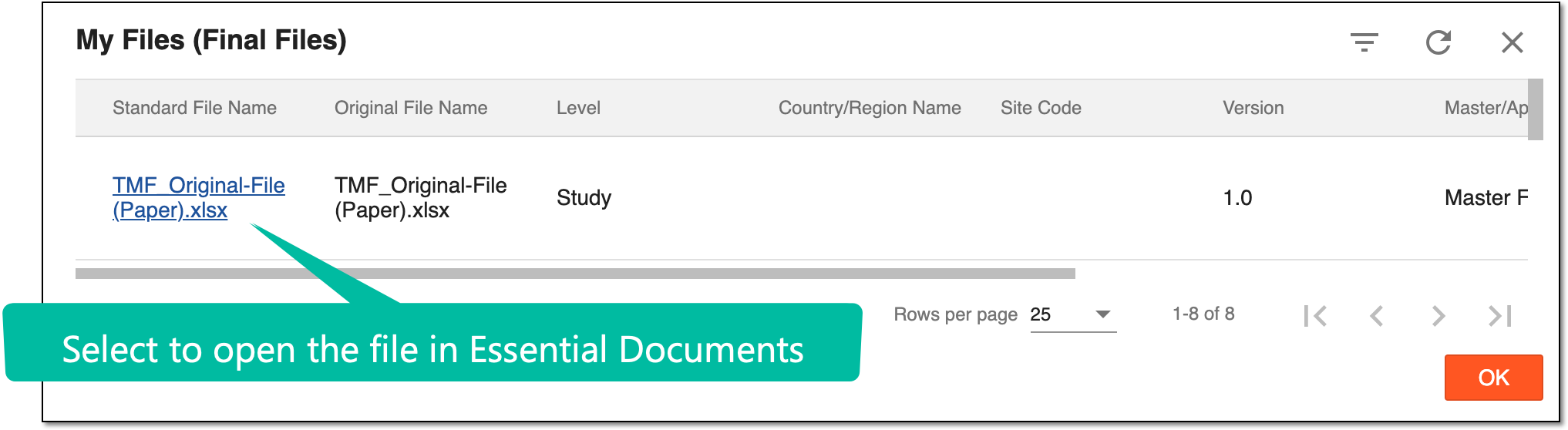 Figure 2. My files dialog
In the My Files (Final Files) dialog that opens, select the required file link to open it in the Essential Documents directory.
Click
to close the dialog and return to the My work dashboard.
The My Expired Files table on the My work dashboard presents the files you uploaded and have already passed their due dates set upon file upload.
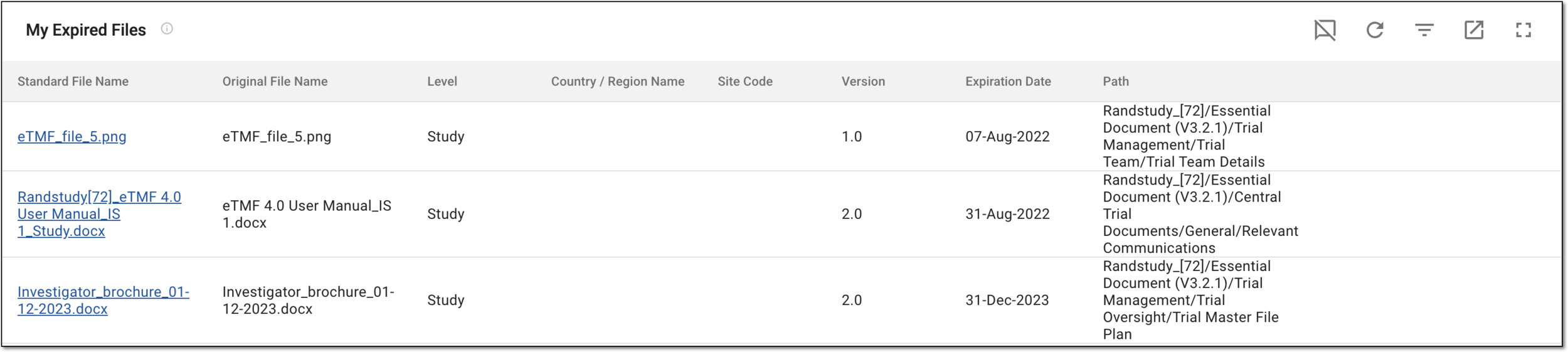
With the data you have in this block, you can do the following:
-
Select Dismiss
 to select the expired files you can (want to) leave without consideration.
 -
Select Refresh
 to update the table with the expired files. If the new expired files have appeared, they will appear in
the table/
to update the table with the expired files. If the new expired files have appeared, they will appear in
the table/ -
Select Filter
 to locate the required expired file faster by filtering the existing ones.
 -
Export the dialog data by selecting Export
. -
Select Full screen
to view the dashboard in a more enhanced view. -
Select the file name to view it within the folder under the Essential Documents storage.