View uploaded files tracking list
The Intelligent Upload module is an intermediary step in the file upload process that classifies the incoming files—automatically or manually by analyzing files, amending their metadata, and distinguishing their place in the DIA RM-based storages of Essential Documents. Additionally, it serves as a centralized record of all uploaded files, ensuring traceability and accountability throughout the trial process.
Uploaded Files Tracking is another tab hosted by the Intelligent Upload module that serves as a comprehensive record of all files that have been uploaded, processed, and managed within the module. This tabular list provides details on the status of each file, including whether it has matched, transferred, or encountered any issues during the upload or processing phase.
This section focuses on how you can access and interpret the details of the Uploaded Files Tracking table to review the files uploaded by emails or locally—that are already or not yet transferred to their intended Essential Documents directories.
-
In the eTMF application header, select the TMF tab.
-
In the Study List table that opens by default, select the study for which you want to access the relevant files.
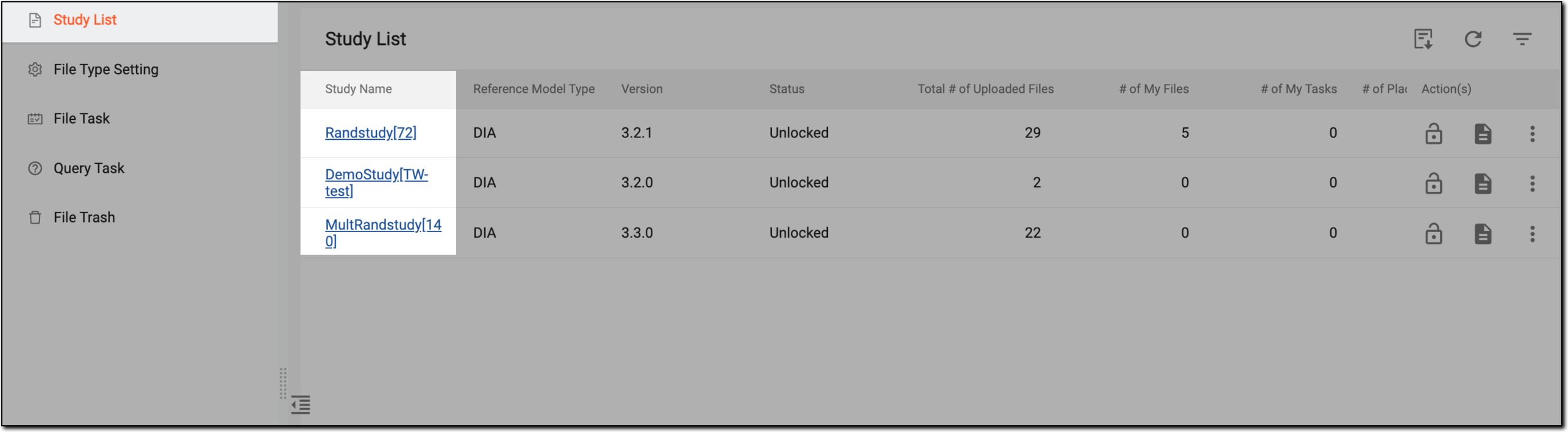 Figure 1. Selecting study
-
On the page that opens, in the left pane, select the Intelligent Upload subtab.
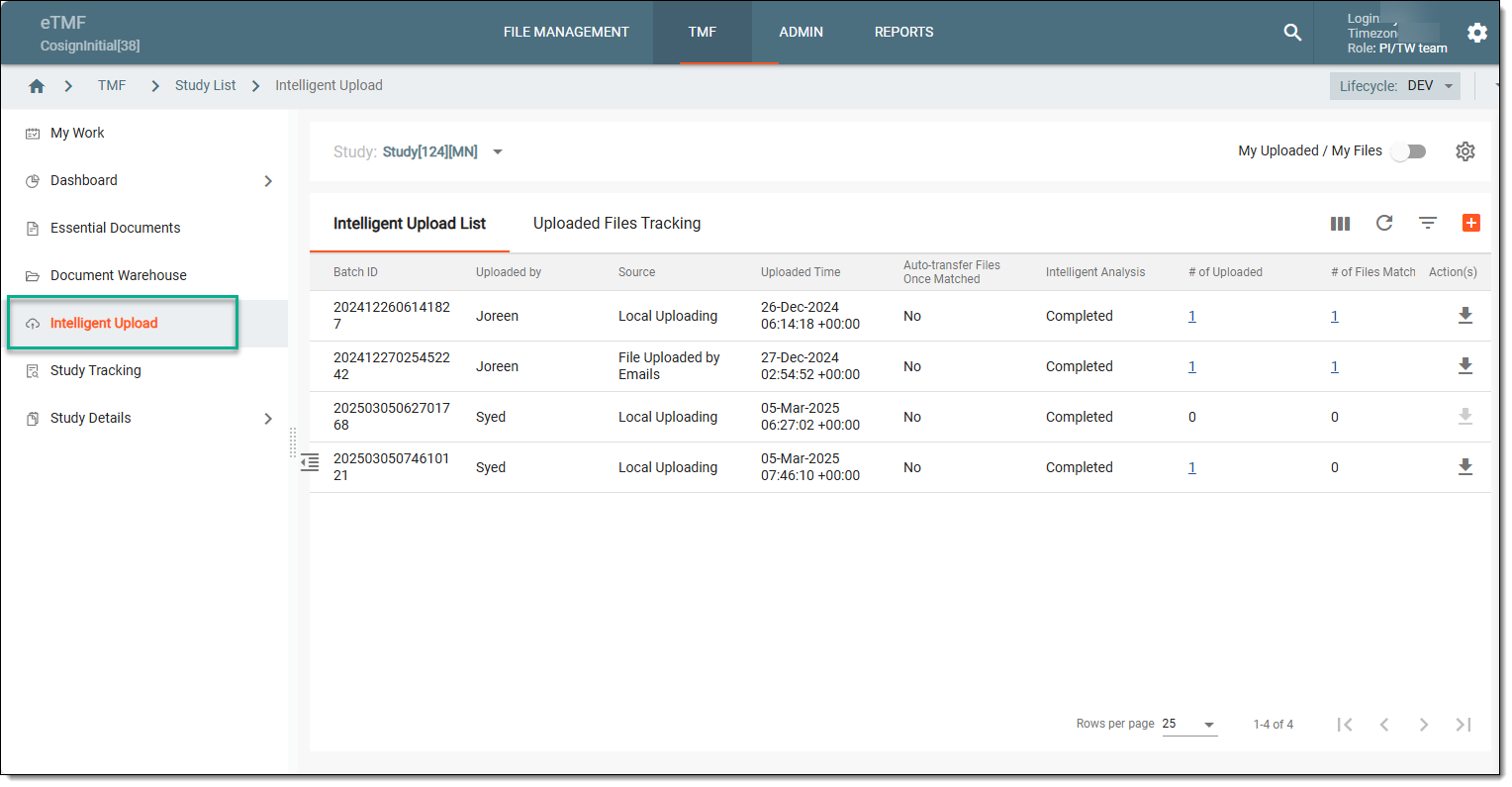 Figure 2. Accessing intelligent upload subtab
-
On the right, select the Uploaded Files Tracking tab and view the details of various elements as explained in the following table.
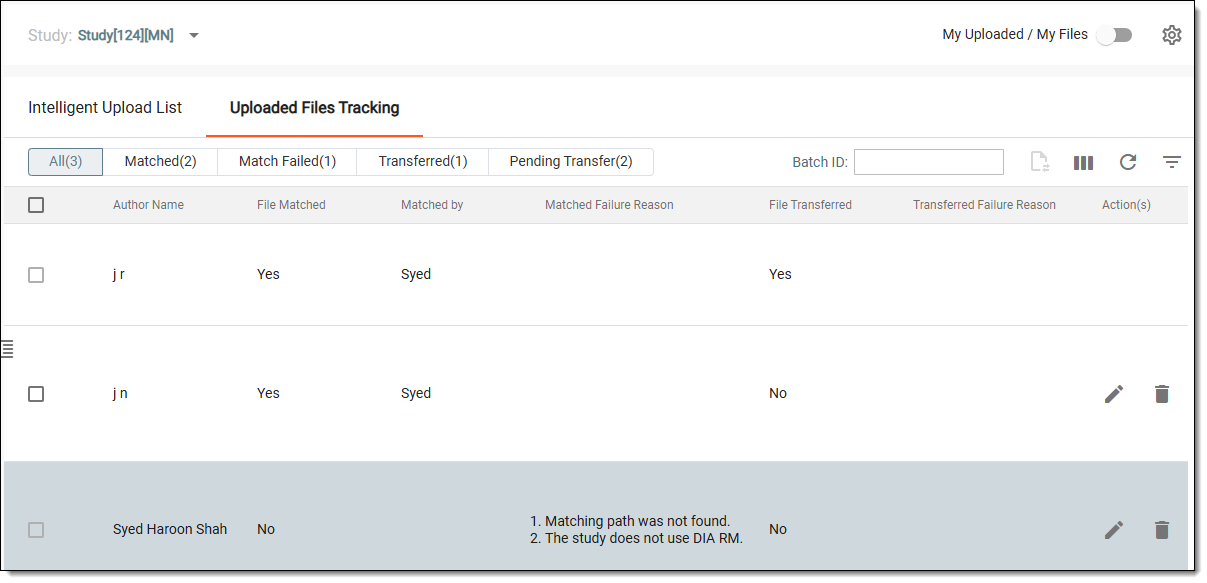 Figure 3. Viewing uploaded files tracking table elements
Tip
Use the filter buttons to sort the table data based on the file match and transfer status.
 Figure 4. Sorting report by file transfer status
Element
Details
Common actions
Study
Represents the name of the selected study. If needed, from the dropdown menu, you can choose another study and view its related files.
My Uploaded / My Files
Turn the toggle On or off to filter the table data as follows:
-
If turned on, the table displays the locally uploaded files.
-
If turned off (a default state): the table displays the files that are uploaded to the system manually or by emails.
Global setting
Select
 to open the Global Setting dialog and turn on the Auto-transfer Files Once
Matched toggle to automatically transfer the files after they have passed the file matching criteria. If turned off, they appear in the pending state and need to be reviewed
manually.
to open the Global Setting dialog and turn on the Auto-transfer Files Once
Matched toggle to automatically transfer the files after they have passed the file matching criteria. If turned off, they appear in the pending state and need to be reviewed
manually.Columns
Batch ID
Represents a unique identifier assigned to the bundle of files uploaded in a single transaction. This ID helps track and manage the file batches effectively.
Document ID
Represents a unique identifier assigned to each uploaded document. This ID helps in tracking and managing documents throughout their lifecycle in the eTMF system.
File Name
Represents the name of the uploaded file, which helps identify its content and purpose. This is usually the original name assigned to the file at the time of creation.
Select the file name link to view the details of the file in the read-only mode.
File Level
Represents the hierarchical level at which the file is categorized, such as at the study level, site level, or country level. This aids in organizing files in the clinical hierarchy.
Country / Region
Represents the country or region relevant to the file, which may be important for regulatory compliance and localization of trial documents.
Site Code
Represents a unique code of the trial site associated with the uploaded document. This helps ensure proper attribution and organization of site-specific documents.
File Path
Represents the location within the eTMF system where the file is stored. This path aids in quickly locating and retrieving the document when needed.
Author Account
Represents the account or username of the individual who uploaded the document. This provides accountability and traceability for document uploads.
Author Name
Represents name of the individual who is responsible for uploading the file. This information can be useful for communication and follow-up if questions arise during the review process.
File Matched
Represents the status indicator that shows whether the uploaded file has been successfully matched to its correct path or category within the eTMF.
Matched By
Represents the name of the system or user that facilitated the matching process for the uploaded file. This can include automated systems or specific individuals.
Matched Failure Reason
Represents a brief description for why matching the uploaded file to its designated category failed, if applicable. This helps in diagnosing issues and making corrections.
File Transferred
Represents whether the file has been successfully transferred to its final storage location (that is, Essential Documents) in the eTMF after matching.
Transferred Failure Reason
Represents the reason for any failure in transferring the file, if applicable. Understanding these reasons is critical for improving the upload and transfer processes.
Transferred by
Represents the name of the individual or the system responsible for transferring the file to its designated location, providing accountability for the transfer action.
Transferred Time
Represents the date and time when the file was successfully transferred to its final location. This information is important for tracking document timelines and audits.
-
You have viewed the details of the files uploaded to the Intelligent Upload module.