Download file from intelligent upload list
The Intelligent Upload module is an intermediary step in the file upload process that classifies the incoming files—automatically or manually by analyzing files, amending their metadata, and distinguishing their place in the DIA RM-based storages of Essential Documents. Additionally, it serves as a centralized record of all uploaded files, ensuring traceability and accountability throughout the trial process.
In eTMF, you can select and download specific files or documents stored within the Intelligent Upload module. This provides you with the ability to quickly access the important documents for specific tasks, such as audits, data review and analysis, and file backup.
-
In the eTMF application header, select the TMF tab.
-
In the Study List table that opens by default, select the study for which you want to download the files manually.
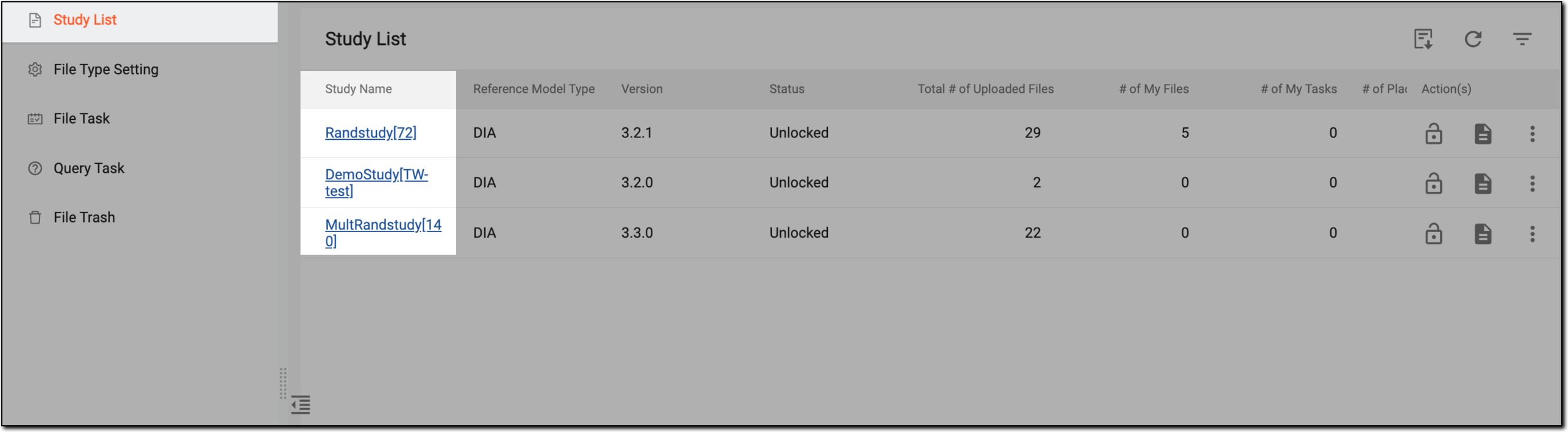 Figure 1. Selecting study
-
On the page that opens, in the left pane, select the Intelligent Upload subtab.
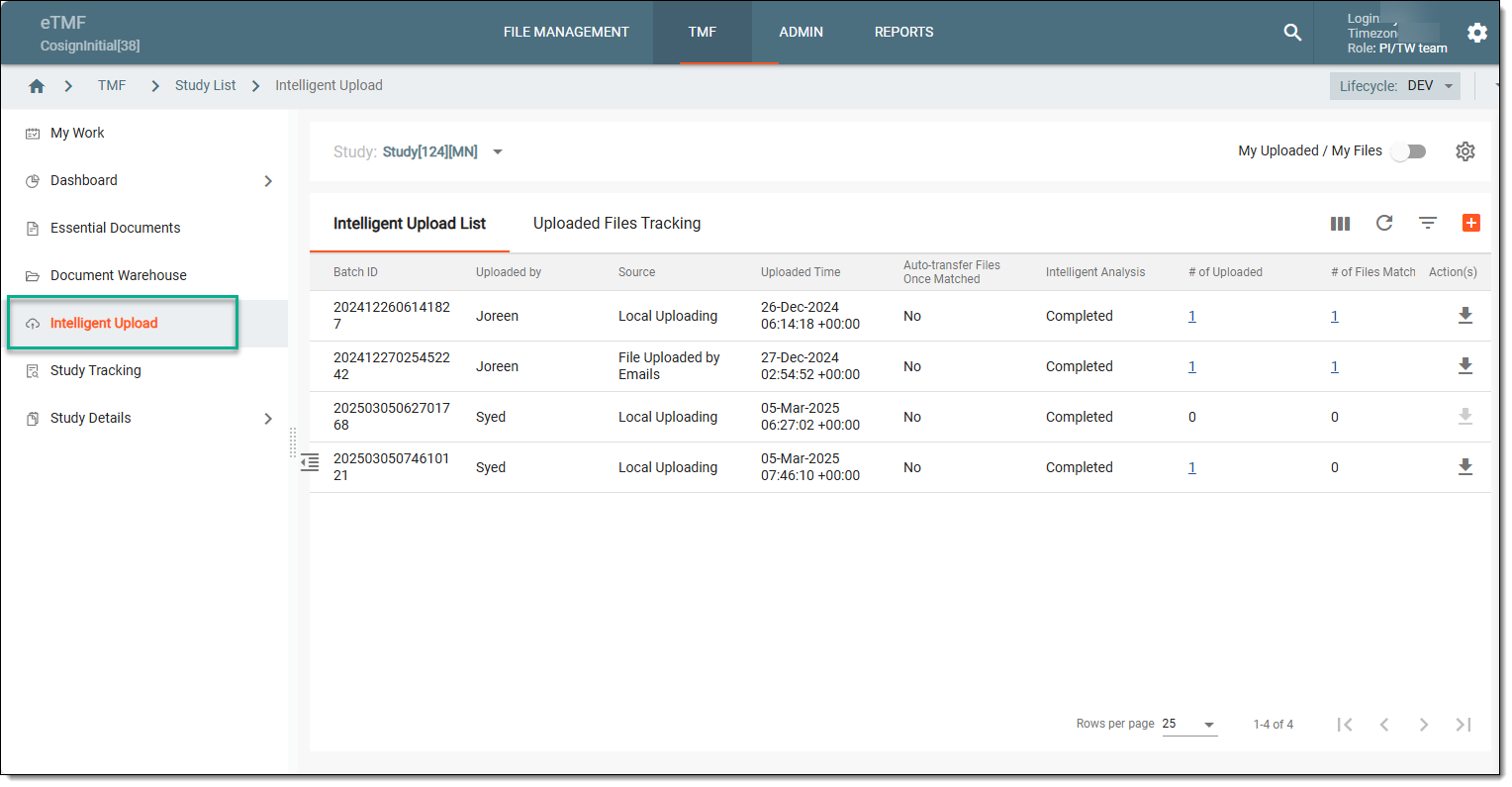 Figure 2. Accessing intelligent upload subtab
-
On the Intelligent Upload List tab that opens by default, locate the file that you want to download, and in the Action(s) column, select
 .
.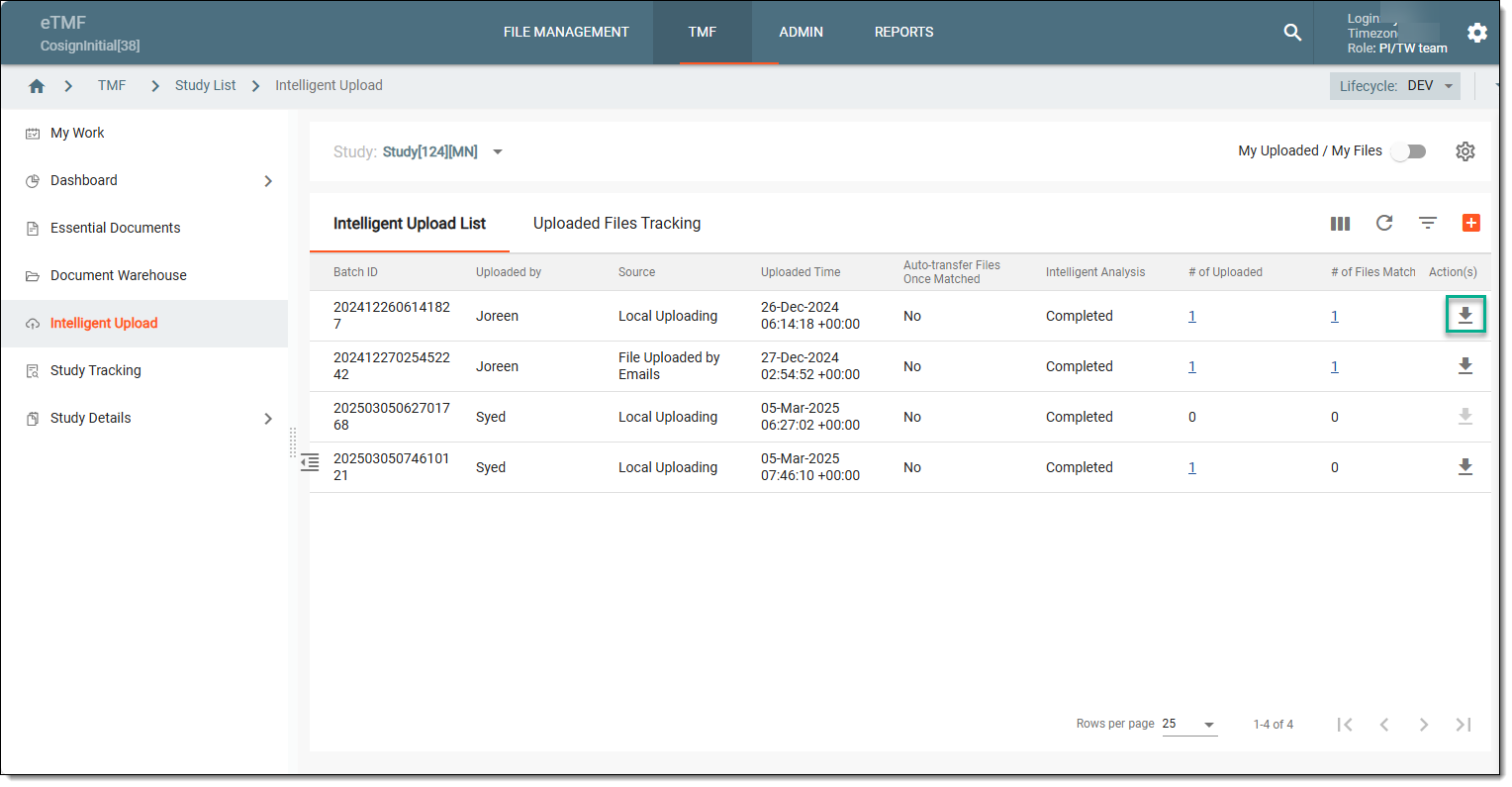 Figure 3. Accessing option to download files
-
Now, select the Download option of the Quick panel or the widget that appears. Then in the My Downloads dialog that opens, in the Download is Ready tab, next to the needed file, select
.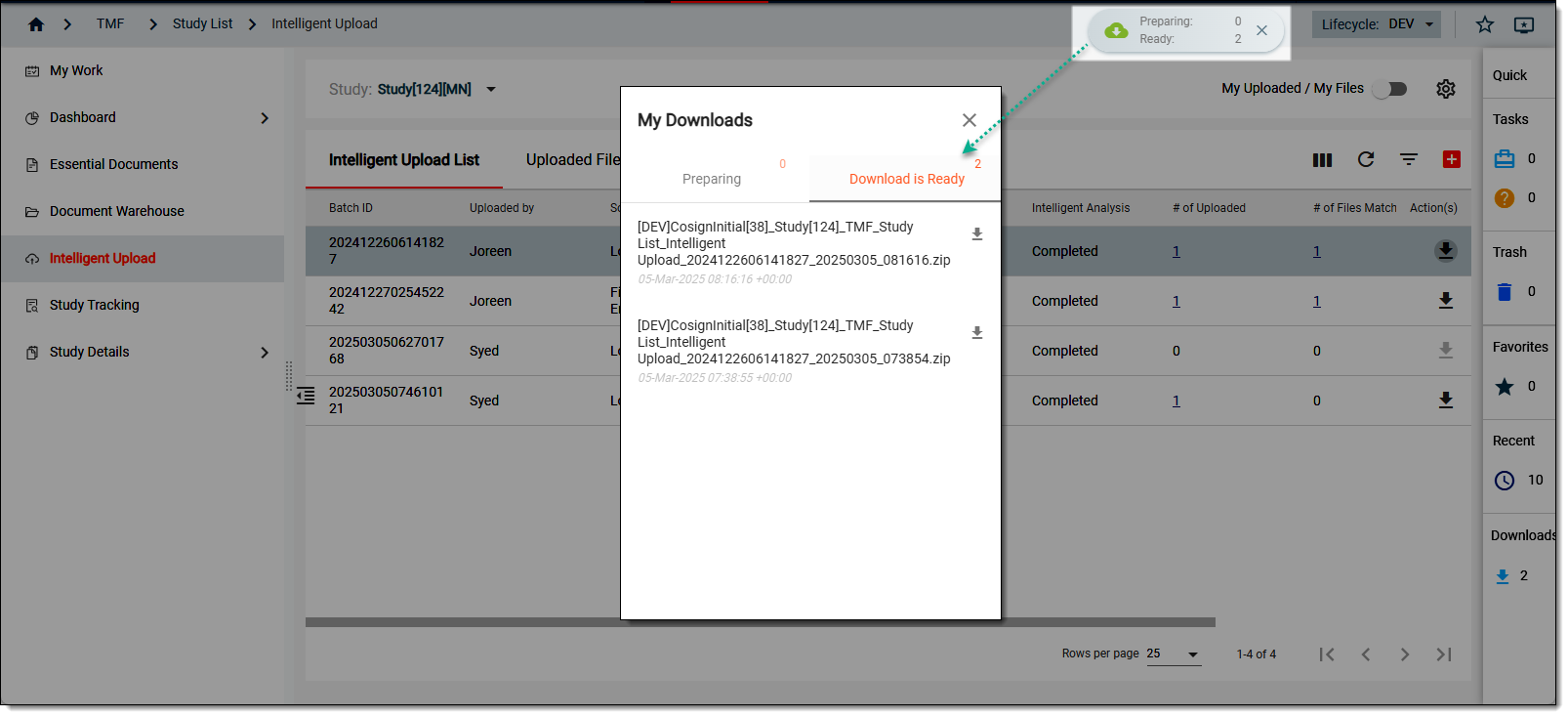 Figure 4. Downloading files from quick panel
Upon downloading and saving, the ZIP file becomes available on your computer.