Perform intelligent file upload manually
The Intelligent Upload module is an intermediary step in the file upload process that classifies the incoming files—automatically or manually by analyzing files, amending their metadata, and distinguishing their place in the DIA RM-based storages of Essential Documents. Additionally, it serves as a centralized record of all uploaded files, ensuring traceability and accountability throughout the trial process.
Apart from the automated file upload process, eTMF provides its users the ability to upload the files manually in the Intelligent Upload module. This means that the users can directly select and upload files into the eTMF system through its user interface, rather than relying on the automated methods, such as email uploads or automatic data feeds. However, you can can still benefit from intelligent file analysis and classification to the needed directory as you would for the email-uploaded files. This eliminates the need to classify the documents yourself and locate their destination in the DIA RM-based storage.
Manual upload serves as a backup method when the automated upload fails or encounters errors, ensuring that critical documents or files can still be entered into the system. With manual upload, users can efficiently correct mistakes or reupload files that may have been previously misclassified or poorly uploaded through automated processes.
-
In the eTMF application header, select the TMF tab.
-
In the Study List table that opens by default, select the study for which you want to upload the files manually.
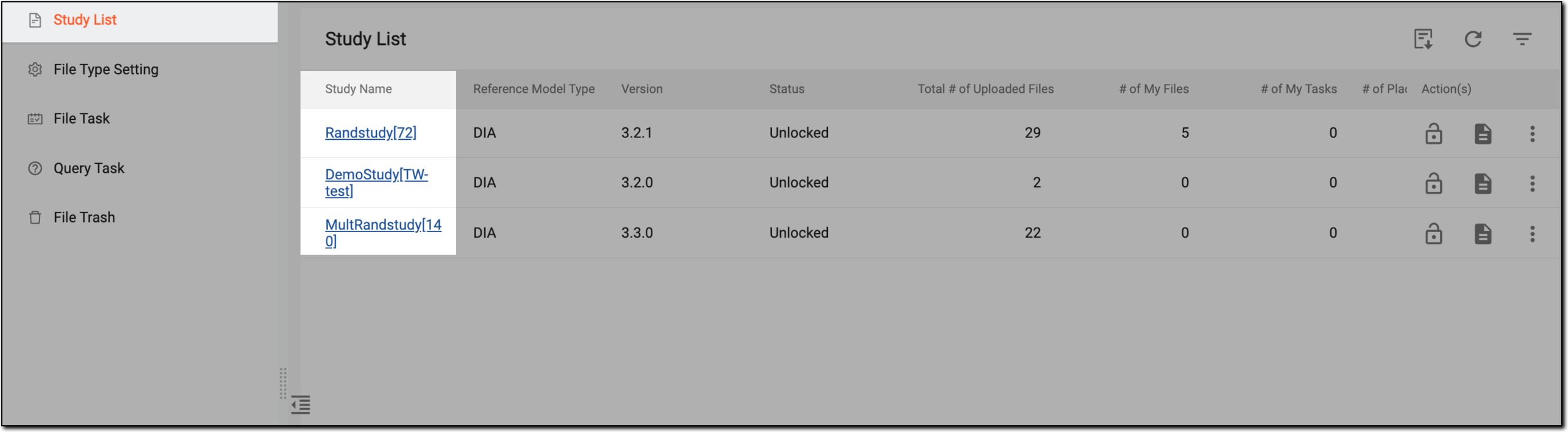 Figure 1. Selecting study
-
On the page that opens, in the left pane, select the Intelligent Upload subtab.
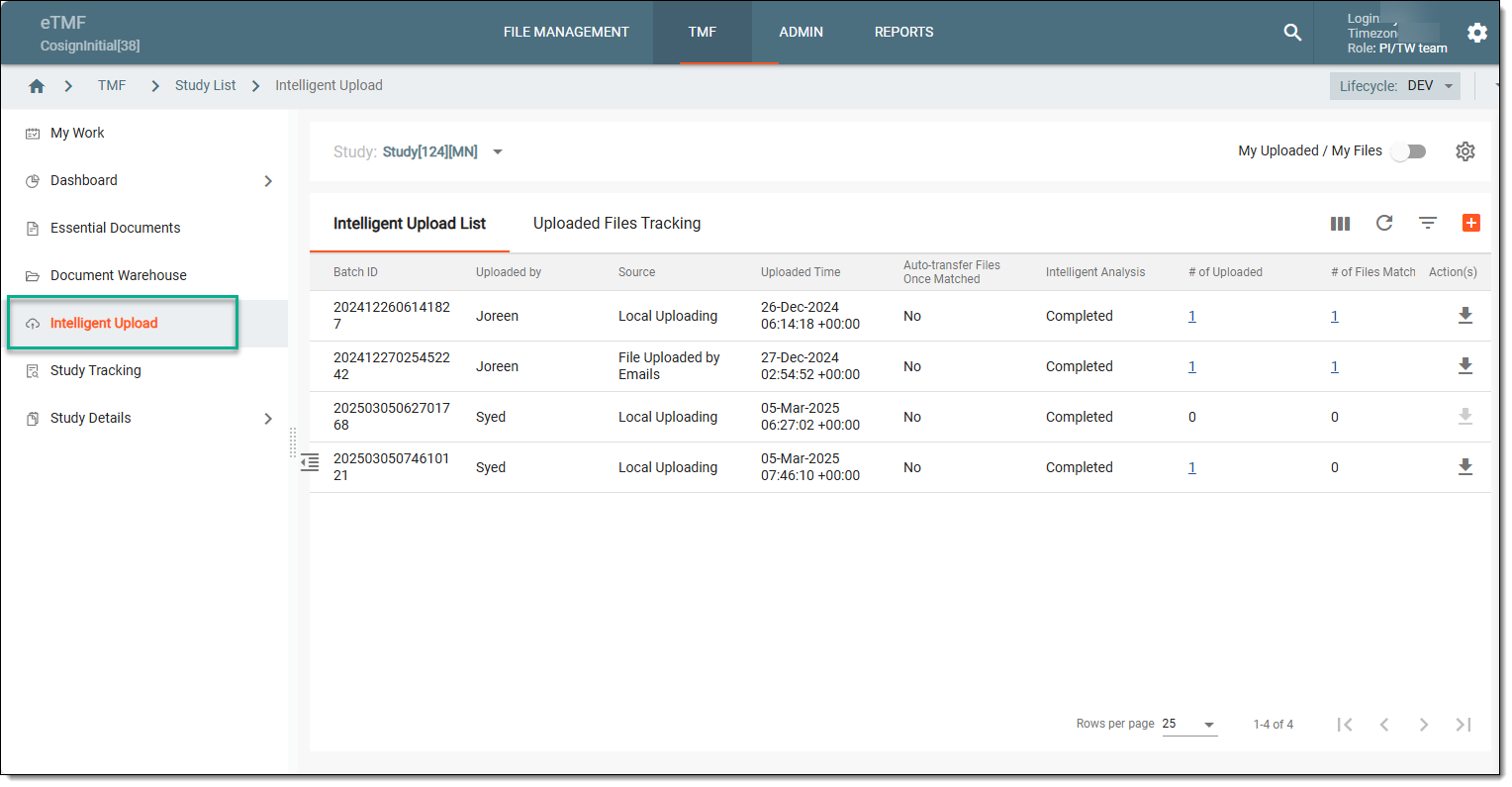 Figure 2. Accessing intelligent upload subtab
-
On the Intelligent Upload List tab that opens by default, on the workspace toolbar, select New Item
 .
.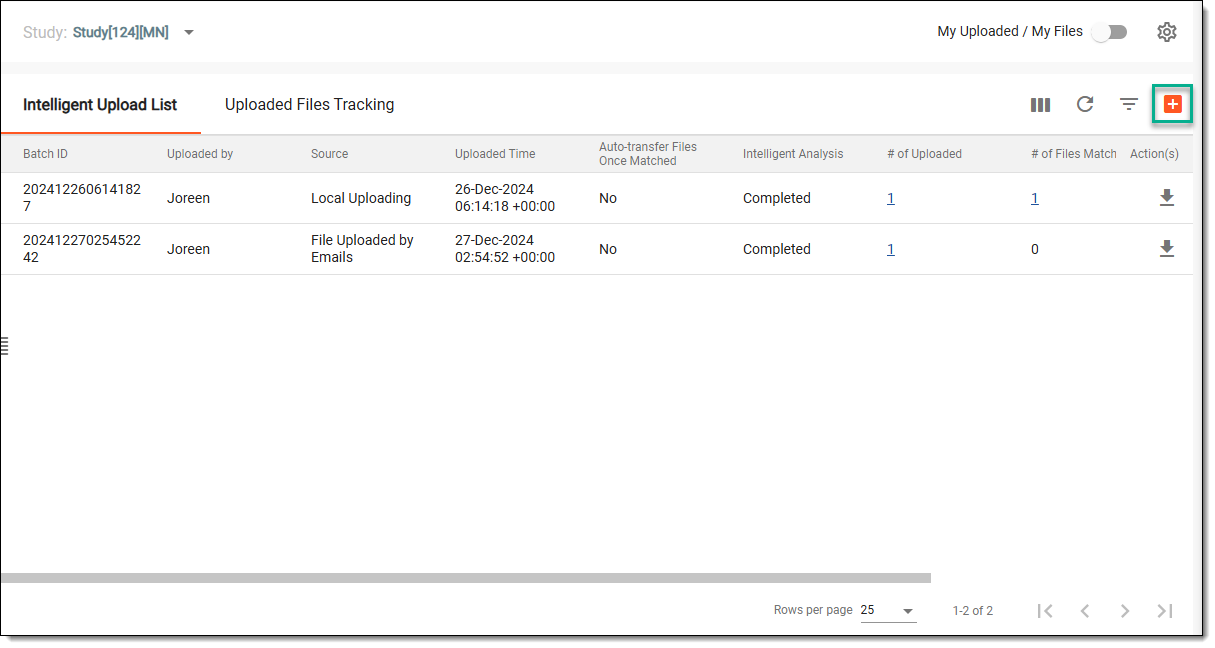 Figure 3. Accessing option to upload files manually
-
In the Upload File panel that opens on the right, select the upload area or drag the files from your computer that you want to upload, and then select
 .
.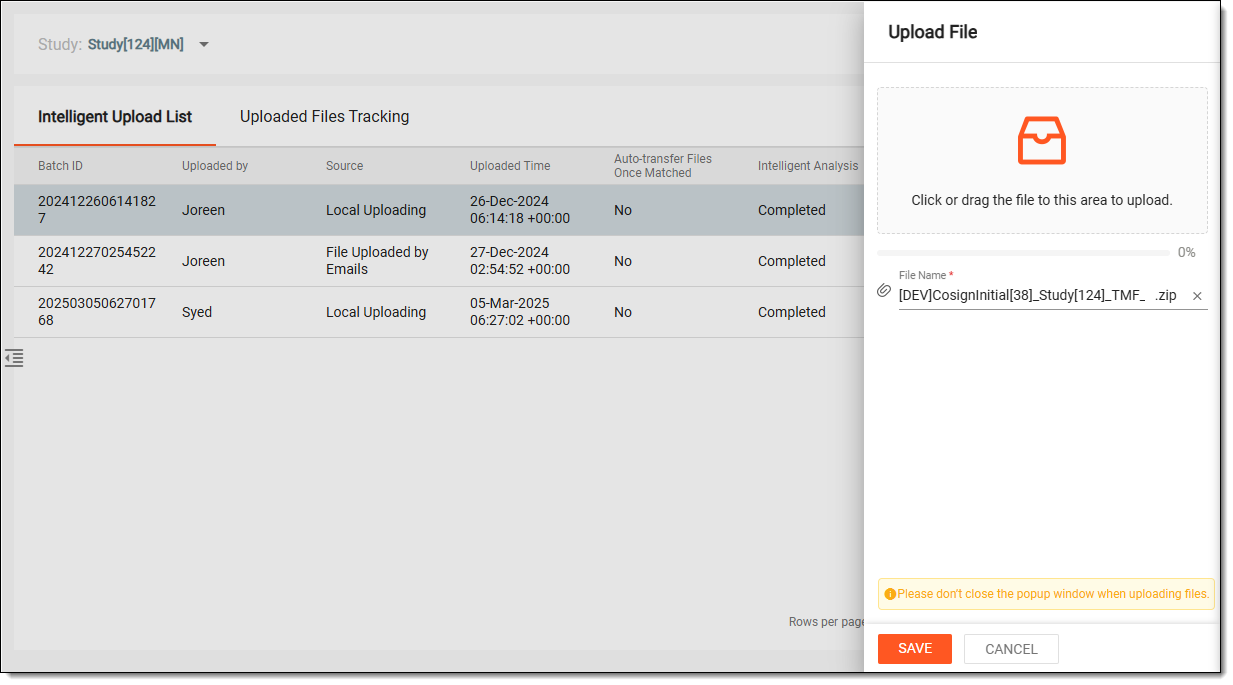 Figure 4. Uploading files in intelligent upload
Tip
You can add multiple files in your single upload action. Based on the file size, it might take some time to upload all the files at once.
Once saved, the files are successfully uploaded to the Intelligent Upload module and appear in the Intelligent Upload List tab. You can now process them as needed.