Edit uploaded files
The Intelligent Upload module is an intermediary step in the file upload process that classifies the incoming files—automatically or manually by analyzing files, amending their metadata, and distinguishing their place in the DIA RM-based storages of Essential Documents. Additionally, it serves as a centralized record of all uploaded files, ensuring traceability and accountability throughout the trial process.
Once the files have been successfully uploaded either manually or automatically to Intelligent Upload, not all of them pass the validation for the file transfer. Some may fail due to incorrect file matches or other transfer reasons. Hence, with the Edit option, such files can be modified with the correct data and transferred manually to Essential Documents.
Important
You cannot edit the files that are already transferred—automatically or manually—to Essential Documents.
-
In the eTMF application header, select the TMF tab.
-
In the Study List table that opens by default, select the study for which you want to access the relevant files.
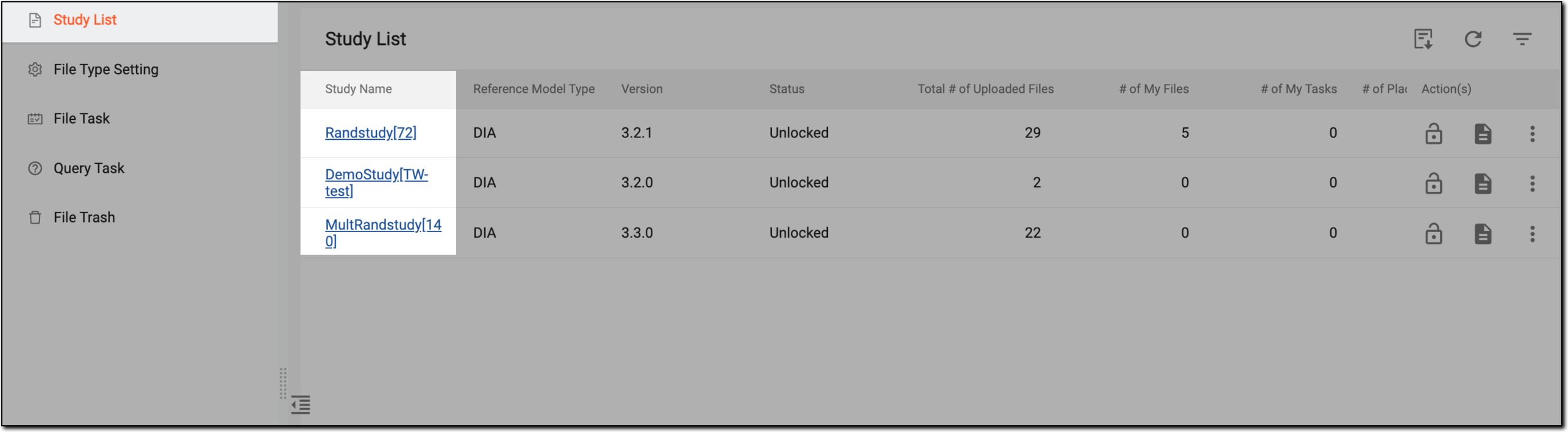 Figure 1. Selecting study
-
On the page that opens, in the left pane, select the Intelligent Upload subtab.
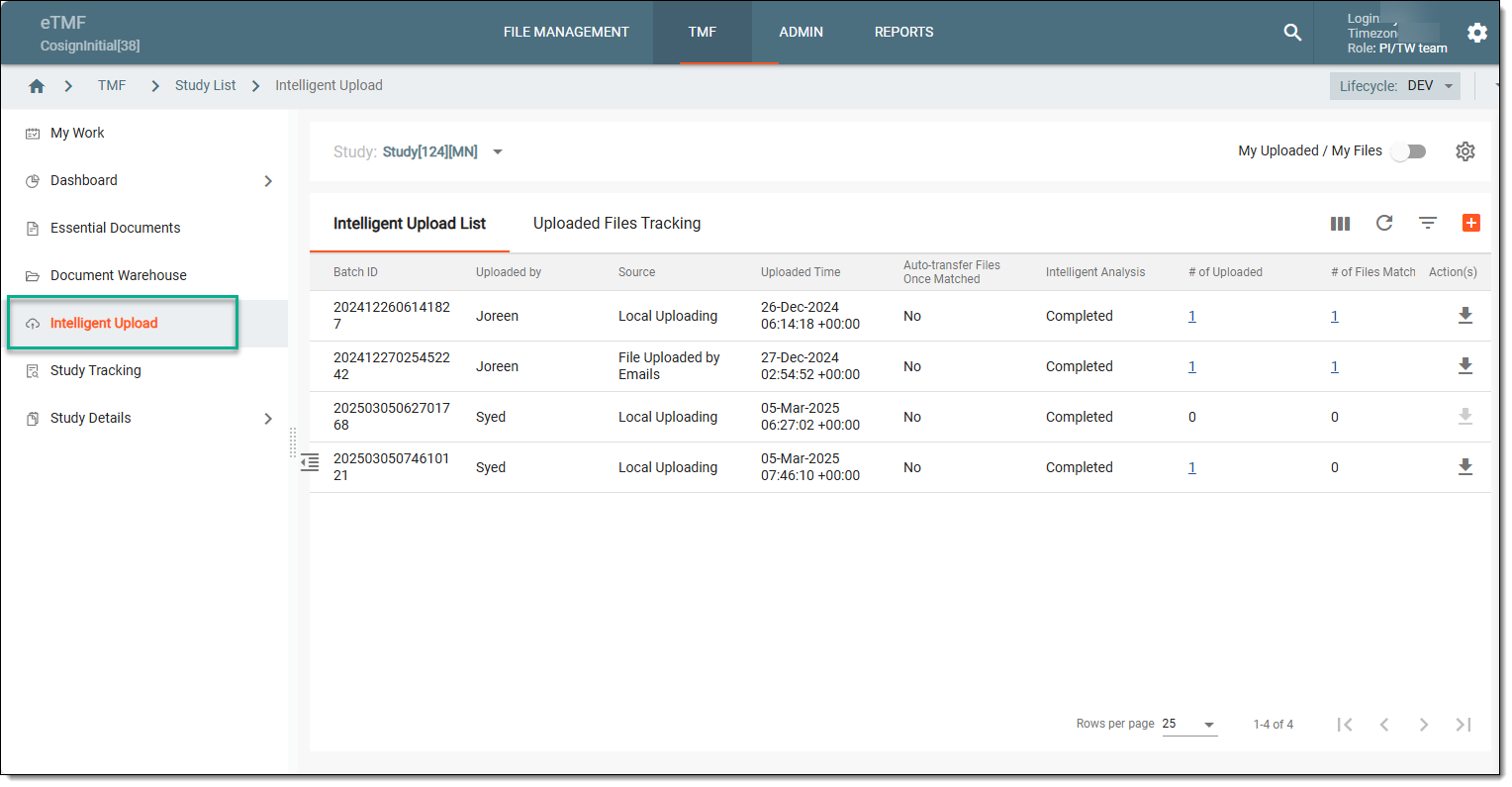 Figure 2. Accessing intelligent upload subtab
-
On the contents panel, select the Uploaded Files Tracking tab, locate the file that you want to edit, and in the Action(s) column, select Edit
 .
.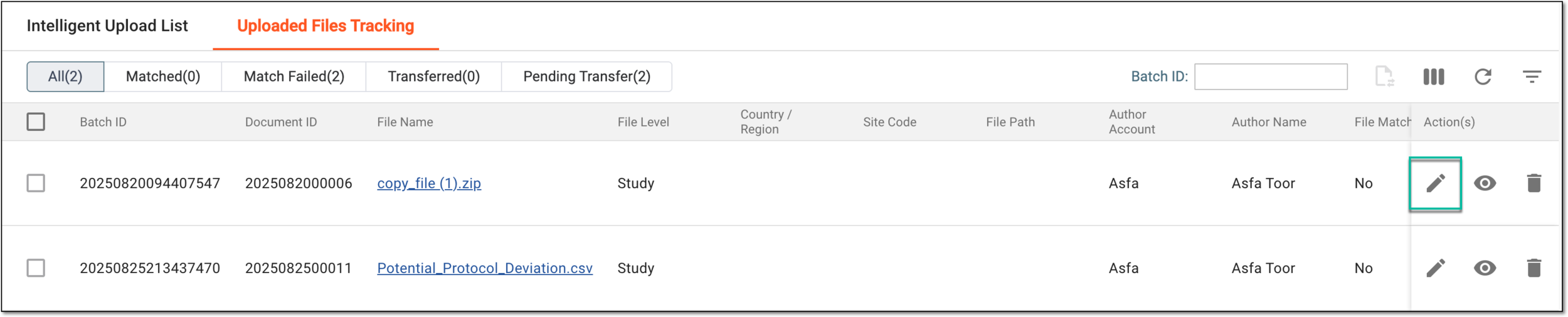 Figure 3. Accessing option to edit file
Tip
Use the filter buttons to sort the table data based on the file match and transfer status.
 Figure 4. Sorting report by file transfer status
-
In the Detail form that opens on the right, fill in the necessary information as explained in the following table.
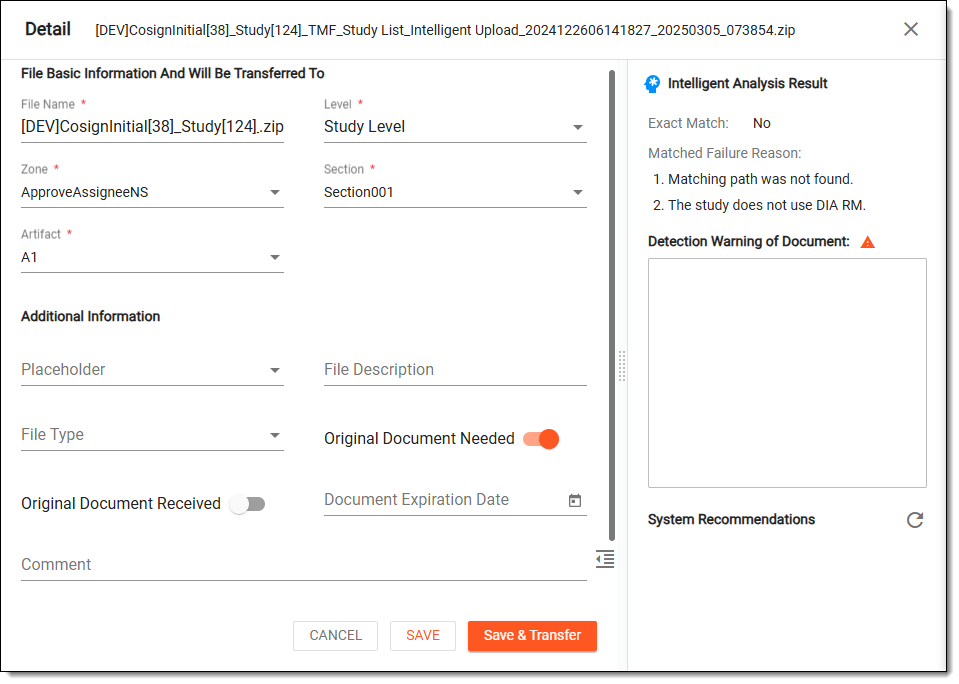 Figure 5. Editing uploaded file
Tip
In the following table, mandatory elements are marked with an asterisk (*).
Element
Details
File Basic Information And Will Be Transferred To
File Name*
Modify the name of the file if needed.
Level*
From the dropdown menu, select the hierarchy level of the document within the clinical trial structure that is, Study, Country, or Site.
Zone*
From the dropdown menu, select the specific area within the document management structure where the file is categorized. This helps in organizing documents based on various criteria such as region or administrative division.
Section*
From the dropdown menu, select the subdivision within the document zone that specifies where the document should be filed. This allows for finer categorization and helps in managing documentation more effectively.
The options in this dropdown menu are only listed when the Zone has been specified.Artifact*
From the dropdown menu, select the specific type of document or artifact according to predefined categories within the eTMF. These artifacts represent different document types required for the trial, each with its own format and purpose.
The options in this dropdown menu are only listed when the Section has been specified.Additional Information
Placeholder
From the dropdown menu, select the designated marker indicating that a specific document or file is required but has not yet been uploaded. It serves as a reminder for users to supply the necessary document in the future.
File Description
Enter a brief textual summary providing details about the content and purpose of the uploaded file. This description aids users in understanding the context of the document quickly.
File Type
From the dropdown menu, select the file type of the uploaded document based on the custom types predefined within eTMF, which provides insights into how the file should be handled or processed within the system.
Original Document Needed
A toggle that specifies whether the original document is necessary for compliance or auditing purposes. If turned on, it indicates that the original file must be provided in addition to the uploaded version.
Original Document Received
A toggle that indicates whether the original document has been successfully received. If turned on, this confirms the document is in hand.
This toggle is only available if the Original Document Needed toggle is enabled.Document Expiration Date
From the date picker, select the date by which the file must be reviewed, renewed, or replaced. This is crucial for maintaining regulatory compliance and ensuring that all documents are current.
Comment
Enter any additional notes or remarks regarding the document. This can include observations, reminders, or any relevant information that aids in document management.
Expected Date of Next Work Step (UTC)
Specify the time in the Coordinated Universal Time (UTC) when the next action related to this file is anticipated to occur. This helps in planning and scheduling further documentation activities.
Intelligent Analysis Result
This block displays the outcome of the automated analysis performed on the document, indicating whether it met certain classification or compliance criteria set during processing.
Exact Match
A read-only field that confirms whether the uploaded file has been matched exactly to its corresponding category or criteria in the eTMF system. A Yes value indicates successful matching.
Matched Failure Reason
A read-only field that lists any failures that occurred during the matching process, such as incorrect matching path or the exclusion of DIA RM based storage, and so on. This information is useful for troubleshooting and ensuring that necessary corrections can be made.
Detection Warning of Document
A read-only block that alerts user about potential issues or irregularities identified during the document analysis phase. This can include compliance warnings or inconsistency notifications.
System Recommendations
A read-only field that offers suggested actions or adjustments that users can take based on the analysis results. These recommendations assist users in optimizing document compliance and accuracy.
Refresh
Select
 to refresh the system recommendations based on the edits made to the file.
CANCEL
Select
 to dismiss the editing process and close the panel.
SAVE
Select
 to update the entered information without initiating the file transfer process.
Save & Transfer
Select
 to update the entered information and initiate the file transfer.
Once Save & Transfer is selected, the system initiates the transfer process, and if the file passes the matching criteria and has all the relevant details, it is successfully transferred to Essential Documents.
Tip
If you have selected SAVE and decided to transfer the updated file later, then in the Uploaded Files Tracking tab, select the checkbox next to file you want to transfer manually, and then from the workspace toolbar, click Transfer  . This icon is only activated once you have made the necessary changes to your file and saved it.