Preview contents of uploaded file
The Intelligent Upload module serves as a centralized record of all files uploaded either manually or automatically, ensuring traceability and accountability throughout the trial process.
To help you classify the files and distinguish their place in the DIA RM-based storages of Essential Documents, you can preview the file contents in your browser.
-
In the eTMF application header, select the TMF tab.
-
In the Study List table that opens by default, select the study for which you want to access the relevant files.
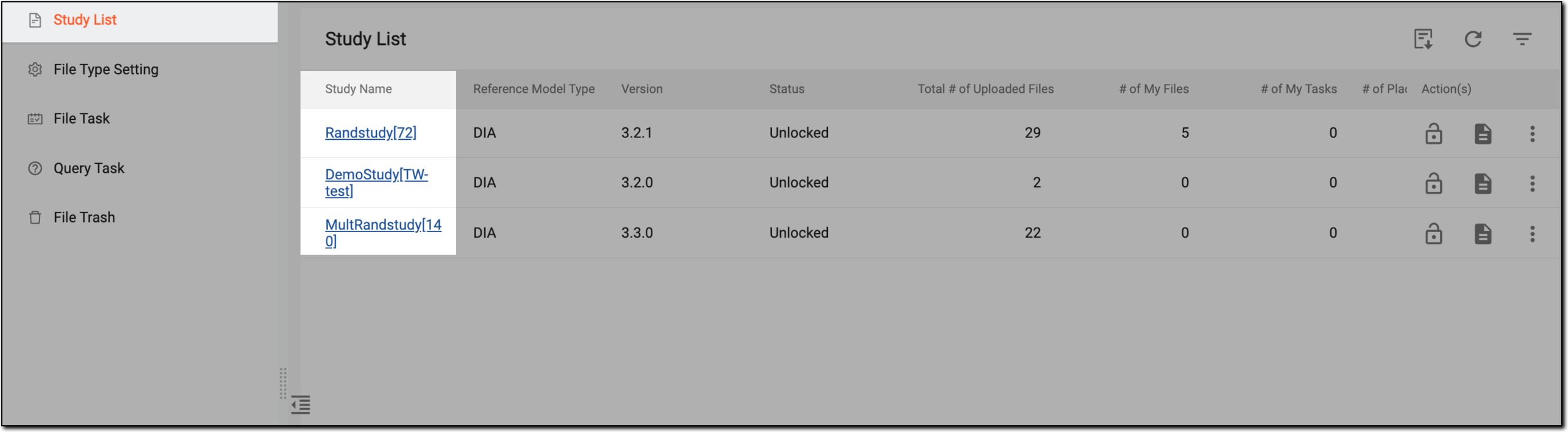 Figure 1. Selecting study
-
On the page that opens, in the left pane, select the Intelligent Upload subtab.
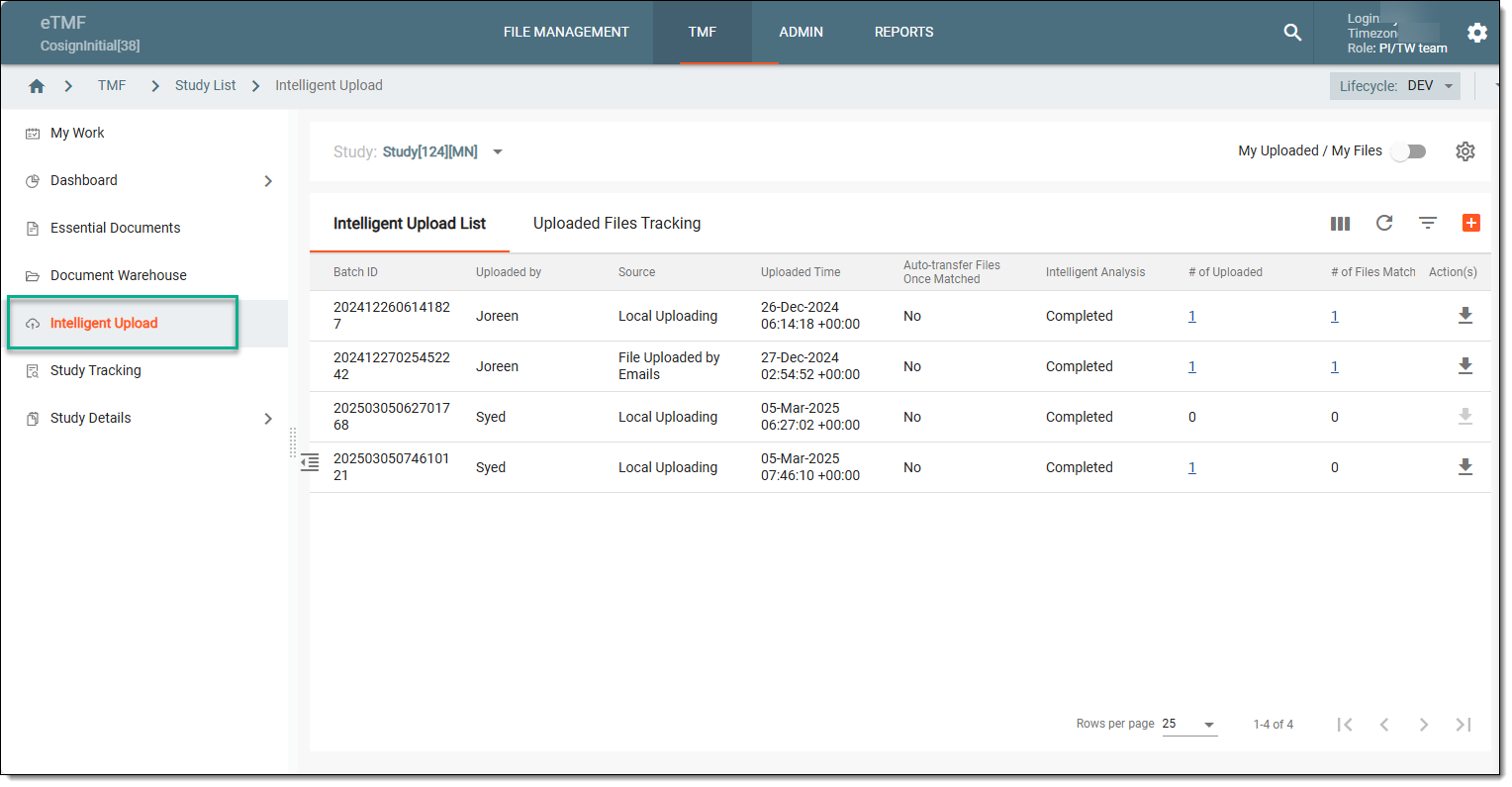 Figure 2. Accessing intelligent upload subtab
-
On the contents panel, select the Uploaded Files Tracking tab, locate the file for which you want to check the contents, and in the Action(s) column, select Preview
 .
.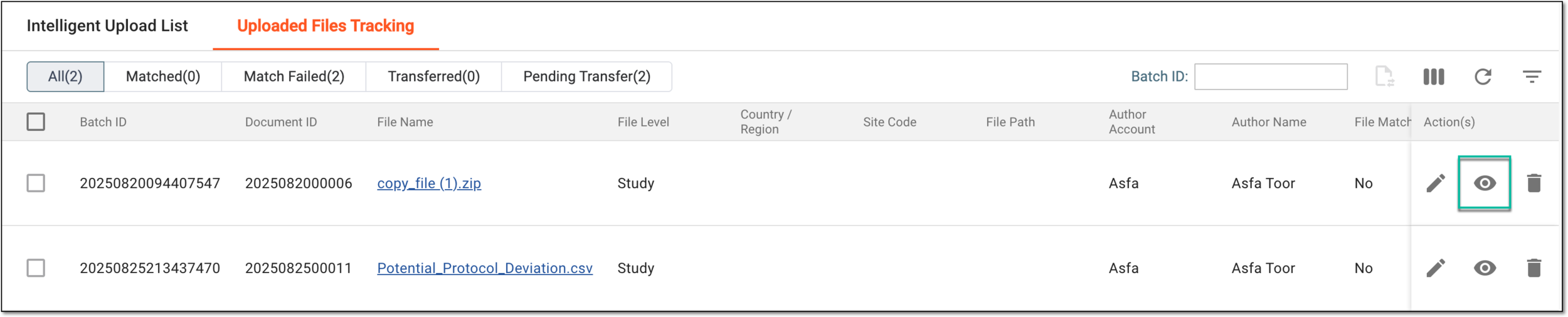 Figure 3. Accessing option to preview file
-
For the files in the ZIP format, the list of compressed files opens. You can locate the file of your interest and next to it, select Preview
.For files in formats other than ZIP, this step is irrelevant.
 Figure 4. Selecting option to preview file within ZIP archive
Once the Preview option is selected, the file contents are opened in the new browser tab for you to analyze the data.