Delete uploaded files
The Intelligent Upload module is an intermediary step in the file upload process that classifies the incoming files—automatically or manually by analyzing files, amending their metadata, and distinguishing their place in the DIA RM-based storages of Essential Documents.
Deleting outdated or duplicate files helps maintain a clean and organized repository, reducing confusion and preventing the use of incorrect documents during trials. It helps organizations to ensure that only relevant and up-to-date documents are accessible to facilitate accurate decision-making and compliance with regulatory requirements.
Important
You cannot edit the files that are already transferred—automatically or manually—to Essential Documents.
-
In the eTMF application header, select the TMF tab.
-
In the Study List table that opens by default, select the study for which you want to access the relevant files.
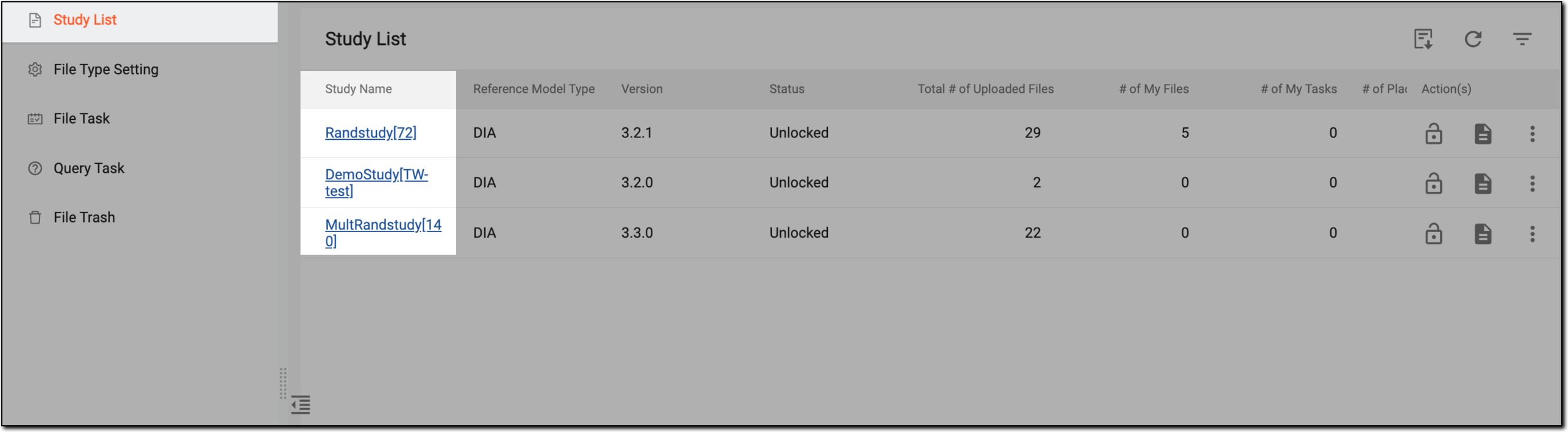 Figure 1. Selecting study
-
On the page that opens, in the left pane, select the Intelligent Upload subtab.
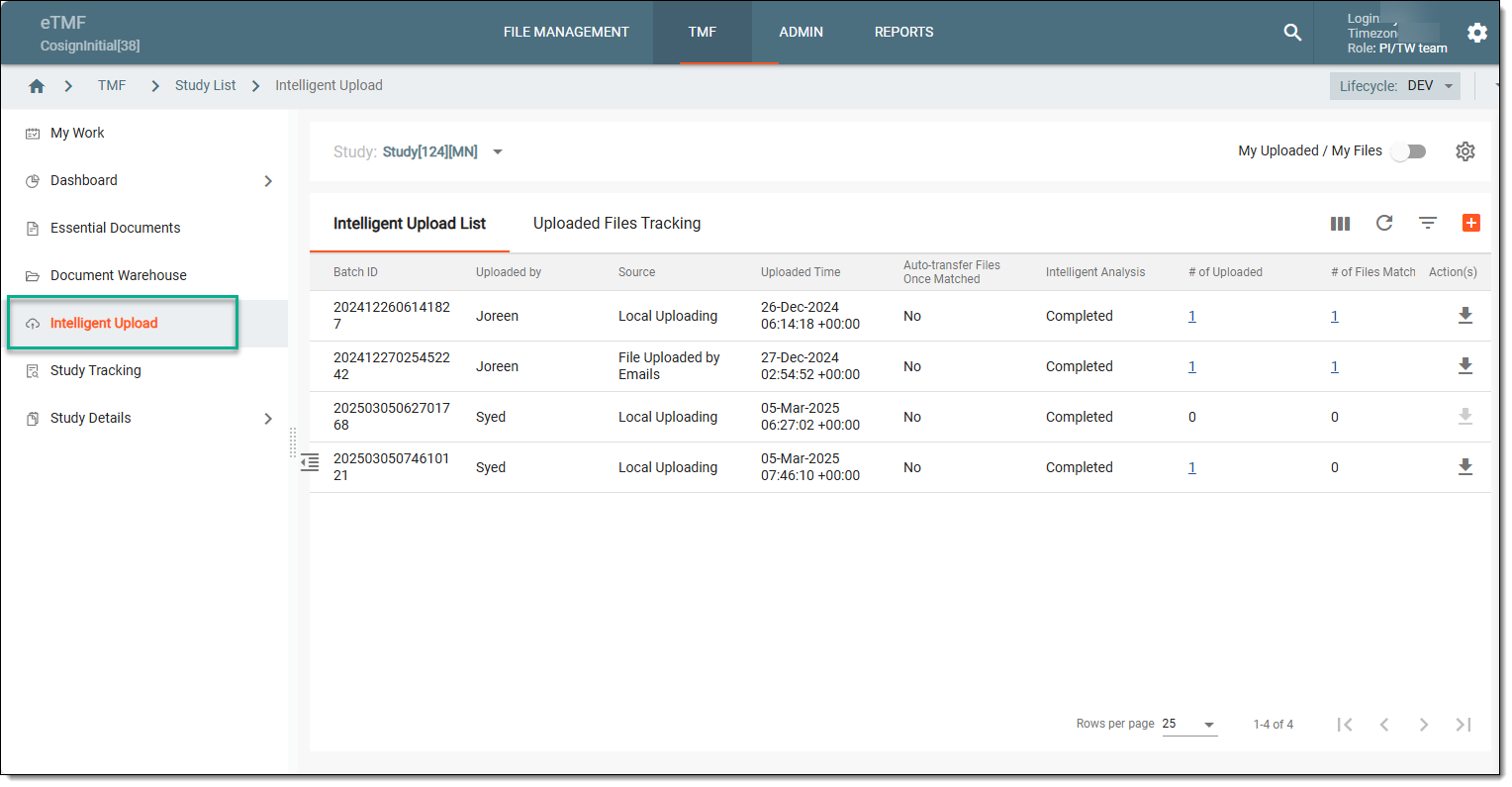 Figure 2. Accessing intelligent upload subtab
-
On the right, select the Uploaded Files Tracking tab, locate the file that you want to delete, and in the Action(s) column, select Delete
 .
.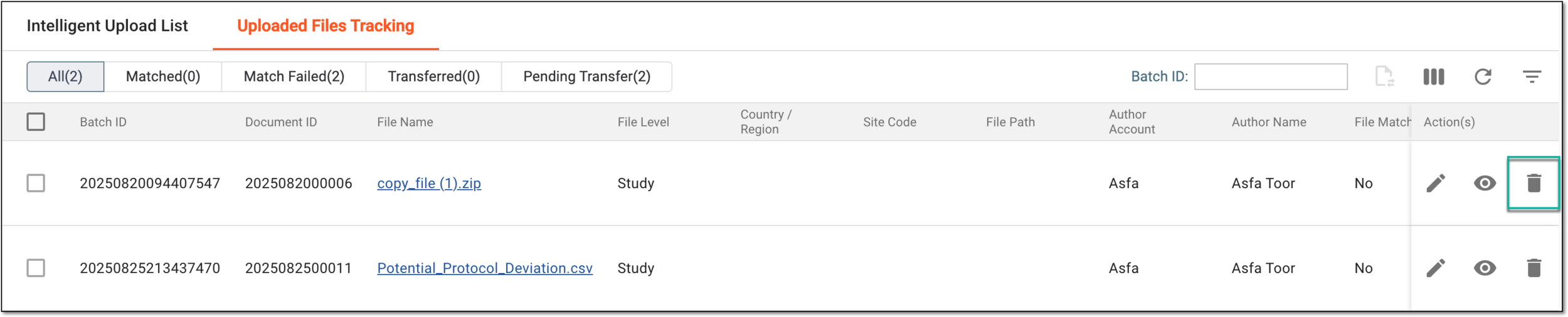 Figure 3. Accessing option to delete file
Tip
Use the filter buttons to sort the table data based on the file match and transfer status.
 Figure 4. Sorting report by file transfer status
-
In the Delete Item dialog that appears, select DELETE to confirm your action.
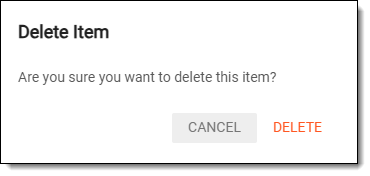 Figure 5. Confirming file deletion
Once confirmed, the file is deleted from the system and is no longer displayed in the Intelligent Upload module.