Add checkbox item to question
In Study Designer, study teams have a variety of tools to configure case report forms (CRFs) for data collection. There are various items— text fields, checkboxes, dropdown menus, date pickers, and more—that you can add as form fields next to their respective questions. You can place these fields on the form canvas, arrange them as needed, and make sure they are associated with the corresponding variables. This provides flexibility to outline the way each question must be answered by the user, and how the data must be stored by the system.
One of the items that you can add to the form questions is a checkbox. Checkboxes are useful when one or more options need to be selected from a predefined list that is populated from the codelist assigned to the item.
For example, if you have a question about the participant's allergies. A codelist with the options such as "Pollen," "Dust Mites," and "Peanuts" can be assigned to the checkbox item. So when the subject enters data in EDC, they can select the checkboxes that apply.
Important
By updating a unique form, you introduce changes to all visit forms linked to it and vice versa.
-
In the Study Designer application header, select the CRF DESIGN tab.
-
In the toolbar, select the latest draft CRF version marked with the respective unlock symbol
 , otherwise, you cannot perform any actions.
 Figure 1. Selecting latest draft CRF version
-
In the left pane that appears, expand the unique form or any visit directory. Then select the needed form.
Tip
To locate the needed forms faster, use Search
 on the workspace toolbar of the
left pane.
on the workspace toolbar of the
left pane.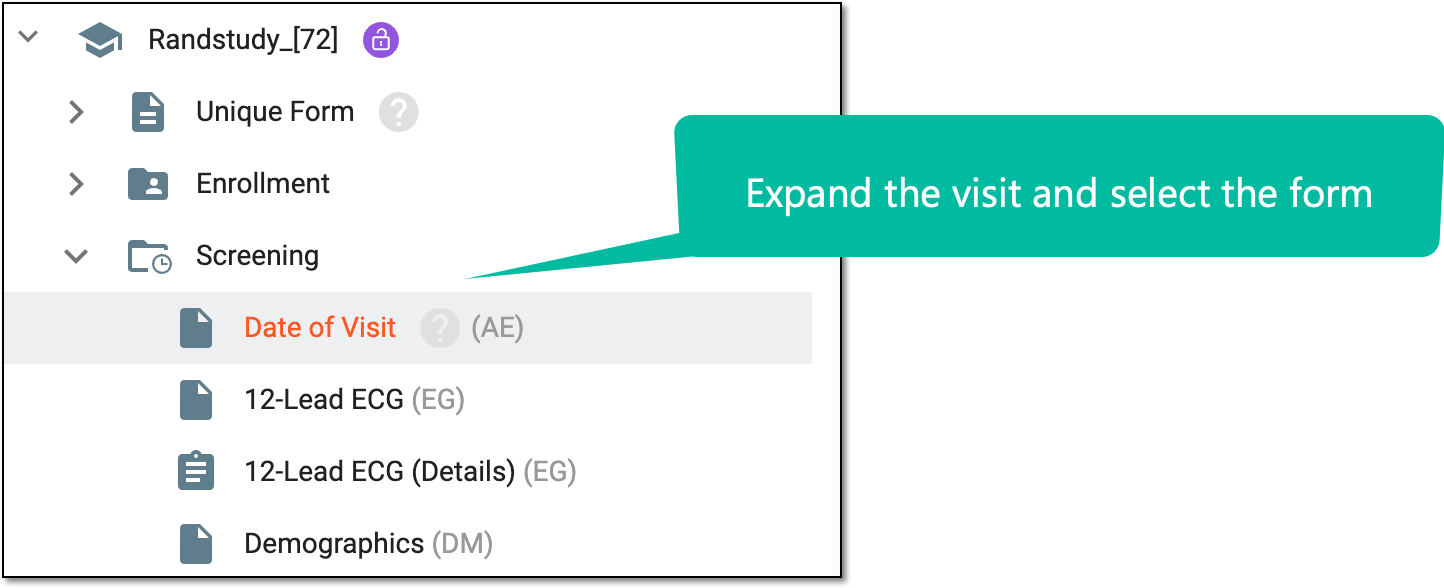 Figure 2. Accessing form to configure
-
On the form content page that appears, select the option to add a checkbox item to the question in one of the following ways:
-
From the action bar, select Checkbox
 .
.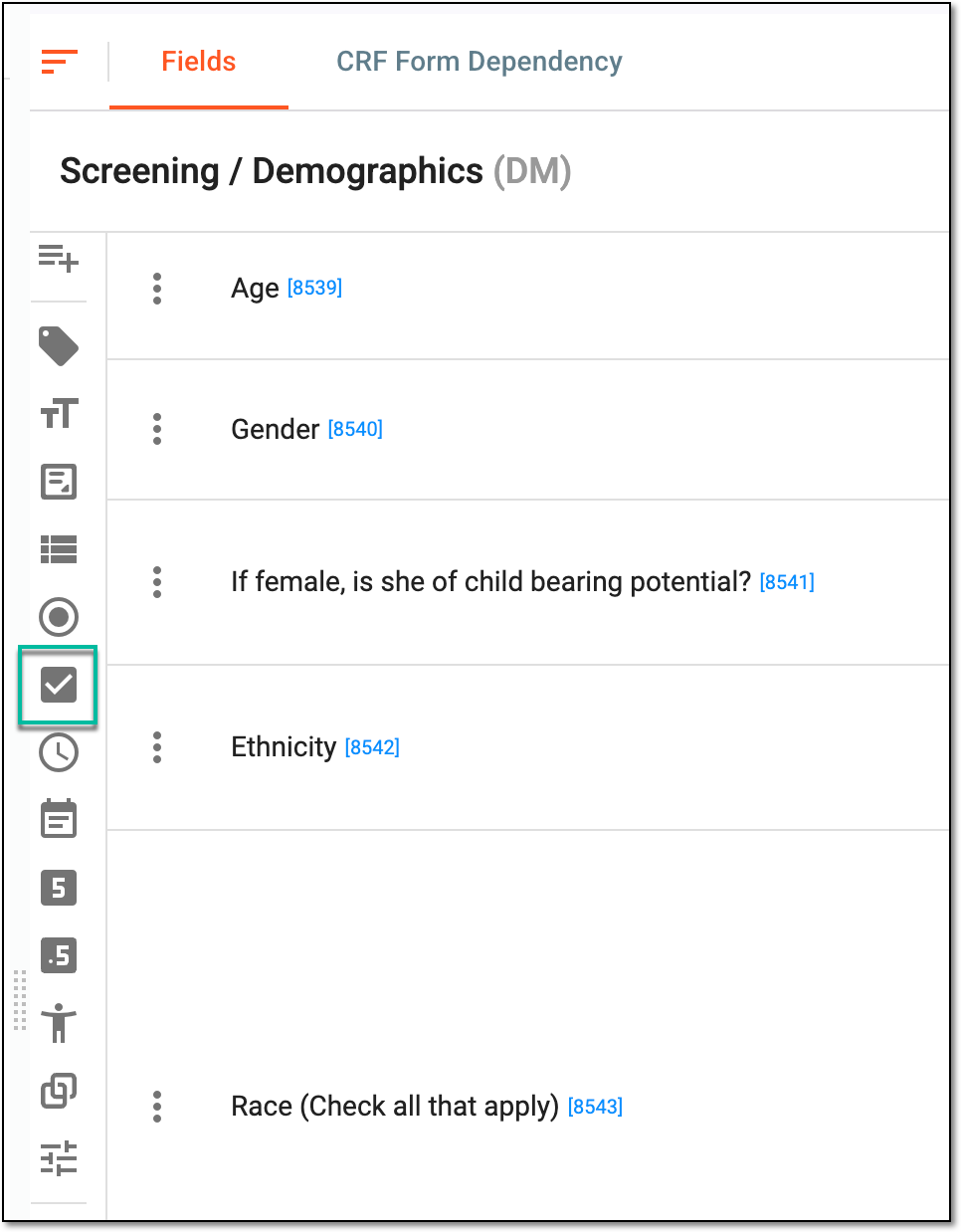 Figure 3. Selecting checkbox item
-
From the action bar, select and drag Checkbox
to the needed question.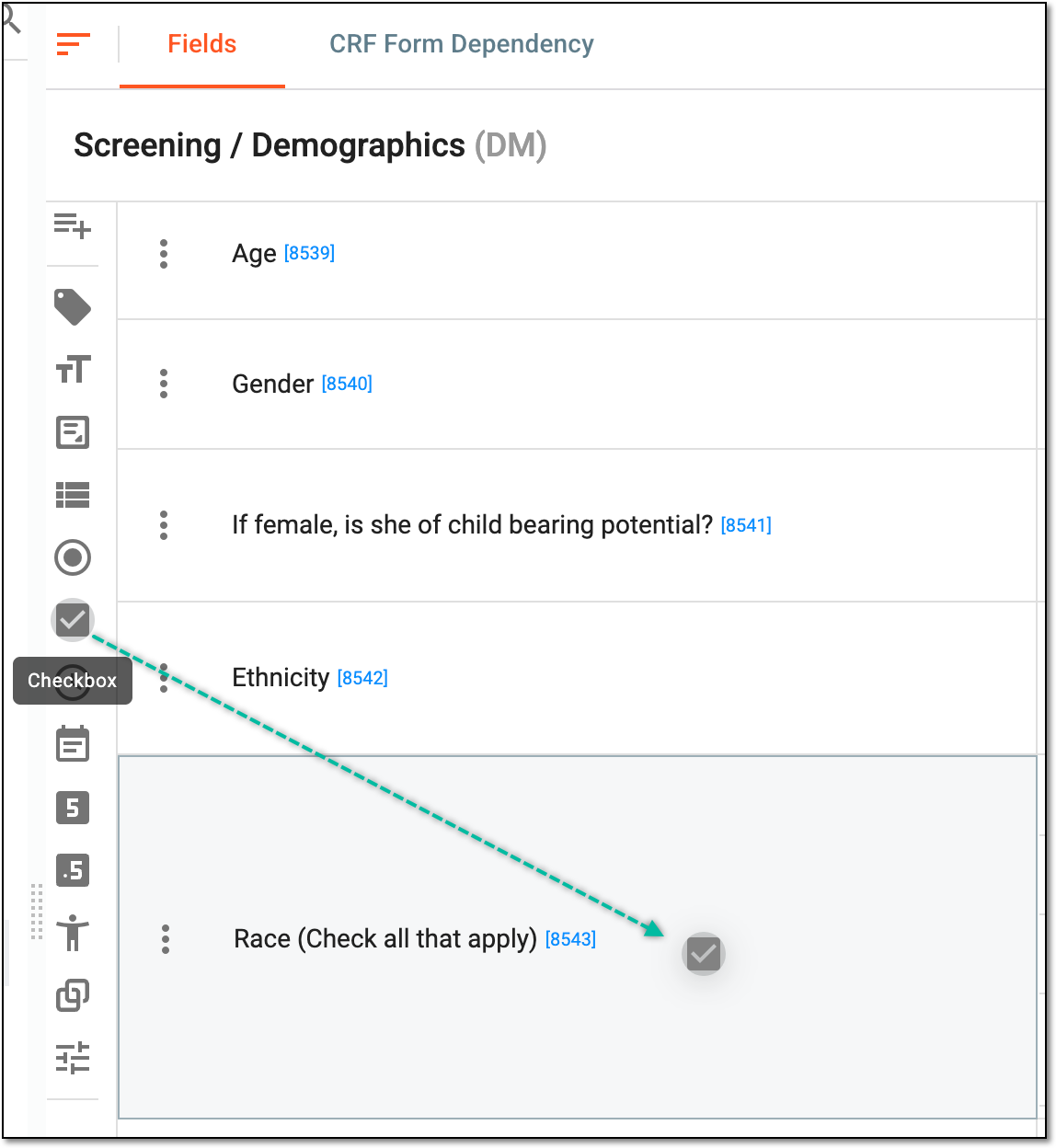 Figure 4. Dragging checkbox item to question
-
If there has been at least one item already assigned to the question, then next to any item, select More
 >
New Item
>
New Item  .
.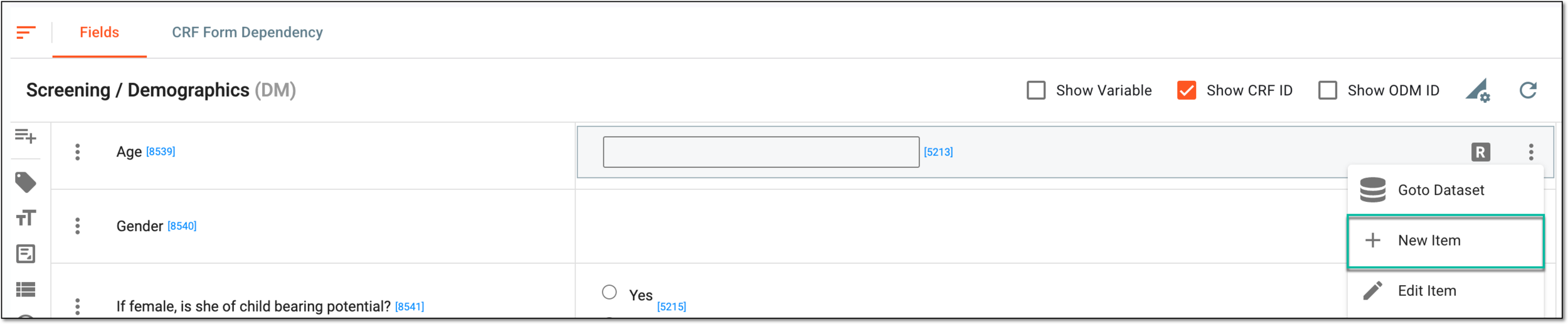 Figure 5. Adding checkbox to existing item
-
-
In the Add Item panel that expands, under the Generate tab, fill in the general details as explained in the following table.
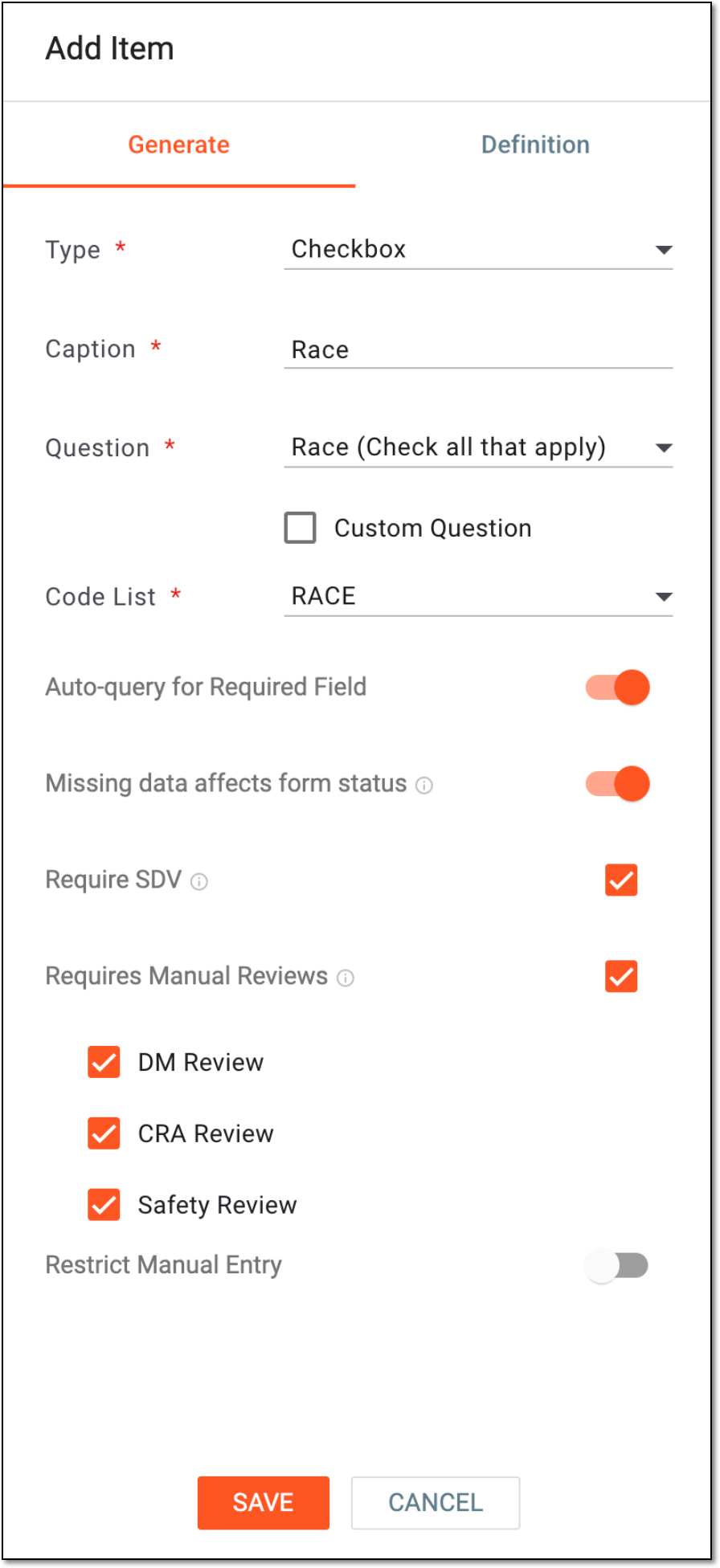 Figure 6. Adding checkbox item
Tip
In the following table, mandatory elements are marked with an asterisk (*).
Element
Details
Type*
Select the Check Box type here.
Caption*
Enter a short title or description that defines the added item.
Question*
Select the question to which the item is being added.
If the Custom Question checkbox is selected, then you need to enter the question text manually.Custom Question
Select this checkbox if you want to add a new custom question along with the created item to the form.
If selected, it is required to enter a custom question text in the Question field.Code List*
Select a controlled terminology with a list of permissible values that can be used to capture specific data. It serves as a reference for data entry and ensures that the captured data is consistent and standardized.
If the codelist you need is missing, you can always add a new codelist to be associated with the item.Auto-query for Required Field
Turn on this toggle if you want the field associated with the item to become required for data entry in the EDC system, and submitting the form with this field empty automatically triggers a system query. Leave the toggle turned off if this field can be optional for data entry.
Missing data affects form status
Turn on this toggle if you want the CRF to have the Incomplete status in the EDC system when the data has not been entered in the field associated with the item. Leave the toggle turned off if you do not want this field's status to affect the status of the CRF upon submission.
This toggle becomes available only if the Auto-query for Required Field toggle has been turned on.Require SDV
Select this checkbox to set the source data verification (SDV) stage as mandatory for this data item.
Requires Manual Reviews
Select the checkbox next to the needed review stage to set it as mandatory for this data item. The available options are DM Review for the data manager review, CRA Review for the clinical research associate review, and Safety Review for the safety team review.
Restrict Manual Entry
Turn this toggle on if you want to prevent manual data entry to the field for all users except for those for whom restricted data editing is allowed in EDC. Leave the toggle turned off if you do not need to arrange specific data entry restrictions for this element.
SAVE
Select
 to add the item to the question.
This button is available only if the variable definition for the item has been specified.CANCEL
Select
 to cancel adding the item.
 -
In the same Add Item panel, go to the Definition tab to specify the variable definition for the item as explained in the following table.
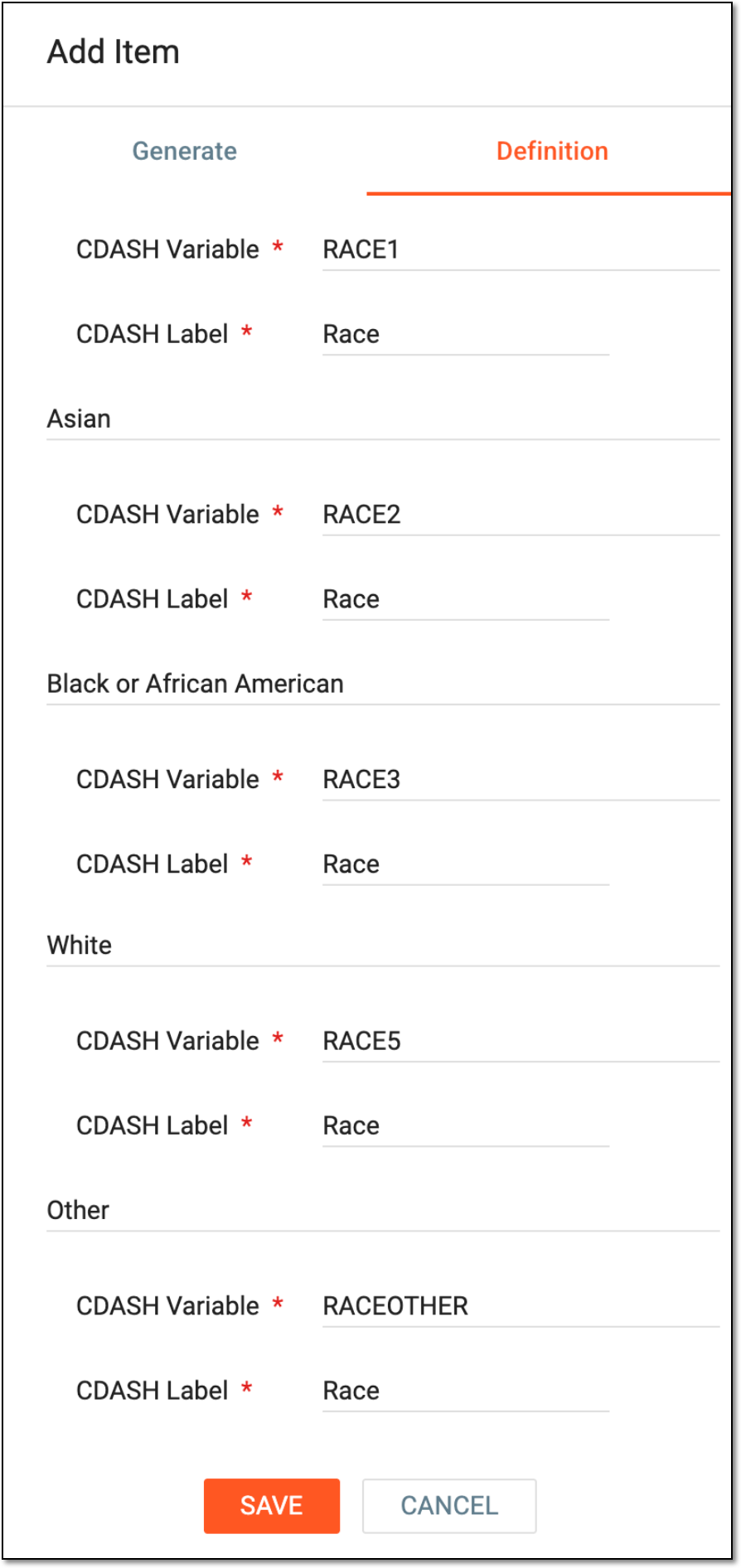 Figure 7. Specifying variable definition for checkbox item
Important
All of the fields in the following table are required and marked with an asterisk (*) because each checkbox option must be associated with the variable that captures the data entered in EDC.
Under the Definition tab, a list of codes is populated based on the codelist that has been assigned to the item. Each of the codes must be associated with a separate CDASH variable so the collected responses can be stored in different columns in the output dataset upon data entry in EDC.
Element
Details
CDASH Variable*
Enter the name of the CDASH variable that is to capture a specific checkbox response. You need to specify variables for each of the available codelist codes. The field only supports uppercase letters, numbers, and underscores.
CDASH Label*
Enter the label of the CDASH variable that is to capture a specific checkbox response. You need to specify the variable labels for each of the available codelist codes.
As per the CDISC standard, the maximum length of the CDASH label is 256 characters. The system shows a prompt if you surpass this number when entering the CDASH label. Then, when saving the label item setting, the system
                                  checks for the variable suffix setting and adds its characters to those entered for the CDASH label here to verify if the combination of them does not
                                  surpass 256. If it does, you need to shorten the CDASH label value before saving.
SAVE
Select
to add the item with the specified variable definition to the question.CANCEL
Select
to cancel adding the item.
Once saved, the checkbox item is added to the form question. You can now continue to maintain forms with available actions.