Add codelist
A codelist is a predefined list of standardized codes representing specific responses or data points. The codelists are essential in the CRF design as they ensure consistency in data collection, making the data comparable across different subjects or time points.
By adding codelists to the SD app, you predefine a database of such lists for the CRF design, where you can reuse them. You can add as many codelists as needed to ensure they are comprehensive, accurate, and tailored for the data collection according to the specific study requirements.
In SD, there are multiple ways of adding codelists as discussed in the following sections.
By adding codelists to your study in the SD app, you predefine a database of such lists for the CRF design, where you can reuse them. One of the ways to add codelists is to import them from the local library. The library contains the latest version of the CDASH SDTM standard, providing access to the most current codelists, complete with corresponding code items. This library is available for all your studies handled via SD, so you can add and reuse the same codelists to any study, maintaining cross-research consistency and up-to-date standardization.
Important
Before initiating the following procedure, ensure to select the latest unlocked CRF version from the toolbar of the CRF DESIGN tab, otherwise, you cannot add codelists to your study. The CRF version remains unlocked until it is submitted to EDC for data entry.
-
In the Study Designer application header, select the CODELIST tab.
-
From the workspace toolbar of the CodeList Setting table that appears, select the library icon
 .
.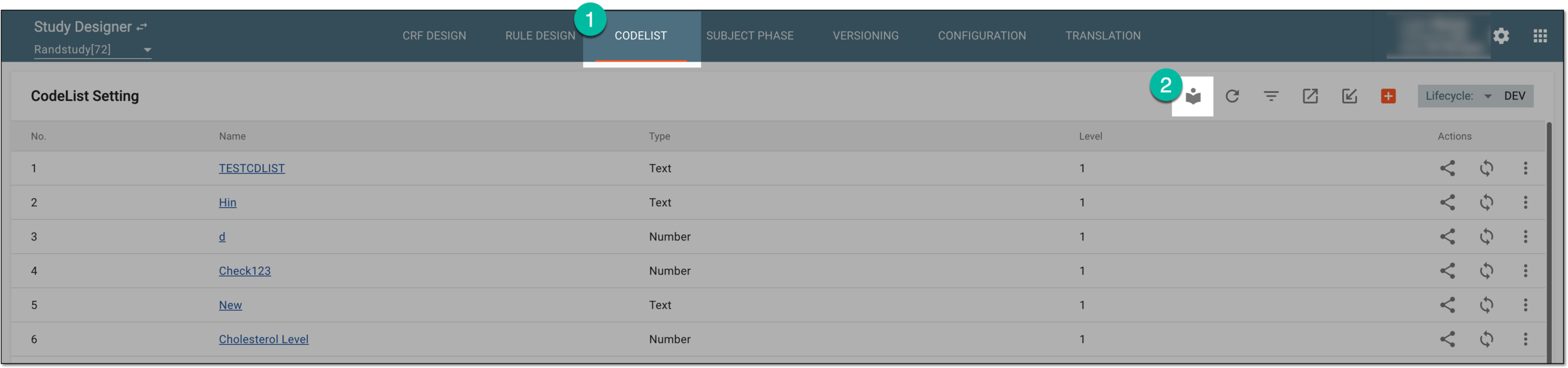 Figure 1. Accessing codelist library
-
On the page that opens, select the codelists you want to add to your study. You can navigate between pages or use the filters to locate and select needed codelists.
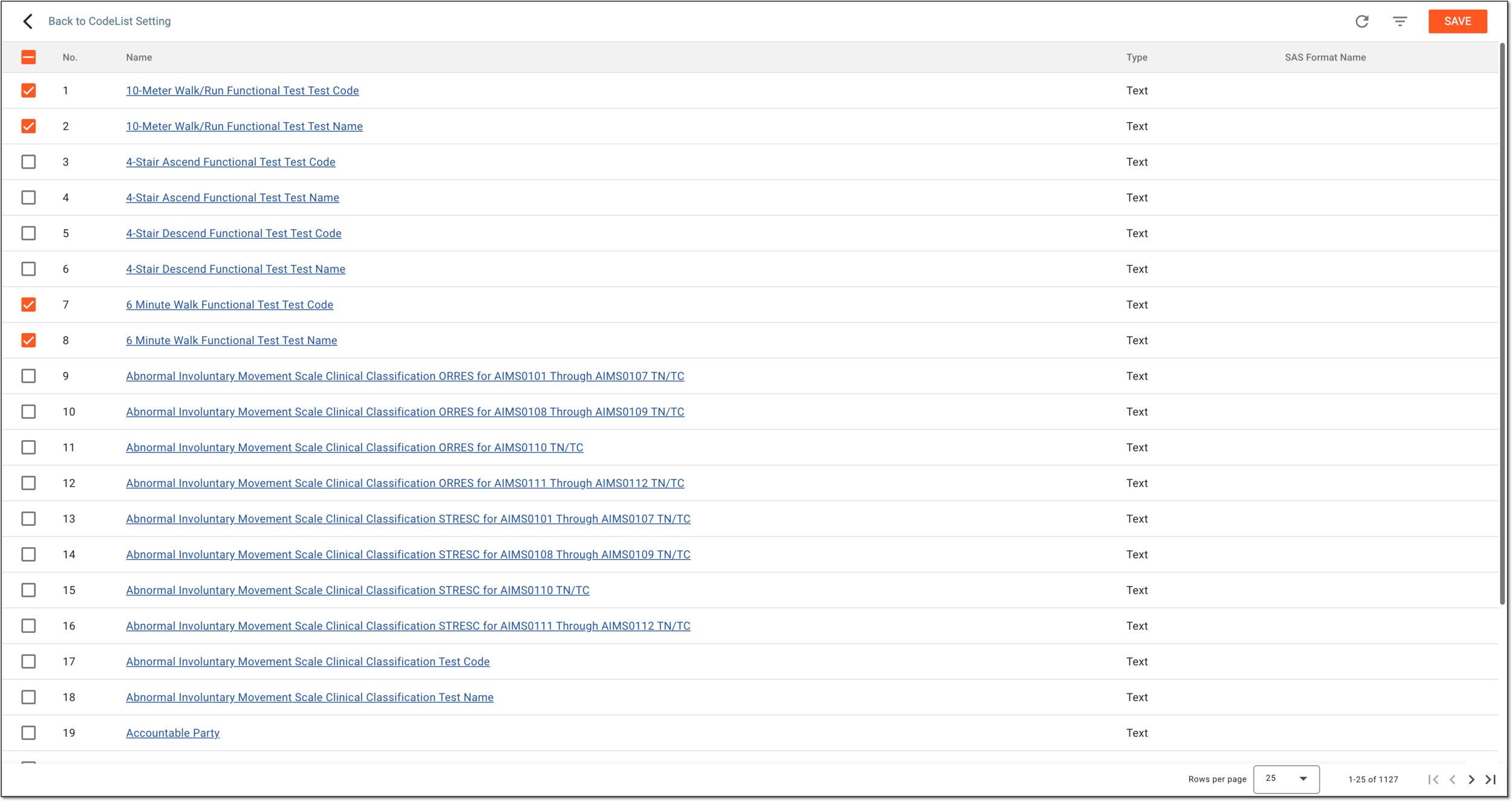 Figure 2. Selecting codelists to add
-
From the workspace toolbar, select
 .
.
Once saved, the selected codelists are added to your study. You can now associate these codelists with question responses in forms.
By adding codelists to your study in the SD app, you predefine a database of such lists for the CRF design, where you can reuse them. One of the ways to add codelists is to import them from your computer in the XLSX format. To ensure that the file structure is supported by the application, you can export the codelist template beforehand and fill it out. This guarantees the file's compatibility with the system.
Important
Before initiating the following procedure, ensure to select the latest unlocked CRF version from the toolbar of the CRF DESIGN tab, otherwise, you cannot add codelists to your study. The CRF version remains unlocked until it is submitted to EDC for data entry.
Moreover, make sure that the file contains unique codelists that have not yet been added to your study. The system prevents the import if the file includes existing codelists.
-
In the Study Designer application header, select the CODELIST tab.
-
From the workspace toolbar of the CodeList Setting table that appears, select Import
 .
.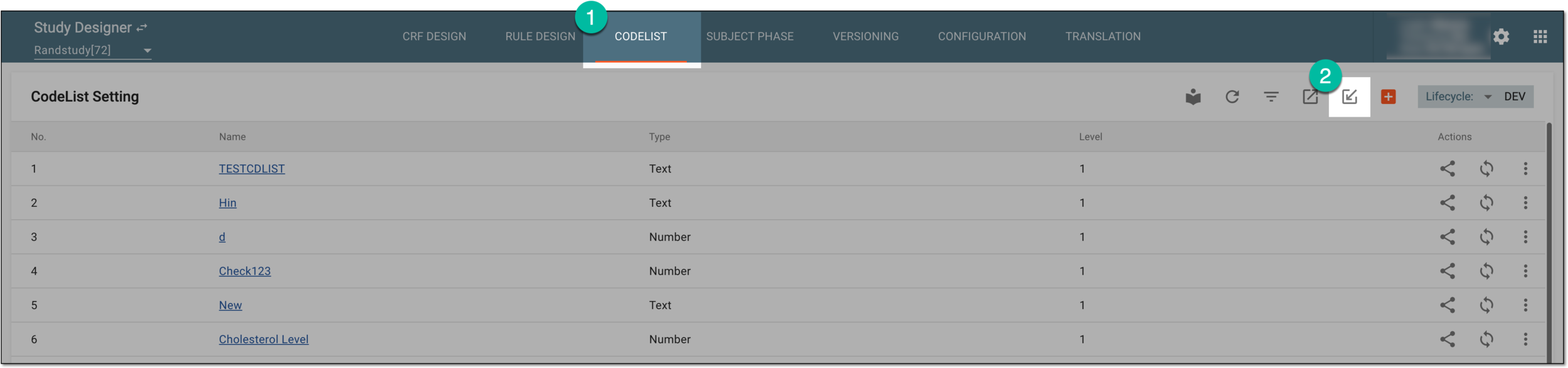 Figure 1. Accessing codelist import
-
In the dialog that appears, follow the prompts of your operating system to locate and select the needed file.
Once imported, codelists from the selected file are added to your study. You can now associate these codelists with question responses in forms.
By adding codelists to your study in the SD app, you predefine a database of such lists for the CRF design, where you can reuse them. One of the ways to add codelists is to create them manually. This method is useful when your research requires the collection of study-specific data that is not covered by codelists added from the local library. The manual creation of codelists ensures that the unique data requirements of your study are met.
Important
Before initiating the following procedure, ensure to select the latest unlocked CRF version from the toolbar of the CRF DESIGN tab, otherwise, you cannot add codelists to your study. The CRF version remains unlocked until it is submitted to EDC for data entry.
-
In the Study Designer application header, select the CODELIST tab.
-
From the workspace toolbar of the CodeList Setting table that appears, select New Code
 .
.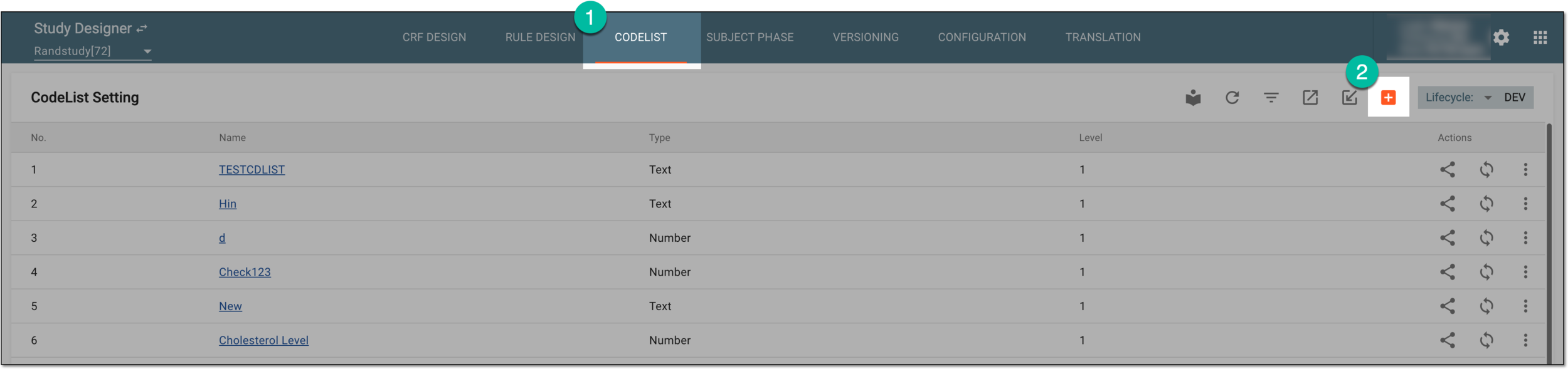 Figure 1. Accessing option to add codelist manually
-
In the Add dialog that appears, fill in the fields as explained in the following table.
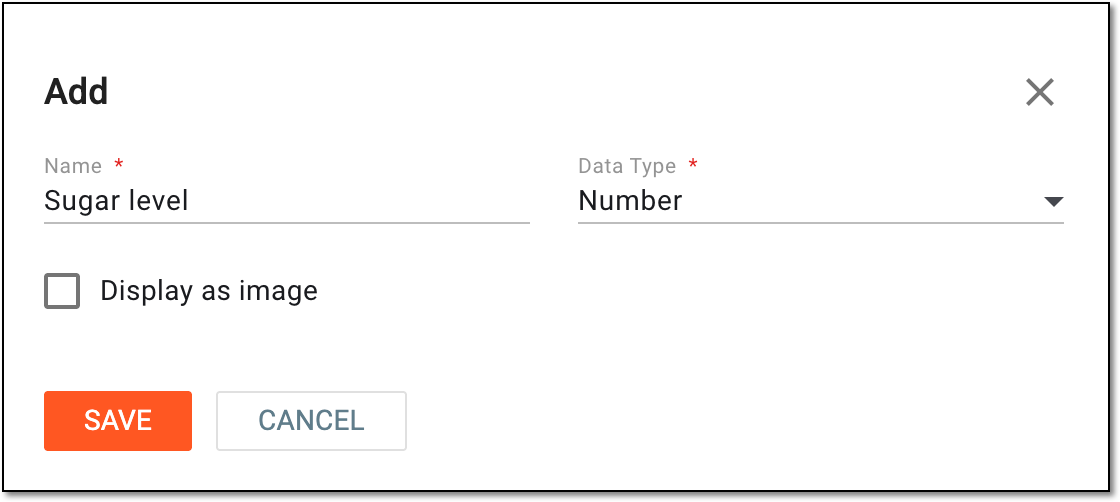 Figure 2. Adding codelist manually
Tip
In the following table, mandatory elements are marked with an asterisk (*).
Element
Details
Name*
Enter the unique name of the codelist.
Data Type*
Select the category of data depending on what type of response the codelist is expected to include, such as:
-
Text: the codelist items are to be in textual format.
-
Number: the codelist items are to be in numerical format.
Display as Image
Select this checkbox if you want the items of the codelist to include images. By selecting this checkbox, you enable the functionality to upload logo images to each codelist item. If cleared, you cannot add images to codelist items.
SAVE
Select
to create a codelist. -
Once saved, a new codelist is added to your study. You can now add items to this codelist.