Add item to codelist
In the Study Designer app, each codelist added to the study must contain a collection of items (codes) to be used as responses for specific questions in CRFs. By including an extensive range of items in each codelist, you ensure that the data captured is not only precise but also customized to meet the specific demands of the study or the requirements set forth by the sponsor.
An example of a codelist items can be a set of "Male" and "Female" responses for a "Gender" question or "Yes" and "No" values for a simple two-option question. There can also be more sophisticated and study-specific codelists, for instance, with items like "Low Carb," "High Protein," and "Keto" to answer the dietary habits question if your study is for digestive medicine.
Important
Before initiating the following procedure, ensure to select the latest unlocked CRF version from the toolbar of the CRF DESIGN tab, otherwise, you cannot add items to codelists in your study. The CRF version remains unlocked until it is submitted to EDC for data entry.
-
In the Study Designer application header, select the CODELIST tab.
 Figure 1. Accessing codelist management
-
In the CodeList Setting table that appears, select the codelist to which you need to add a new code item.
 Figure 2. Selecting codelist
-
On the codelist details page that opens, from the workspace toolbar, select New Item
 .
.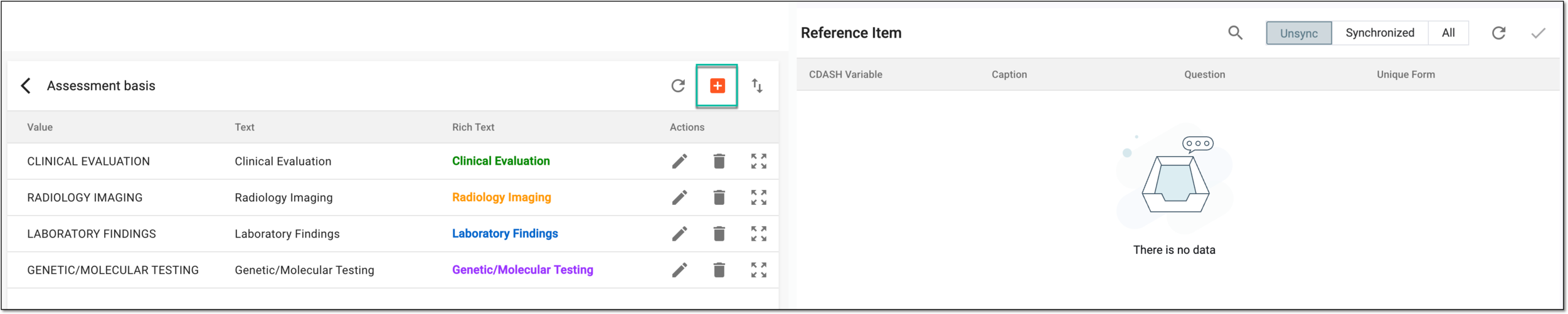 Figure 3. Selecting option to add item
-
In the dialog that appears, add the item details as explained in the following table.
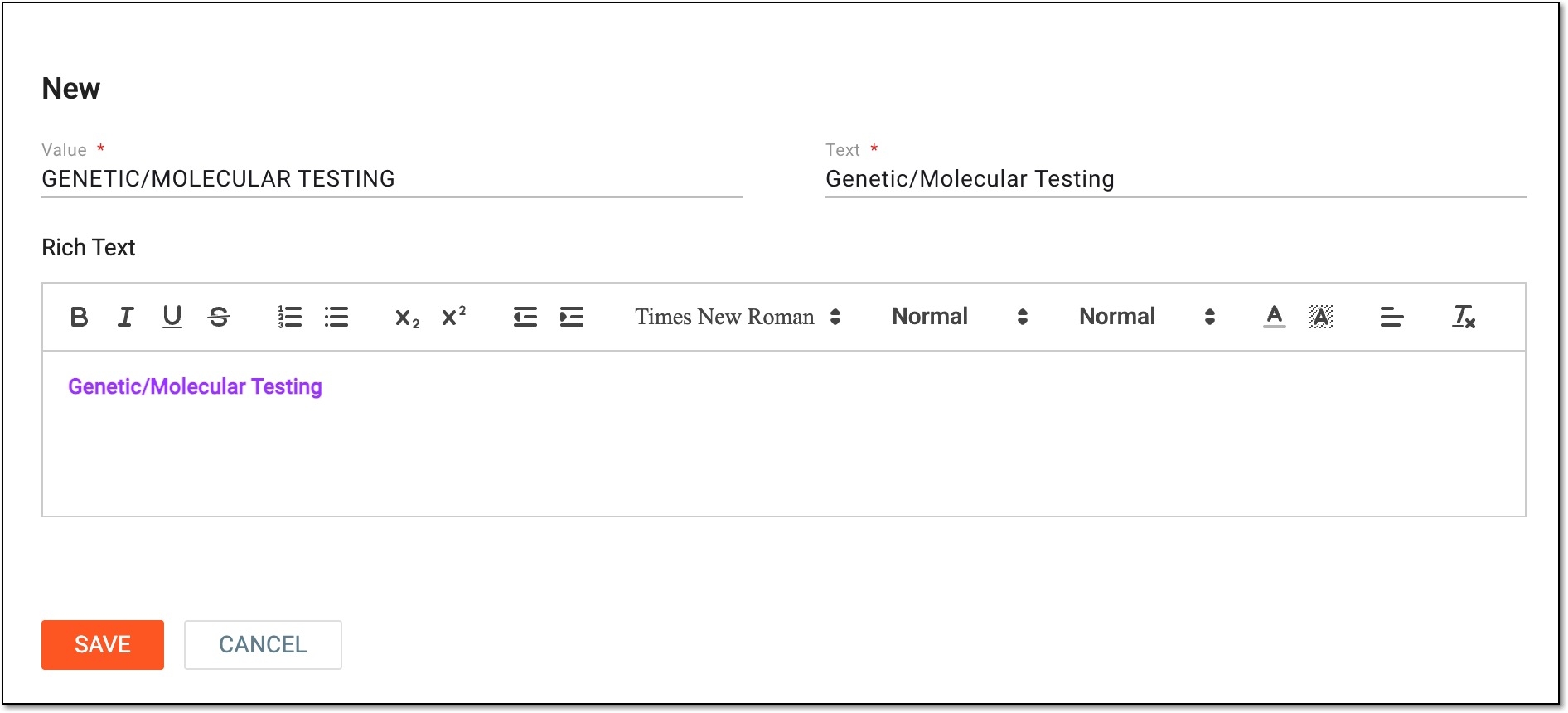 Figure 4. Adding text item to codelist
Tip
In the following table, mandatory elements are marked with an asterisk (*).
Element
Details
Value*
Enter the value of the code item in numeric or textual format.
For instance, you can add the numerical value of the high blood pressure, if the codelist is about blood pressure.
Text*
Enter the caption of the code item.
For instance, if the value includes the blood pressure rate, such as 199, 200, 201, and so on, then the text field includes the caption of the value, such as optimal, high, and so on.
Rich Text
Enter and style your text as needed using the available formatting tools. The rich text you apply defines how your codelist item is displayed if added as the checkbox or radio item to the CRF.
The rich text editor is only available if the Display as Image checkbox is cleared for the
                                  codelist.
Logo*
Select the image in SVG format you want to display with the text.
The image upload is only available if the Display as Image checkbox is selected for the codelist.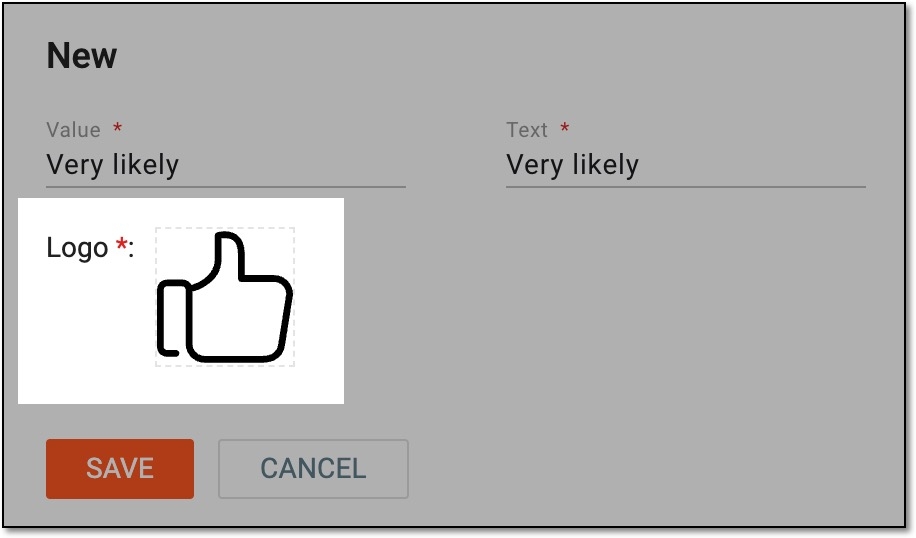 Figure 5. Adding image item to codelist
SAVE
Select
 to implement the changes.
CANCEL
Select
 to discard the changes.
Once saved, the code item is added to the codelist. You now need to sync this codelist with associated variables so responses can become available in corresponding forms.