Review uploaded data
The View Result feature helps you examine the data uploaded for coding and check any available coding results. Basically, you can do two things:
-
If coding has not started yet: you can only review the uploaded data to check which verbatim terms (VTs) have been prepared for coding. This includes verifying information such as protocol site, subject, and the verbatim terms themselves.
-
If coding has already started: you can view both the initial data from the uploaded file and the coding results. This helps you see how each VT has been processed and matched with the appropriate dictionary (MedDRA and WHODrug).
Important
The feature is available only for the domains in the Await Start and Coding Started statuses. For more details, refer to Review domains prepared for coding.
-
In the Medical Coding application header, select the BATCH tab.
 Figure 1. Accessing batch configurations
-
In the Batch List table that appears, go to the coding batch that contains the domain where the VTs have already been uploaded or the coding process has begun. Then select
 next to it.
 Figure 2. Accessing coding batch domains
-
In the Domain List table, go to the domain containing the upload/coding results you want to analyze and review. Then select View Result
 next to it.
 Figure 3. Initiating reviewing of coding results
-
On the Export page that opens, analyze and review the upload/coding results.
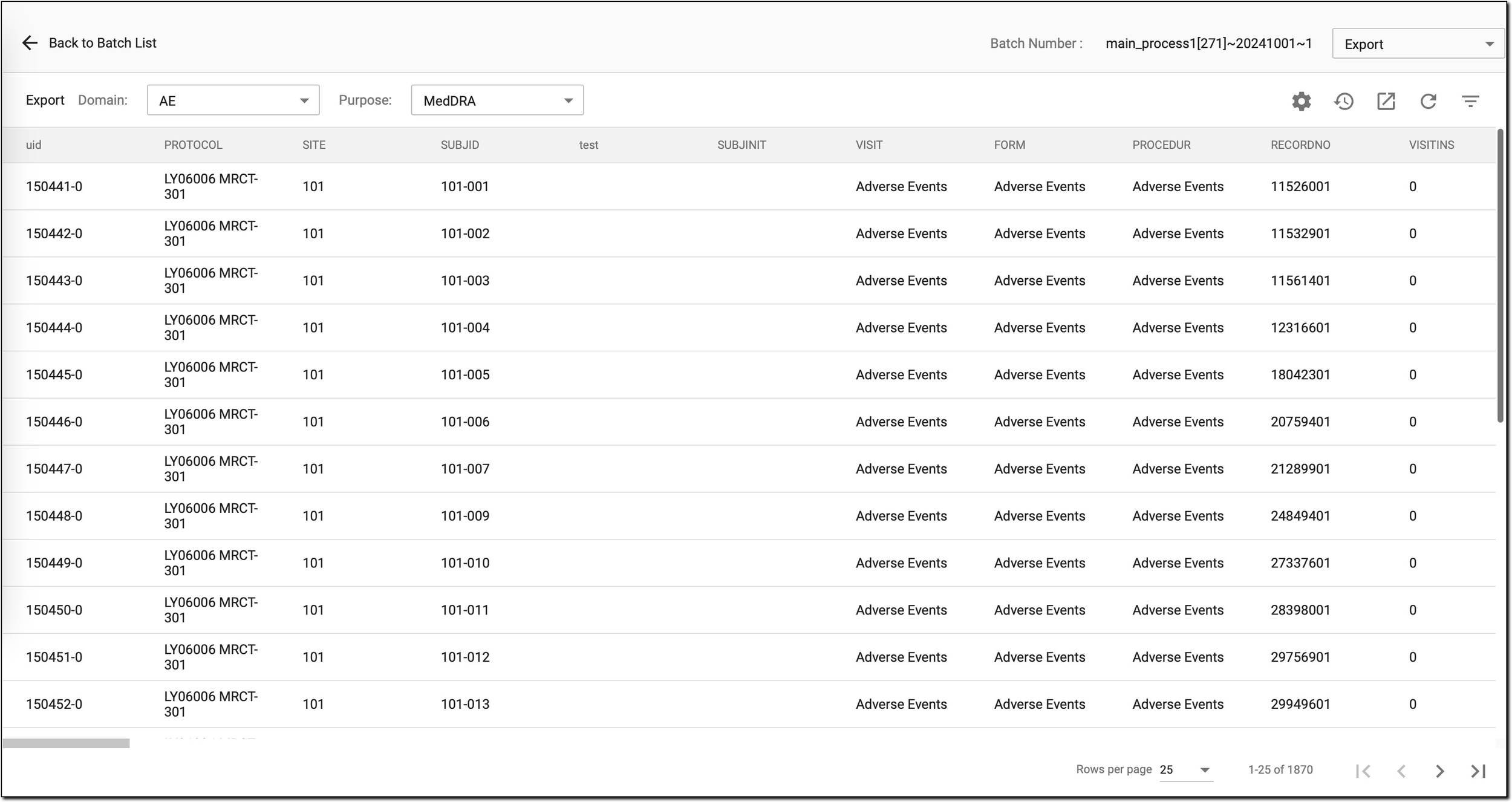 Figure 4. Viewing upload/coding results
Tip
You can also view the coding results from the Coding Result page, however, the structure there is different. On that page, the coding information is presented for each VT individually, providing a more detailed view of each term. Additionally, if the term has not yet been coded, you can initiate the coding process directly on that page.
In contrast, on the Export page, the coding results are organized by domain. Unlike the Coding Result page, you cannot start coding from the Export page. It serves purely for viewing and exporting the data.
-
To enhance your experience, you can use one of the following options located in the workspace toolbar:
-
Setting
 : to customize your view for easier data analysis. To do this, in the Setting dialog that opens, select one of the following options:
-
Show Name: display only the VT names in the current domain.
-
Show Label: display only the VT descriptions (labels).
-
Show Name and Label: display both the VT names and their descriptions.
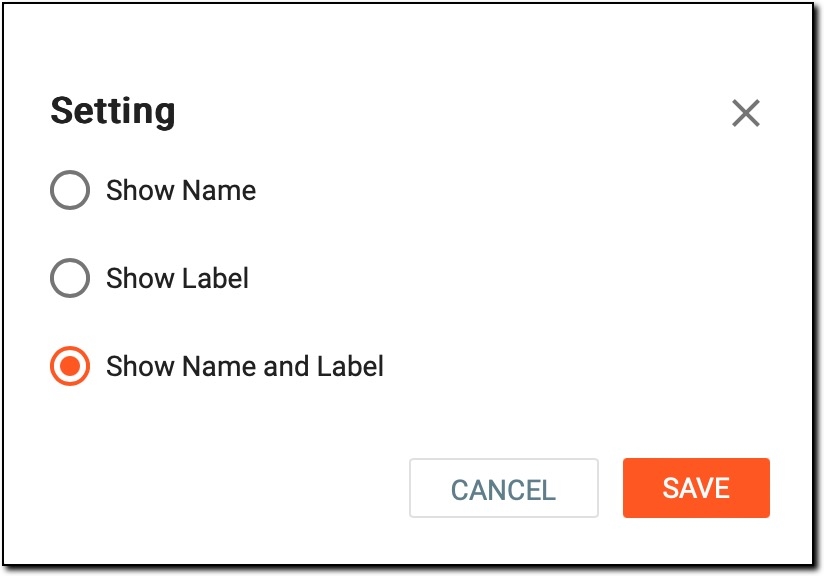 Figure 5. Changing domain display settings
-
-
Export
 : to export the domain data for offline analysis and sharing, making it convenient to work with this data outside the CODING application.
 -
Export History
 : to review a log of previously exported data.
-
Now, based on your review of the results, you can proceed with the next tasks. For example, if the coding has not been started yet, you can initiate the coding process.