Export domain data
With the Export feature, you can export data from the domains for offline work, whether you need to review it outside the CODING application or share it for further analysis.
Depending on the stage of the coding process, the exported data varies:
-
If coding has not started: you can export the initial verbatim terms (VTs) that have been uploaded to the domain—either through a data file upload or via the EDC system—for further processing.
-
If coding has started: the exported file includes both the VTs from the initial upload and the results of the coding process, helping you see the terms that have been mapped to the coding dictionaries (like MedDRA and WHODrug).
-
In the Medical Coding application header, select the BATCH tab.
 Figure 1. Accessing batch configurations
-
In the Batch List table that appears, go to the coding batch that contains the domain whose data must be exported. Then, next to it, do one of the following:
-
Select
 . Then, on the page that opens, in the workspace toolbar, next to the batch number, select Export.
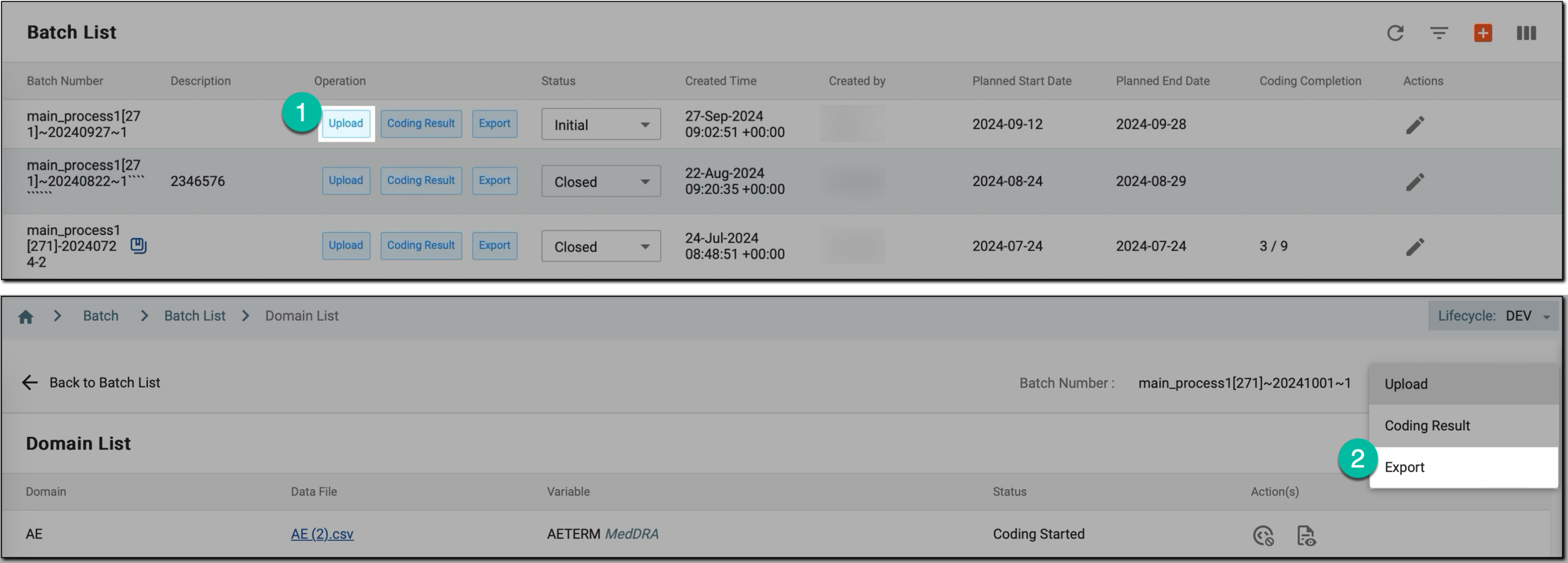 Figure 2. Accessing and exporting coding batch domains
-
Select
 .
.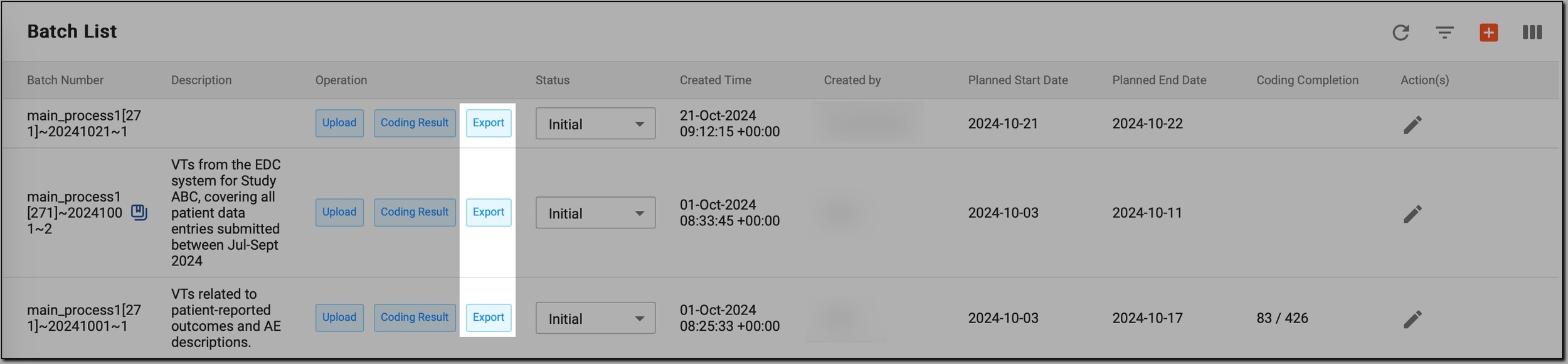 Figure 3. Accessing export option from Batch List page
-
-
On the Export page that opens, expand the Domain list and select the domain whose data you want to export.
 Figure 4. Filtering exported data
Important
Skip this step if you want to export data from all domains at once.
-
In the workspace toolbar, select Export
 .
. Figure 5. Initiating data export
-
In the Export dialog, configure the export options as explained in the following table.
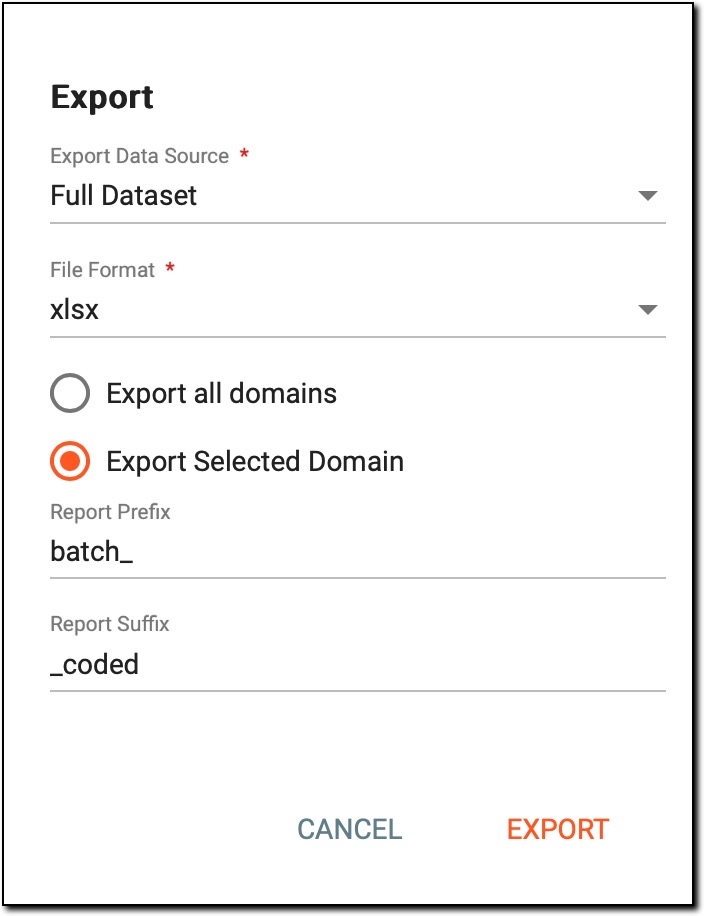 Figure 6. Configuring export options
Tip
In the following table, mandatory elements are marked with an asterisk (*).
Element
Details
Export Data Source*
Define what data should be included in the file you are exporting:
-
Full Dataset: export all data previously uploaded to the domain.
-
Clean Dataset: export only the lines where the main variable value is present.
File Format*
Choose the file format for exported data based on your further processing needs: .xlsx, .css, or .sas7bdat.
Export all domains
Select this option to export data from all domains in the batch, regardless of the domain currently selected.
Export Selected Domain
Select this opinion if you only need to export data from the specific (currently selected) domain.
Report Prefix
Add a prefix to your exported file name to help organize files.
The system does not set any default values for this field. However, once you set a prefix, it is saved and automatically filled in the next time you open the Export dialog.Report Suffix
Add a suffix for your exported file to distinguish it.
The system does not set any default values for this field. However, once you set a suffix, it is saved and automatically filled in the next time you open the Export dialog.EXPORT
Select
 to proceed with the export.
CANCEL
Select
 to cancel the export process.
 -
-
In the workspace toolbar, next to the lifecycle currently selected, click
 .
.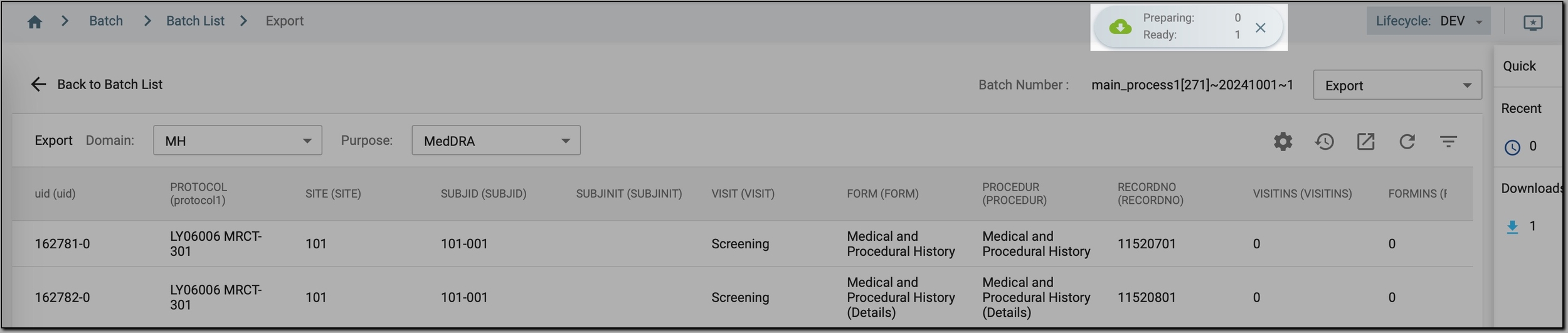 Figure 7. Initiating exported file downloading
-
In the My Downloads dialog, select the Download is Ready tab and next to the exported file, select
 to save the file on your PC.
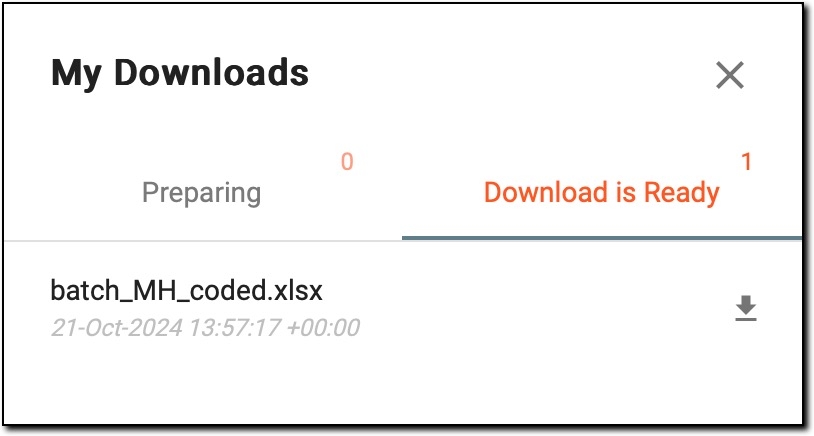 Figure 8. Downloading exported file
Once exported and downloaded, you now have access to a comprehensive data file for the corresponding domain. You can use this file for offline analysis or share it with colleagues who may not have access to the CODING application.