Preprocess domain
The Process feature is designed to handle the preprocessing of verbatim terms (VTs) before they enter the coding phase. It applies any predefined rules set for the domain storing these VTs in CONFIGURATION > Data Processing Rule. These preprocessing steps ensure that the data is properly prepared, validated, or transformed as needed, facilitating a smoother and more accurate coding experience.
A common preprocessing rule might involve standardizing the format of medical terms. For example, a rule can be defined to convert all uppercase entries (for instance, "PARACETAMOL") into the proper case ("Paracetamol") or to remove unnecessary punctuation and whitespace. Another example could include mapping certain abbreviations (for example, "HTN") to their full forms ("Hypertension") to align with dictionary standards.
Important
This option is available only for domains that require additional data handling before coding can begin (such domains have the Await Processing status). In other words, it can be applied only to domains for which preprocessing rules have been defined in CONFIGURATION > Data Processing Rule.
-
In the Medical Coding application header, select the BATCH tab.
 Figure 1. Accessing batch configurations
-
In the Batch List table that appears, go to the coding batch that contains the domain that must be preprocessed against the rules set for this domain in CONFIGURATION > Data Processing Rule. Then select
 next to it.
 Figure 2. Accessing coding batch domains
-
In the Domain List table, go to the domain that must be preprocessed and select Process
 next to it.
 Figure 3. Initiating domain preprocessing
Important
The domain cannot be preprocessed in two cases:
-
If the rule set for that domain requires information from the related domain.
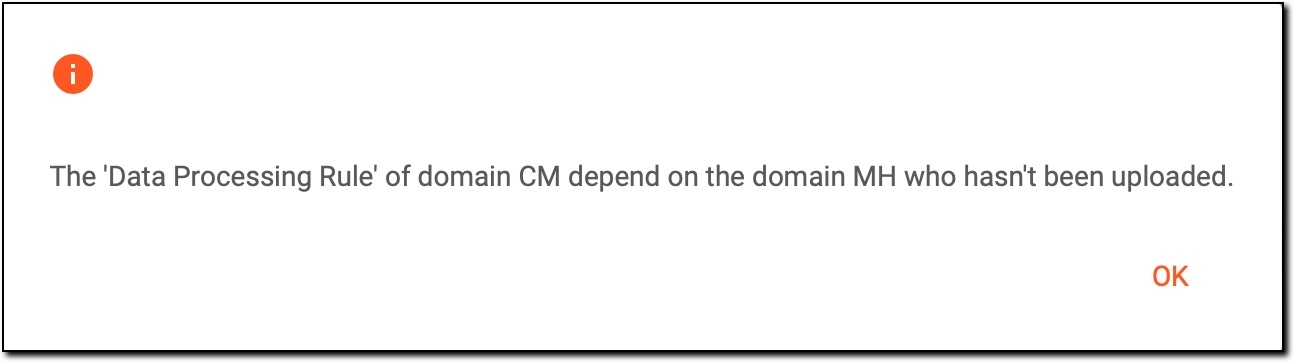 Figure 4. Preprocessing cannot start because of missing data file
To troubleshoot this issue, upload the necessary data for the related domain before attempting to reprocess.
-
If the specific variable needed for the preprocessing rules is not present in the domain data.
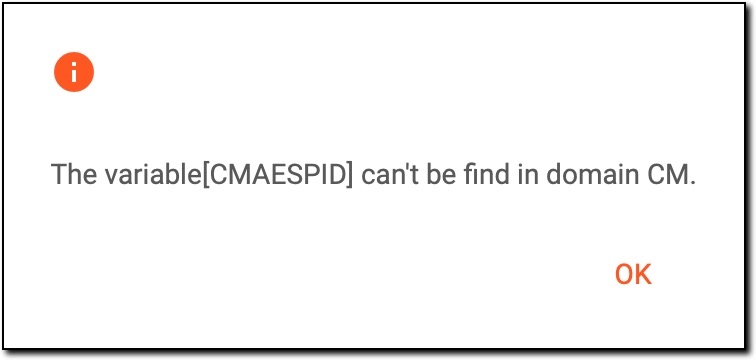 Figure 5. Preprocessing cannot start because of missing variable
To resolve this, check that the required variable is included in the uploaded data for the domain before proceeding with the reprocessing.
-
Once done, the status of the domain changes to In Processing, indicating that the system is applying the predefined data processing rules to prepare the VTs for coding.
When the preprocessing ends and if it is successful, the status changes to Await Start, meaning that the VTs are ready for coding.
Important
Pay attention that even if the preprocessing is successful but the system has detected any abnormal data, the number of warnings and errors is displayed next to the domain status. To understand what the issue is, select Download  , which appears after preprocessing ends with some abnormal data, to download the data file with the warnings and errors marked.

When the preprocessing ends and if it is unsuccessful, the status changes to Process Fail, which signifies that an error occurred during preprocessing. In this case, resolve the issue of the problem and initiate the reprocessing operation again.