Upload data file
The Upload File feature helps users easily upload a file containing a bulk of verbatim terms (VTs) into specific coding batches. This feature is needed to accurately link the VTs to the main variable of the relevant domain, where the terms will undergo medical coding.
For example, in the Adverse Events (AE) domain, the main variable AETERM may include the VTs, such as "headache," "nausea," or "dizziness," which describe adverse events reported by patients. These terms will later be coded to standardized terms like "Headache" or "Nausea" using medical dictionaries like MedDRA and WHODrug, ensuring uniformity in the data for analysis.
By allowing for bulk uploads of VTs in a single file, this feature not only streamlines the coding process but also enhances efficiency by reducing the need for manual data entry of each VT individually.
Important
You cannot upload files with VTs for batches created using EDC import. For such batches, the VTs are automatically transferred from the EDC system into the CODING application.
In addition, the option to upload files with VTs is only available for domains in the Await Upload status. For domains in other statuses, the option is unavailable. For more information on domain statuses, refer to Review domains prepared for coding.
In the CODING application, there are two methods to upload a file with VTs: as a single file for one domain or as a zipped file for multiple domains at once.
With it, you can manually upload a single data file that contains VTs for a single domain.
-
In the Medical Coding application header, select the BATCH tab.
 Figure 1. Accessing batch configurations
-
In the Batch List table that appears, go to the coding batch containing the domains for which you want to upload a file with VTs, and select
 next to it.
 Figure 2. Accessing coding batch domains
-
In the Domain List table that opens, go to the domain for which you want to upload a file with VTs. Then, next to it, select Upload File
 .
.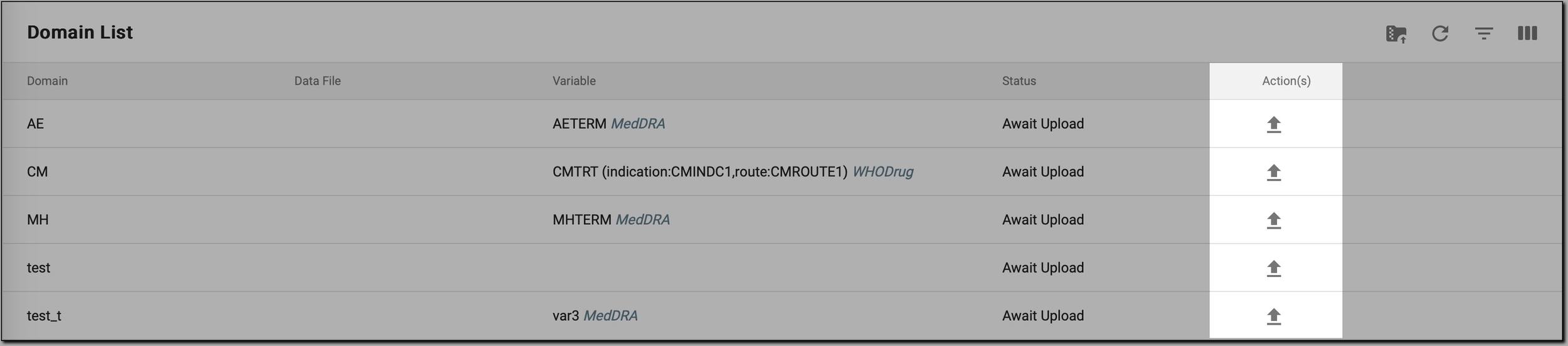 Figure 3. Initiating file upload
-
In the dialog that opens, click anywhere in the designated upload area, then browse for the needed file on your computer to upload it. Alternatively, drag the file into this area.
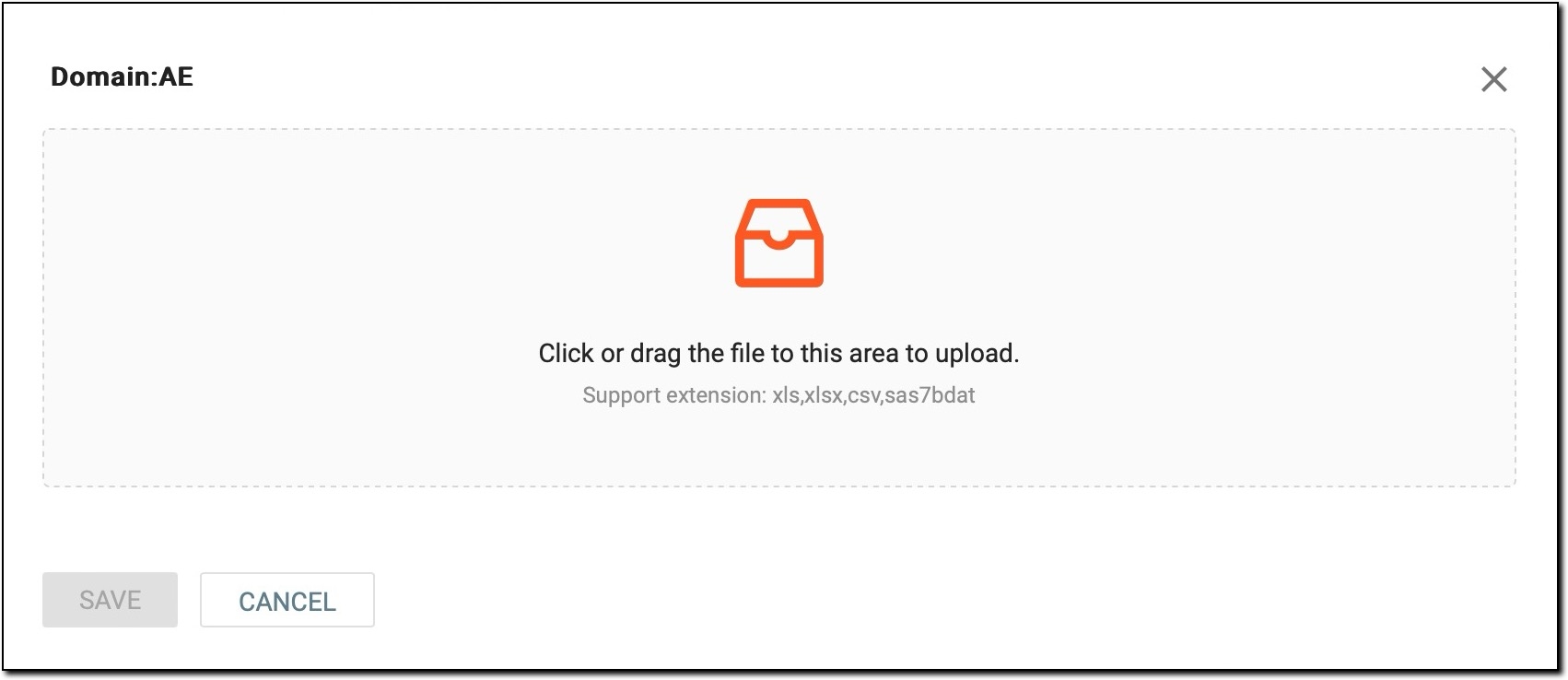 Figure 4. Selecting file to upload
Important
The uploaded file must be in one of the following formats only: .xls, .xslx, .csv, or .sas7bdat.
-
Once the needed file is chosen, in the dialog, select
 .
.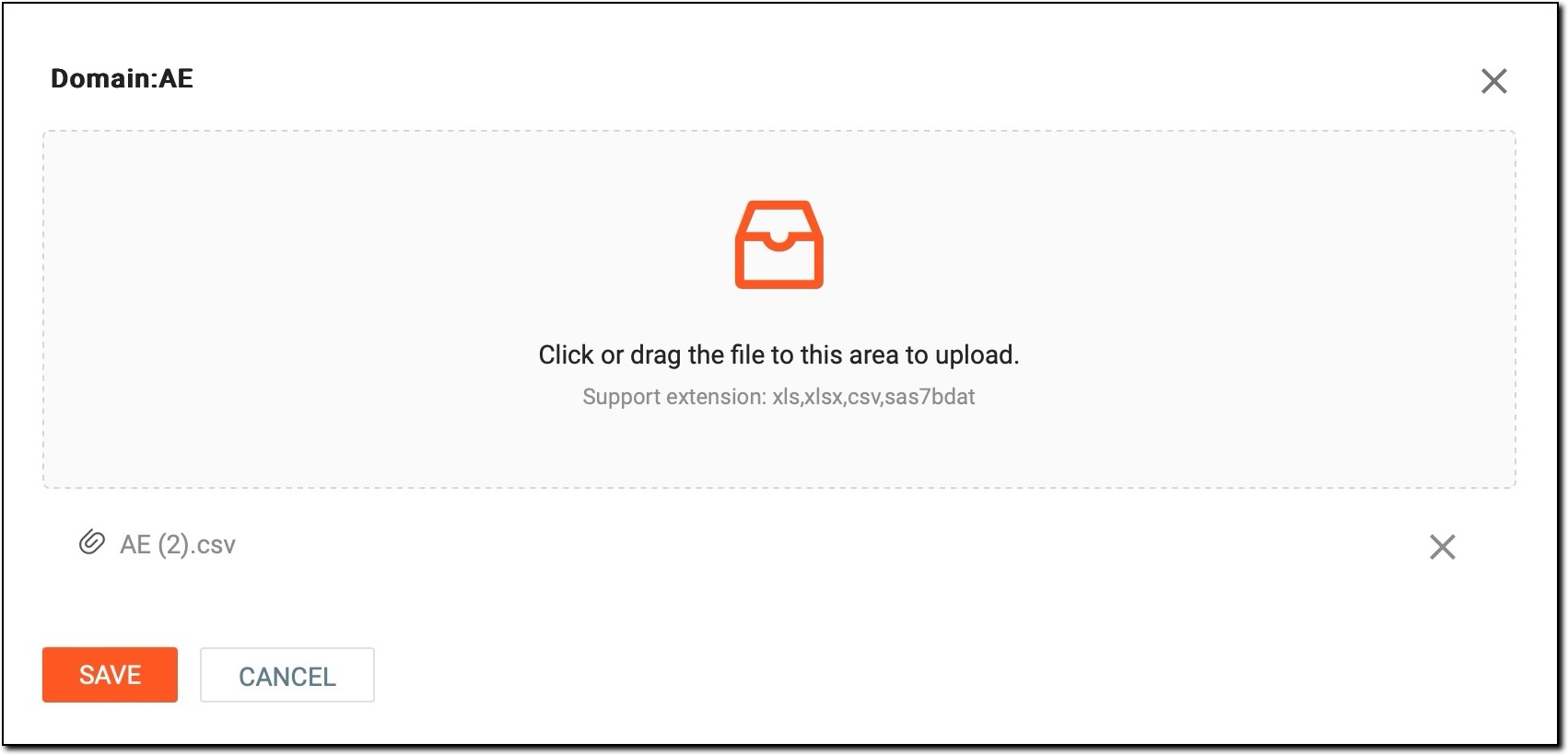 Figure 5. File prepared for uploading
Tip
If needed, you can repeat the same procedure to upload more files.
To remove any file from the upload list, simply select
 next to it.
Once saved, the file is uploaded successfully. Now, you can view the upload results or initiate the coding process for the uploaded VTs.
A zipped file is like an "archive" containing multiple data files, each corresponding to different domains. The system automatically parses the zipped files, identifying and mapping each individual file to its appropriate domain.
For example, if the zipped file contains three separate files for the CM, AE, and MH domains, the system will correctly upload each file to its relevant domain, streamlining the upload process for handling multiple domains at once.
-
In the Medical Coding application header, select the BATCH tab.
Figure 1. Accessing batch configurations
-
In the Batch List table that appears, go to the coding batch containing the domains for which you want to upload a zipped file with verbatim terms (VTs) and select
next to it.Figure 2. Accessing coding batch domains
-
On the Domain List page that opens, in the workspace toolbar, select Upload File
 .
.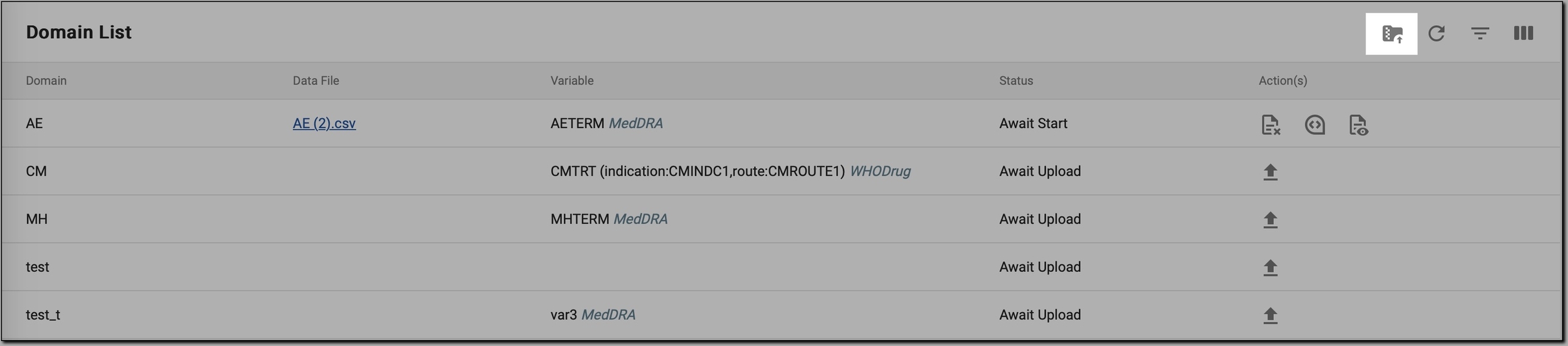 Figure 3. Initiating zipped file upload
-
In the dialog that opens, click anywhere in the designated upload area, then browse for the needed zipped file on your computer to upload it. Alternatively, drag the zipped file into this area.
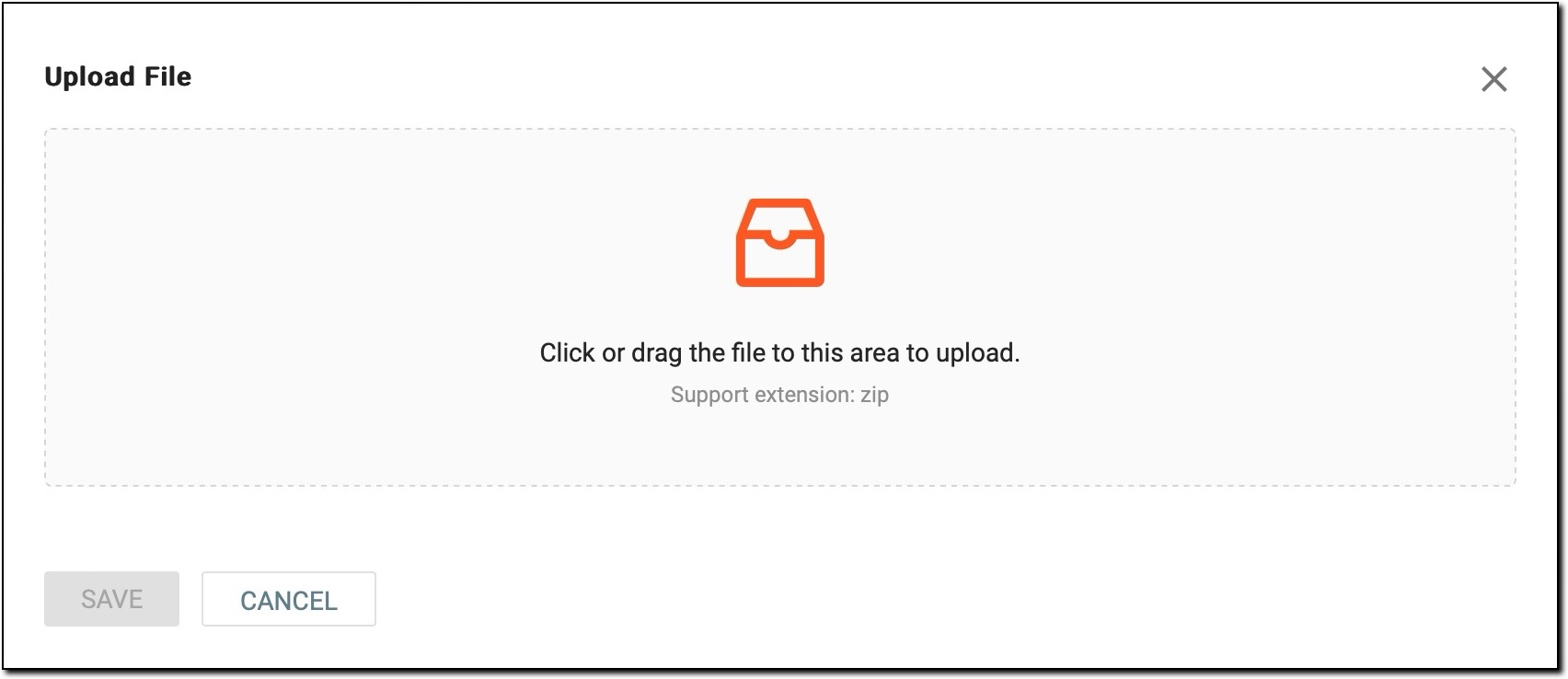 Figure 4. Selecting zipped file to upload
Important
The uploaded file must be in the .zip format only.
-
Once the needed file is chosen, in the dialog, select
.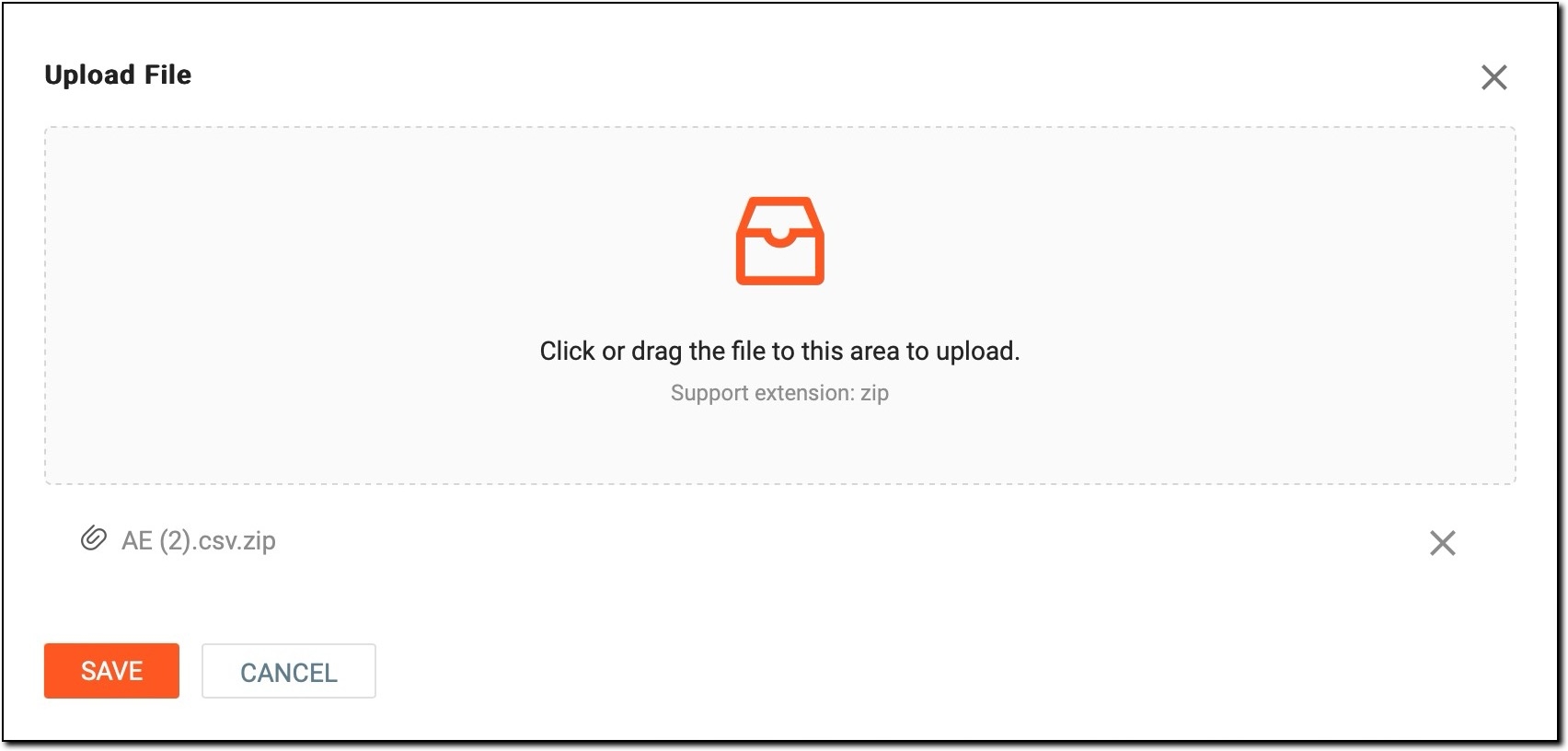 Figure 5. Zipped file prepared for uploading
Important
The file upload may fail if the required files for the relevant domains are not found in the zipped file you are attempting to upload or if the domain is missing its main variable that must be linked with the VTs you are uploading.
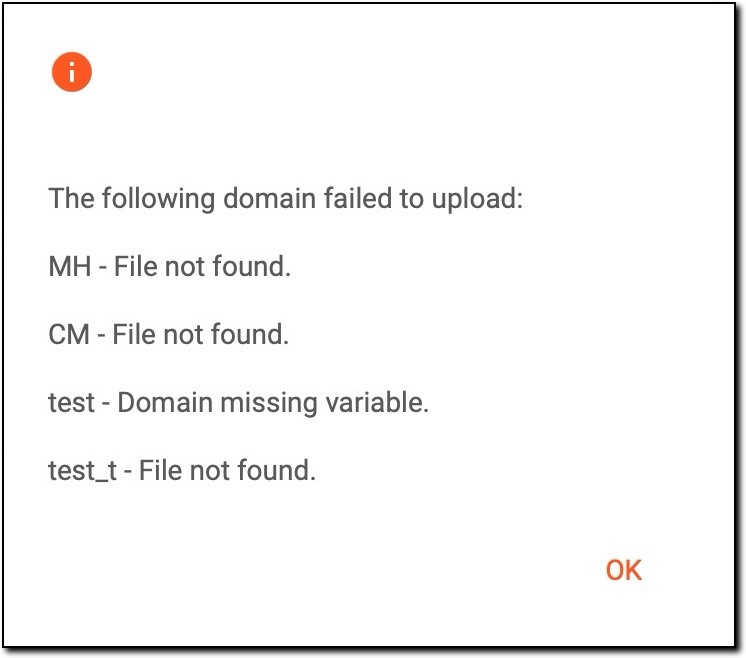 Figure 6. File upload failed
To troubleshoot it, do one of the following:
-
Check the zipped archive: ensure that the zipped file contains all necessary files corresponding to the domains you wish to upload.
-
Verify domain variables: confirm that each domain has a main variable defined, which should be linked to the VTs you are uploading.
-
Once saved, the zipped file is uploaded successfully; the system has parsed and associated each file (within the zipped file) with its corresponding domain. Now, you can view the upload results or initiate the coding process for the uploaded VTs.