Create new coding batch
In the Medical Coding module, you can—in one action—create new coding batches that contain large volumes of verbatim terms (VT) intended for medical coding. Instead of creating each VT individually, you group multiple terms into a single batch, streamlining the coding process.
There are two available methods for creating coding batches—via EDC import and via file import—as explained in the following sections.
With this feature, you upload a file with verbatim terms directly into the system, enabling the creation of a new coding batch.
-
In the Medical Coding application header, select the BATCH tab.
 Figure 1. Accessing batch configurations
-
On the Batch List page that opens, in the workspace toolbar, select New Item
 and then, select New EDC Batch.
 -
In the New dialog, provide the batch details as explained in the following table.
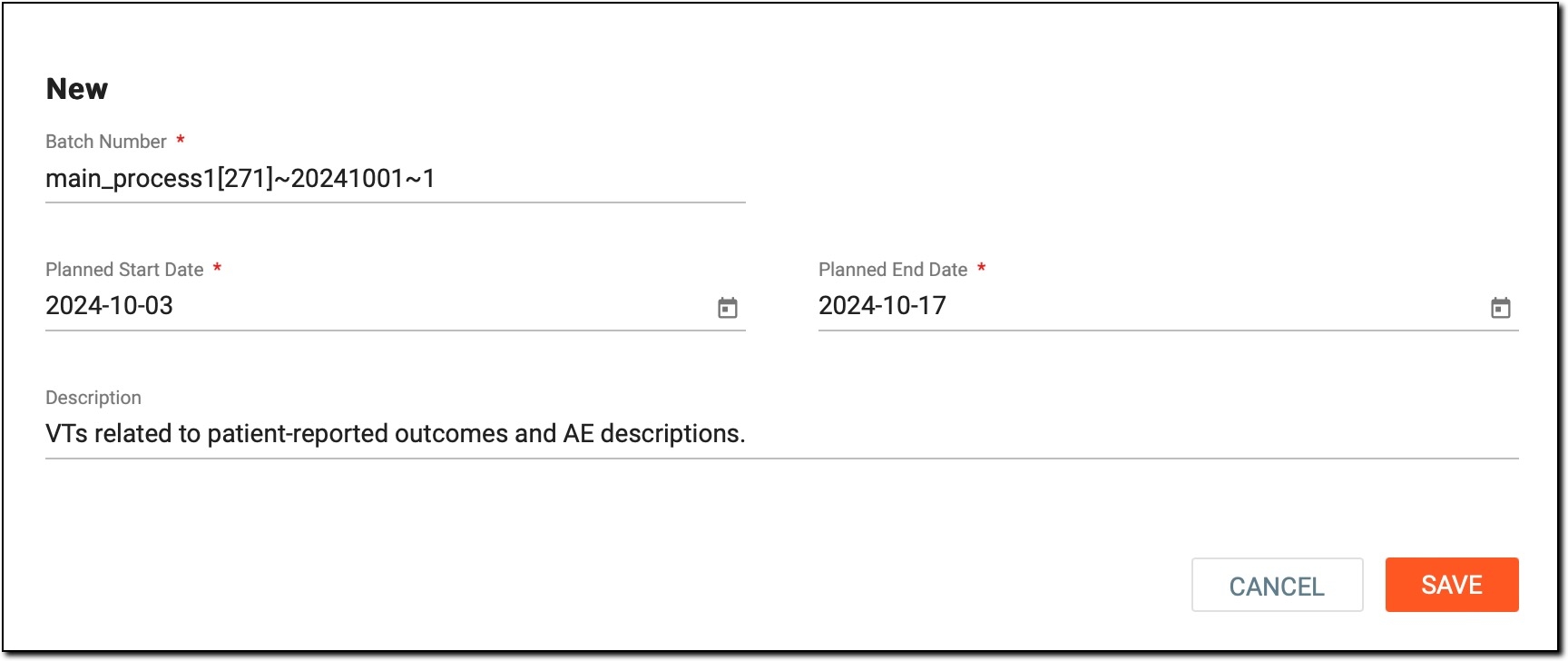 Figure 2. Creating new batch via EDC import
Tip
In the following table, mandatory elements are marked with an asterisk (*).
Element
Details
Batch Number*
By default, the system generates the batch number automatically but can manually change it to suit your needs. The format of the batch description (batch naming convention) is defined in the CONFIGURATION > Coding Batch module.
Planned Start Date*
Select the date picker symbol
 and choose the planned start date to set a new beginning for the coding activities associated with this
batch. This date should align with your study timelines and reflect any scheduling adjustments necessary for the process.
and choose the planned start date to set a new beginning for the coding activities associated with this
batch. This date should align with your study timelines and reflect any scheduling adjustments necessary for the process.Planned End Date*
Select the date picker symbol
and choose the planned end date to indicate when the coding for this batch is expected to conclude. This
date helps in tracking progress and ensuring that all tasks are completed within the designated timeframe.Description
Provide the context for the coding batch. A clear and informative description helps team members understand the batch's contents, objectives, and any specific details that may be relevant for processing.
SAVE
Select
 to create the new coding batch.
CANCEL
Select
 to cancel the batch creation and dismiss the changes.
Once saved, a new coding batch is created and added to the Batch List with the eClinical EDC Batch  symbol next to the batch number.
With this feature, you automatically import verbatim terms from the eClinical Electronic Data Capture (EDC) system into a new coding batch.
-
In the Medical Coding application header, select the BATCH tab.
Figure 1. Accessing batch configurations
-
On the Batch List page that opens, in the workspace toolbar, select New Item
and then, select New Import Batch. -
In the New dialog, provide the batch details as explained in the following table.
Figure 2. Creating new batch via file import
Tip
In the following table, mandatory elements are marked with an asterisk (*).
Element
Details
Batch Number*
By default, the batch number is generated automatically by the system but can be manually changed to suit your needs. The format of the batch description (batch naming convention) is defined in the CONFIGURATION > Coding Batch module.
Planned Start Date*
Select the date picker symbol
and choose the planned start date to set a new beginning for the coding activities associated with this
batch. This date should align with your study timelines and reflect any scheduling adjustments necessary for the process.Planned End Date*
Select the date picker symbol
and choose the planned end date to indicate when the coding for this batch is expected to conclude. This
date helps in tracking progress and ensuring that all tasks are completed within the designated timeframe.Description
Provide the context for the coding batch. A clear and informative description helps team members understand the batch's contents, objectives, and any specific details that may be relevant for processing.
SAVE
Select
to create the new coding batch.CANCEL
Select
to cancel the batch creation and dismiss the changes.
Once saved, a new coding batch is created and added to the Batch List table. Now, proceed with uploading verbatim terms for coding into this batch.