View export history
With the help of the Export History feature, you can track and review all previously exported files from the coding batch. This includes details such as the date and time of the export, the domains included in the export, the file formats used, and many more. By using this feature, you can easily manage your export activities and ensure that you have access to past exported data for reference and further analysis.
-
In the Medical Coding application header, select the BATCH tab.
 Figure 1. Accessing batch configurations
-
In the Batch List table that appears, go to the coding batch that contains the domain whose data was previously exported. Then, next to it, do one of the following:
-
Select
 and on the page that opens, in the workspace toolbar, next to the batch number, select Export.
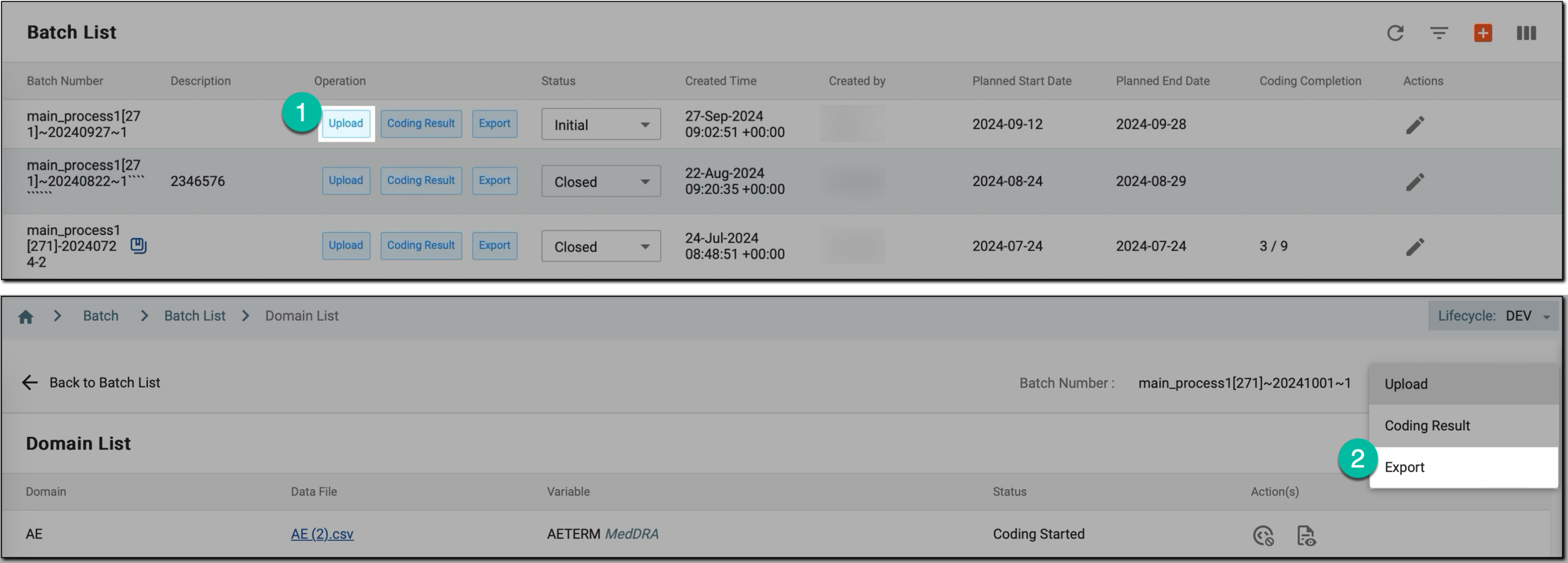 Figure 2. Accessing and exporting coding batch domains
-
Select
 .
.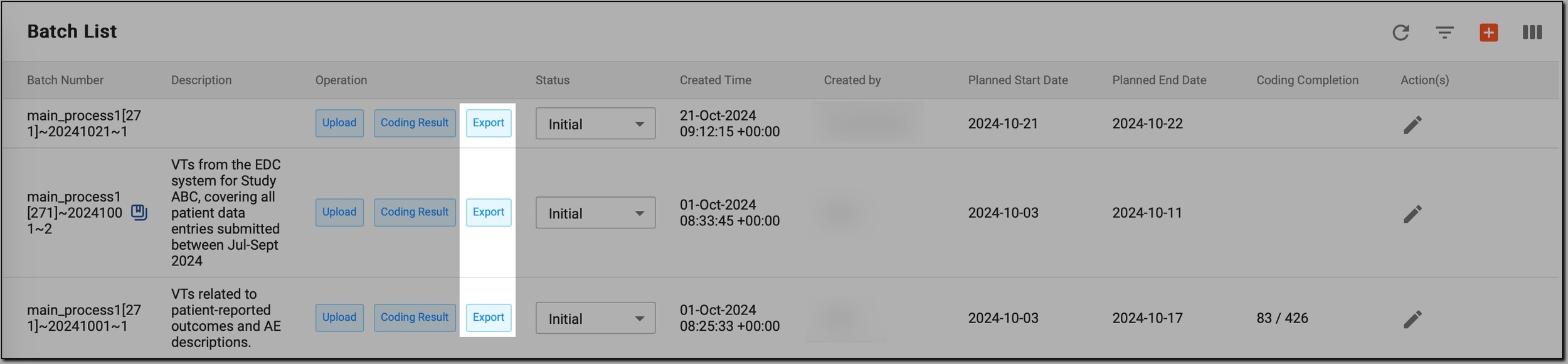 Figure 3. Accessing export option from Batch List page
-
-
On the Export page that opens, in the workspace toolbar, select Export History
 .
.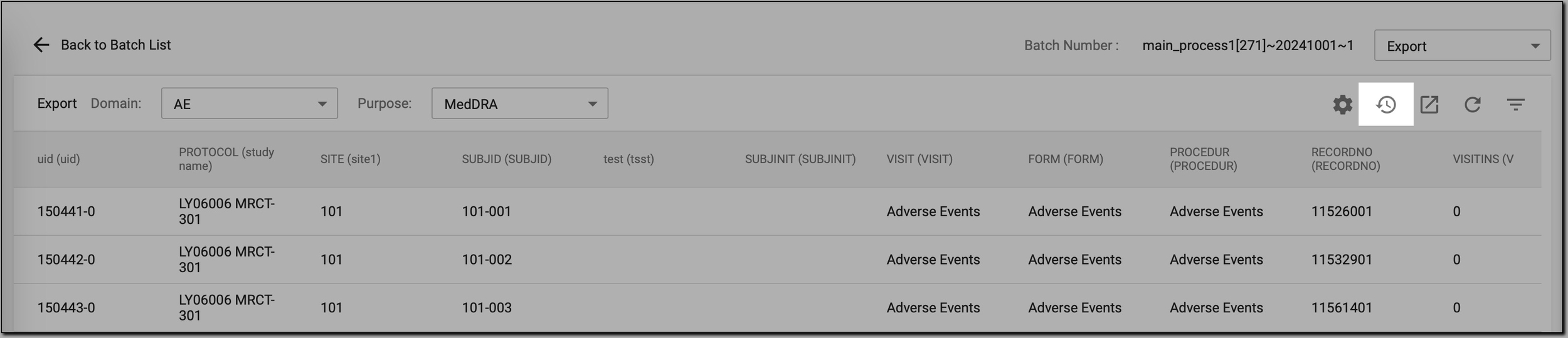 Figure 4. Accessing export history
-
In the Export History dialog, review the export details as explained in the following table.
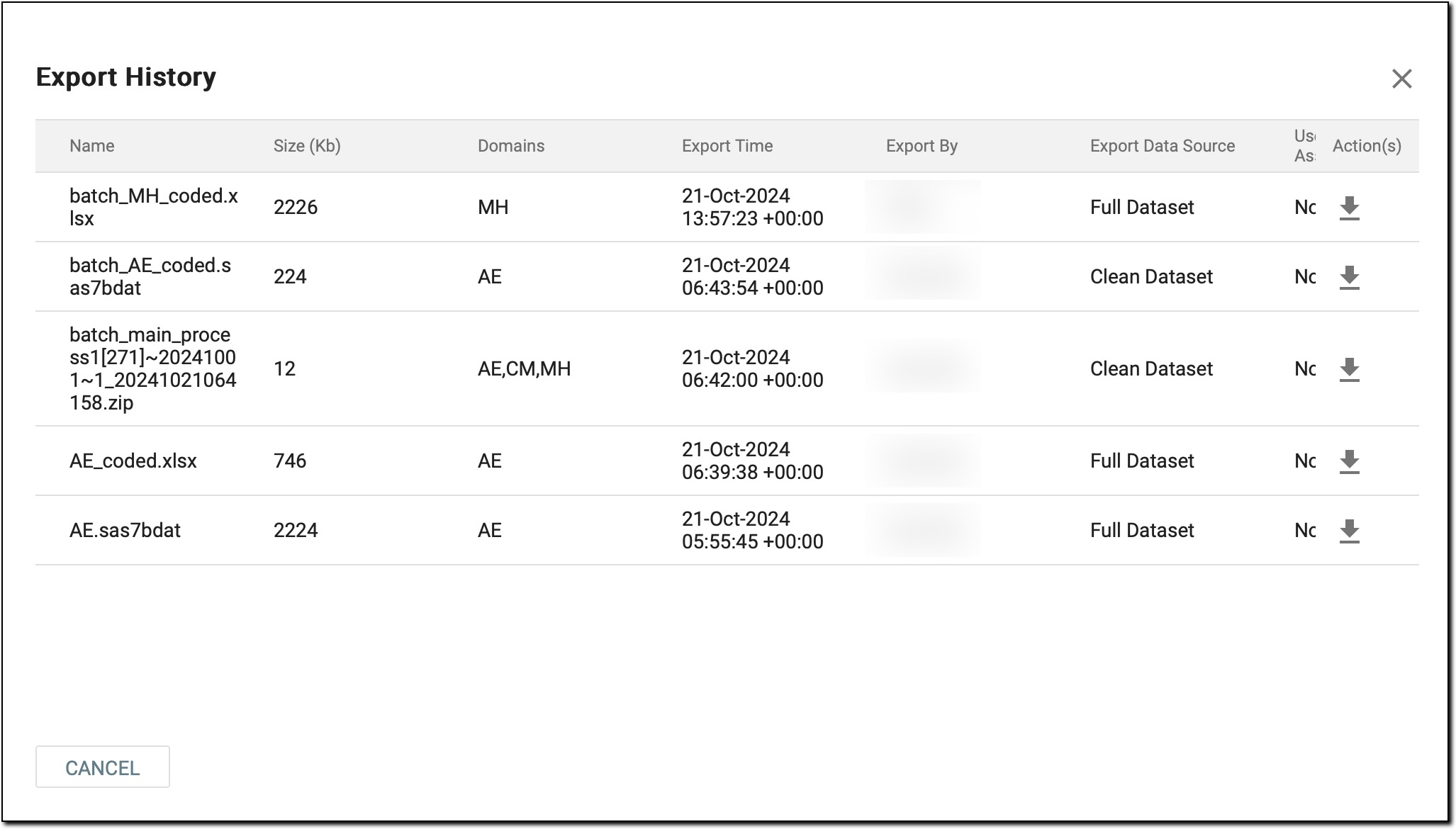 Figure 5. Reviewing export history details
Column
Details
Name
Displays the name of the exported file, helping you identify specific files generated during the export process.
Size (Kb)
Indicates the size of the exported file in kilobytes, providing insight into how much data the file contains.
Domains
Lists the domains included in the export, allowing you to see which specific datasets were part of the export.
Export Time
Shows the exact date and time when the export was completed.
Export By
Identifies the user who performed the export.
Export Data Source
Specifies whether the export was based on the Full Dataset (the exported file contains all the data originally uploaded, regardless of whether the main variable is present) or the Clean Dataset (the exported file contains only the data rows where the main variable has a value).
Use Study Latest Assigned Term
Indicates whether the exported file includes the latest assignment for each verbatim term or not (Yes/No).
For example, if a verbatim term was recoded after the initial file upload, displaying Yes means that the exported file contains this updated term. If you see No, the export does not include these changes, and contains the original coding or no coding assignment.
You have successfully reviewed the export history. If needed, you can download the relevant files for offline analysis or further processing by selecting  next to each
file.
next to each
file.