View coding results
With the help of the Coding Result feature, you can review the detailed coding information for each verbatim term (VT) processed in the CODING system. This includes the VT itself, any supplemental variables, coding status, and many more. Basically, this option provides a comprehensive overview of each VT and its coding details, making it easy to track and analyze individual entries.
Tip
You can also view the coding results from the Export page, where the coding results are organized by domains (for details, see Review uploaded data). However, you cannot initiate any coding from this Export page, it is intended purely for viewing and exporting the data. In contrast, on the Coding Result page, you can see the coding information for each VT individually, providing a more detailed view of each term. Additionally, if you see a term that has not been coded yet, you can start the coding process directly from the Coding Result page.
-
In the Medical Coding application header, select the BATCH tab.
 Figure 1. Accessing batch configurations
-
In the Batch List table that appears, go to the coding batch that contains the domain with uploaded and coded VTs whose results you want to analyze and view. Then select
 next to it.
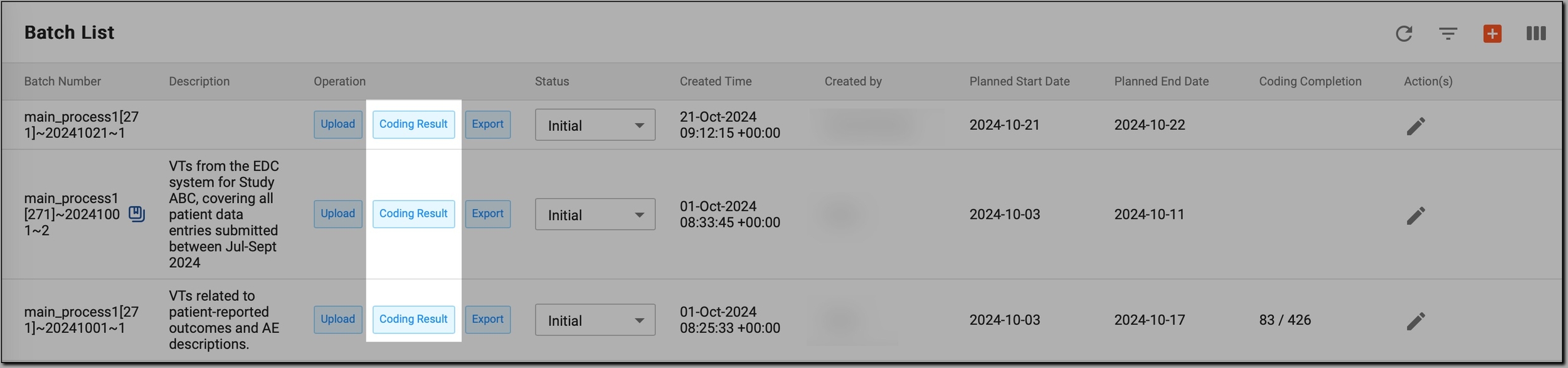 Figure 2. Accessing coding results for batch domains
-
On the Coding Results page that opens, in the table, review the coding results as explained in the following table.
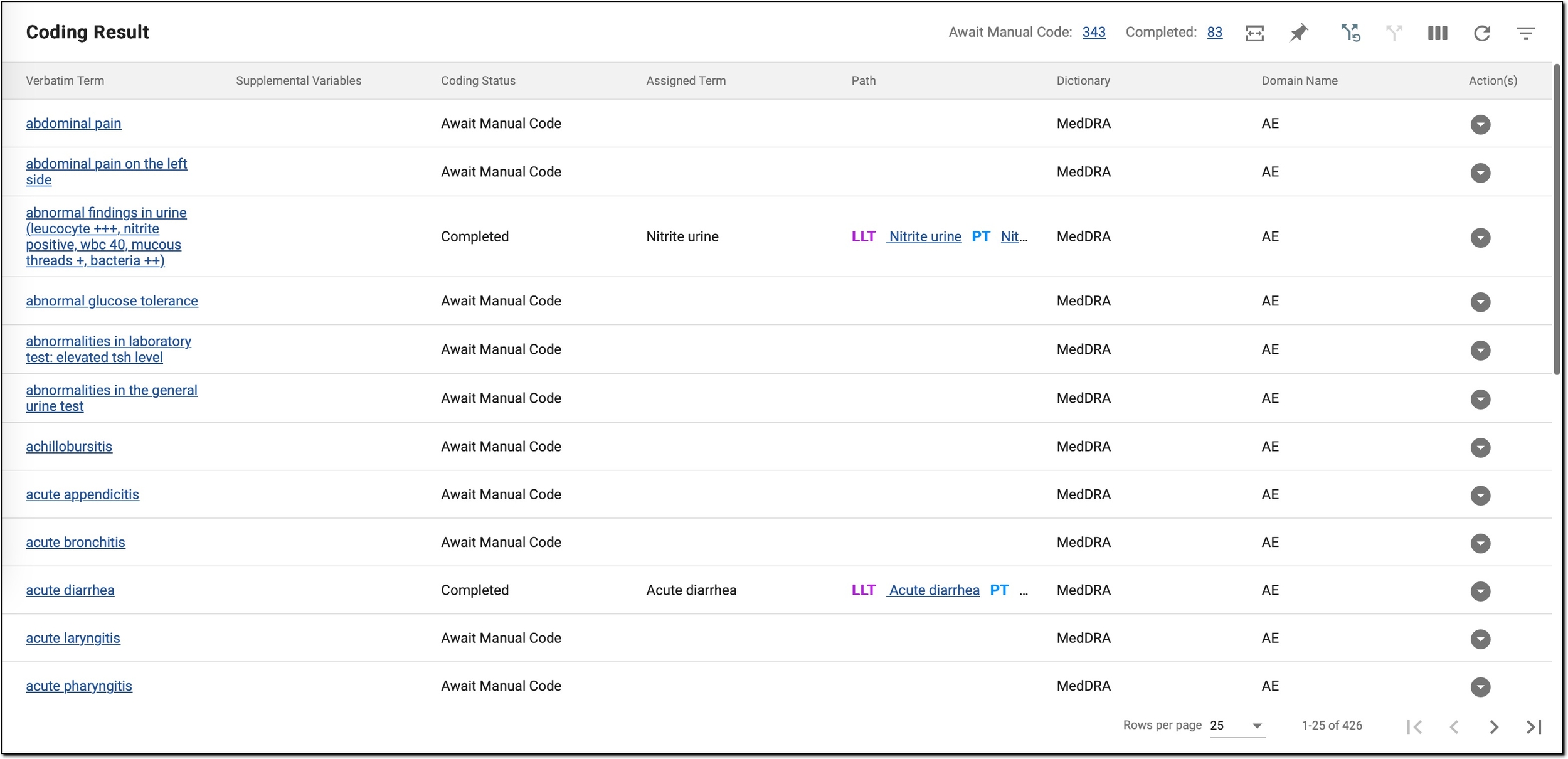 Figure 3. Reviewing coding results
Column
Details
Verbatim Term
Displays the exact text (verbatim term or VT) that was entered upon data collection and needs coding.
Supplemental Variables
Displays additional variables that help clarify or provide more context for the VT.
For example, these may include Route ("Oral" or "Intravenous"), Indication ("Pain relief"), or Dosage ("500 mg").
Coding Status
Shows the current status of the coding process for the VT. Possible statuses include:
-
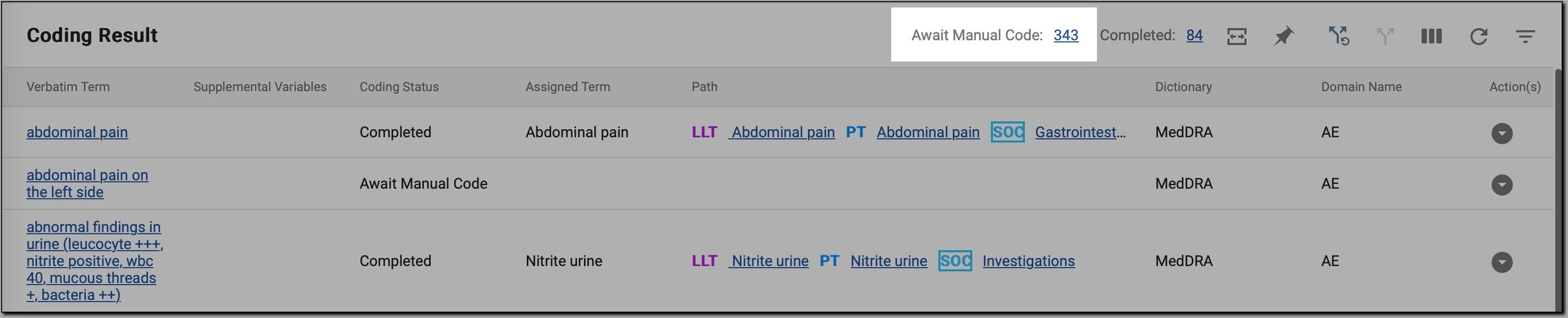
Await Manual Code: the term needs to be manually coded.
-
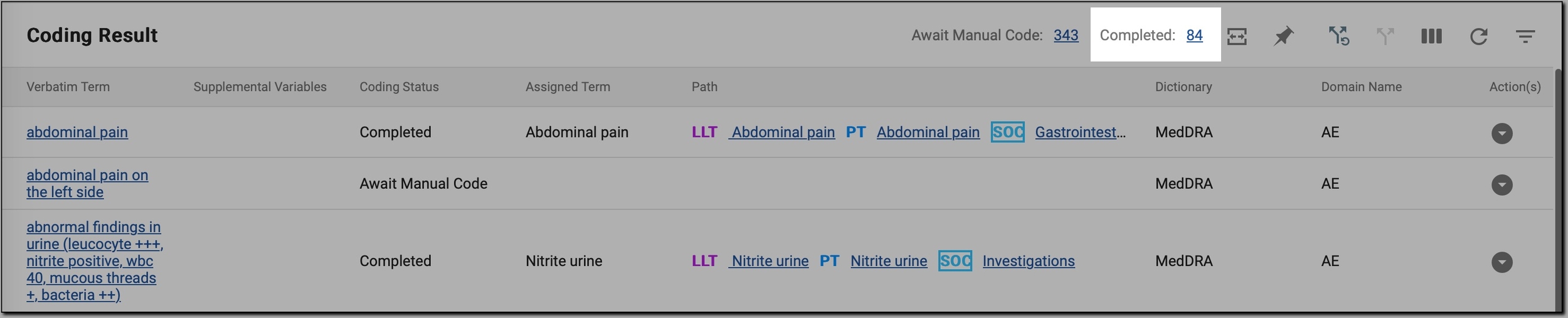
Completed: the term has already been coded.
Assigned Term
Displays the term that has been assigned during the coding process, taken either from the MedDRA or WHODrug dictionary.
Path
Provides the hierarchy or path through which the assigned term was chosen in the dictionary. This path shows the logical progression from a broader category to a more specific term, helping you understand the coding decision process.
For example, for the verbatim term "abnormal findings in urine (leucocyte +++, nitrite positive, wbc 40, mucous threads +, bacteria ++"), you might see the following in the Path column:
-
LLT: Nitrite urine
-
PT: Nitrite urine
-
SOC: Investigations
This means that for this verbatim term, the coder assigned it to the following terms:
-
LLT (Lowest Level Term): Nitrite urine.
-
PT (Preferred Term): Nitrite urine.
-
HLT (High-Level Term): Urinalysis NEC.
-
HLGT (High-Level Group Term): Renal and urinary tract investigations and urinalyses.
-
SOC (System Organ Class): Investigations.
To improve your coding interpretation experience, you can select any of these values (LLT, PT, and others) and in the Path panel on the right, view the full hierarchy, allowing you to see how the verbatim term was mapped through these various levels in the dictionary.
Dictionary
Specifies which dictionary was used to code the term, MedDRA or WHODrug. This provides information on the coding source used for the term assignment.
Domain Name
Displays the domain to which the verbatim term belongs, such as Adverse Events (AE), Medical History (MH), Concomitant Medications (CM), and others.
-
-
If you need more information about the verbatim term, in the Actions column, select
 . Then, in the expanded Term Source table, review additional details about the selected VT as explained in the following table.
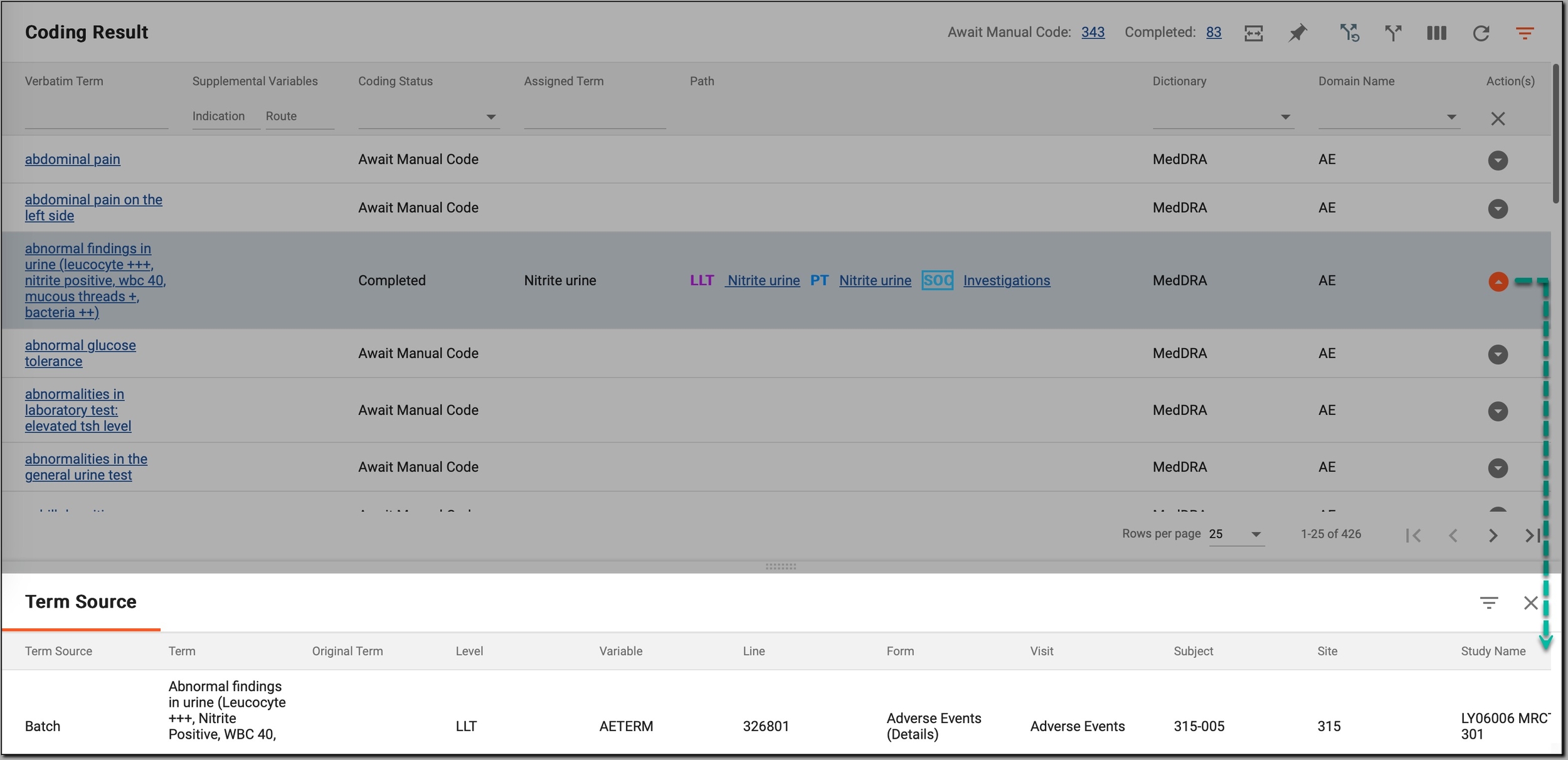 Figure 4. Reviewing additional VT details
Column
Details
Term Source
Indicates where the VT originated (for instance, from a batch).
Term
The verbatim term that is being coded.
Original Term
The term originally entered before coding.
Level
Refers to the level within the dictionary hierarchy where the assigned term resides (like LLT or PT).
Variable
Indicates the specific variable name associated with the verbatim term (for example, "AETERM").
Line
Shows the line number or sequence from the dataset where the term was sourced.
Form
Displays the name of the form where the term was captured (like "Adverse Events").
Visit
Specifies the visit when the verbatim term was recorded (for instance, baseline visit or follow-up visit).
Subject
The unique identifier of the subject (patient) for whom the verbatim term was provided.
Site
Identifies the study site where the subject’s data was collected.
Study Name
Displays the name of the study to which the verbatim term belongs.
-
To further enhance your coding interpretation experience, in the workspace toolbar, use the available options as follows.
This option initiates the process of applying a split rule, which divides verbatim terms based on predefined rules. Basically, this is the first step (precondition) you take before executing the coding itself.
To execute a split rule-
In the workspace toolbar, select Execute Split Rule
 .
.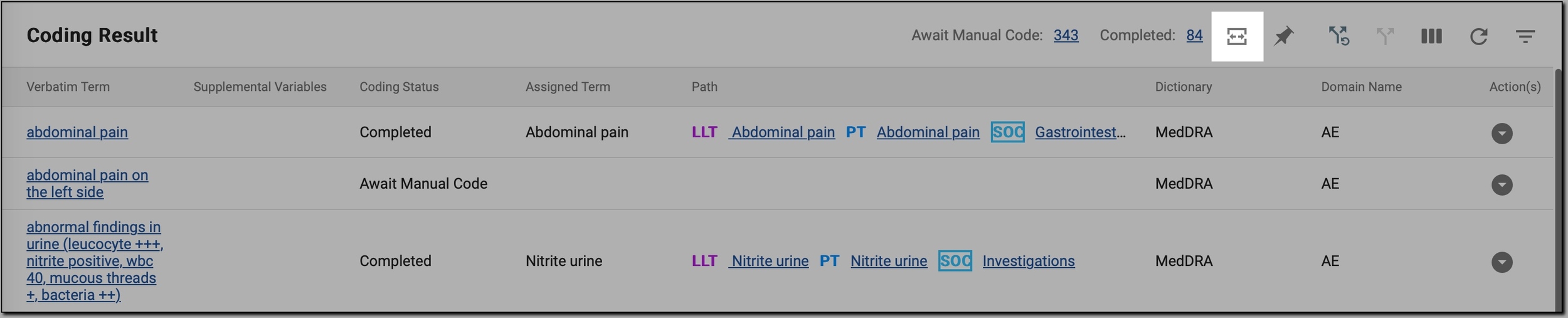 Figure 7. Initiating rule splitting
-
In the Execute Split Rule dialog, select the verbatim terms that must be splitted and select
 .
.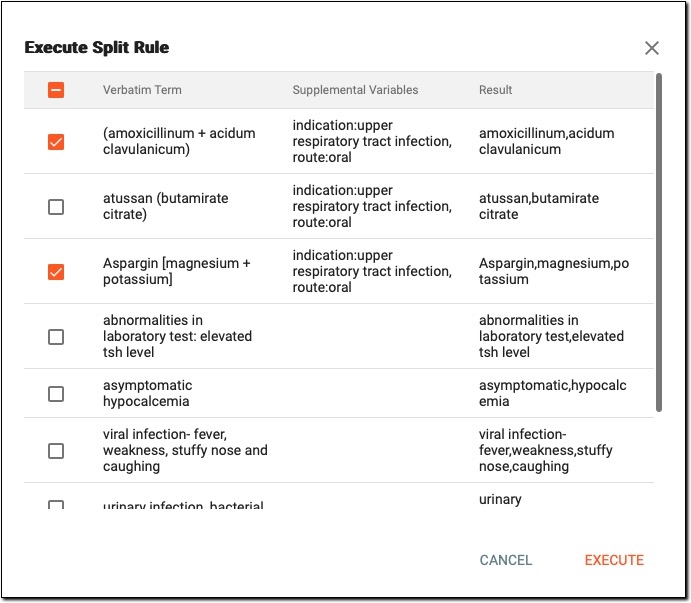
Imagine we have a verbatim term, "Aspargin [magnesium + potassium]", that needs to be split. If the Result column displays three words separated by commas—Aspargin, magnesium, potassium—it means that the original VT, "Aspargin [magnesium + potassium]," will be split into three separate VTs: Aspargin, magnesium, and potassium.
Figure 8. Splitting verbatim term as per defined rules
-
In the confirmation dialog, select
 to proceed.
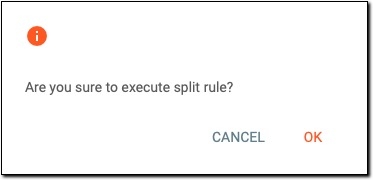 Figure 9. Confirming rule split
-
In the dialog, review the number of terms into which the original verbatim term was split, and select
to complete the split process.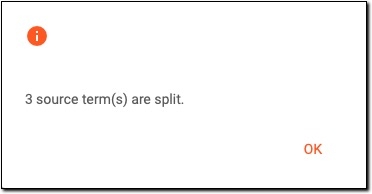 Figure 10. Completing split process
The verbatim term has been split. The original VT that was split no longer appears in the Coding Result table. Instead, the newly separated terms take its place.
This option helps you pin certain columns and fix them at the beginning of the table.
When you pint a column, it moves to the first position and stays visible as you scroll horizontally. If you pin another column, the newly pinned column becomes the first, and the previously pinned column shifts to the second position, ensuring both visible while scrolling.
To pin a column-
In the workspace toolbar, select Pinned Columns
 .
.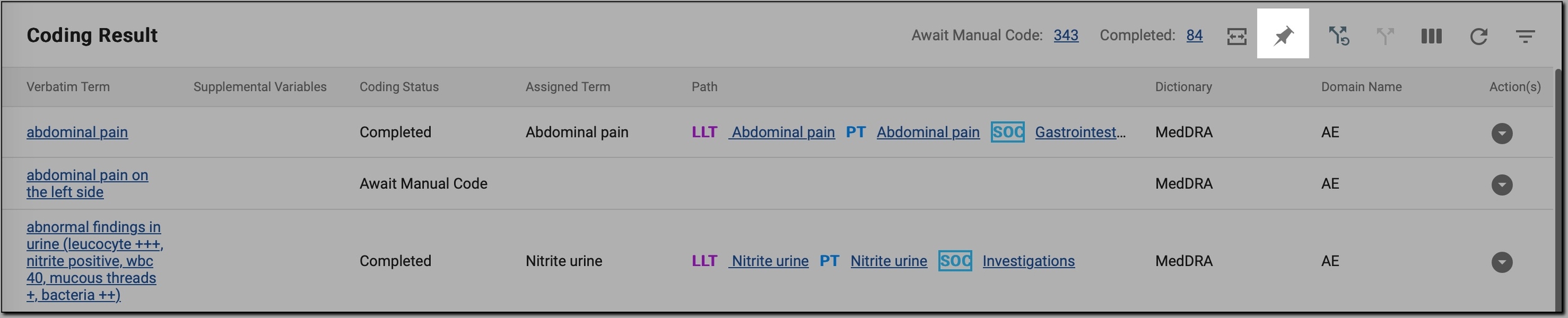 Figure 11. Pinning columns
-
In the Pinned Columns dialog, do one of the following:
-
Select the checkboxes next to the columns that you want to pin.
-
To pin all columns, select PIN ALL.
-
To unpin all columns, select UNPIN ALL.
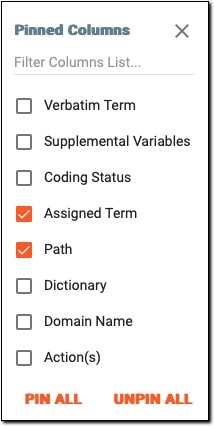 Figure 12. Pinning columns
-
-
To close the dialog, in the upper-right corner, select
 .
.
This option undoes previously applied split rules, reverting the verbatim terms to their original grouping before any split was applied.
For example, if the term "Headache due to migraine" was split into "Headache" and "Migraine" based on predefined rules, using the Unsplit option reverts these back into the single original term, "Headache due to migraine".
To unsplit a verbatim term-
In the workspace toolbar, select Unsplit
 .
.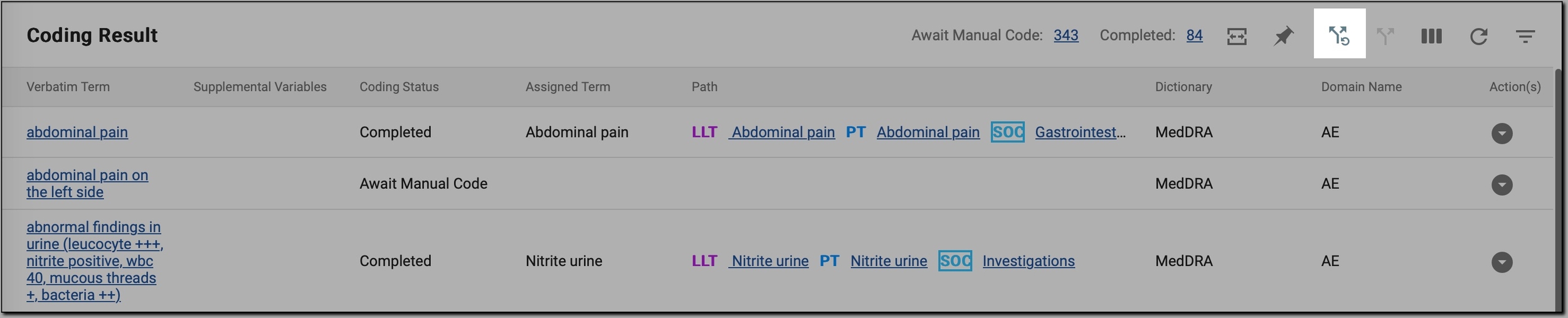 Figure 13. Unsplitting VT
-
In the Unsplit dialog, select the checkboxes next to the terms that you want to revert to their original versions, and select
 .
.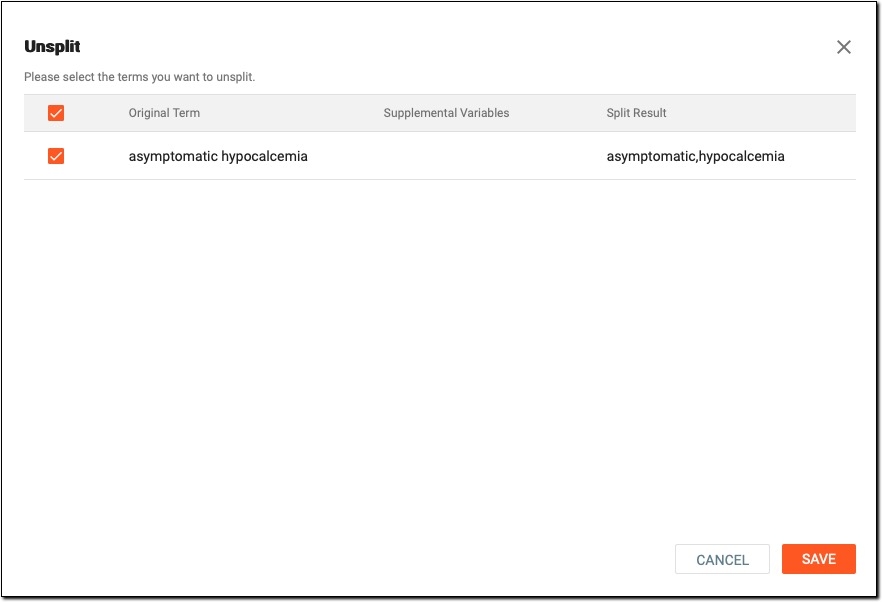 Figure 14. Reverting verbatim terms to original versions
Tip
The original versions of the terms are displayed in the Original Term column. In the Split Result column, you see the names of the verbatim terms into which the original term was split, separated by commas.
-
In the dialog, review the number of terms that were reverted to the original state, and select
to complete the unsplit process.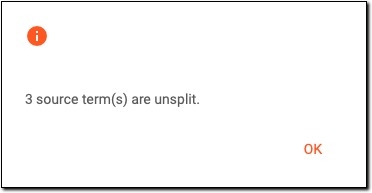 Figure 15. Completing unsplit process
This option splits verbatim terms based on your own criteria rather than automated split rules executed via the Execute Split Rule option.
To split a verbatim term manually-
In the Coding Results table, select the verbatim term that you want to split.
-
In the workspace toolbar, select Manual Split
 .
.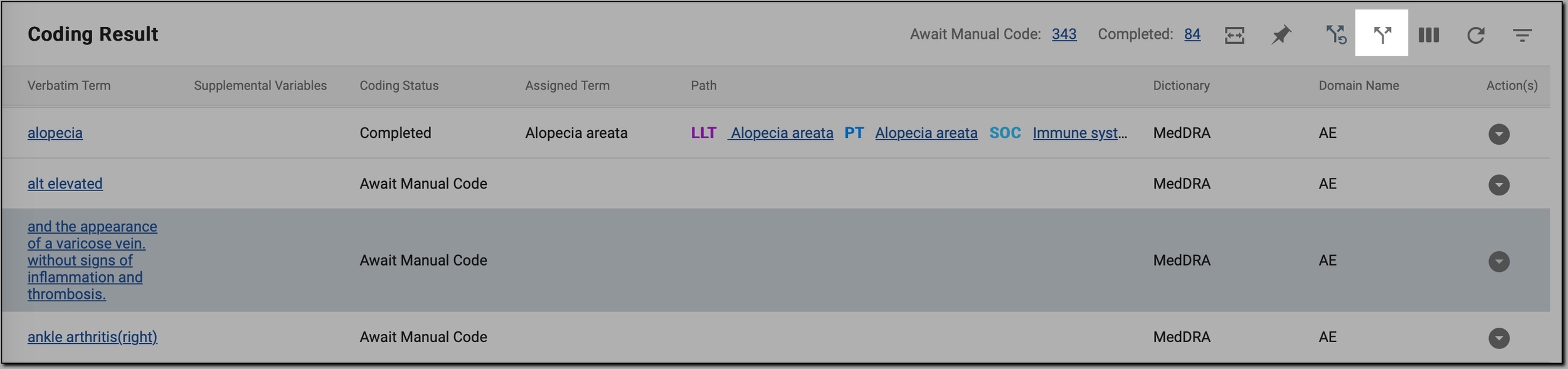 Figure 16. Initiating VT manual splitting
-
In the Manual Split dialog, split the verbatim term as described in the following table.
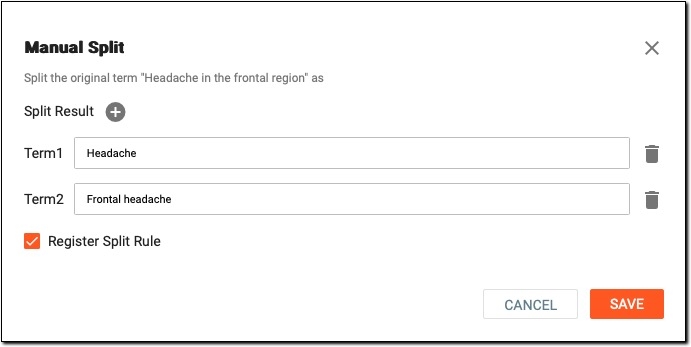 Figure 17. Splitting verbatim term manually
Element
Details
Term 1
Enter the first verbatim term into which the original verbatim term must be split.
For example, if the original verbatim term, "Headache in the frontal region", must be split into "Headache" and "Frontal headache", in the Term 1 field, enter "Headache".
Term 2
Enter the second verbatim term into which the original verbatim term must be split.
For example, if the original verbatim term, "Headache in the frontal region", must be split into "Headache" and "Frontal headache", in the Term 2 field, enter "Frontal headache".
Split Result
Select
 to split the original verbatim term into more than two verbatim terms. This adds another line for Term 3, where you can enter the third verbatim term.
You can continue to add fields for Term 4, Term 5, and so on, as needed.
If a certain term must be removed, select
 next to it.
Register Split Rule
Select this checkbox to let the CODING system remember the splitting rule you are currently creating. This means that if the exact original verbatim term you are splitting appears in future data collections for the study, the system will automatically split it based on the rule you define here.
For example, if the original verbatim term, "Headache in the frontal region", is split into "Headache" and "Frontal headache", the system will not record the "Headache in the frontal region" as incoming data. Instead, it will directly substitute it with "Headache" and "Frontal headache."
All the rules created this way can be found under the CONFIGURATION > Split Rule module and maintained as needed.
SAVE
Select
to complete the splitting process.CANCEL
Select
 to cancel the splitting process and dismiss the changes.
 -
In the dialog that appears, review the number of terms into which the original verbatim term was split, and select
to complete the split
process.Figure 18. Completing split process
The verbatim term has been split. The original VT that was split no longer appears in the Coding Result table. Instead, the newly separated terms take its place.
-
Now that you have explored the Coding Result option, you can easily track and analyze each verbatim term along with its detailed coding information. This comprehensive overview helps you ensure the accuracy and completeness of the coding process.