Analyze operation data overview
The Operation Data Overview dashboard comprises statistics on various review and validation activities of your study to depict the current developments per each process and estimate the overall study progression.
The operational data overview charts are represented by pie charts and bar charts. Pie charts show the proportions of a whole with each slice representing a category’s contribution to the total. Bar charts compare different categories or groups with each bar representing a category’s value. These charts are best for depicting trends or comparing multiple categories.
-
In the CTMS application header, select the DASHBOARD tab.
-
On the page that opens, select the Study Insights tab.
-
From the Category dropdown menu, select the Clinical Study > Operation Data Overview category of reports.
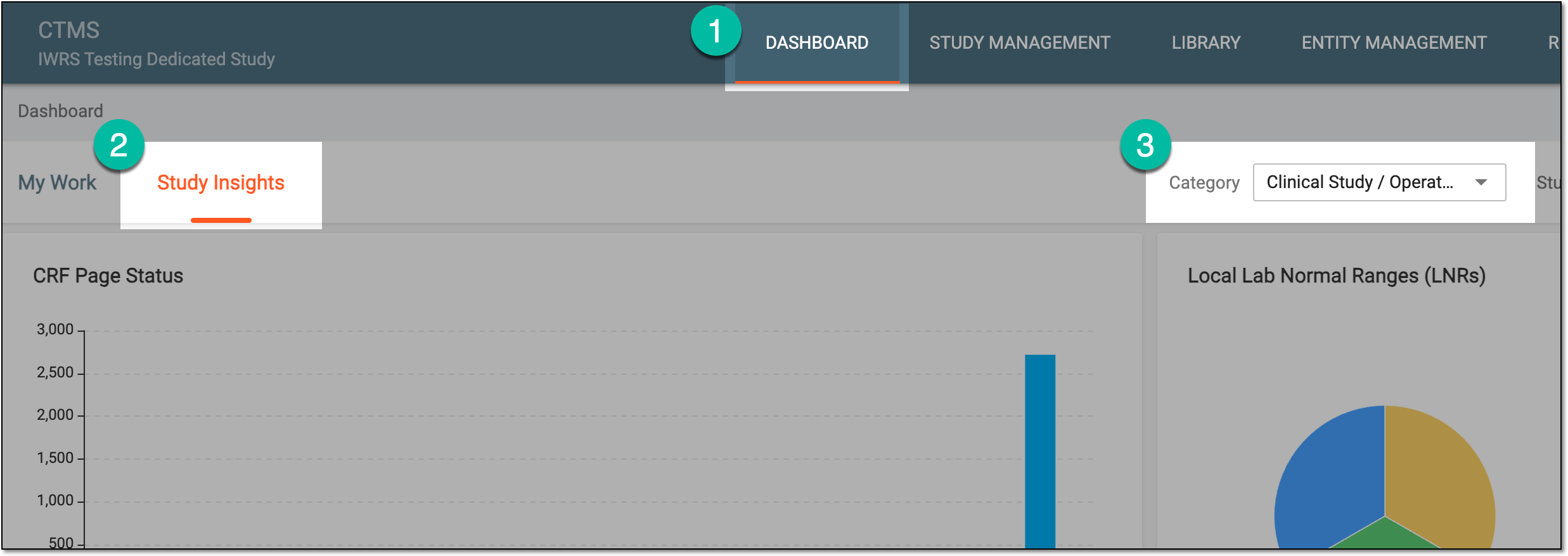 Figure 1. Accessing operational data overview
-
From the Study dropdown menu, select the study for which you want to review the statistics.
Optionally, from the Site dropdown menu, select the specific site for which you want to review the statistics.
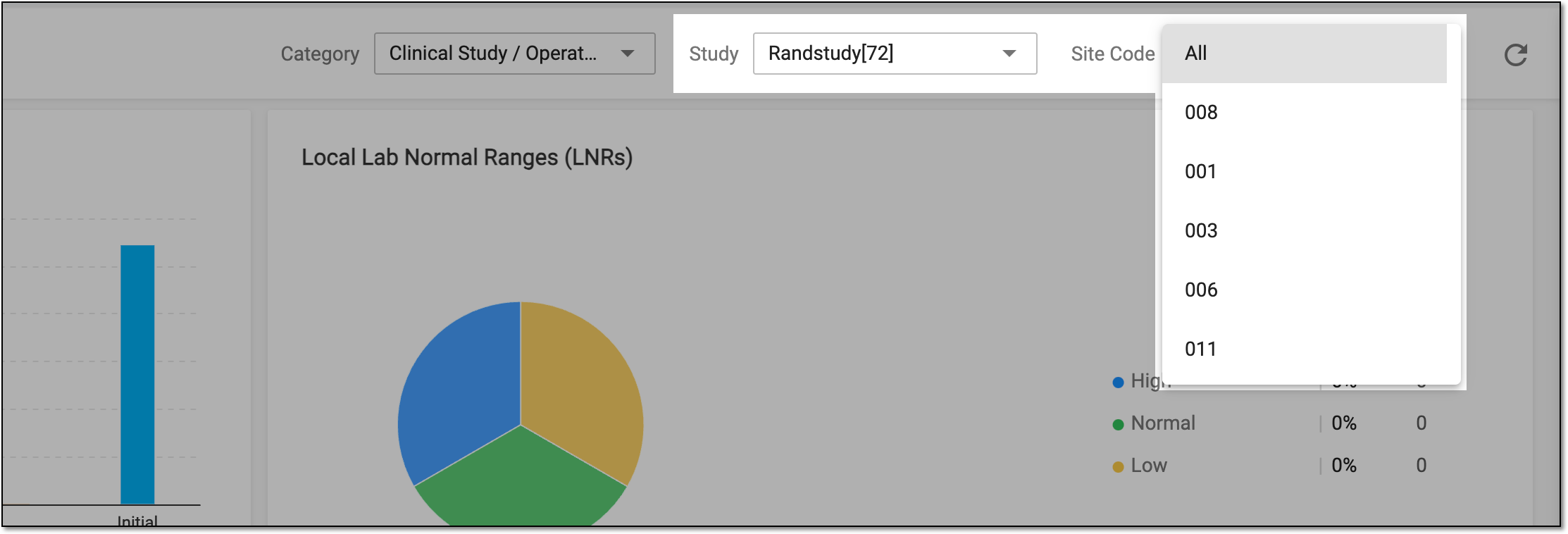 Figure 2. Selecting study and site
-
In the charts of the Operation Data Overview dashboard, analyze the details as explained in the following table.
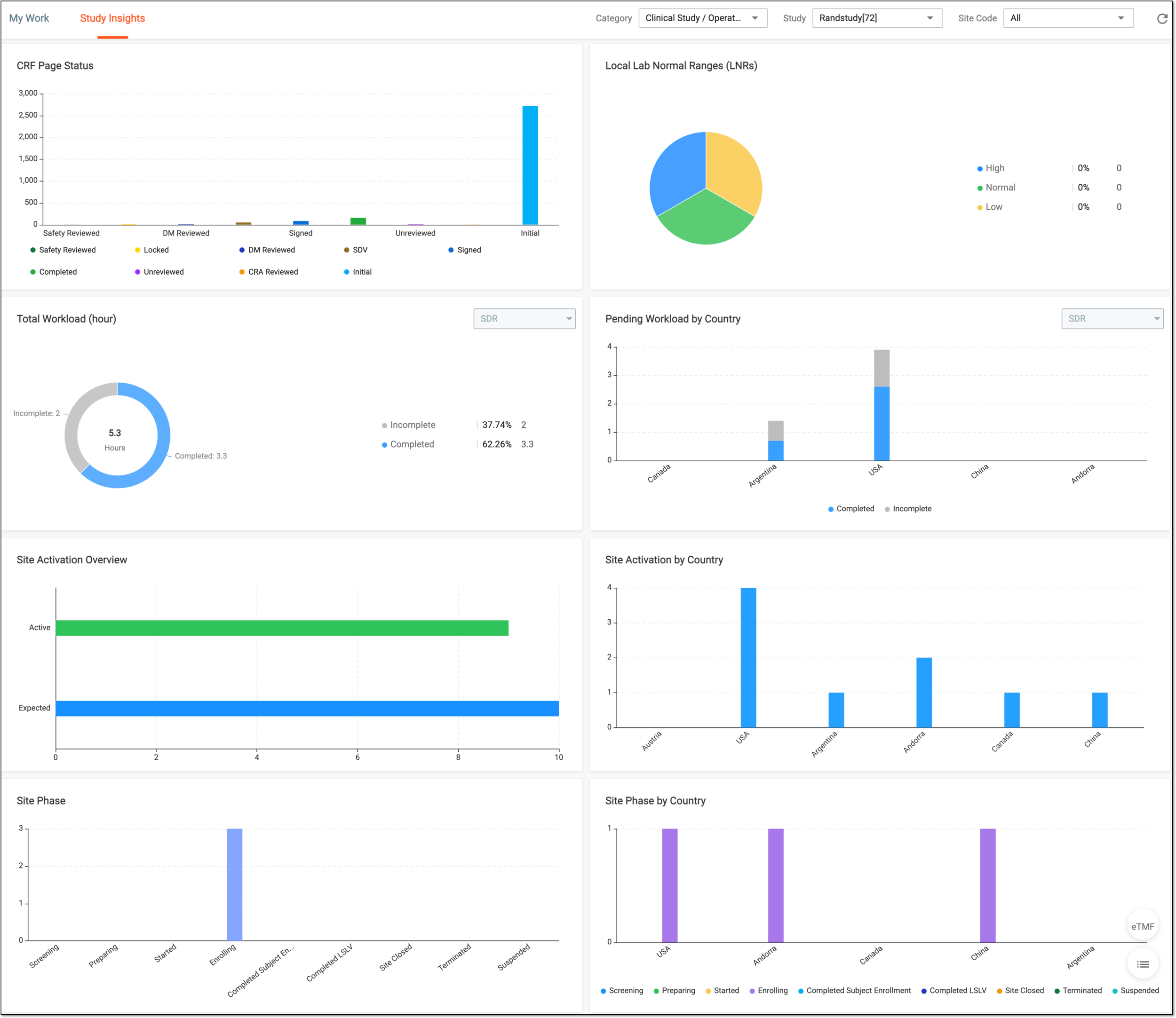 Figure 3. Analyzing operation data overview charts
Chart
Details
CRF Page Status
Represents the bar chart that depicts the statistics for all case report forms (CRFs) of your study—how many forms are in the Initial status, how many are in progress or completed, how many are reviewed by different approvers, and so on.
The data on form completion, review, and status management is pulled from EDC.
Local Lab Normal Ranges (LNRs)
Represents the pie chart that depicts the statistics of subject lab results that are higher, within, or lower than established normal ranges per study.
The data on subject lab results is pulled from respective CRFs in EDC.
Total Workload (hour)
Represents the pie chart that depicts the statistics of estimated and completed workload per selected study. The workload for each review activity is predefined in EDC and, once the activity is completed, the workload estimated for it can be considered completed as well.
To review the workload chart for the category of your interest, from the dropdown menu, select one of the following options:
-
SDV: select to review the statistics of completed and upcoming workload defined in EDC for source data verification (SDV) activities in your study.
-
SDR: select to review the statistics of completed and upcoming workload defined in EDC for source data review (SDR) activities in your study.
-
SDV & SDR: select to review overall statistics of completed and upcoming workload for SDV and SDR defined in EDC.
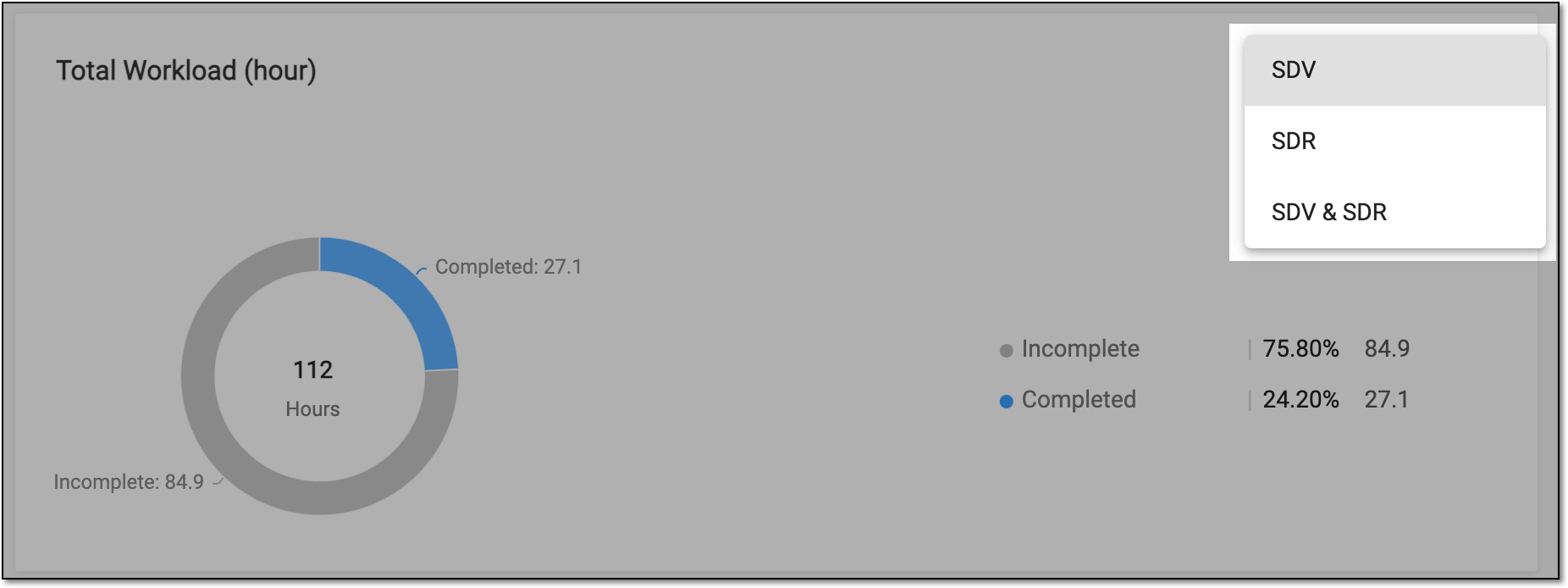 Figure 4. Selecting chart data category
Pending Workload by Country
Represents the bar chart that depicts the statistics of estimated and completed workload for all countries associated with the selected study. The workload for each review activity is predefined in EDC and, once the activity is completed, the workload estimated for it can be considered completed as well.
To review the workload chart for the category of your interest, from the dropdown menu, select one of the following options:
-
SDV: select to review the statistics of completed and upcoming workload defined in EDC for SDV activities in your study.
-
SDR: select to review the statistics of completed and upcoming workload defined in EDC for SDR) activities in your study.
-
SDV & SDR: select to review overall statistics of completed and upcoming workload for SDV and SDR defined in EDC.
Site Activation Overview
Represents the bar chart that depicts the statistics of activation—meaning the initiation of operation in regards to study activities—for the sites associated with the selected study.
Site Activation by Country
Represents the bar chart that depicts the statistics of activation—meaning the initiation of operation in regards to study activities—of the study-associated sites in every country or region where the study is held.
Site Phase
Represents the bar chart that depicts the statistics of sites per phase—site selection, opening, subject enrollment, or else.
Site Phase by Country
Represents the bar chart that depicts the statistics of sites per phase—site selection, opening, subject enrollment, or else—and per country.
Tip
Optionally, from the bottom right, you can select the following options:
-
eTMF: select to access the study's overview in the Electronic Trial Master File (eTMF) application.
-
Show Reports
 : select to access the operational data overview presented in table-view reports for
your convenience. Switch between the available tabs to access and review all the data.
: select to access the operational data overview presented in table-view reports for
your convenience. Switch between the available tabs to access and review all the data.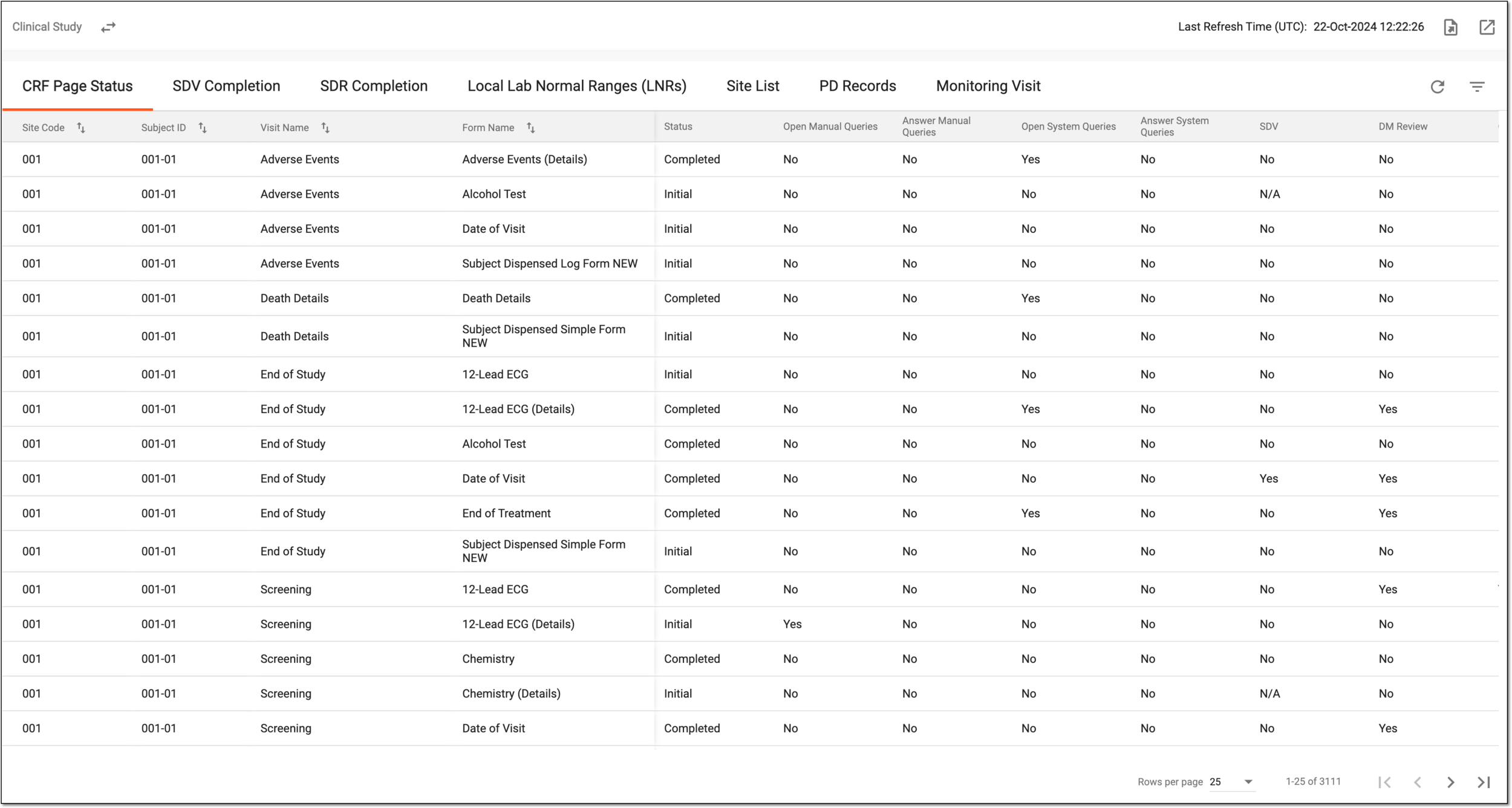 Figure 5. Reviewing operation data overview
If required, you can also export the data displayed in this table.
Click Show Charts
 to go back to the chart view.
-
You have reviewed the operational data overview for a study. You can also export the report details if you prefer working with data offline.