Export report details from study insights
The comprehensive Study Insights dashboard shows the statistical charts and visual representation for all your studies and their various aspects, helping you analyze and track the dynamics and specifics of your investigational processes.
For each report category of the Study Insights dashboard, you can also switch to the table-view reports and analyze the statistics in a more structured rather than visualized way.
If needed, each report's details can be exported to your computer and used offline for your business scenarios—to form table listing reports, share the details with third parties, transfer data to another system, and so on.
-
In the CTMS application header, select the DASHBOARD tab.
-
On the page that opens, select the Study Insights tab.
-
From the Category dropdown menu, select the category of reports for which you want to export data.
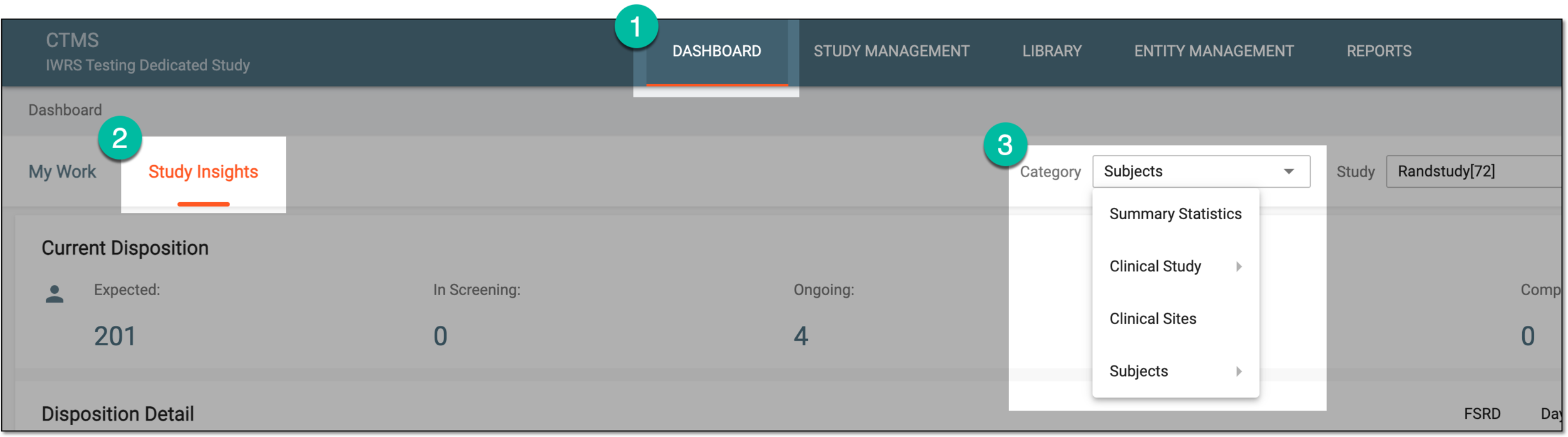 Figure 1. Accessing report category
-
From the bottom right, select Show Reports
 to access the reports pertinent to the selected category of data.
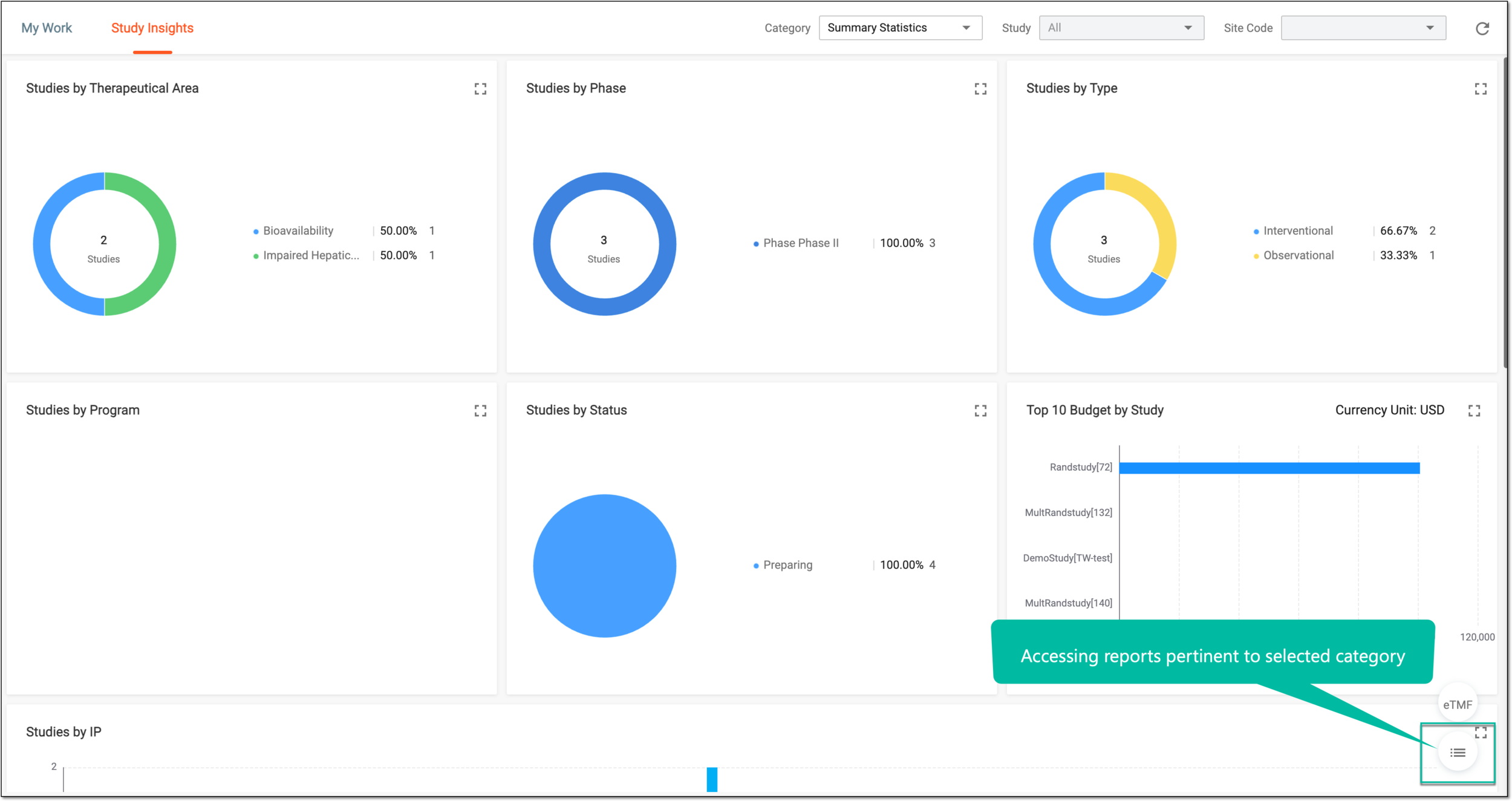 Figure 2. Accessing reports pertinent to selected category
-
On the page that opens, switch between the available tabs to open the data you want to export. Then from the workspace toolbar, select Export
 .
.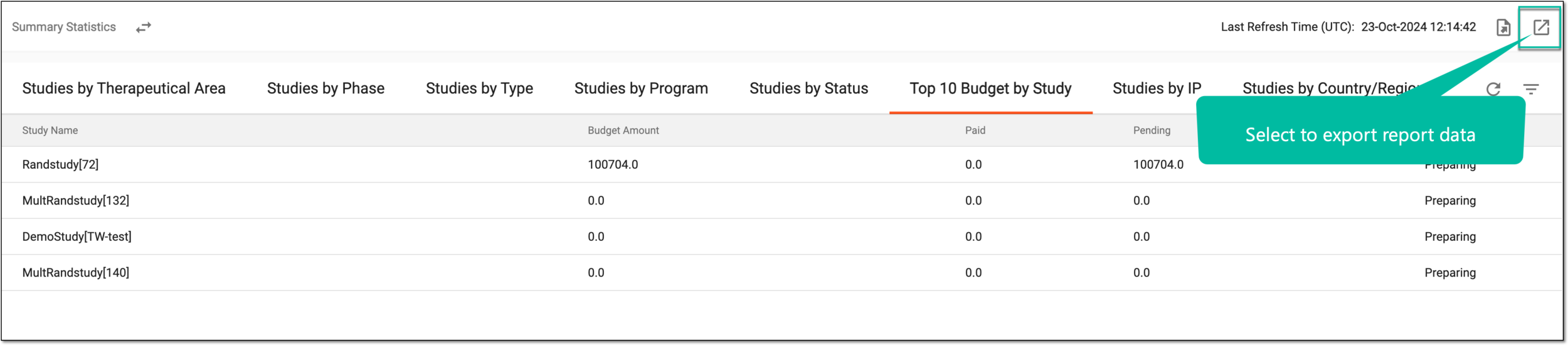 Figure 3. Exporting report data
Tip
Select Show Charts
 to go back to the chart view.
 -
The downloads widget appears showing the export progress. Select the widget to access exported files.
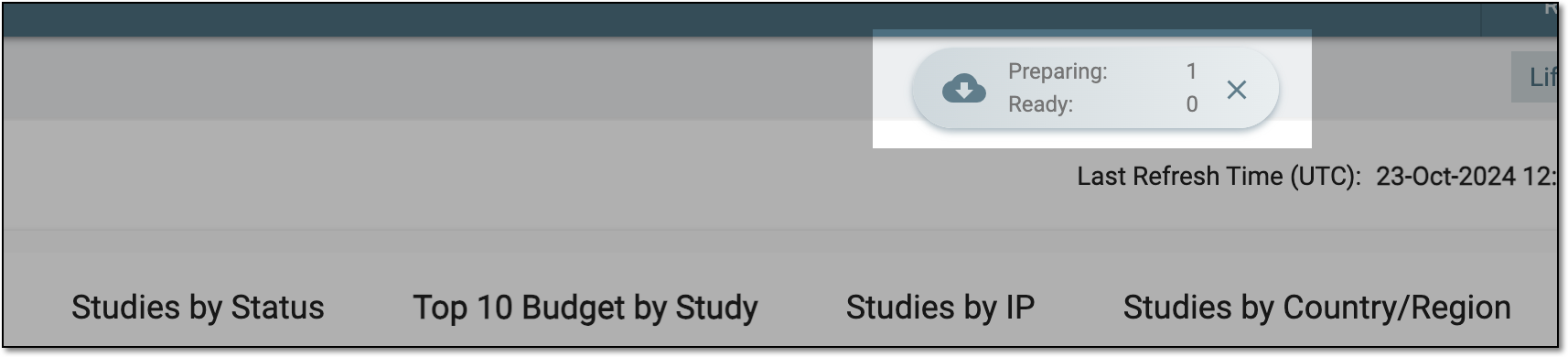 Figure 4. Downloads widget for report data export
-
In the My Downloads dialog that appears, in the Download is Ready tab, select
 next to the required exported file.
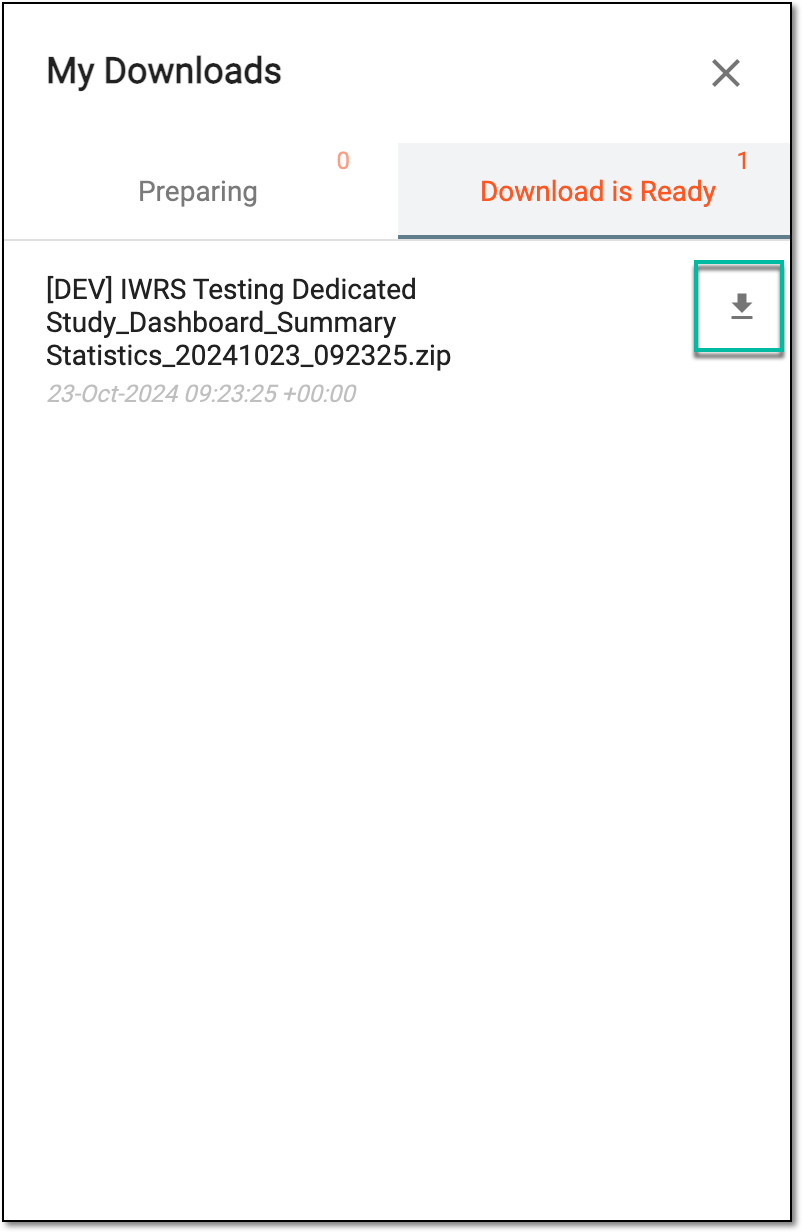 Figure 5. Downloading exported report file
Once downloaded, the report is available on your computer and can be used as per your business scenario.
Tip
You can also download any previously exported report versions using the Export History  functionality.