Analyze subject enrollment statistics
The Subject Enrollment dashboard comprises statistics on the current subject distribution between dispositions, dynamics of disposition changes over time, and rates of subject dropouts and screen failures for study and site levels of data.
The subject enrollment statistics are represented with a series of line charts. Line charts show information that changes over time by connecting individual data points with lines, allowing viewers to detect trends, patterns, and fluctuations.
-
In the CTMS application header, select the DASHBOARD tab.
-
On the page that opens, select the Study Insights tab.
-
From the Category dropdown menu, select the Subject > Subject Enrollment category of reports.
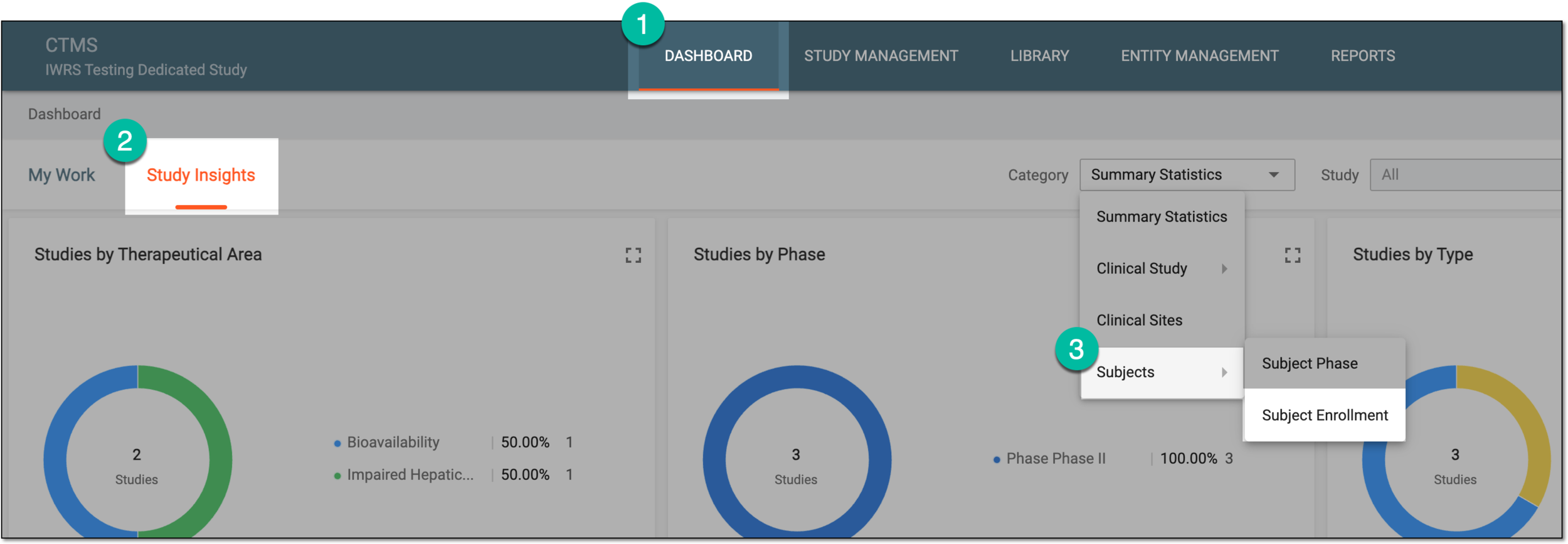 Figure 1. Accessing subject enrollment statistics
-
From the Study dropdown menu, select the study for which you want to review the statistics.
Optionally, from the Site dropdown menu, select the specific site for which you want to review the statistics.
 Figure 2. Selecting study and site for subject enrollment statistics
-
In the charts of the Subject Phase dashboard, analyze the details as explained in the following table.
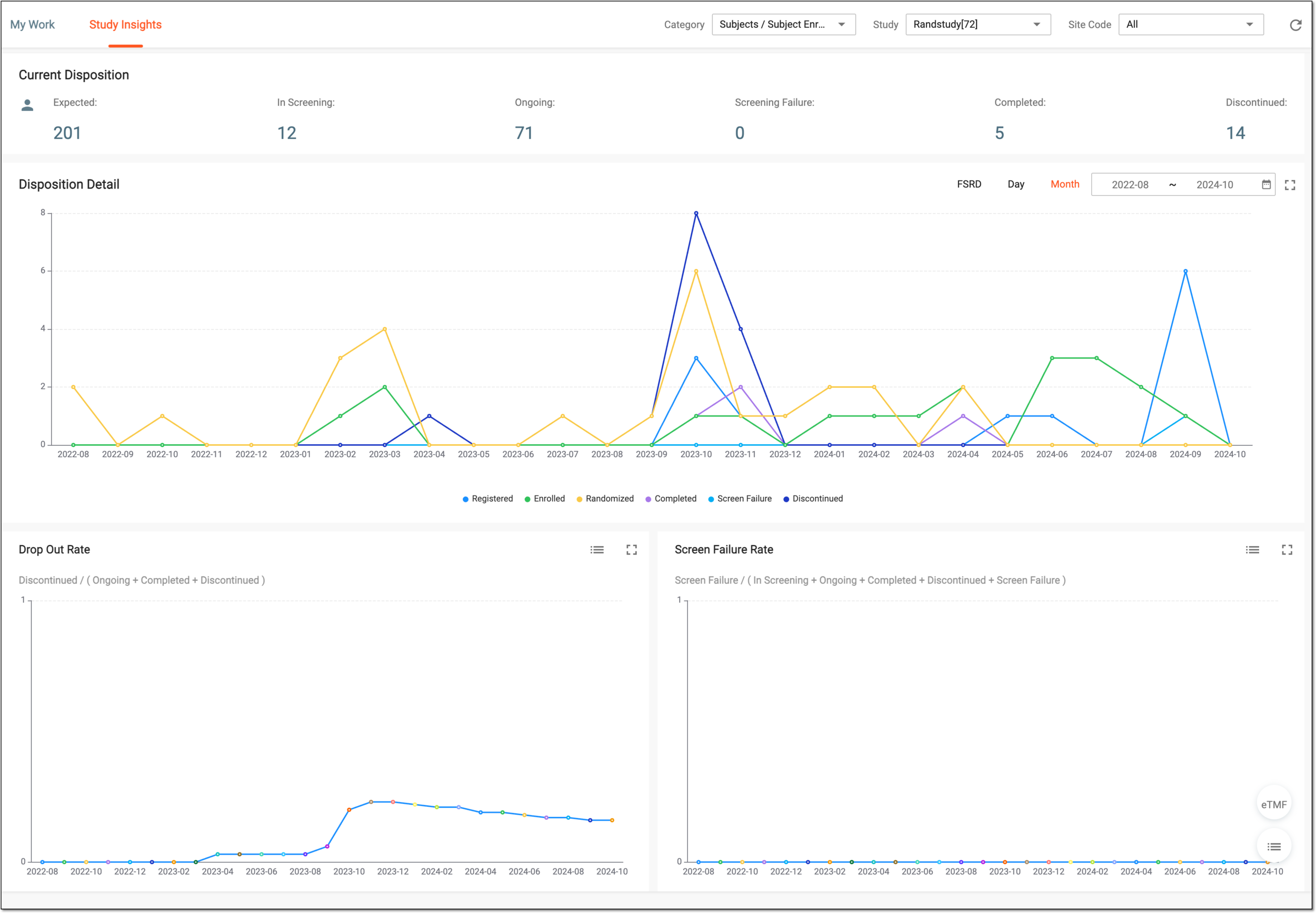 Figure 3. Analyzing subject enrollment statistics
Chart
Details
Current Disposition
Represents the numeric dashboard that depicts the current count of subjects in each disposition—Expected, In Screening, Ongoing, Screening Failure, Completed, and Discontinued. This helps you see the most recent subject distribution in a study, thus analyzing the progression of subject recruitment and management.
Disposition Detail
Represents the line chart that depicts the dynamics of subject division between dispositions over time. This helps you analyze the number of subjects in each disposition at a certain timeframe as well as detect the trends of subject maintenance in the study.
To customize the depicted chart data, select the FSRD (the first date of subject registration), Day, or Month value, or select the custom time frame. This helps you get more focused data and analyze trends for the period of your interest.
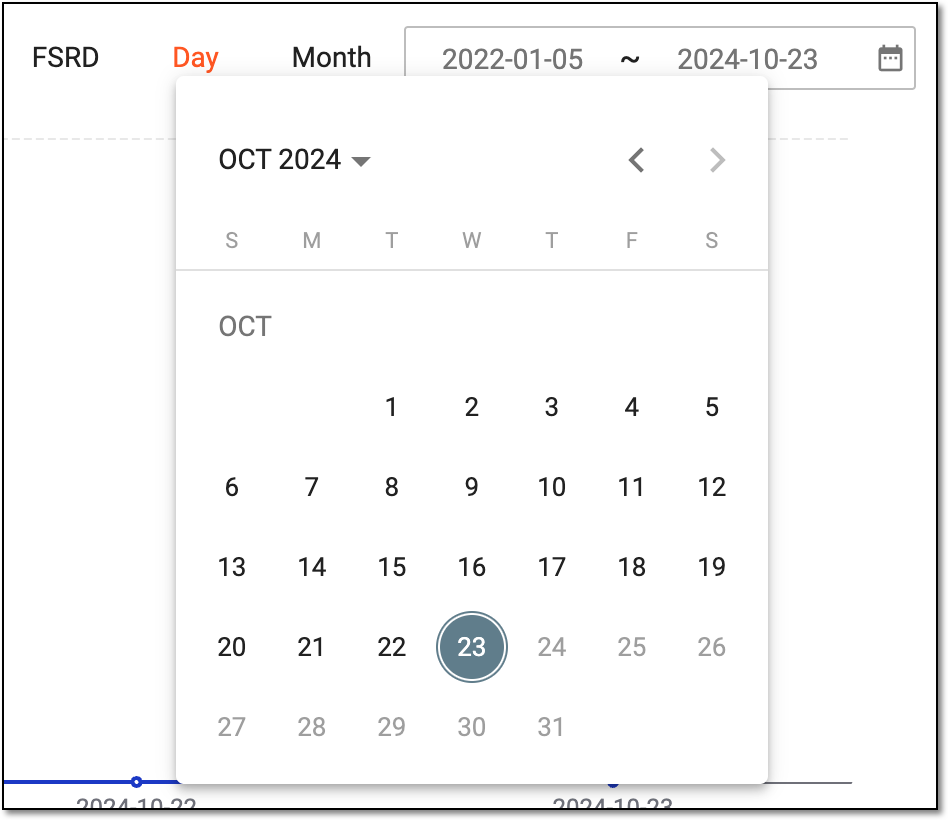 Figure 4. Selecting data review period
Drop Out Rate
Represents the line chart that depicts the monthly mean numbers of subjects who were discontinued—dropped out—from the study due to various reasons, such as health issues, relocation, or else.
The value for the monthly dropout rate is calculated by the following formula:
Discontinued / (Ongoing + Completed + Discontinued)
Screen Failure Rate
Represents the line chart that depicts the monthly mean number of subjects who did not pass—failed—the study screening process due to various reasons, such as not meeting the requirements, disagreeing with protocol-established procedures, or else.
The value for the monthly screen failure rate is calculated by the following formula:
Screen Failure / (In Screening + Ongoing + Completed + Discontinued + Screen Failure)
Tip
Optionally, from the bottom right, you can select the following options:
-
eTMF: select to access the study's overview in the Electronic Trial Master File (eTMF) application.
-
Show Reports
 : select to access the subject details presented in the table-view report for your
convenience.
: select to access the subject details presented in the table-view report for your
convenience.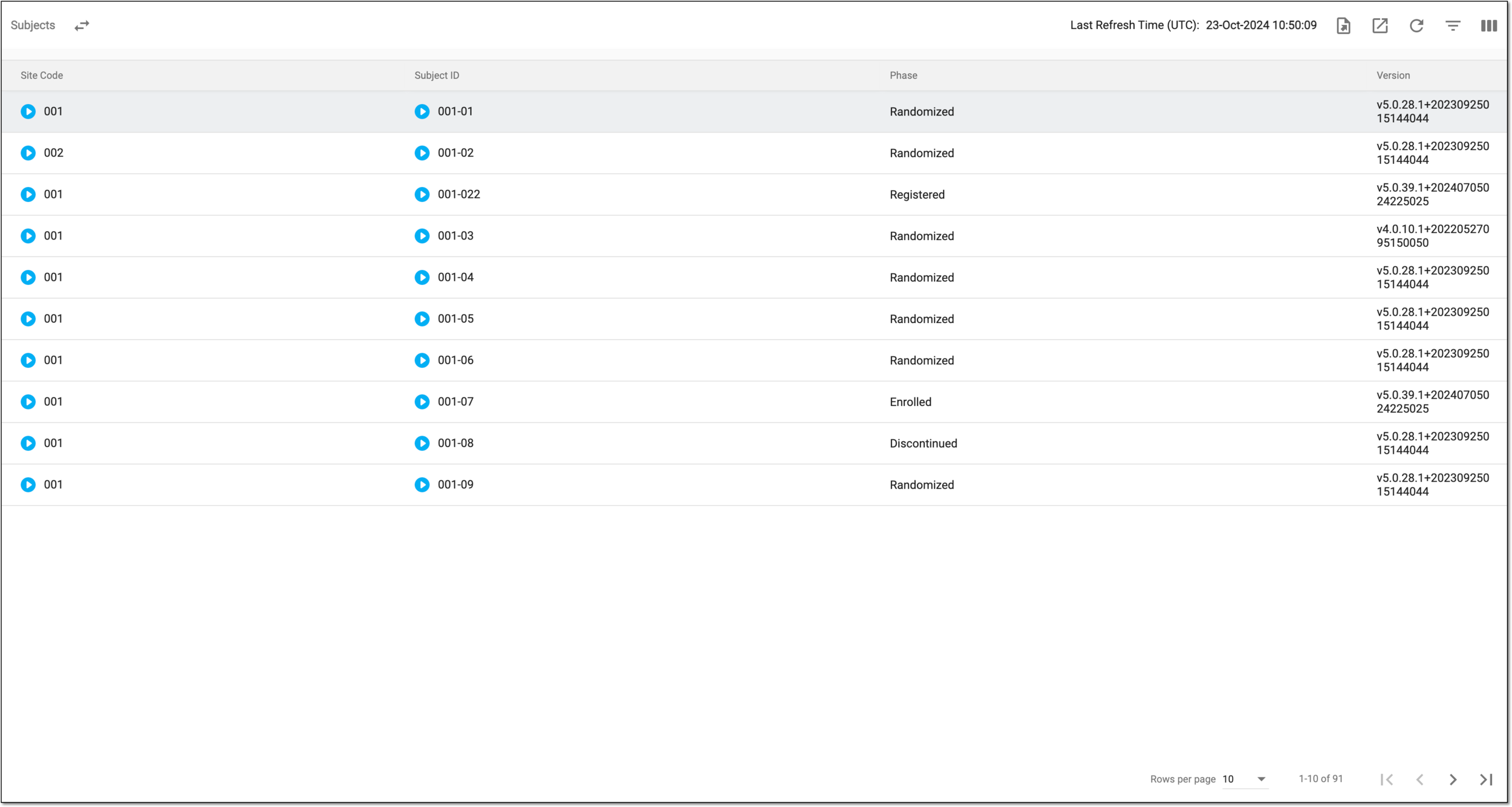 Figure 5. Reviewing subject details
If required, you can also export the data displayed in this table.
Click Show Charts
 to go back to the chart view.
-
You have reviewed the subject enrollment statistics for a study. You can also export the report details if you prefer working with data offline.