Analyze study quality control statistics
The Study Quality Control dashboard comprises statistics on various monitoring activities for your study.
Monitoring refers to the process of inspecting and managing clinical trial activities. Using the CTMS system, clinical research associates (CRA) can manage and control various aspects of the trial to ensure the quality and timeliness of all activities and avoid potential risks. During monitoring, some findings might show protocol deviations of various severity. The process of monitoring and handling protocol deviations is depicted in the Study Quality Control dashboard so that the sponsor has a complete picture and can analyze the current aspects of the study that require attention and quality enhancement.
The study quality control statistics are represented by pie charts and bar charts. Pie charts show the proportions of a whole with each slice representing a category’s contribution to the total. Bar charts compare different categories or groups with each bar representing a category’s value. These charts are best for depicting trends or comparing multiple categories.
-
In the CTMS application header, select the DASHBOARD tab.
-
On the page that opens, select the Study Insights tab.
-
From the Category dropdown menu, select the Clinical Study > Study Quality Control category of reports.
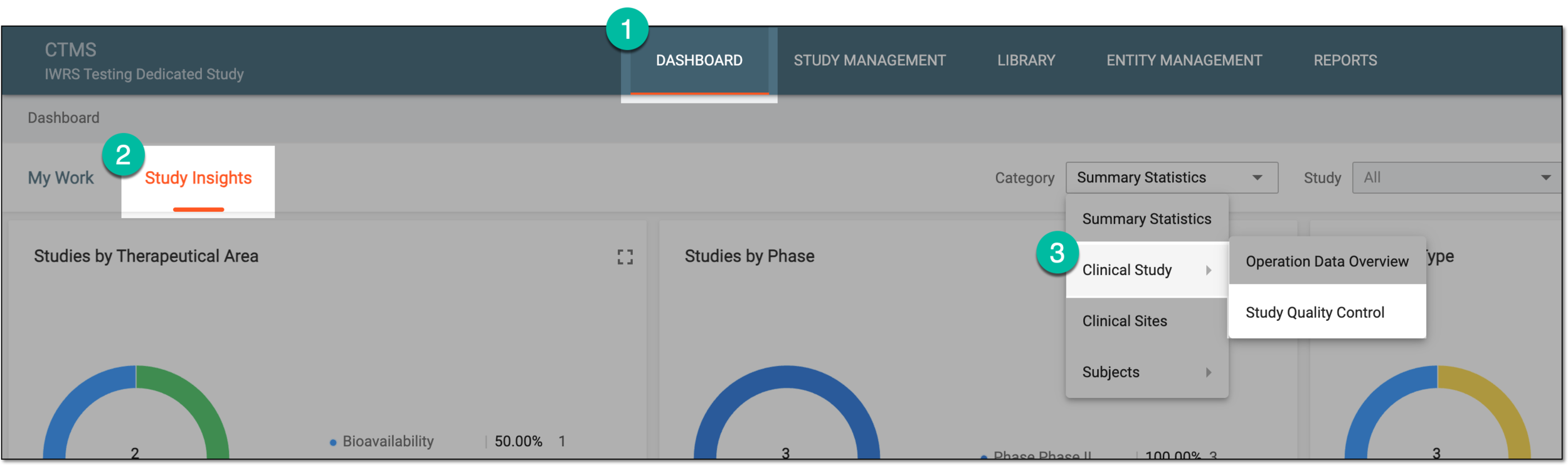 Figure 1. Accessing study quality control statistics
-
From the Study dropdown menu, select the study for which you want to review the statistics.
Optionally, from the Site dropdown menu, select the specific site for which you want to review the statistics.
 Figure 2. Selecting study and site for quality control statistics
-
In the charts of the Study Quality Control dashboard, analyze the details as explained in the following table.
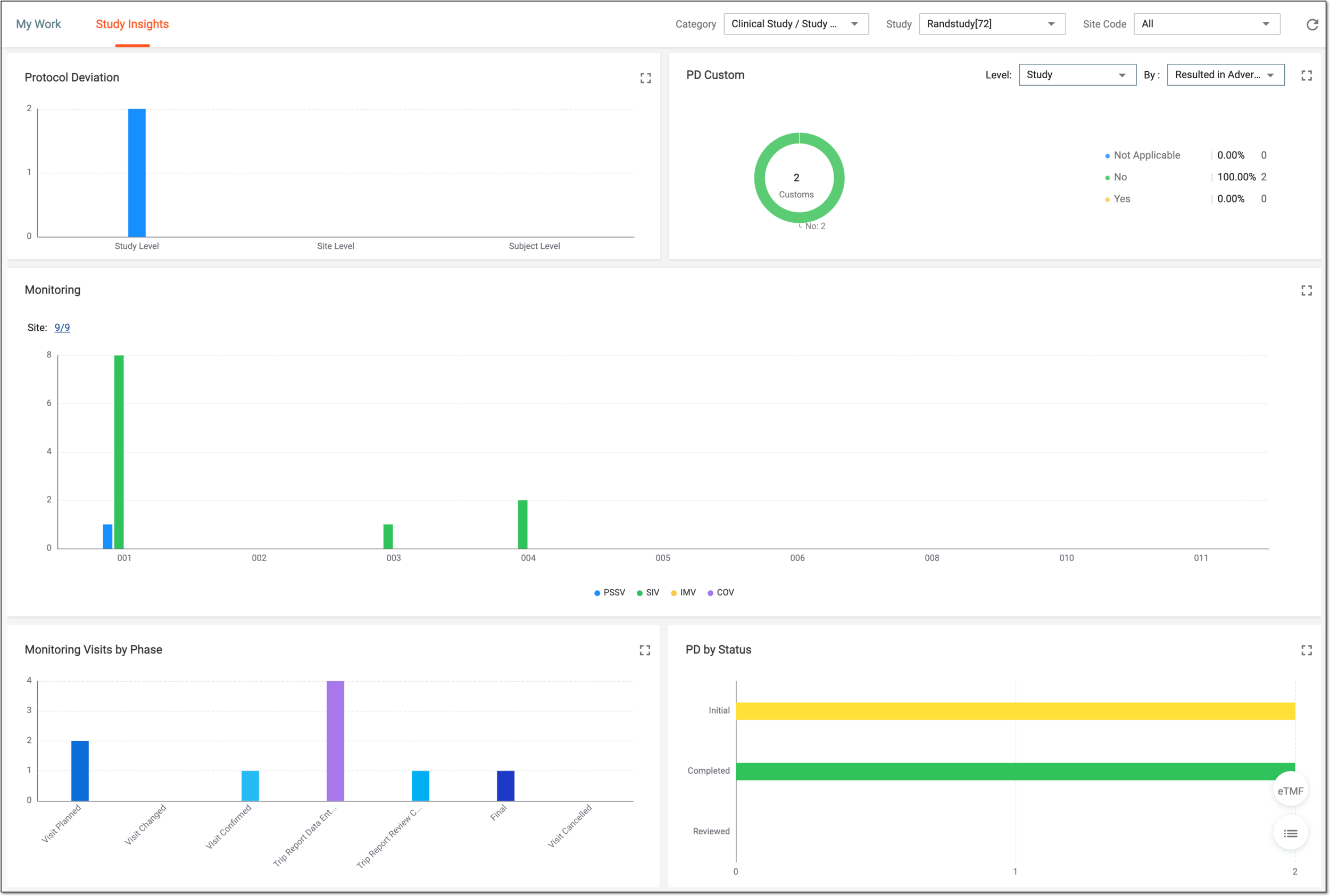 Figure 3. Analyzing study quality control statistics charts
Chart
Details
Protocol Deviation
Represents the bar chart that depicts the number of registered protocol deviations at the study, site, and subject levels. This helps you understand the statistics of protocol breaches and take measures to eliminate them.
An example of study-level protocol deviation can be the administering of drug dosage different from the one established by protocol by all the study sites.
An example of site-level protocol deviation can be the recruitment of a patient who does not meet requirements established by protocol at a certain site.
An example of subject-level protocol deviation can be the subject taking additional medications that they are supposed to stop taking upon entering the study as a participant.
PD Custom
Represents the pie chart that depicts the number of registered custom protocol deviations at the study, site, and subject levels. Custom deviation refers to a situation that departs from the established protocol. Custom deviation can be introduced to suit specific study needs or circumstances.
For instance, the sponsor can have a custom category of protocol deviations that caused the adverse event or prevented the subject from participating in the study.
To customize the chart data, select the needed parameters from the Level and By dropdown menus.
Monitoring
Represents the bar chart that depicts the statistics on all monitoring visit types per each study site. The monitoring type can be one of the following: PSSV (Pre-Study Site Visit), SIV (Site Initiation Visit), IMV (Interim Monitoring Visit), or COV (Close Out Visit).
To customize the depicted chart data, select the Site value. Then in the dialog that opens, select the sites for which you want to review monitoring statistics and save the applied changes.
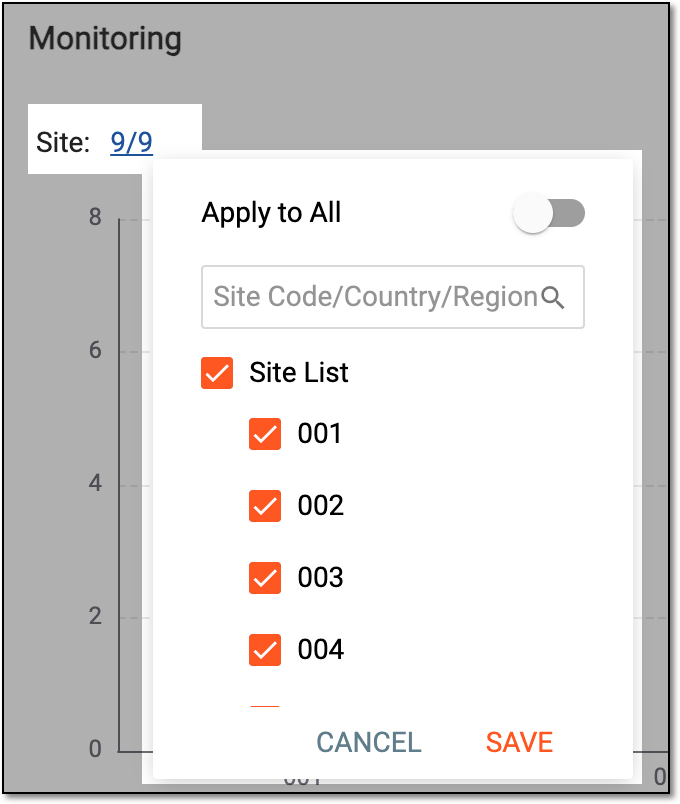 Figure 4. Selecting sites to adjust monitoring chart statistics
Monitoring Visits by Phase
Represents the bar chart that depicts the statistics on monitoring visits at various stages—planning, amendment, trip report completion, finalization, and so on.
PD by Status
Represents the bar chart that depicts the statistics on protocol deviations of various statuses—initial, completed, reviewed, or else.
Tip
Optionally, from the bottom right, you can select the following options:
-
eTMF: select to access the study's overview in the Electronic Trial Master File (eTMF) application.
-
Show Reports
 : select to access the reports pertinent to study quality control presented in
table-view for your convenience. Switch between the available tabs to access and review all the data.
: select to access the reports pertinent to study quality control presented in
table-view for your convenience. Switch between the available tabs to access and review all the data.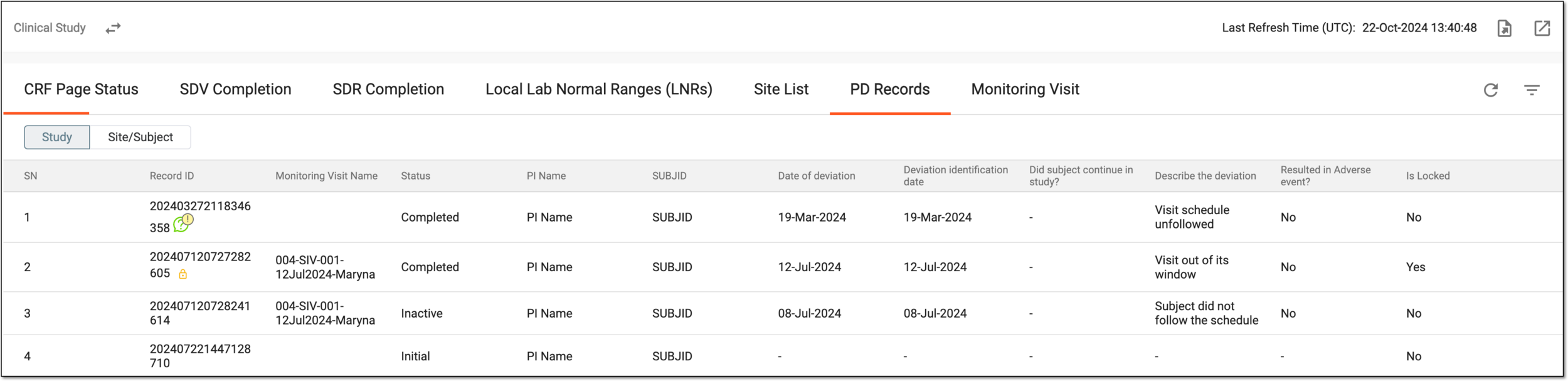 Figure 5. Reviewing study quality control reports
If required, you can also export the data displayed in this table.
Click Show Charts
 to go back to the chart view.
-
You have reviewed the study quality control statistics for a study. You can also export the report details if you prefer working with data offline.