Analyze clinical site issues and action items
The Clinical Sites dashboard comprises statistics on various issues and action items created and handled at all sites involved in the clinical trial.
Issues are the findings encountered during monitoring visits to the site, for instance, discovering incorrect data records or other inconsistencies in site activities.
Action items are the measures taken to resolve or address issues encountered at sites.
The clinical site issues and action items statistics are represented by various chart types, such as bar, pie, area, and line charts intended to depict statistical trends or compare multiple categories of data for a visual representation of your study activities.
Pie charts show the proportions of a whole with each slice representing a category’s contribution to the total.
Bar charts compare different categories or groups with each bar representing a category’s value.
Area charts depict trends with each colored area visualizing patterns, increases, or decreases in the data over time.
Line charts show information that changes over time by connecting individual data points with lines, allowing viewers to detect trends, patterns, and fluctuations.
-
In the CTMS application header, select the DASHBOARD tab.
-
On the page that opens, select the Study Insights tab.
-
From the Category dropdown menu, select the Clinical Sites category of reports.
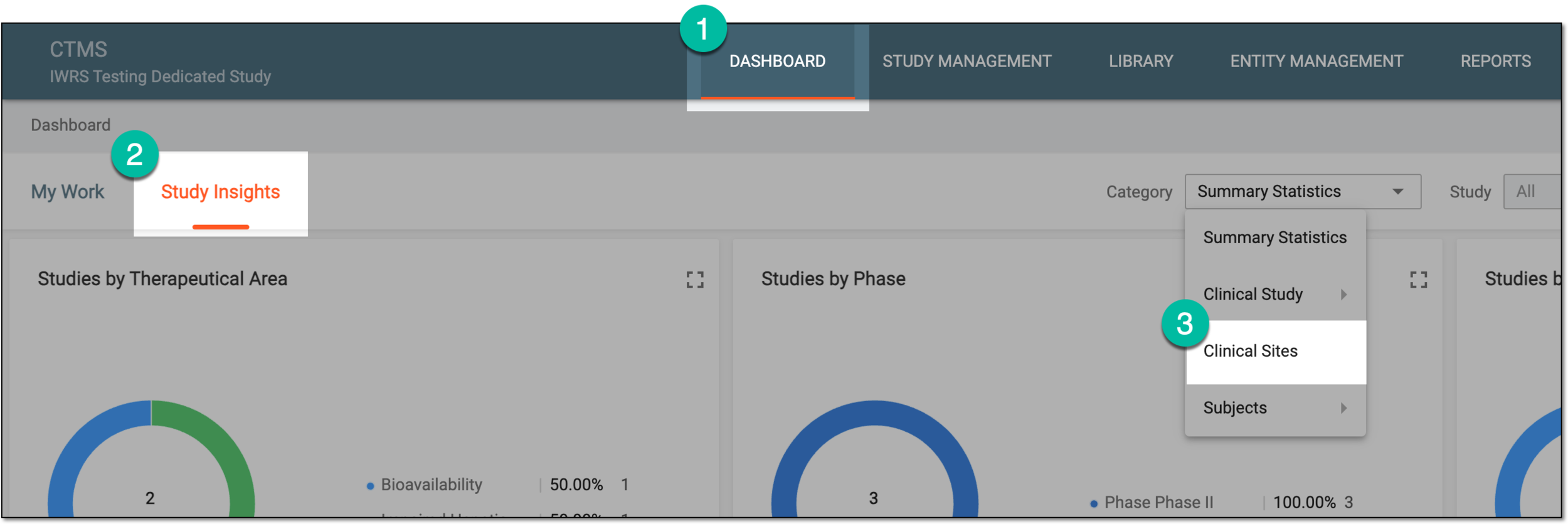 Figure 1. Accessing clinical sites statistics
-
From the Study dropdown menu, select the study for which you want to review the statistics.
Optionally, from the Site dropdown menu, select the specific site for which you want to review the statistics.
 Figure 2. Selecting study and site for clinical site statistics
-
In the charts of the Clinical Sites dashboard, analyze the details as explained in the following table.
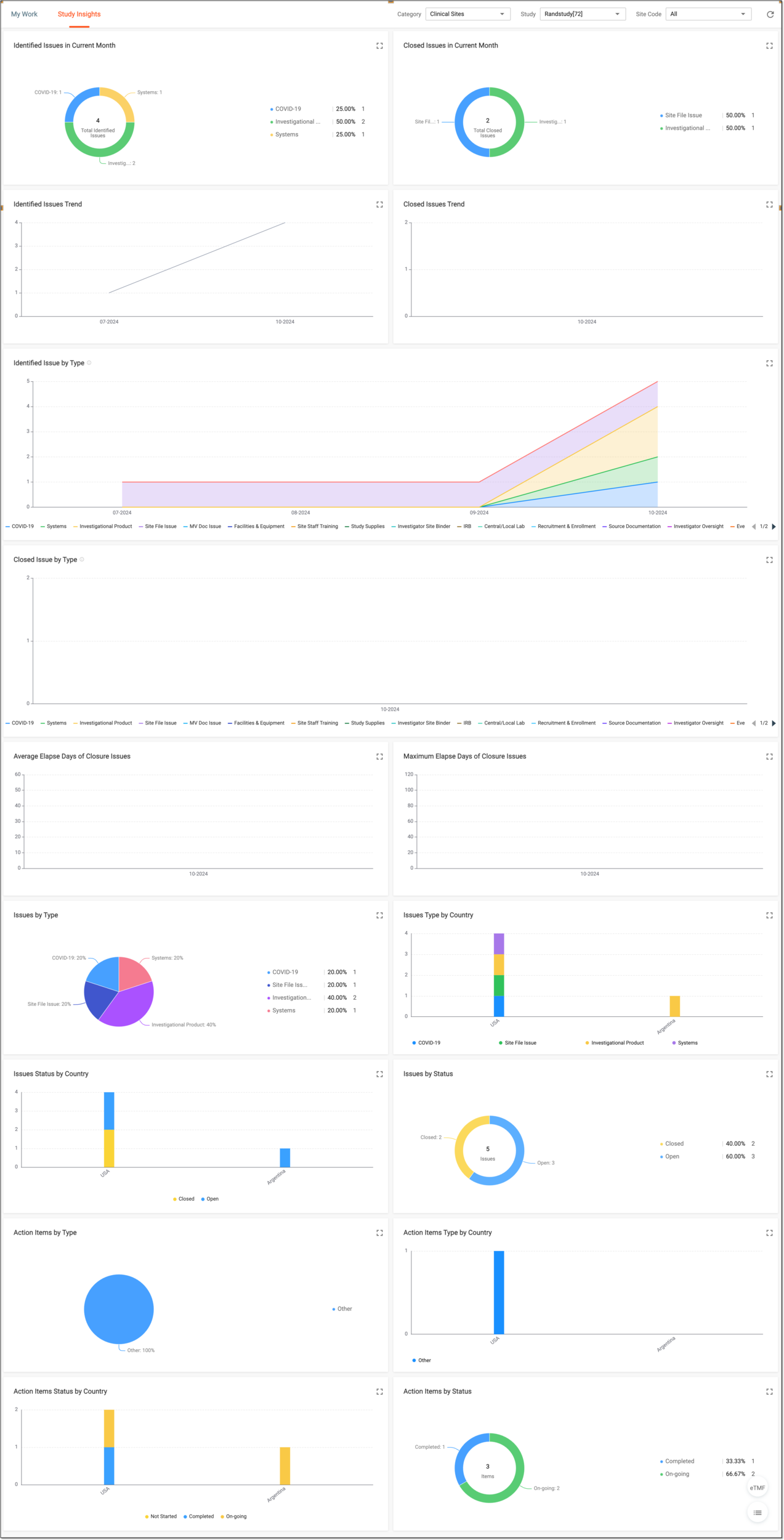 Figure 3. Analyzing site issues and action items charts
Tip
Hover over the chart to see tooltips and more details on each statistic.
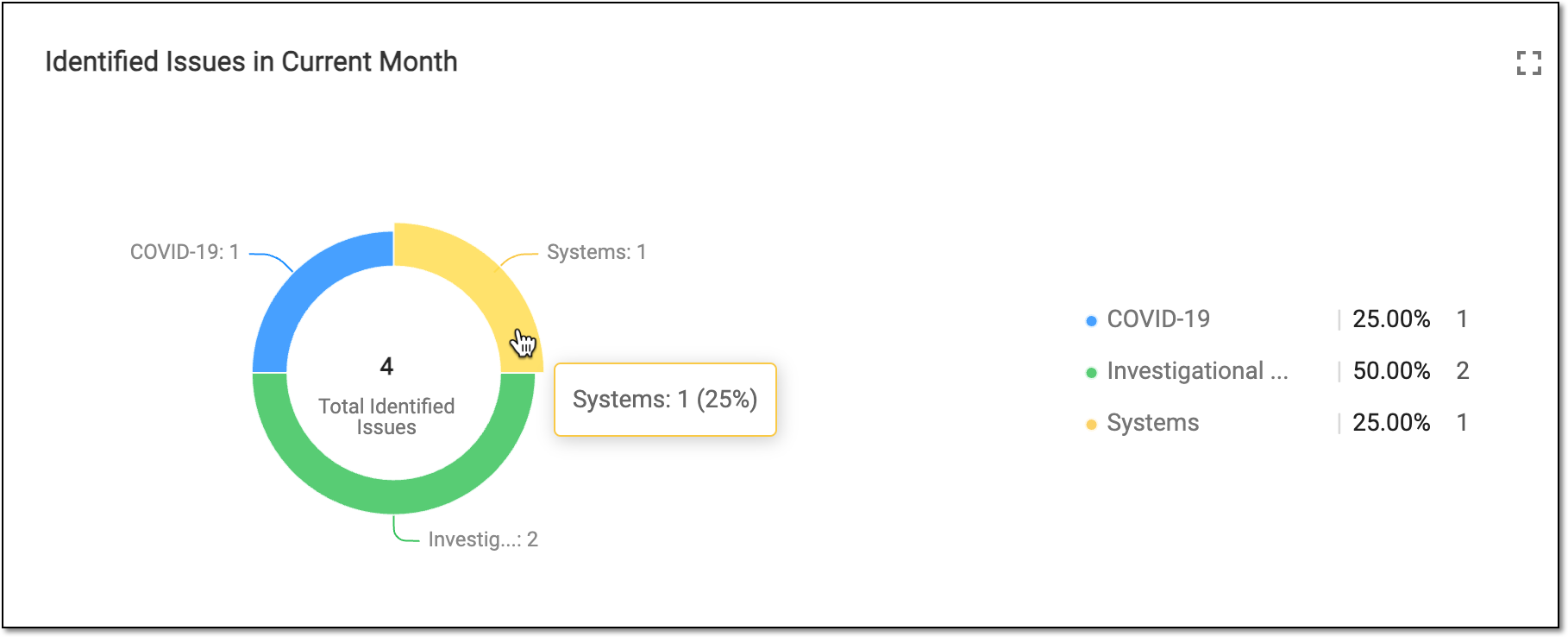 Figure 4. Hovering over chart to show details
Chart
Details
Identified Issues in Current Month
Represents the pie chart that depicts the proportion of different types of issues opened during the current calendar month.
Closed Issues in Current Month
Represents the pie chart that depicts the proportion of different types of issues closed during the current calendar month.
Identified Issues Trend
Represents the line chart that depicts the tendency of issues being opened over time. Using this chart you can detect if the number of identified issues at sites is increasing or decreasing over time.
Closed Issues Trend
Represents the line chart that depicts the tendency of issues being closed over time. Using this chart you can detect if the number of resolved issues at sites is increasing or decreasing over time.
Identified Issue by Type
Represents the area chart that depicts the tendency of creating various issues by type. This helps you analyze how many issues of different types were encountered in your study during a certain period.
Closed Issue by Type
Represents the area chart that depicts the tendency of closing various issues by type. This helps you analyze how many issues of different types were resolved in your study during a certain period.
Average Elapse Days of Closure Issues
Represents the line chart that depicts the tendency of time spent to resolve issues. Using this chart you can detect if the average time that the study team spends on resolving issues is increasing or decreasing over time.
Maximum Elapse Days of Closure Issues
Represents the line chart that depicts the tendency of time-consuming issues. Using this chart you can detect if the maximum time that the study team spends on resolving issues is increasing or decreasing over time, thus, understand if the time-consuming issue resolution occurs faster or slower.
Issues by Type
Represents the pie chart that depicts the proportion of different types of issues opened for the entire time of the study. This helps you analyze the most common and rare issue types occurring for your trial.
Issues Type by Country
Represents the bar chart that depicts the proportion of different types of issues opened in each country or region where the study is conducted. This helps you analyze the issue types pertinent to various geographic regions.
Issues Status by Country
Represents the bar chart that depicts the number of issues in different statuses—opened or closed—in each country or region where the study is conducted. This helps you analyze the issue resolution statistics in various geographic regions.
Issues by Status
Represents the pie chart that depicts the proportion of issues in different statuses—opened or closed—in the entire study. This helps you analyze the study-wide issue resolution statistics.
Action Items by Type
Represents the pie chart that depicts the proportion of action items of different types for the entire study. This helps you analyze the study-wide statistics of actions taken to resolve various issues and understand which measures are taken the most.
Action Items Type by Country
Represents the bar chart that depicts the number of action items of different types in each country or region where the study is conducted. This helps you analyze the statistics of actions taken to resolve various issues and understand which measures are the most required in various geographic regions.
Action Items Status by Country
Represents the bar chart that depicts the number of action items of different status—ongoing, planned, or completed—in each country or region where the study is conducted. This helps you analyze the statistics of actions taken to resolve various issues and understand the current stage of issue-resolution procedures per geographic region.
Action Items by Status
Represents the pie chart that depicts the proportion of action items in different statuses—ongoing, planned, or completed—in the entire study. This helps you analyze the study-wide statistics and understand the current state of issue-resolution procedures.
Tip
Optionally, from the bottom right, you can select the following options:
-
eTMF: select to access the study's overview in the Electronic Trial Master File (eTMF) application.
-
Show Reports
 : select to access the reports pertinent to site issues presented in table-view for
your convenience. Switch between the available tabs to access and review all the data.
: select to access the reports pertinent to site issues presented in table-view for
your convenience. Switch between the available tabs to access and review all the data.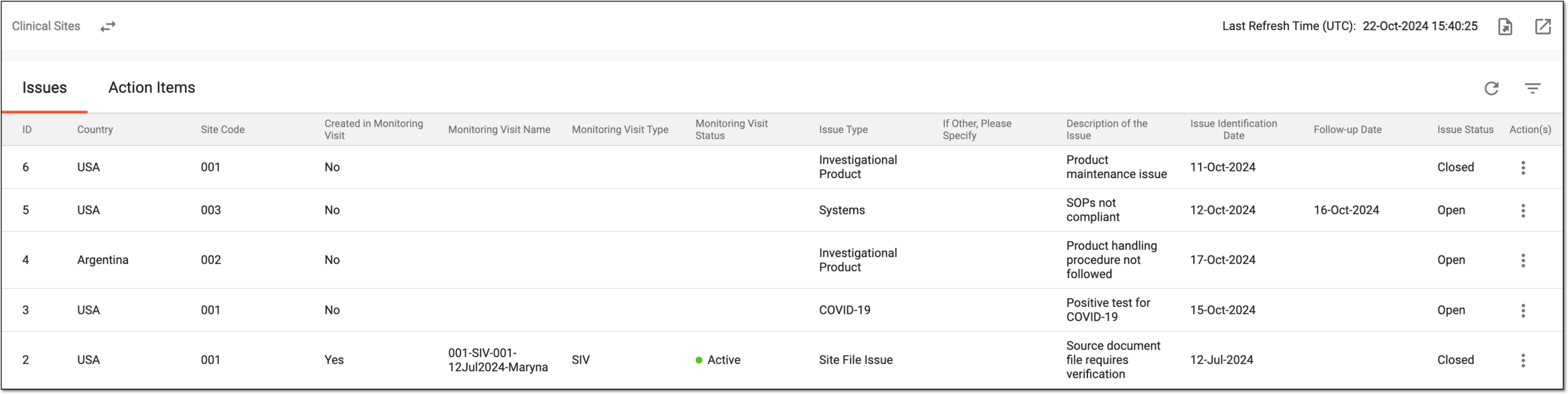 Figure 5. Reviewing clinical site issues and action items
If required, you can also export the data displayed in this table.
Click Show Charts
 to go back to the chart view.
-
You have reviewed the clinical site issue and action item statistics for a study. You can also export the report details if you prefer working with data offline.